
WordPress plugins that cause errors can be difficult to identify, especially when your website was working perfectly before an update.
Even trusted plugins can create problems when they conflict with other tools, use incompatible code, or have incorrect settings.
A plugin might slow down your website, break a page layout, block an important request, or cause a critical PHP error. Sometimes, the problem starts immediately after an update. Other times, two plugins interfere with each other even though both work normally on their own.
Not every plugin that causes an error is dangerous. A trusted plugin can break because of a compatibility problem, while an untrusted or compromised plugin may create a real security risk.
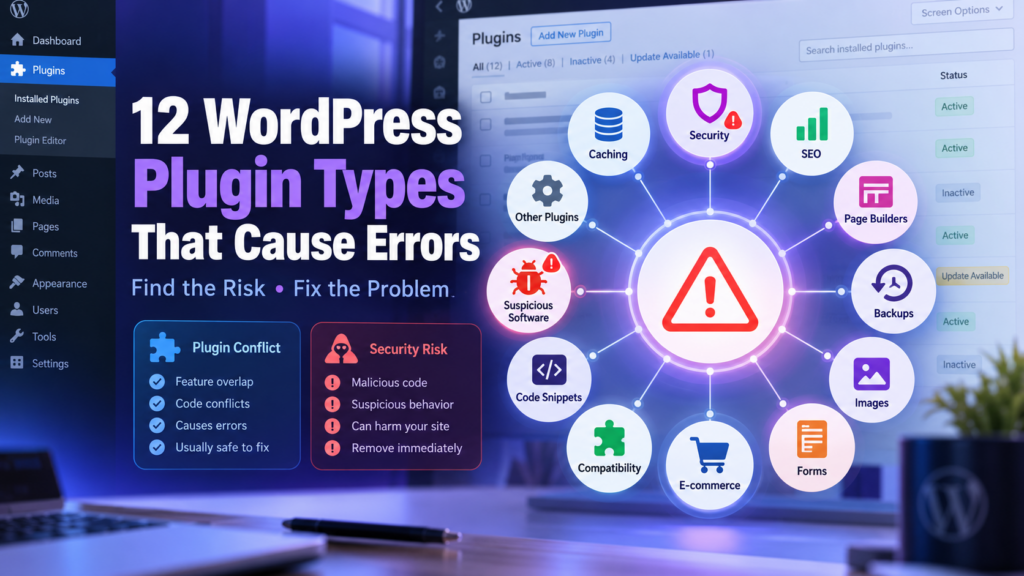
This guide covers 12 types of WordPress plugins that can cause errors, the warning signs to look for, and practical ways to fix them safely.
You will also learn when to update a plugin, adjust its settings, replace it, or remove it completely.
Quick Answer: Which WordPress Plugins Can Cause Problems?
The most important thing is to identify the type of plugin involved and the exact feature that stopped working.
| Plugin type | Possible problem | First check |
| 1. Abandoned plugins | Security or compatibility concerns | Maintenance and updates |
| 2. Incompatible plugins | PHP fatal errors | WordPress/PHP requirements |
| 3. Cache and optimization plugins | Broken layouts or stale pages | Cache and optimization settings |
| 4. Security and firewall plugins | 403 errors or login lockouts | Security logs and blocking rules |
| 5. SEO and redirect plugins | Redirect loops or incorrect URLs | Redirect and canonical settings |
| 6. Page builders and add-ons | Missing design elements | JavaScript and CSS conflicts |
| 7. Backup and migration plugins | Timeouts or memory exhaustion | Server resources and task logs |
| 8. Image optimization plugins | Broken images or upload problems | Conversion and image paths |
| 9. Contact form and SMTP plugins | Missing emails or failed forms | Sending and delivery settings |
| 10. E-commerce plugins and add-ons | Checkout or payment failures | Gateway and order logs |
| 11. Code snippet plugins | Syntax and critical errors | Recently added code |
| 12. Nulled or untrusted plugins | Malware or unauthorized changes | Plugin source and integrity |
A plugin category is not automatically unsafe. The risk depends on the particular software, version, configuration, and hosting environment.
Before You Blame a WordPress Plugin, Check These Things
A plugin may appear responsible for an error that actually comes from PHP, hosting, a theme, or WordPress itself.
Before making changes:
- Create a fresh backup of your website files and database.
- Record the exact error message and affected URL.
- Check which plugins or themes were recently installed or updated.
- Confirm whether the problem affects the entire website or one feature.
- Review your current WordPress and PHP versions.
- Use a staging site for changes that could interrupt visitors.
If your store accepts orders or your website handles bookings, do not casually deactivate essential plugins on the live site.
Start with evidence and test one change at a time.
How to Identify a Suspected Plugin
Open Plugins → Installed Plugins in WordPress.
Check the plugin’s name, version, available updates, developer details, and compatibility information.
If the problem began immediately after one plugin changed, investigate that plugin first.
A timing match is useful evidence, but it does not prove the plugin caused the failure. You still need to test the suspected component.
1. Abandoned or Unmaintained WordPress Plugins
An abandoned plugin is one that no longer receives the maintenance needed to keep it compatible and secure.
This can become a problem when WordPress, PHP, or other plugins continue changing while the abandoned plugin stays the same.
Warning Signs
- No meaningful maintenance for a long period
- Unanswered support requests
- Compatibility problems after updates
- Broken settings pages
- Known security issues without an available fix
A plugin with an old update date is not automatically vulnerable. Simple plugins can remain stable for long periods. Look for multiple warning signs rather than relying only on the date.
How to Fix the Problem
- Visit the plugin’s official listing or developer website.
- Check supported WordPress and PHP versions.
- Review recent support and release information.
- Check for known vulnerabilities affecting your installed version.
- Test an actively maintained replacement on staging if the plugin appears unsupported.
Before removing an old plugin, identify what it does.
Deleting a plugin that controls shortcodes, forms, custom fields, or other content may leave parts of your website broken.
Best decision: Replace unsupported software when its maintenance or security risk cannot be reasonably managed.
2. Plugins That Are Incompatible With Your WordPress or PHP Version
A plugin may be well maintained but incompatible with your current environment.
For example, a plugin may require a newer PHP version or depend on a WordPress feature that is unavailable on your site.
The reverse can also happen: a plugin may not yet support a newly installed version of PHP or WordPress.
Common Symptoms
- “There has been a critical error on this website”
- Plugin activation fails
- A PHP fatal error appears in the logs
- Admin screens stop loading
- A feature breaks immediately after a version update
How to Fix It
- Check the plugin’s published requirements.
- Compare them with your WordPress and PHP versions.
- Read the plugin’s changelog for compatibility information.
- Check hosting and PHP error logs for the failing function or file.
- Test a compatible plugin update or environment change on staging.
Do not downgrade your entire production server or install an older plugin version without checking security and compatibility risks.
If your website shows a critical error, follow our WordPress Critical Error troubleshooting guide.
Best decision: Use a supported combination of WordPress, PHP, themes, and plugins.
3. Caching and Performance Optimization Plugins
Caching plugins can improve website speed by saving content or reducing the work needed to generate pages.
However, overlapping caching and optimization settings can cause unexpected results.
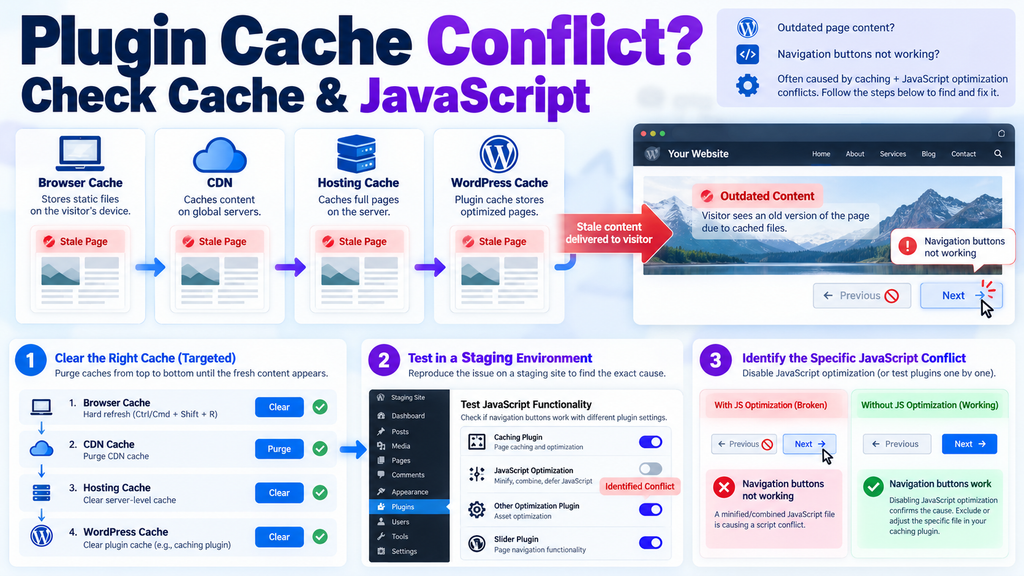
For example, a cached page may show old content even after you update it. A JavaScript optimization feature may also change the order in which scripts load.
Common Problems
- Changes do not appear on the frontend
- Menus or buttons stop responding
- Forms display outdated information
- CSS changes break a page layout
- Dynamic content is cached incorrectly
How to Fix It
Start by identifying which caching layers your website uses.
These may include a WordPress plugin, hosting cache, CDN, and browser cache.
Then:
- Open the affected page in a private browser window.
- Purge the relevant cached page.
- Test whether the problem disappears.
- If it remains, disable one suspected optimization feature on staging.
- Check script exclusions, CSS processing, and cache rules.
For example, if a menu stops working after enabling JavaScript optimization, test that option before disabling any caching features.
Do not run multiple full-page caching systems with conflicting settings unless they are intentionally configured to work together.
Best decision: Keep the caching setup that works reliably and remove unnecessary overlap.
4. Security and Firewall Plugins That Block Legitimate Requests
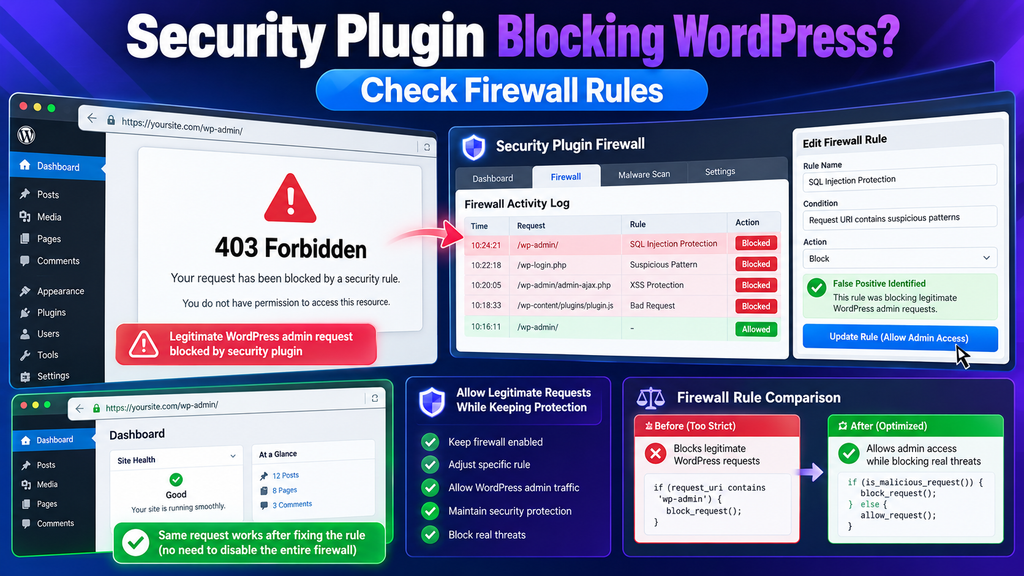
Security plugins may block suspicious requests, limit login attempts, restrict certain URLs, or apply firewall rules.
These features can protect your website, but overly strict settings can also block legitimate visitors or WordPress functions.
Warning Signs
- A legitimate administrator cannot log in
- A form or API request returns 403 Forbidden
- REST API features fail
- Page editing or saving stops working
- Certain visitors cannot access the website
A 403 response does not prove the security plugin is responsible. Hosting rules, a CDN firewall, or filesystem access controls may produce similar symptoms.
How to Fix It
- Record the blocked URL and error time.
- Check the security plugin’s firewall or activity logs.
- Identify the rule that blocked the request.
- Verify that the request is legitimate.
- Adjust only the confirmed false-positive rule.
- Retest the affected operation.
Avoid disabling the entire firewall as a permanent workaround.
If the WordPress editor cannot save because an API request is blocked, see our WordPress REST API Error guide.
Best decision: Keep appropriate security protection while correcting confirmed false-positive blocks.
5. SEO and Redirect Plugins With Conflicting Rules
SEO plugins help manage metadata, sitemaps, canonical URLs, and sometimes redirects.
Problems can occur when two tools manage the same URL rules or when an old redirect points to the wrong destination.
Common Symptoms
- A page enters a redirect loop
- A URL unexpectedly redirects elsewhere
- The wrong canonical URL appears
- Old redirects send visitors to irrelevant pages
- A sitemap includes unexpected URLs
How to Fix It
- Identify which plugin or server layer manages the affected redirect.
- Check the source URL and destination.
- Review wildcard and regular-expression rules.
- Check for duplicate rules in other plugins or hosting settings.
- Test the final HTTP status and canonical URL.
Do not assume every WordPress 404 is caused by an SEO plugin. First confirm that the page exists and check the permalink system.
Our 404 Error troubleshooting guide explains how to handle genuinely missing pages and moved URLs.
Best decision: Use clear ownership of redirect and SEO settings instead of several overlapping systems.
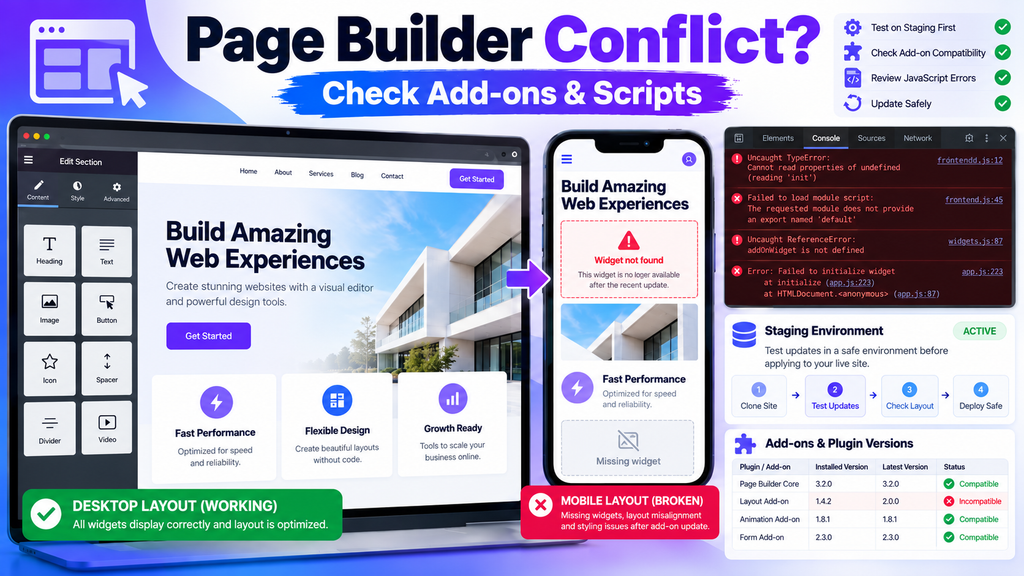
6. Page Builder Plugins and Add-ons
Page builders and their add-ons can create advanced layouts without requiring custom development.
But they may also introduce complex CSS, JavaScript, widgets, and dependencies.
An add-on that is incompatible with the main builder may stop individual elements from loading correctly.
Warning Signs
- Editor panels keep loading
- Widgets disappear
- Mobile layouts break
- Buttons or popups stop working
- A page looks different after an update
How to Fix It
- Check whether the builder and its add-ons are compatible.
- Reproduce the issue on staging.
- Inspect the browser console for JavaScript errors.
- Test the recently changed add-on.
- Check the builder’s official troubleshooting tools.
- Clear generated assets or cache only if appropriate for that builder.
Avoid randomly deleting CSS files or replacing builder data in the database.
A missing widget may be caused by a disabled dependency rather than a damaged page.
Best decision: Keep only the add-ons you need and maintain compatible versions.
7. Backup and Migration Plugins That Exhaust Server Resources
Backup and migration plugins may process thousands of files, compress large archives, export database tables, or transfer data.
These jobs can use substantial disk space, memory, CPU time, or temporary storage.
A plugin may fail because the server cannot support the operation, even when the plugin itself is working correctly.
Common Problems
- Backup stops partway through
- PHP memory limit is exhausted
- Maximum execution time is exceeded
- Disk space becomes full
- Scheduled backup fails
- A restore creates ownership or path problems
How to Fix It
- Check the backup or migration job log.
- Review available disk space and inode usage.
- Confirm the job has suitable memory and execution resources.
- Exclude unnecessary cache files or temporary archives where the plugin supports it.
- Use smaller backup batches or a supported alternative method if needed.
- Verify that completed backups can actually be restored.
Do not delete the only valid backup while trying to free space.
For detailed memory-limit troubleshooting, follow our WordPress Memory Exhausted Error guide.
Best decision: Use a backup method suitable for your website’s size and hosting resources.
8. Image Optimization and Media Plugins
Image optimization plugins can resize, compress, convert, or serve images in modern formats.
Problems usually arise from incorrect configuration, file-processing failures, or delivery rules.
Warning Signs
- Images disappear after optimization
- WebP or AVIF versions return 404
- Thumbnails look incorrect
- New media uploads fail
- Images work in WordPress but not on the frontend
How to Fix It
- Open the original image URL and the optimized image URL separately.
- Check whether the original file still exists.
- Confirm that the converted format is supported by the delivery setup.
- Review the plugin’s conversion and rewrite settings.
- Test with one image before processing the whole Media Library.
- Restore the original file if the optimized copy is damaged.
If all uploads fail, check WordPress media permissions, storage, and PHP configuration before blaming the optimization plugin.
See our WordPress Media Upload Error guide for those broader problems.
Best decision: Keep a reliable backup of the original image and use verified image-delivery settings.
9. Contact Form and SMTP Plugins
Contact forms and email plugins handle important messages such as customer inquiries, password resets, and notifications.
A form can show a success message even when the notification email is delayed, filtered, or never delivered.
That does not always mean the form plugin is broken.
Common Problems
- Form submission fails
- Confirmation appears but no email arrives
- SMTP authentication fails
- Messages go to spam
- Form entries are not stored
- CAPTCHA or another protection blocks legitimate submissions
How to Fix It
- Submit a test form.
- Check whether the submission actually succeeded.
- Review form and email logs, if available.
- Check the sender address and SMTP connection.
- Verify SPF, DKIM, and other relevant email authentication settings.
- Test whether security or CAPTCHA rules are blocking the request.
Remember that not every contact form plugin stores submissions in the WordPress database by default.
If email delivery is the problem, follow our WordPress Not Sending Emails guide.
Best decision: Test form processing and email delivery separately.
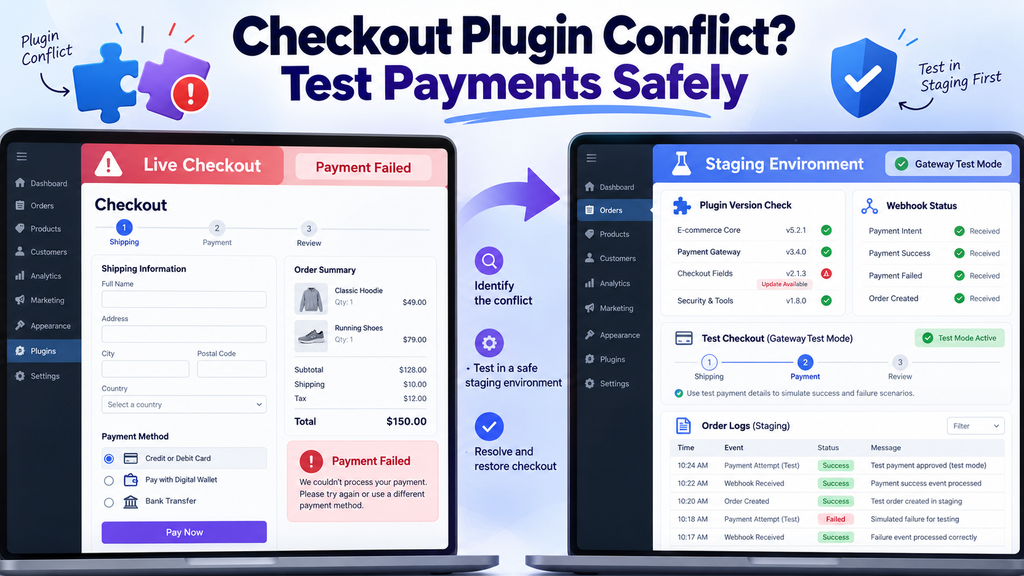
10. E-commerce and Checkout Add-on Plugins
E-commerce plugins and extensions can manage payments, shipping, taxes, subscriptions, and checkout features.
A conflict in these systems can interrupt customer transactions.
Unlike a small visual error, a checkout problem may affect real orders, payment records, and customer information.
Warning Signs
- Checkout page does not complete
- Payment returns an unexpected error
- Order status does not update
- Shipping or tax totals are incorrect
- Payment callbacks or webhooks fail
- Cart contents behave unexpectedly
How to Fix It
- Record the affected order or test transaction without exposing private customer data.
- Check the payment gateway and store logs.
- Verify plugin versions and required dependencies.
- Review webhook and callback status.
- Test suspected conflicts on a staging store using gateway test mode.
- Contact the extension or gateway provider if the transaction state is unclear.
Do not disable payment plugins or repeat real payment requests blindly on a live store. Doing so could interrupt checkouts or create transaction confusion.
Best decision: Prioritize payment safety and test fixes before changing production checkout settings.
11. Code Snippet and Custom Script Plugins
Code snippet plugins let website owners add custom PHP, JavaScript, or other code without editing the main theme directly.
They are useful tools, but an incorrect snippet can break part of a website or cause a fatal error.
Common Problems
- PHP syntax error
- Critical website error
- Admin dashboard becomes unavailable
- JavaScript conflicts with another feature
- Custom code runs on the wrong page
- Site behavior changes after a snippet edit
How to Fix It
If the problem began immediately after adding a snippet:
- Identify the most recent code change.
- Use the snippet plugin’s recovery or safe-mode feature if it provides one.
- Disable or revert the affected snippet.
- Review the logged file and line number when available.
- Test the corrected code on staging.
If the dashboard is inaccessible, use WordPress Recovery Mode or your hosting provider’s supported recovery method.
Avoid experimenting with untested PHP directly on a busy production website.
Best decision: Keep custom code documented, minimal, and tested.
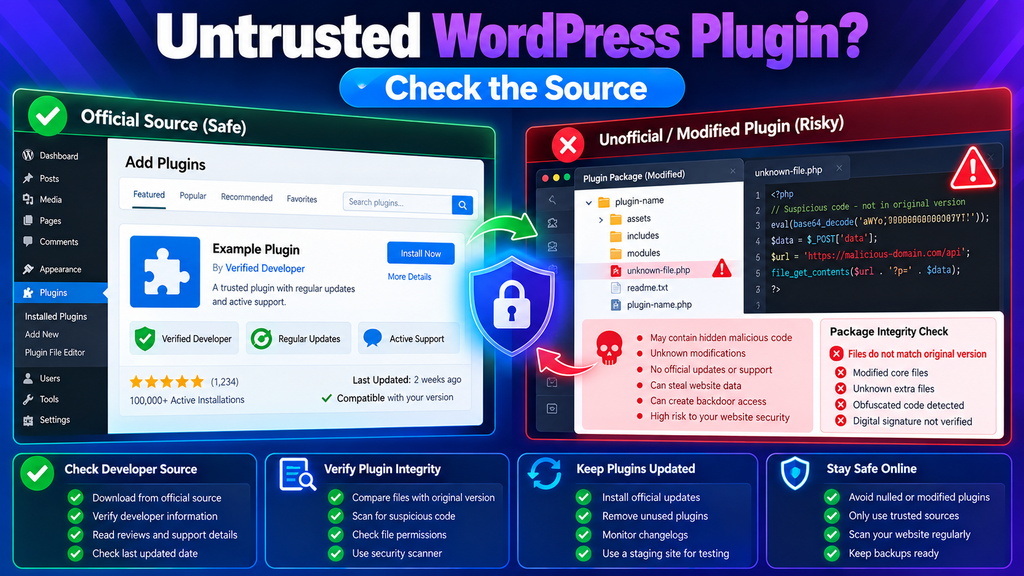
12. Nulled, Untrusted, or Known-Vulnerable Plugins
This category is different from an ordinary plugin conflict.
A nulled plugin is commonly an unofficial modified copy of commercial software. Some such packages may contain malicious changes or unwanted code.
Plugins from unknown sources can also carry security risks, and legitimate plugins may sometimes have publicly documented vulnerabilities that require urgent updates.
Warning Signs
- Plugin downloaded from an untrusted source
- Unexpected administrator accounts
- Unauthorized redirects or injected content
- Unknown files appearing in the website
- Suspicious external connections
- A confirmed security advisory affecting the installed version
These symptoms are warning signs, not proof that a particular plugin is malicious.
What to Do
- Identify the exact plugin, version, and download source.
- Check the developer’s security announcements and relevant advisories.
- If compromise is suspected, protect the site and preserve evidence before cleanup.
- Change affected credentials and review user accounts as part of a controlled incident response.
- Replace untrusted software with a verified package from an authorized source.
- Investigate whether the website has been modified elsewhere.
Simply deleting a suspicious plugin may not remove malware already placed in other website files or the database.
The safest sources are generally the official WordPress Plugin Directory and reputable developers’ official distribution channels.
For more information, see the WordPress Plugin Directory and its official plugin security reporting guidance.
Best decision: Remove unauthorized or compromised software through a careful cleanup process, not a quick delete-and-forget approach.
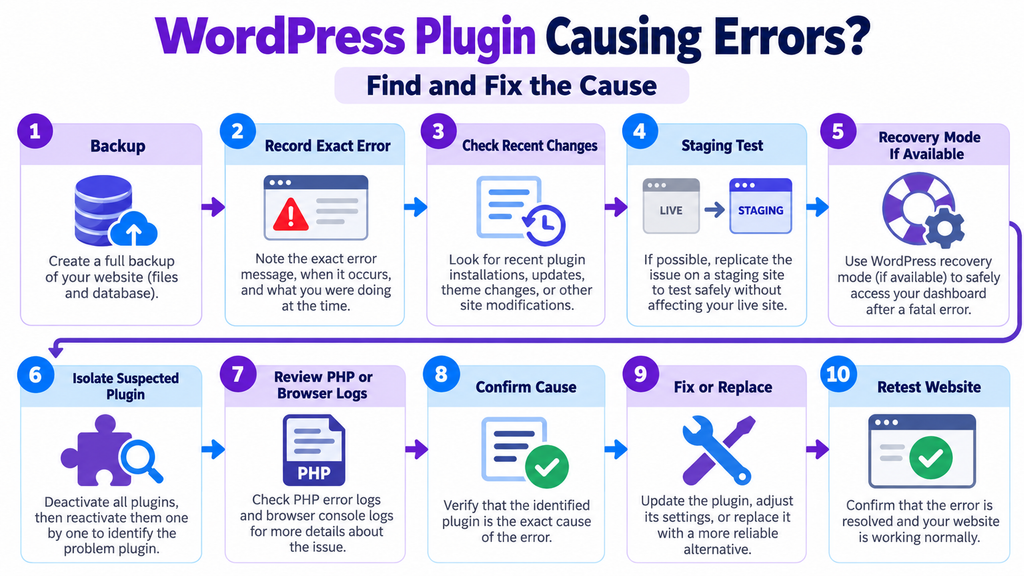
How to Find Which WordPress Plugin Is Causing an Error
The 12 categories help narrow your search. Now you need evidence that a particular plugin is responsible.
Step 1: Check What Changed
Look at:
- Recently installed plugins
- Recent plugin updates
- WordPress or PHP updates
- New custom code
- Hosting configuration changes
Start with the changes closest to when the error began.
Step 2: Use WordPress Recovery Mode When Available
Some fatal PHP errors trigger WordPress Recovery Mode.
Check the site administrator’s email for a recovery message and a special login link.
If provided, use that link to enter the dashboard and inspect the plugin or theme reported as failing.
Recovery Mode does not activate for every error. A missing recovery email does not prove that no plugin is involved. See the official WordPress Recovery Mode documentation.
Step 3: Test the Suspected Plugin Safely
If WordPress admin still works:
- Back up your site.
- Reproduce the error on staging.
- Deactivate the suspected plugin.
- Retest the same feature.
- Reactivate it if appropriate and confirm whether the problem returns.
If the error disappears while the plugin is disabled and returns when it is enabled, that is strong evidence of a plugin-related problem.
It may still be an interaction with another plugin, the theme, or the server rather than a defect in that plugin alone.
Step 4: If the Dashboard Is Unavailable
Use WordPress Recovery Mode first if it is available.
If the error log identifies a specific plugin and you have authorized hosting access, you may temporarily rename that plugin’s folder through File Manager or SFTP to prevent WordPress from loading it.
For example, the folder:
wp-content/plugins/example-plugin
could temporarily become:
wp-content/plugins/example-plugin-disabled
Use the actual plugin folder name and record the original name.
Do not rename the entire plugins directory as the first step on a live store or business website. Broad deactivation may interrupt important features.
If you cannot identify the faulty component, ask your host or developer to assist.
Step 5: Read PHP and Browser Errors
For PHP-related failures, review the hosting error log.
WordPress also supports temporary debugging.
On a suitable staging installation, the following settings can be used in wp-config.php when they are not already defined:
define( ‘WP_DEBUG’, true );
define( ‘WP_DEBUG_LOG’, true );
define( ‘WP_DEBUG_DISPLAY’, false );
Place them before the final WordPress configuration stopping comment.
These settings can help record PHP warnings and errors, commonly in wp-content/debug.log.
Protect the log from public access, do not expose sensitive error information, and disable temporary debugging when finished.
For broken menus, page-builder widgets, or other frontend behavior, check the browser’s developer console for JavaScript errors.
Use the official Debugging in WordPress documentation for details.
Step 6: Confirm the Website Works Again
After applying the confirmed fix, test the features that matter to your website.
These may include:
- Homepage and important content pages
- WordPress dashboard
- Contact forms
- Login and account pages
- Checkout and payments
- Media uploads
- Scheduled tasks
- REST API-dependent features
Do not treat a successful homepage load as proof that every website function has recovered.
Should You Update, Disable, Replace, or Delete a Problematic Plugin?
The right choice depends on the evidence.
| Situation | Recommended action |
| A maintained plugin has an available compatible fix | Back up, test, then update |
| An incorrect plugin setting causes a conflict | Correct that setting |
| Two plugins provide overlapping functions | Consolidate when safe |
| A plugin is unnecessary | Deactivate, then remove after checking dependencies |
| A plugin is abandoned and incompatible | Evaluate a maintained replacement |
| A plugin has a confirmed vulnerability | Apply a verified security fix promptly |
| A plugin is untrusted or suspected of compromise | Investigate and remove through controlled remediation |
| A plugin fails only because the host lacks resources | Address the measured resource limitation |
Deactivating is not the same as deleting. Some plugins may remove settings or data when uninstalled.
Check the developer’s uninstall behavior, back up related data, and make sure nothing else depends on the plugin before deleting it.
How to Prevent WordPress Plugin Problems
A few routine checks can prevent many avoidable failures.
Choose Plugins Carefully
Before installing, check the developer, maintenance status, compatibility requirements, support information, and download source.
Avoid installing a plugin solely because it promises to solve every performance or security problem.
Update With a Plan
Keep WordPress and plugins maintained.
Back up before important changes and test major updates on staging when possible.
If an update fails, follow our WordPress Update Failed Error guide rather than repeatedly forcing the same operation.
Remove Unnecessary Functionality
Each installed plugin adds code or potential maintenance work.
However, the total number of plugins alone does not determine website speed or security. A small number of inefficient plugins can cause more trouble than a larger set of well-maintained ones.
Focus on quality, configuration, and measured impact.
Monitor Critical Features
Periodically test login, important forms, checkout, email delivery, and scheduled jobs.
Keep backups and make sure you know how to restore them.
Check for Actual Security Advisories
When a plugin has a reported vulnerability, verify the affected versions and available fixes using trustworthy sources.
Do not assume that every outdated plugin is compromised, or that every updated plugin is free from risk.
Need Help Finding a WordPress Plugin Conflict?
If your website keeps crashing, showing errors, or failing after plugin updates, targeted troubleshooting can help identify the responsible component.
A proper investigation may include PHP logs, plugin dependencies, compatibility checks, caching rules, server configuration, and staging tests.
For assistance, visit our WordPress troubleshooting services page.
Final Thoughts: Fix the Plugin Problem, Not Just the Error Message
WordPress plugins are not automatically dangerous because they create errors.
The real issue may be an outdated version, a compatibility mismatch, an aggressive security rule, conflicting functionality, or insufficient server resources.
Some risks are more serious, especially when software is untrusted or has a confirmed security vulnerability.
Start with the exact symptom, identify the plugin involved, and verify the cause before making changes.
The goal is not to use fewer plugins at any cost. It is to use trustworthy, compatible plugins that your website actually needs.
Frequently Asked Questions About WordPress Plugin Errors
1. Which WordPress plugins cause the most errors?
There is no reliable universal list of plugins that cause the most errors. Problems can involve caching, security, page builders, backup tools, redirects, forms, checkout extensions, and other plugin types. The cause depends on the version, configuration, and website environment.
2. Are outdated WordPress plugins dangerous?
An outdated plugin may create compatibility or security concerns, especially when a known vulnerability remains unpatched. However, an old update date alone does not prove that a plugin is unsafe.
3. Can two WordPress plugins conflict with each other?
Yes. Plugins can interfere when they use overlapping functions, incompatible JavaScript, conflicting redirects, or other shared resources. Testing the suspected combination on staging can help identify the conflict.
4. Can a plugin cause the WordPress Critical Error?
Yes. A plugin with an incompatible function, coding defect, or other PHP problem can trigger a fatal error. Themes, custom code, and server problems can also cause critical errors.
5. How do I find which plugin is breaking my website?
Check recent changes, review logs, use Recovery Mode when available, and test the suspected plugin on staging. If the problem disappears when the plugin is disabled and returns when it is enabled, investigate that plugin and its dependencies.
6. Should I deactivate all WordPress plugins to fix an error?
Not as the first step on a live website. Start with the suspected plugin. Broad deactivation can interrupt payments, contact forms, memberships, and other essential features. Use staging or an appropriate emergency recovery process when wider testing is necessary.
7. Can caching plugins break a website?
Yes, incorrect caching or optimization settings may serve outdated pages, disrupt JavaScript, or affect dynamic features. A targeted cache purge and controlled setting test can help isolate the cause.
8. Can WordPress plugins slow down my website?
Yes. Plugins that run expensive database queries, frequent background jobs, complex page-builder features, or other resource-heavy operations can affect performance. Measure the actual resource use rather than judging only by plugin count.
9. Is it safe to install nulled WordPress plugins?
Using unofficial modified copies of commercial plugins creates avoidable security and maintenance risks. The package may contain unwanted changes or fail to receive trustworthy updates. Obtain software from authorized sources.
10. Will deleting a faulty plugin fix all related errors?
Not necessarily. Some plugins leave configuration data behind, and uninstalling others may remove important records. If the website was compromised, simply deleting the suspected plugin may not remove every malicious change. Diagnose the problem and back up relevant data first.