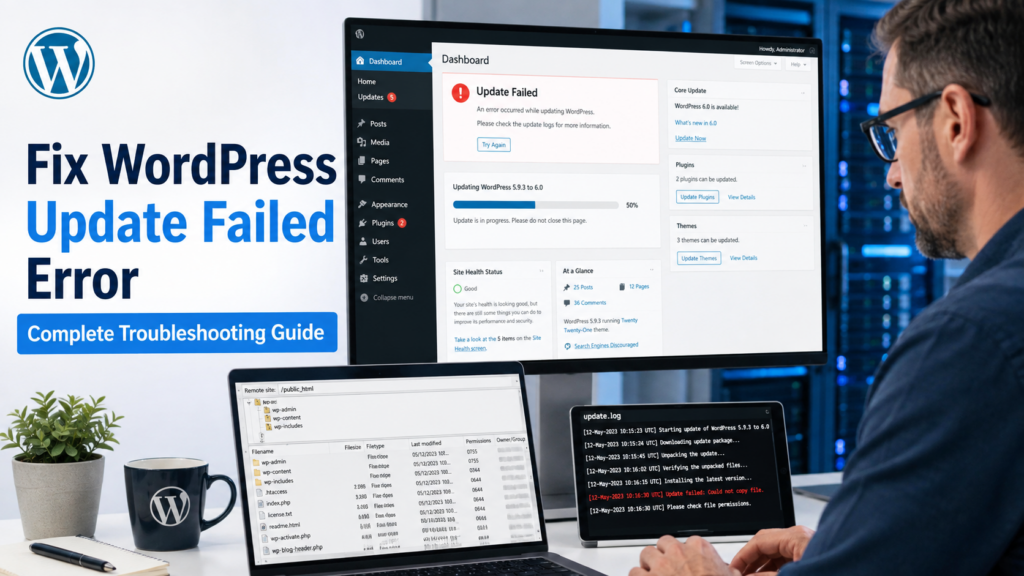

A WordPress update can fail when you least expect it.
You may click Update Now and see an installation error. A plugin may remain stuck while updating. An automatic core update may fail overnight, or your entire website may suddenly display:
“Briefly unavailable for scheduled maintenance. Check back in a minute.”
Other common messages include:
- “Could not copy file.”
- “Installation failed.”
- “Download failed.”
- “Another update is currently in progress.”
- “An automated WordPress update has failed to complete.”
These errors look similar, but they do not always have the same cause.
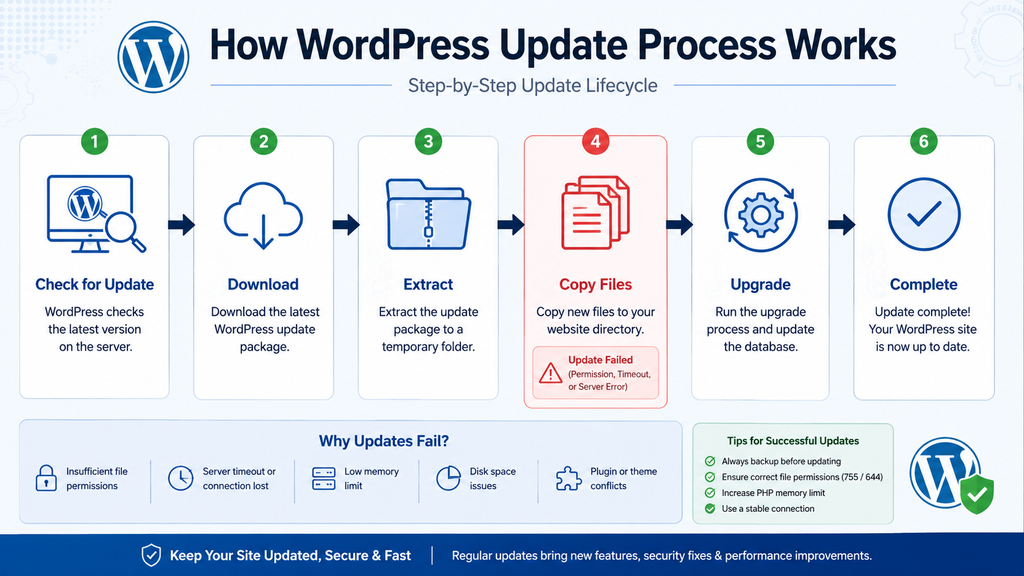
A WordPress update goes through several stages:
Check for Update → Download → Unpack → Copy Files →
Complete Upgrade → Exit Maintenance Mode
If any stage fails, the update can stop.
Common causes include incorrect file permissions, incorrect file ownership, low storage space, file-count limits, WP-Cron issues, hosting restrictions, network failures, update locks, and plugin or theme conflicts.
This guide will help you fix the WordPress Update Failed Error by identifying the exact stage that failed, rather than trying random solutions.
🧩 Why Does the WordPress Update Failed Error Happen?
The failure might involve:
- WordPress core
- A plugin
- A theme
- Translation files
- Automatic background updates
The exact error message matters.
For example, WordPress may report that some files could not be copied during an update. Inconsistent file permissions are one possible cause, so filesystem access should be checked before retrying the update.
But if the error says Download failed, file permissions may not be the first thing you should change.
That is why troubleshooting should begin with the failed stage.
⚙️ How the WordPress Update Process Works
A simplified update process looks like this:
| Stage | What Happens | Possible Problem |
| Check | WordPress detects a new version | Update service/connectivity |
| Download | The package reaches your server | DNS, SSL, network |
| Extract | package is unpacked | Storage/temp directory |
| Copy | New files replace old files | Permissions/ownership |
| Upgrade | WordPress finishes changes | PHP/server error |
| Cleanup | Maintenance mode ends | Interrupted process |
| Background tasks | Automatic process completes | Cron/configuration |
This table gives you an important rule:
Fix the stage that failed.
If the download never completed, changing folder permissions may accomplish nothing. If WordPress downloaded and extracted the package but cannot copy files, investigate filesystem access instead.
🚨 WordPress Update Problems You May Run Into
Before going through every solution, these are six of the most useful real-world scenarios to recognize.
1. “Could Not Copy File”
WordPress downloads the update but cannot replace one or more files.
Common areas to investigate:
- Permissions
- File ownership
- Disk space
- File-count/inode limit
Hosting security
2. Website Stuck in Maintenance Mode
The update starts but does not complete its cleanup.
Visitors continue seeing:
“Briefly unavailable for scheduled maintenance.” A stale .maintenance file may remain in the WordPress root directory
3. “Another Update Is Currently in Progress”
WordPress believes a core update is already running. This can happen because a legitimate update is active or because an old update lock has not cleared.
4. Manual Updates Work but Auto-Updates Fail
This suggests basic downloading/file-writing may work, while the background update system has a problem.
Check:
- WP-Cron
- Server cron
- Auto-update settings
- Update-related constants
- Site Health
5. WordPress Cannot Download an Update
Errors may include:
- Download failed
- Timeout
- Hostname resolution failure
- SSL error
- Connection failure
Focus on connectivity rather than immediately changing WordPress files.
6. One Plugin or Theme Refuses to Update
If WordPress core and every other plugin update normally, the problem may be limited to that product.
Check:
- License
- Vendor update server
- Compatibility
- Product folder permissions
- PHP requirements
🛟 Back Up Your Website Before Troubleshooting
Before changing WordPress core files, permissions, or server settings, create a backup.
Protect:
- Database
- wp-content
- Plugins
- Themes
- Uploads
- wp-config.php
- Important server configuration
👉 WordPress backup recommendations: WordPress Backups
For a business, WooCommerce, membership, or LMS website, use staging for risky changes whenever possible.
📝 Read the Exact Error Message
Do not reduce every failure to:
“My WordPress update isn’t working.”
Write down the complete message.
For example:
Could not copy file: wordpress/wp-includes/example.php
This tells you WordPress reached the file-copy stage.
If you see:
Download failed
You should investigate package retrieval.
Also note:
- What were you updating
- Exact time
- Whether the site changed afterward
- Whether other updates work
These clues can save a lot of unnecessary troubleshooting.
🏥 Check WordPress Site Health
Go to:
Tools → Site Health
Review any warnings related to:
- Background updates
- Scheduled events
- PHP
- Connectivity
- Filesystem
- Server configuration
Do not ignore a relevant Site Health warning and install another update plugin instead.
Use the warning as a diagnostic clue.
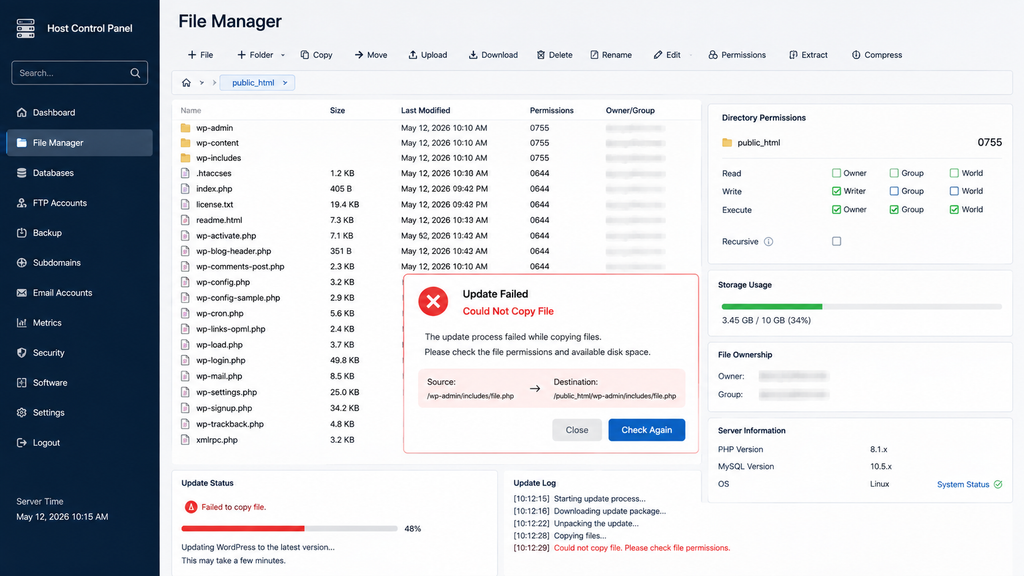
🔧 Fix “Could Not Copy File” in WordPress
One of the clearest update errors is:
“The update cannot be installed because your site is unable to copy some files.”
👉 WordPress file permissions documentation: Changing File Permissions
Start with the file named in the error.
Check File Permissions
Common WordPress setups often use permissions similar to:
Directories: 755
Files: 644
But these values are not universal for every hosting environment.
Never solve an update problem by setting the entire site to:
777 The correct goal is to give the appropriate server/PHP user the access it needs — not to give everyone write access.
Check File Ownership
Correct-looking permission numbers do not guarantee that WordPress can replace files.
Ownership matters too.
This becomes especially relevant after:
- Hosting migration
- Backup restoration
- Manual uploads
- Server changes
- Commands run under a different system user
If you use shared or managed hosting, ask support:
Can you verify that my WordPress files have the correct ownership and filesystem permissions for WordPress updates? This is safer than guessing.
Check Available Disk Space
Updates require more storage than the final package alone.
WordPress may need space to:
- Download the package.
- Extract it.
- Copy files.
- Complete cleanup.
Check your hosting account for:
- Disk usage
- Large backups
- Old staging copies
- Cache
- Log files
- Old ZIP archives
Do not randomly delete WordPress core files to create space.
Check Inode or File-Count Limits
Some hosting plans restrict not only storage size but also the number of files you can create.
You can therefore have gigabytes of free space while WordPress still cannot create another file.
High file counts can come from:
- Cache
- Backups
- Email storage
- Staging copies
- Sessions
- Temporary files
If disk usage looks normal but file creation fails, check your host’s inode/file-count usage.
Clear Unnecessary Cache
Safely clear:
- WordPress cache
- Hosting cache
- Temporary plugin cache
This can free up storage or file counts. Use the cache plugin or hosting controls instead of deleting unfamiliar directories manually.
Check Security Restrictions
Security plugins and server-level protection can restrict legitimate file changes.
If updates worked until you enabled:
- File-change protection
- Malware scanning
- Firewall hardening
- Hosting security rules
Review the relevant logs.
Do not permanently disable your entire security system.
Find the specific rule causing the conflict. If legitimate WordPress requests are being blocked by server or security rules, see our guide: Fix WordPress 403 Forbidden Error
🔄 Fix WordPress Stuck in Maintenance Mode
WordPress creates a .maintenance file during core updates while files are being copied. Under a normal update, WordPress later removes it.
If an update is interrupted, your site may remain on:
“Briefly unavailable for scheduled maintenance. Check back in a minute.” 👉 WordPress maintenance mode documentation: Common WordPress Errors

First, wait a few minutes and confirm the update has actually stopped.
Then open the WordPress root directory — the location containing:
wp-admin
wp-content
wp-includes
wp-config.php
Enable hidden files and look for:
.maintenance
If the update has stopped and this file is stale, remove it.
Then reload the website.
Important
Removing .maintenance restores access.
It does not necessarily fix the reason the update failed. Return to the dashboard and investigate the original error.
🔒 Fix “Another Update Is Currently in Progress”
WordPress prevents multiple core updates from interfering with each other.
If you see:
“Another update is currently in progress.”
Do not immediately remove anything.
First:
- Wait several minutes.
- Check whether another administrator started an update.
- Confirm no deployment is running.
- Check whether the previous update is still active.
If the update has definitely stopped but the lock remains, advanced users with WP-CLI can use:
wp option delete core_updater.lock 👉 WP-CLI documentation: WP-CLI Commands
Beginners should ask hosting support rather than manually deleting random database options.
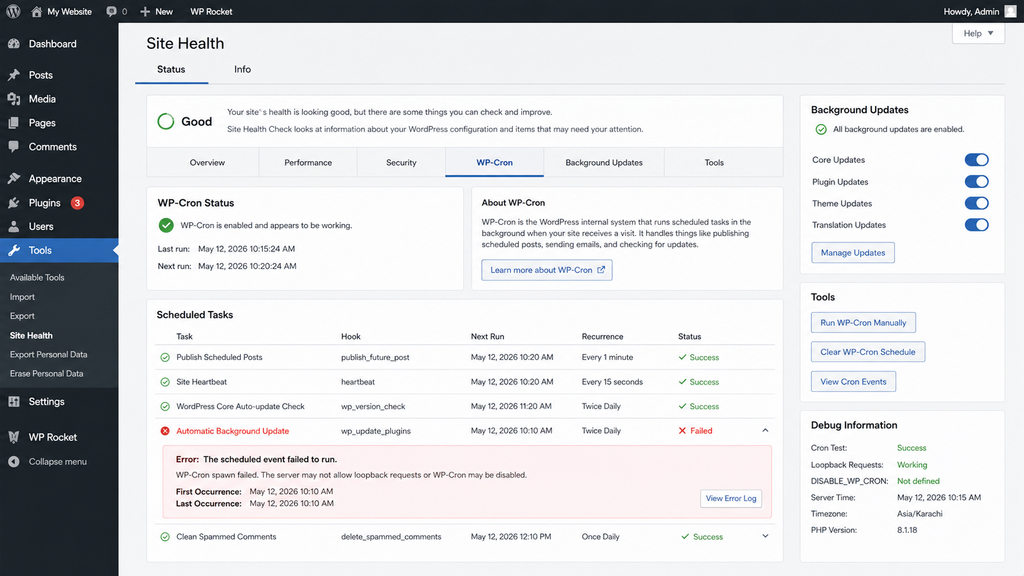
🤖 Fix WordPress Auto-Updates Not Working
If clicking Update Now works but automatic updates do not, that is a valuable clue.
File writing may be fine.
Now investigate the background update system.
First, confirm that auto-updates are actually enabled for the plugin or theme you expect WordPress to update.
Then check:
Tools → Site Health for background-update warnings.
Check WP-Cron
WordPress uses WP-Cron for scheduled tasks.
Open:
wp-config.php and look for:
define( 'DISABLE_WP_CRON', true ); This line does not automatically mean something is broken.
Some sites intentionally disable normal WP-Cron because a real server cron handles scheduled tasks.
The real question is:
If normal WP-Cron is disabled, is a replacement server cron configured and working?
Do not delete this setting blindly.
Check Scheduled Events
Advanced users can inspect scheduled events with WP-CLI:
wp cron event listIf needed, due events can be run for diagnostic purposes:
wp cron event run --due-nowIf events work manually but never run as expected automatically, investigate the cron trigger or server cron configuration.
Do not randomly delete cron events; plugins may rely on them.
Check Auto-Update Configuration
Custom code or configuration can intentionally change automatic update behavior.
Review wp-config.php, custom plugins, snippets, or management tools for settings such as:
define( 'AUTOMATIC_UPDATER_DISABLED', true );define( 'WP_AUTO_UPDATE_CORE', false ); These are not necessarily mistakes.
A developer or managed hosting setup may have intentionally created a controlled update workflow. Understand why the setting exists before removing it.
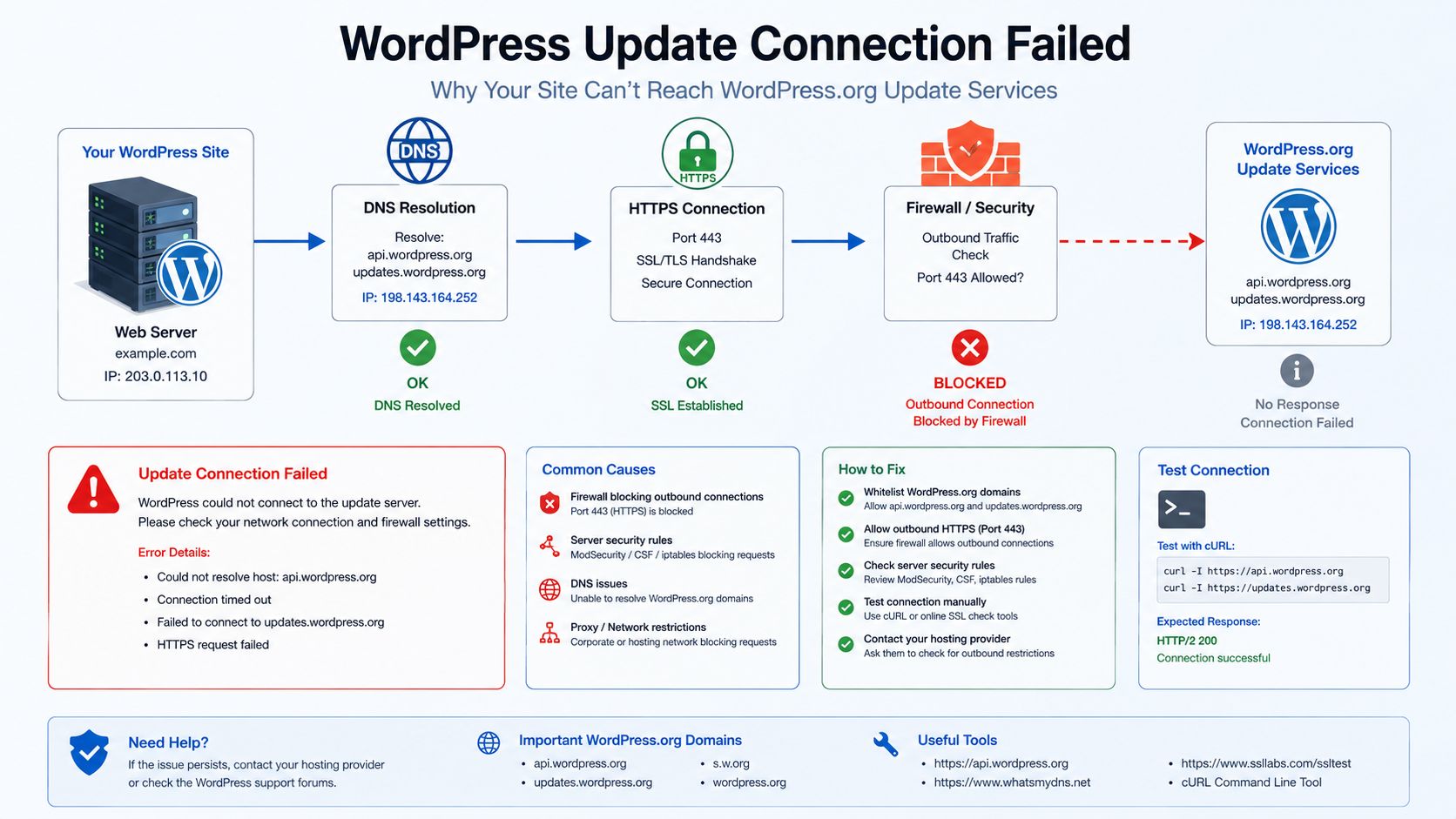
🌐 Fix “Could Not Reach WordPress.org”
WordPress needs outbound connectivity for update-related services.
If Site Health or the updater reports that WordPress.org cannot be reached, possible causes include:
- Hosting network failure
- Server DNS problem
- Firewall
- Blocked HTTP requests
- Temporary connection failure
Do not change your public nameservers just because your server cannot make an outbound request. Ask the host to test server-side connectivity.
Check WP_HTTP_BLOCK_EXTERNAL
WordPress can be configured to restrict external HTTP requests.
You may find:
define( 'WP_HTTP_BLOCK_EXTERNAL', true );There may also be an allowed-host configuration using:
WP_ACCESSIBLE_HOSTS
Do not remove these security controls without understanding why they were added.
If outbound traffic is intentionally restricted, allow only the legitimate services the website needs.
Fix “Download Failed”
Read the full message after “Download failed.”
For example:
Timeout
Investigate:
- Hosting network
- Server load
- Execution limits
Hostname Resolution Failure
Investigate:
- Server DNS
- Hosting network
SSL/Certificate Error
Investigate:
- Server CA certificates
- cURL/PHP
- Server time
- Hosting TLS configuration
Do not permanently disable SSL verification as a shortcut.
Check Outbound Firewall Rules
Your website can be available to visitors while its server cannot connect outward.
In other words:
Visitor → Website = Works
but:
Website → Update Service = Blocked
If the site loads normally but update downloads consistently fail, ask the host whether outbound HTTPS connections are restricted. Give them the exact error and approximate time.
💾 Check PHP Memory
Updates require PHP resources.
If logs contain:
Allowed memory size exhausted
The update may be failing because PHP runs out of memory.
If PHP runs out of memory during the update, follow our guide: Fix WordPress Memory Exhausted Error before retrying the update.
Do not blindly increase the memory limit to an extreme value. Check your hosting limits and the process consuming memory.
Check Execution Time
A slow server can sometimes stop a long update operation.
Look for timeout errors in:
- PHP logs
- Hosting logs
- WordPress debug log
If ordinary updates repeatedly exceed server limits, discuss the configuration or hosting resources with your provider.
Check Temporary Storage
WordPress needs temporary storage when downloading and extracting packages.
If the temporary directory is:
- Full
- Unavailable
- Misconfigured
- Not writable
Package extraction can fail. This is usually best checked by hosting support.
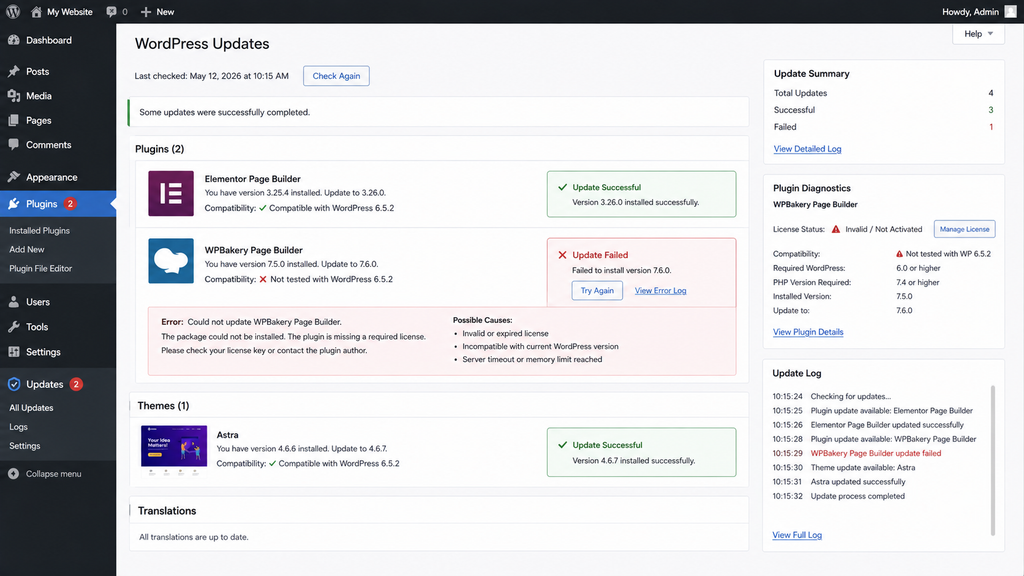
🔌 Fix Plugin Update Failed Errors
If only one plugin fails, troubleshoot that plugin before changing the entire WordPress environment.
Check:
- Exact error
- Plugin folder
- License
- Update server
- PHP requirements
- Compatibility
Premium Plugin Updates
Premium plugins may use their own servers.
If free WordPress.org plugins update correctly but one commercial plugin fails, check:
- License expiration
- Site activation
- Account connection
- Vendor service
- Firewall access
Fix “Destination Folder Already Exists”
This can happen after:
- Interrupted installation
- Incomplete previous update
- Manual upload
- Folder conflict
Do not immediately delete the folder.
First:
- Back up.
- Confirm which plugin it belongs to.
- Check for custom modifications.
- Use staging when possible.
Replace files only from an official package.
Plugin Update Causes a Critical Error
Sometimes the update itself completes, but the new version causes a PHP error.
You may see:
- Critical error
- Blank page
- 500 error
- Broken dashboard
Use WordPress Recovery Mode when available.
Otherwise, with a backup and appropriate access, you can temporarily rename the affected plugin directory through SFTP/File Manager to deactivate it.
For example:
/wp-content/plugins/example-plugin/
temporarily becomes:
/wp-content/plugins/example-plugin-disabled/
Then check whether the website recovers.
If the failed update leaves your website with a server error, follow our guide: Fix WordPress 500 Internal Server Error before continuing.
When Should You Roll Back a Plugin?
A temporary rollback can make sense when:
- The previous version worked.
- The new release causes a confirmed regression.
- Checkout/forms/login are broken.
- The developer has not released a fix yet.
Use:
- Official vendor archive
- WordPress.org version archive where applicable
- Your own trusted backup
Never download old premium plugins from random websites. Rollback should normally be temporary because outdated software can contain known bugs or security issues.
🎨 Fix Theme Update Failed Errors
If plugins and core update normally but one theme fails, check:
- Theme directory permissions
- Ownership
- License
- Vendor server
- PHP compatibility
- Theme package
Premium themes may require an active license before updates are available.
Protect Custom Theme Changes
If someone edited a parent theme directly, updating it may overwrite those changes.
Custom code should normally be placed in a:
- Child theme
- Custom plugin
- Supported custom-code area
Back up modified theme files before updating.
Theme Updated but the Design Broke
The update may have installed correctly.
Before rolling back:
- Clear page cache.
- Clear hosting cache.
- Clear CDN cache.
- Regenerate page-builder CSS if required.
- Test in a private browser window.
- Check compatibility logs.
Old cached CSS or JavaScript can make a successful update look broken.
🧪 Check Plugin and Theme Conflicts
For a critical production site, do conflict testing on staging.

A controlled process is:
- Back up.
- Create/update staging.
- Disable non-essential plugins.
- Test the update.
- Re-enable plugins individually.
- Test after each change.
If the problem appears only after one component is enabled, you have a much stronger lead. For suspected theme conflicts, test with a current default WordPress theme on staging.
🔧 Fix an Incomplete WordPress Core Update
A failed core update needs more care because it can leave a mixture of old and new WordPress files.
Symptoms may include:
- Dashboard errors
- Missing functions
- Critical errors
- Repeated update notices
- Blank admin pages
Do not delete:
wp-content
Do not delete your database.
Do not blindly replace:
wp-config.php
Back up the current site before manual recovery.
Perform a Safe Manual WordPress Update
If the one-click update cannot complete, WordPress officially documents a manual update procedure.
👉 Official WordPress manual update guide: Updating WordPress
Use only the official WordPress package.
At a high level:
- Back up the website.
- Download WordPress from the official source.
- Extract the package.
- Follow the official manual update instructions for replacing core files.
- Do not delete your existing wp-content directory; preserve its site-specific content.
- Preserve your existing wp-config.php and other site-specific configuration.
- Visit /wp-admin/.
- Complete a database upgrade if WordPress requests it.
- Clear caches.
- Test the website.
For a production site, follow the current official instructions rather than relying only on an old copied tutorial.
Verify WordPress Core Files With WP-CLI After manual recovery, advanced users can run:
wp core verify-checksums👉 WP-CLI checksum verification: WP-CLI Core Verify Checksums
This compares installed WordPress core files with official WordPress.org checksums.
It can help identify unexpected or modified core files.
Remember: this checks WordPress core. It does not prove that your plugins, theme, database, or entire site are error-free.
📋 Quick Troubleshooting Table
| Problem | Check First | Likely Area |
| Could not copy file | Named file | Permissions/ownership |
| All updates fail | Storage + filesystem | Hosting |
| Free storage, but write fails | File count | Inodes |
| Stuck maintenance screen | .maintenance | Interrupted update |
| Another update in progress | Active update | Update lock |
| Manual works, auto fails | Site Health/WP-Cron | Background updates |
| Cannot reach WordPress.org | Server connectivity | DNS/firewall |
| Download failed | Full error | Network/SSL |
| One premium plugin fails | License | Vendor service |
| Plugin causes fatal error | Recovery Mode/logs | Compatibility |
| Theme design breaks | Cache + compatibility | Theme/assets |
| Core partially updated | Backup/manual recovery | Core files |
🎯 6 Real Problems and Their Fastest Diagnostic Route
Problem 1: Update Fails After Hosting Migration
Likely area: File ownership.
Check permissions and ask the new host to verify PHP’s access to WordPress files.
Problem 2: Site Has Free Storage but Cannot Copy Files
Likely area: Inode/file-count limit. Check the number of files, cache, backups, staging copies, and email storage.
Problem 3: Every Update Leaves the Site in Maintenance Mode
Do not make deleting .maintenance your permanent routine.
Investigate:
- Timeouts
- Permissions
- Storage
- PHP errors
- Server resources
Problem 4: Manual Updates Work, but Automatic Updates Do Not
Focus on:
- Auto-update configuration
- WP-Cron
- Server cron
- Site Health
- Update constants
Do not start changing folder permissions when manual updates already work.
Problem 5: Only One Premium Plugin Cannot Update
Check:
- License
- Account connection
- Vendor update server
- Firewall
Do not reinstall WordPress.
Problem 6: Update Works on Staging but Fails on Production
Compare the environments:
- PHP
- Permissions
- Ownership
- Firewall
- Storage
- Security tools
- Cron
- Server resources
The update package itself may be fine.
🚫 WordPress Update Mistakes That Can Make Things Worse
Avoid these shortcuts:
- Clicking Update repeatedly without reading the error
- Changing multiple settings simultaneously
- Setting permissions to 777
- Clearing an active update lock
- Disabling SSL verification
- Deleting wp-content
- Replacing wp-config.php blindly
- Downloading WordPress/plugins from unofficial sites
- Permanently disabling auto-updates after one failure
- Updating core, PHP, theme, and every plugin at once on a critical site
Make one controlled change and test again.
🔐 How to Keep Future WordPress Updates Running Smoothly
Once your site is working again, improve the update process.
Keep Reliable Backups
Use a backup schedule appropriate for how often your data changes.
A WooCommerce store with new orders needs a different backup strategy from a small brochure website.
Keep Free Storage Available
Monitor:
- Disk usage
- File counts
- Backups
- Cache
- Logs
- Staging copies
Do not wait until the hosting account is almost full.
Keep File Ownership Correct
After:
- Migration
- Restore
- Server move
Verify filesystem ownership.
This can prevent future “Could not copy file” failures.
Keep PHP Supported
Use a PHP version compatible with:
- Current WordPress
- Active theme
- Active plugins
Test major PHP changes on staging first.
Check Site Health
Review:
Tools → Site Health
periodically, especially after:
- Hosting changes
- Migrations
- Security changes
- Performance optimization
Verify Cron Configuration
If:
define( 'DISABLE_WP_CRON', true );is intentionally configured, make sure the replacement server cron actually exists and works.
Use Staging for High-Risk Updates
Staging is especially useful for:
- WooCommerce
- Membership sites
- LMS websites
- Payment gateways
- Page builders
- Major plugin releases
- Large theme updates
Test the functions that make money or collect leads—not just the homepage.
Read Important Changelogs
For business-critical software, check major releases for:
- PHP requirements
- Breaking changes
- Compatibility notes
- Removed features
You do not need to study every minor changelog.
Focus on changes that can affect your setup. After preventing update errors, you can also improve overall site performance: Speed Up Your WordPress Website
🗂️ Choose a Safer Update Strategy for Your Website
| Website | Recommended Approach |
| Small blog | Backup + routine updates |
| Business website | Backup + staging for major changes |
| WooCommerce | Staging + payment/checkout testing |
| Membership site | Staging + login/access testing |
| LMS | Staging + course/enrollment testing |
| High-traffic site | Controlled maintenance window |
🧰 What to Do When WordPress Updates Still Fail
If you’ve checked permissions, ownership, storage, WP-Cron, connectivity, plugins, themes, and logs but updates still fail, the issue may require server-level investigation.
Ask your hosting provider or WordPress professional to check:
- File ownership
- Filesystem write access
- PHP limits
- Temporary directories
- Outbound HTTPS
- DNS resolution
- Firewall logs
- WP-Cron/server cron
- PHP/cURL
- Partially replaced core files
Give them the exact error message and time of failure.
That is much more useful than saying: “My WordPress update doesn’t work.”
💬 Need Professional Help With a Failed WordPress Update?
If updates still fail after checking permissions, storage, cron, connectivity, plugins, and server settings, our WordPress troubleshooting service can help identify the cause and restore a safe update process.
Service Page:
SEO Services: https://problemfixer.net/seo-tools-services/
WordPress Services: https://problemfixer.net/wordpress-services/
❓ Frequently Asked Questions
Why does WordPress say Update Failed?
WordPress may fail while downloading, extracting, writing, or completing an update. Check the full error message first because file permissions, server connectivity, storage, and background-update problems require different fixes.
How do I fix “Could not copy file” in WordPress?
Check the affected file’s permissions and ownership, available disk space, inode/file-count usage, and hosting security restrictions. Avoid using 777 as a shortcut.
Why is WordPress stuck in maintenance mode?
An interrupted update may leave a stale .maintenance file in the WordPress root directory. After confirming the update has stopped, removing the stale file can restore access.
How do I fix “Another update is currently in progress”?
First, confirm that no genuine core update is still running. If the lock is stale, advanced WP-CLI users can delete core_updater.lock.
Why do manual updates work but auto-updates fail?
The filesystem may be working while the background-update system is not. Check auto-update settings, Site Health, WP-Cron/server cron, configuration constants, and update-management tools.
Why can’t WordPress download an update?
Possible causes include server DNS problems, outbound firewall restrictions, SSL/TLS issues, temporary connectivity problems, or hosting network errors. Read the complete download error before making changes.
Can low disk space stop a WordPress update?
Yes. WordPress needs temporary storage to download, extract, and replace files. A hosting file-count/inode limit can also stop new files from being created even when disk space remains.
Why does only one plugin fail to update?
Check that plugin’s folder, license, vendor update server, PHP requirements, and compatibility. If everything else updates correctly, avoid making unnecessary server-wide changes.
Is a manual WordPress update safe?
It can be when you have a backup and follow WordPress’s official procedure. Preserve site-specific content and use only official WordPress packages.
Should I disable auto-updates permanently?
Usually not just because one update failed. Find out whether the problem involves cron, permissions, connectivity, or another environmental issue, then choose an update policy appropriate for your website.