🚀 Start with These Quick Checks
Fix WordPress Memory Exhausted Error. The WordPress Memory Exhausted Error appears when a PHP task tries to use more memory than your server allows.
The error may look like this:
Fatal error: Allowed memory size of 268435456 bytes exhausted
To fix it:
- Back up your website.
- Check your current PHP memory limit.
- Increase the WordPress memory limit if needed.
- Check recently installed or updated plugins.
- Test your active theme.
- Review Elementor or WooCommerce add-ons.
- Check the WordPress debug log and hosting error logs.
- Contact your hosting provider if server limits block your changes.
Do not keep increasing the memory limit without finding the real cause.
Seeing an “Allowed memory size exhausted” message can be worrying.
Your website may stop loading. The WordPress dashboard may become unavailable. Elementor may freeze, or a WooCommerce product import may stop before it finishes.
The message may also show long PHP file paths that are difficult for beginners to understand.
The good news is that this problem is usually fixable.
In many cases, WordPress simply needs more PHP memory. However, low memory is not always the real problem. A broken plugin, a heavy theme, a large backup, a busy WooCommerce store, or limited hosting can also cause the error.
This guide explains how to fix the WordPress Memory Exhausted Error safely. Every step uses simple English, so beginners can follow it without making random changes.
You will also learn how to find the real cause and reduce the chance of the error returning.
Before you begin: Create a backup of your website files and database before editing wp-config.php, php.ini, .htaccess, plugins, themes, or database settings.
✅ Understanding PHP Memory Exhaustion in WordPress
WordPress uses PHP to run most website tasks.
PHP loads pages, runs plugins, processes forms, creates backups, edits content, and handles WooCommerce orders.
Every task needs some server memory.
Your hosting server sets a limit on how much memory one PHP task can use. PHP calls this setting the memory limit. Its purpose is to stop a badly written or unusually heavy script from using all available server memory.
When a task reaches that limit, PHP stops it and displays a fatal error.
A common message looks like this:
Fatal error: Allowed memory size of 268435456 bytes exhausted
(tried to allocate 32768 bytes)
The large number is shown in bytes.
For example, 268435456 bytes is about 256 MB.
You do not need to calculate the number to fix the problem. The main point is that the task needed more memory than PHP allowed.
A Simple Example
Think of PHP memory like a desk.
A small desk can hold a few books and papers. If you keep adding more items, the desk becomes full. You must either remove some items or use a larger desk.
Your WordPress website works in a similar way.
You can:
- Give PHP more memory.
- Remove the plugin or task that uses too much memory.
- Improve the website setup.
- Move to hosting with more server resources.
Increasing the limit may remove the error, but it does not always fix the real cause.

🚩 Where This Memory Error Usually Appears
The error does not always appear in the same place.
You may notice:
- A white screen with a PHP fatal error.
- WordPress admin stops loading.
- Elementor editor keeps spinning.
- A page cannot be saved.
- WooCommerce product imports fail.
- Checkout or bulk product editing crashes.
- A backup stops halfway.
- Website migration does not finish.
- A large image or file upload fails.
- Plugin or theme updates stop.
- Scheduled tasks fail.
- Error logs show “Allowed memory size exhausted.”
Sometimes the public website works while only the dashboard fails.
WordPress can use separate memory requests for normal pages and admin tasks. WordPress documents WP_MEMORY_LIMIT for normal page requests and WP_MAX_MEMORY_LIMIT for heavier admin tasks.
📌 Why WordPress Runs Out of PHP Memory
There is no single cause.
The most common causes are explained below.
1. Low PHP Memory Limit
Your hosting account may provide a small PHP memory limit.
A basic blog may work with a lower limit, while a store, membership site, learning platform, or page-builder website may need more.
The correct amount depends on:
- Website size
- Active plugins
- Theme
- Traffic
- Page builder
- WooCommerce features
- Hosting setup
Tasks running in the background
2. A Plugin Uses Too Much Memory
Plugins can use memory for:
- Backups
- Security scans
- Image processing
- Product imports
- Page building
- Search indexing
- Reports
- AI tools
- Database cleanup
A plugin may also have a bug or conflict with another plugin.
3. A Heavy Theme
Some themes include many extra features, such as:
- Sliders
- Animations
- Page builders
- Large option panels
- Dynamic templates
- Custom widgets
- Extra scripts
These features may increase memory use.
4. Elementor and Its Add-ons
Elementor pages may need more memory than simple WordPress pages.
The official Elementor requirements page currently lists 256 MB for Elementor and Elementor Pro alone, recommends 512 MB, and notes that websites using other demanding plugins may need more. These are Elementor’s own product guidelines, not a rule for every WordPress website. Extra Elementor add-ons can increase memory use further.
5. WooCommerce
WooCommerce handles more work than a normal blog.
It may process:
- Products
- Variations
- Orders
- Customer sessions
- Cart data
- Payment gateways
- Stock
- Coupons
- Reports
Large stores often need stronger hosting and careful plugin management.
6. Large Backups, Imports, or Migrations
A large task may need much more memory than a normal page request.
Examples include:
- Compressing website files
- Importing thousands of products
- Restoring a backup
- Moving a website
- Creating thumbnails
- Exporting customer records
7. Old or Incompatible PHP
An old PHP version may be slower or may not work correctly with modern plugins and themes.
A newer PHP version can also cause problems if an old plugin or theme does not support it. Always check compatibility before switching versions.
8. Hosting Limits
Your WordPress settings cannot always override the server limit.
A host may control:
- PHP memory
- Account RAM
- CPU
- PHP workers
- Running processes
- Execution time
If the server has a lower hard limit, editing WordPress may not increase the real amount available.
9. Plugin or Theme Conflicts
Two tools may work correctly alone but fail when used together.
A conflict can cause:
- Repeated tasks
- Endless loops
- Large database requests
- Duplicate processing
- High memory use
10. Custom Code Problems
A PHP snippet, custom plugin, or theme edit may create a loop or load too much data.
Check recent code changes if the error started after editing:
- functions.php
- A code snippets plugin
- A custom plugin
- wp-config.php
- Theme files

🧭 Find the Likely Cause First
Start with the first matching situation instead of trying every solution at once.
| When the Error Started | Possible Cause | First Step |
| After installing a plugin | Plugin problem | Disable that plugin |
| After updating a plugin | Bug or conflict | Roll back or disable it |
| After changing the theme | Theme problem | Test a default theme |
| While using Elementor | Low memory or heavy add-ons | Check memory and add-ons |
| During a product import | Large task | Import smaller batches |
| During a backup | Large archive or server limit | Split the backup |
| After changing PHP | Compatibility issue | Check plugin and theme support |
| Only during busy hours | Hosting resource limit | Check server usage |
| No recent change | Auto-update or server issue | Review logs |
✅ Practical Solutions for Memory Limit Errors
Work through the methods in order.
Make one change at a time. Test the website after every change. This helps you find the actual cause.
Method 1: Back Up Your Website
Before editing important files, create a backup.
Your backup should include:
- WordPress files
- Database
- Themes
- Plugins
- Uploads
- wp-config.php
- .htaccess
If the WordPress admin is not working, use your hosting dashboard or backup system.
Do not restore an old backup immediately unless you know the error began after a specific change and the backup is safe.
First, save the current site so you can return to it if needed.
Method 2: Check Your Current PHP Memory Limit
Do not increase memory blindly.
First, find the current limit.
Check WordPress Site Health
Open:
Tools → Site Health → Info → Server
Look for information related to PHP and memory.
The exact labels may depend on your WordPress and hosting setup.
Check Elementor System Information
For an Elementor website, open:
Elementor → System Info
Look for the WordPress memory limit.
Elementor also uses this area in its official troubleshooting guidance.
Check Your Hosting Dashboard
Look for:
- PHP Settings
- PHP Configuration
- MultiPHP INI Editor
- Select PHP Version
- Server Information
- Resource Usage
Ask Your Hosting Provider
Send this message:
Please confirm my current PHP memory_limit, WordPress memory limit, and the maximum amount allowed by my hosting plan.
Understand the Three Main Values
You may see:
- PHP memory_limit
- WP_MEMORY_LIMIT
- WP_MAX_MEMORY_LIMIT
They are related, but they are not always the same.
WordPress can request more memory, but it cannot always go above the limit set by PHP or the hosting server.
Method 3: Increase Memory in wp-config.php
WordPress officially supports using WP_MEMORY_LIMIT in wp-config.php when PHP memory exhaustion occurs.
👉 Official WordPress documentation: Increasing Memory Allocated to PHP
Step 1: Open Your WordPress Files
Use:
- Hosting File Manager
- FTP
- SFTP
Open the main WordPress folder.
You should see:
- wp-admin
- wp-content
- wp-includes
- wp-config.php
Step 2: Back up wp-config.php
Download a copy before editing it.
Step 3: Add the Memory Setting
Open wp-config.php.
Find the line similar to:
PHP
/* That’s all, stop editing! Happy publishing. */
Add this code above it:
PHP
define( ‘WP_MEMORY_LIMIT’, ‘256M’ );
For admin tasks, some websites may also use:
PHP
define( ‘WP_MAX_MEMORY_LIMIT’, ‘256M’ );
Do not add duplicate definitions if they already exist.
Step 4: Save and Test
Save the file.
Reload:
- Your homepage
- /wp-admin/
- The page or task that caused the error
What If It Does Not Work?
Possible reasons include:
- The host blocks custom memory changes.
- PHP has a lower limit.
- The hosting account has limited RAM.
- A plugin or theme is using too much memory.
- The problem is not memory-related.
Do not keep changing the value to larger numbers without checking logs.

Method 4: Increase PHP Memory Through the Hosting Panel
Many hosts provide a simple way to change PHP settings without editing code.
The steps vary, but usually you can:
- Log in to your hosting panel.
- Open PHP Settings, MultiPHP INI Editor, or Select PHP Version.
- Select your domain.
- Find memory_limit.
- Choose a value allowed by your plan.
- Save the change.
- Clear the website cache.
- Test the website again.
PHP defines memory_limit as the maximum memory a PHP script may allocate.
👉 PHP memory_limit explained: PHP Runtime Configuration – memory_limit
Do not set it to unlimited on a normal live website. A limit helps protect the server from a broken script using all available memory.
Method 5: Change the Limit in php.ini
Some hosts allow a custom php.ini file.
memory_limit = 128M
Change it to an amount supported by your host, such as:
memory_limit = 256M
Save the file and test the website.
The location of php.ini depends on the hosting setup.
It may be:
- In the website root
- In public_html
- Managed by the hosting panel
- Controlled only by the host
Ask hosting support if you cannot find it.
Method 6: Use .htaccess Only When Supported
Some Apache hosting environments may allow PHP settings inside .htaccess.
An example is:
apache
php_value memory_limit 256M
However, this method does not work on every server.
On some setups, adding an unsupported PHP rule to .htaccess can cause an HTTP 500 error.
Use this method only when your hosting provider confirms it is supported.
How to Reverse It
If the site breaks after adding the line:
- Open .htaccess.
- Remove the new line.
- Save the file.
- Test the website again.
Do not use this method on Nginx-only hosting unless your provider gives specific instructions.
Method 7: Ask Your Hosting Provider to Increase the Limit
If WordPress changes do not work, the host may control the real limit.
Send this message:
Hello, my WordPress website is showing an “Allowed memory size exhausted” error. I checked the WordPress memory settings, but the error remains. Please confirm the active PHP memory limit, check the error logs, and tell me whether my account has reached any server resource limit.
Ask the host to check:
- PHP memory_limit
- Account RAM
- CPU limits
- PHP workers
- PHP-FPM
- Server error logs
- File ownership
- Account restrictions
Do not buy a new hosting plan until the provider confirms that limited resources are causing the problem.
Related: If your website also shows server errors, read: How to Fix WordPress 500 Internal Server Error
Method 8: Find the Plugin Using Too Much Memory
A plugin is a strong suspect when the error starts after:
- Installing it
- Updating it
- Running one of its tools
- Enabling a new feature
Test Plugins from WordPress Admin
- Create a backup.
- Deactivate the newest or recently updated plugin.
- Test the website.
- If the error remains, deactivate other likely plugins one at a time.
- Test after every change.
Test Plugins When wp-admin Is Not Working
Open File Manager or SFTP.
Go to:
/wp-content/
Rename:
plugins
to:
plugins-disabled
Test the website.
If the site loads, one of the plugins is likely involved.
Rename the folder back to plugins, then test individual plugin folders.
Read the Error Path
A fatal error may include a path such as:
/wp-content/plugins/example-plugin/…
This does not always prove the plugin is badly coded, but it gives you a useful starting point.
The plugin may be:
- The real cause
- Conflicting with another tool
- Processing a task triggered elsewhere
- Running with too little memory

Method 9: Test Your WordPress Theme
The theme may be involved if:
- The error started after changing themes.
- It began after a theme update.
- Only frontend pages fail.
- Template editing causes the error.
- The theme includes a large page builder.
Temporarily activate a current default WordPress theme already installed on your site.
Then test again.
If the error stops, your previous theme may:
- Need an update
- Conflict with a plugin
- Use too many resources
- Contains broken custom code
Do not permanently remove the old theme until you save any custom settings or child-theme changes you need.
Method 10: Fix Elementor Memory Errors
Elementor may show memory problems when:
- The editor keeps loading.
- The widget panel is blank.
- Saving fails.
- Preview does not open.
- A large page crashes.
- Many Elementor add-ons are active.
Try These Steps
- Check the memory limit in Elementor → System Info.
- Update Elementor and Elementor Pro.
- Update Elementor add-ons.
- Disable add-ons you do not use.
- Test Elementor with only essential plugins active.
- Remove unused widgets from very large pages.
- Reduce large sliders, animations, and background videos.
- Check the browser console and PHP error logs.
- Ask the host to check server memory.
Elementor currently recommends at least 256 MB for many troubleshooting cases and says 512 MB may be useful with heavy plugins such as WooCommerce.
👉 Elementor system requirements: Elementor System Requirements
Do not assume memory is the only cause. A plugin conflict or broken script can show similar symptoms.
Method 11: Fix WooCommerce Memory Errors
WooCommerce sites need more server work than simple blogs.
Memory problems may appear during:
- Product imports
- Product exports
- Checkout
- Bulk editing
- Order reports
- Stock updates
- Large variable products
- Customer data exports
Practical Fixes
- Import products in smaller groups.
- Remove extensions you no longer use.
- Avoid running several large jobs at once.
- Clean expired data carefully.
- Schedule imports and backups at different times.
- Review slow or failed requests in logs.
- Use object caching if your host supports it.
- Upgrade hosting only when usage reports show the store needs more resources.
A large WooCommerce store may continue failing even with a high memory limit if the database, hosting, or extensions are poorly optimized.
👉 WooCommerce performance best practices: Optimizing WooCommerce Performance

Method 12: Fix Backup and Migration Memory Errors
Backups and migrations may process thousands of files.
They may also:
- Compress files
- Read the full database
- Create a large ZIP file
- Copy uploads
- Move product data
- Scan every directory
Try These Fixes
- Delete old local backup files you no longer need.
- Save backups to cloud storage.
- Exclude cache folders.
- Exclude test or staging copies.
- Use incremental backups if supported.
- Split large migrations into smaller parts.
- Run backups during quieter hours.
- Do not run a backup and product import together.
- Check disk space as well as memory.
- Ask the host about execution-time limits.
A timeout and a memory error are different problems, though both may stop the same task. Check the exact error before changing settings.
Method 13: Update PHP Safely
A supported PHP version may improve speed and compatibility.
However, do not change PHP without checking:
- WordPress version
- Theme support
- Plugin support
- Custom code
- WooCommerce extensions
- Page-builder add-ons
👉 Before changing PHP, check the official requirements and compatibility information provided by WordPress, your theme developer, and each important plugin developer. PHP Compatibility Checker Plugin
Safer Process
- Create a backup.
- Check plugin and theme requirements.
- Test the new PHP version on staging if possible.
- Switch the PHP version.
- Test the homepage, admin area, forms, checkout, and important pages.
- Review error logs.
- Return to the previous supported version if serious errors appear.
Do not stay on an unsupported PHP version simply to keep an abandoned plugin working.
Replace or update the outdated tool instead.
Method 14: Enable WordPress Debug Logging
When the visible error does not identify the cause, logging can help.
WordPress supports WP_DEBUG, WP_DEBUG_LOG, and WP_DEBUG_DISPLAY settings in wp-config.php.
👉 Official WordPress debugging guide: Debugging in WordPress
Back up wp-config.php first.
Look for existing debug definitions. Do not add duplicates.
For temporary troubleshooting, use:
PHP
define( ‘WP_DEBUG’, true );
define( ‘WP_DEBUG_LOG’, true );
define( ‘WP_DEBUG_DISPLAY’, false );
This can save errors to:
/wp-content/debug.log
Recreate the problem, then read the latest entries.
Look for:
- Memory exhaustion
- Plugin paths
- Theme paths
- Fatal errors
- Repeated functions
- Large database tasks
- Failed background jobs
Turn Debugging Off After Testing
When troubleshooting is complete, change the settings back for your live website.
Do not leave public error display enabled because it may expose technical details.
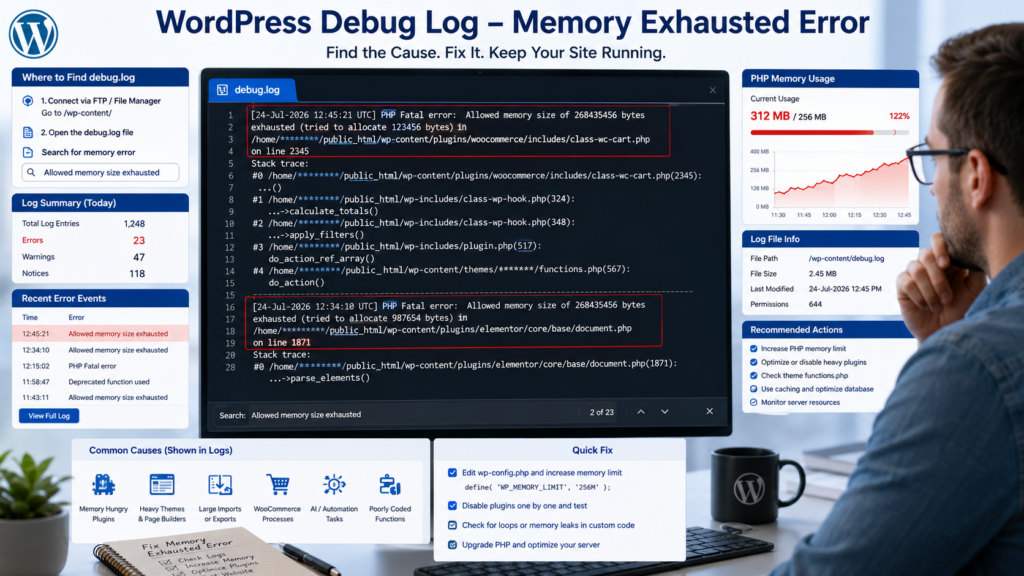
Method 15: Check Hosting and PHP Error Logs
WordPress debug.log is not the only useful log.
Also check:
- PHP error log
- cPanel Errors
- Hosting error log
- Apache or Nginx log
- PHP-FPM log
- Resource-limit report
Focus on the time when the error happened.
A useful log entry may show:
- Exact file path
- Plugin name
- Theme name
- Memory amount
- Failed PHP process
- Server limit
- Request URL
Do not share full logs publicly.
Hide:
- Server paths
- Usernames
- IP addresses
- Database details
- API keys
- Tokens
Method 16: Check Site Health and Resource Use
Open:
Tools → Site Health
Review any critical problems or suggested improvements.
👉 Learn more about Site Health: WordPress Site Health Guide
Also check the Info tab for:
- PHP version
- Server details
- Active plugins
- Active theme
- Database information
- File permissions
Your hosting panel may also show:
- CPU use
- Physical memory
- Entry processes
- I/O use
- PHP workers
A memory error that happens only during traffic spikes may be a hosting resource problem.
A memory error that starts after enabling one plugin is more likely related to that plugin or a conflict.
Method 17: Use Query Monitor Carefully
Query Monitor can help technical users see:
- PHP errors
- Database queries
- Slow queries
- Hooks
- HTTP requests
- Scripts
- Template information
It can help identify a plugin that creates too many database calls or errors.
However, it is mainly a developer tool.
It also uses some resources while active, so do not leave it enabled without a reason on a busy live site.
Use it on staging where possible.
Method 18: Optimize the WordPress Database
Database cleanup does not directly raise PHP memory, but it can reduce the work needed for some tasks.
Old websites may collect:
- Post revisions
- Spam comments
- Trashed posts
- Expired transients
- Old plugin tables
- Old session data
- Large option records
Safe Rules
- Back up the database first.
- Do not delete tables you do not understand.
- Do not remove active WooCommerce data.
- Use a staging copy for large changes.
- Check the result after cleanup.
A database cleanup will not fix a broken plugin that leaks memory. It is a supporting step, not a universal solution.
Note: If database connection errors appear during cleanup, read: Fix Error Establishing a Database Connection in WordPress
🧩 Common Memory Error Scenarios
These scenarios are common on modern WordPress websites.
Problem 1: The Error Starts After a WordPress Update
The WordPress update may expose an old plugin or theme problem.
- Clear all caches.
- Update plugins and themes.
- Check PHP compatibility.
- Disable recently updated plugins.
- Review the error log.
- Restore only the problem component if needed.
Do not restore the whole website before identifying the smaller cause.
Problem 2: Elementor Suddenly Stops Loading
The editor may fail because of low memory, a broken add-on, JavaScript errors, or plugin conflicts.
- Check Elementor System Info.
- Disable unused Elementor add-ons.
- Update Elementor.
- Test with essential plugins only.
- Simplify very large pages.
- Check the PHP log.
Problem 3: WooCommerce Imports Fail
Large imports need more memory and execution time.
- Import smaller batches.
- Remove unused columns.
- Clean the database first.
- Pause backups during imports.
- Check disk space.
Ask the host about PHP limits.
Problem 4: A Backup Stops Halfway
The backup may be too large for the available memory or time.
- Use incremental backups.
- Exclude cache folders.
- Remove old backup archives.
- Store files off-site.
- Run the job during low traffic.
- Check the exact PHP error.
Problem 5: AI Plugins Use Too Many Resources
AI plugins may process long text, many images, chat requests, or background jobs.
- Turn off unused modules.
- Reduce how often background jobs run.
- Update the plugin.
- Check its system requirements.
- Review external API and local processing settings.
- Replace it if logs show repeated heavy usage.
Problem 6: The Error Appears Only in wp-admin
Admin pages may load reports, builders, imports, scans, or analytics.
- Disable non-essential dashboard plugins.
- Check WP_MAX_MEMORY_LIMIT.
- Turn off heavy reports.
- Test admin pages one at a time.
- Read the error log.
💾 How Much PHP Memory Does WordPress Need?
Always follow your hosting provider’s supported limits instead of copying values from other websites. There is no single perfect memory value for every site.
| Website Type | Possible Starting Point |
| Small blog | 128 MB |
| Business website | 256 MB |
| Portfolio with page builder | 256 MB |
| WooCommerce store | 256–512 MB |
| Membership or LMS website | 256–512 MB |
| Large or complex website | Based on testing and hosting advice |
These are general starting points, not guaranteed requirements.
Elementor publishes its own higher recommendations for Elementor-based websites. A website needing more than 512 MB for a normal page request should be checked carefully for inefficient code, large data processing, or hosting problems.
⛔ Memory Limit Mistakes That Can Make Things Worse
Increasing Memory Again and Again
A larger limit may hide the problem for a while.
It will not fix:
- A broken loop
- A bad plugin
- A large database request
- Limited server RAM
- An overloaded hosting account
Setting Memory to Unlimited
Do not use:
memory_limit = -1
On a normal live website, unless a qualified server administrator has a clear reason.
A memory limit protects the server.
Editing Files Without a Backup
One typing mistake in wp-config.php or .htaccess can stop the website from loading.
Always save the original file.
Setting Random Values
Do not copy 1024M or a larger value simply because another website uses it.
Your hosting plan may not support it, and your site may not need it.
Changing Many Things at Once
If you change the theme, plugins, PHP, memory, and cache together, you will not know which change fixed the error.
Test one step at a time.
Ignoring the Error Log
The log may show the exact plugin or file involved.
Read it before making major changes.
🌱 Keep WordPress Memory Usage Under Control🌱 Keep WordPress Memory Usage Under Control
Keep WordPress Software Updated
Maintain:
- WordPress core
- Plugins
- Theme
- PHP version
Test major changes before applying them to an important live website.
Use Only the Plugins You Need
Remove plugins that:
- Duplicate another tool
- Are no longer used
- Are no longer maintained
- Create repeated errors
- Use too many resources for a small benefit
Choose a Lightweight Theme
A clean theme with fewer built-in features often uses fewer resources.
Add only the features you actually need.
Optimize Large Images
Compress images before uploading them.
Use modern formats when suitable.
Large images may increase memory use during resizing and thumbnail creation.
Schedule Heavy Jobs Carefully
Do not run all of these at the same time:
- Full backup
- Security scan
- Product import
- Database cleanup
- Image optimization
- Search indexing
Schedule them at different times.
Keep External Backups
Store backup copies outside your main hosting account.
This saves server space and protects you if the hosting account fails.
Monitor Hosting Resources
Check server usage after:
- Adding a plugin
- Running a large import
- Launching a campaign
- Adding many products
- Moving to Elementor
- Starting membership features
Keep a Record of Important Changes
Write down:
- Plugin installations
- Plugin updates
- Theme changes
- PHP changes
- Memory-limit changes
- Hosting upgrades
- Database cleanup
- Large imports
- Backup restores
When an error appears, this record helps you identify what changed.

📚 Continue Troubleshooting WordPress
Memory errors can sometimes appear alongside other WordPress problems:
- If your website also shows a 500 Internal Server Error, read: How to Fix WordPress 500 Internal Server Error
- If WordPress cannot connect to its database, follow: Fix Error Establishing a Database Connection in WordPress
- For permission or access errors after changing files or hosting, read: Fix WordPress 403 Forbidden Error
- After fixing memory issues, improve overall performance: How to Speed Up Your WordPress Website
🤝 Need Help Finding the Real Cause?
If the error remains after checking memory, plugins, the theme, Elementor, WooCommerce, PHP, logs, and hosting limits, stop making random changes.
The problem may require a closer review of:
- Plugin code
- Theme code
- PHP-FPM
- Database queries
- Server resources
- Background jobs
- Hosting configuration
You can ask your hosting provider to inspect the server logs.
Need Professional WordPress Help?
Our WordPress troubleshooting service can help investigate:
- WordPress errors
- Plugin conflicts
- Theme issues
- PHP problems
- Performance problems
- Server configuration
- Website recovery
- SEO Services: https://problemfixer.net/seo-tools-services/
- WordPress Services: https://problemfixer.net/wordpress-services/
- AI Tools Services: https://problemfixer.net/ai-tools-services/
Professional troubleshooting should identify the real cause before changing important server settings. No honest service should promise a guaranteed fix before checking the website.
🏁 Key Takeaway
The WordPress Memory Exhausted Error means a PHP task has used all the memory available to it.
Increasing the memory limit may fix the immediate error. However, the error may return if a plugin, theme, page builder, store extension, backup process, or hosting limit is the real cause.
Start by checking your current limit. Increase it only to an amount supported by your server. Then test recent plugins, the active theme, Elementor or WooCommerce features, PHP compatibility, and error logs.
Make one change at a time.
The best long-term solution is not always more memory. It is a stable website that uses its available resources carefully. If the problem continues after following every step, contact your hosting provider or an experienced WordPress professional instead of making random server changes.
💬 WordPress Memory Error FAQs
What causes the WordPress Memory Exhausted Error?
The error appears when a PHP task needs more memory than the server allows. Common causes include a low PHP limit, a heavy plugin, a theme conflict, Elementor add-ons, WooCommerce tasks, backups, imports, and limited hosting resources.
How do I fix Allowed memory size exhausted in WordPress?
Check your current limit, then increase WP_MEMORY_LIMIT or the PHP memory_limit if your host allows it. If the error returns, test plugins and themes, check logs, and ask the host to review server limits.
Is 256 MB enough for WordPress?
It may be enough for many blogs and business websites. A WooCommerce, Elementor, LMS, or membership website may need more. The correct amount depends on the website and hosting setup.
Can Elementor cause a memory exhausted error?
Elementor can use more memory when a page is large or many add-ons are active. Low memory, plugin conflicts, or outdated software can also stop the editor from loading.
Can WooCommerce cause PHP memory errors?
WooCommerce can need more memory during imports, checkout, reports, bulk editing, and other large tasks. Extra extensions and large product catalogs can increase the load.
Will increasing PHP memory fix the error forever?
Not always. It may remove the immediate error, but the problem can return if a plugin, theme, import, or server process continues using too much memory.
Can a plugin cause Allowed memory size exhausted?
Yes. A plugin may use too much memory because of a bug, conflict, heavy task, or large amount of data. Error logs and plugin testing can help find it.
How can I check the WordPress memory limit?
Check Tools → Site Health → Info → Server, your hosting PHP settings, or Elementor System Info. You can also ask your hosting provider.
Why does the wp-config.php memory change not work?
Your hosting server may enforce a lower hard limit. The setting may also be placed incorrectly, duplicated, or blocked by the hosting setup.
Should I set PHP memory to unlimited?
No, not on a normal live website. A memory limit protects the server from broken or badly written scripts that use all available resources.