
⚡ Quick Answer
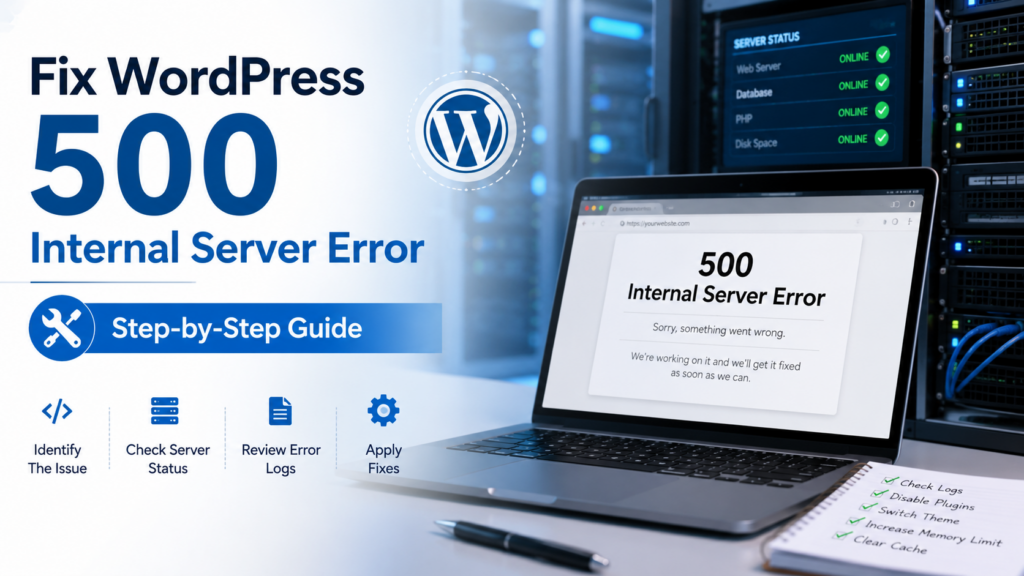
If you need to fix WordPress 500 Internal Server Error quickly, start with these high-priority checks:
- Back up your website.
- Rule out a cached error response.
- Check whether /wp-admin/ also returns the error.
- Regenerate the .htaccess file where applicable.
- Temporarily disable WordPress plugins.
- Test the active theme.
- Check PHP memory.
- Check PHP compatibility.
- Review file permissions.
- Enable WordPress debugging.
- Check PHP and server error logs.
If these first-line checks do not solve the error, continue with the advanced troubleshooting methods below.
Estimated Fix Time: 15–60 minutes for common causes; complex server issues may take longer.
⚠️ What Causes a 500 Internal Server Error in WordPress?
There is no single cause of every WordPress 500 error.
The fastest clue is often what changed immediately before the error appeared.
For example:
| When the Error Appeared | Check First |
| After installing or updating a plugin | Plugin conflict |
| After changing the theme | Active theme |
| After editing .htaccess | .htaccess rules |
| After changing PHP | PHP compatibility |
| After adding PHP code | PHP fatal error |
| After a WordPress update | Core/update files |
| Only on certain pages | Plugin, PHP or rewrite issue |
| Across frontend and wp-admin | PHP, plugin, core or server |
| Appears intermittently | Resources or server issue |
This table is only a starting point. When the cause is unclear, logs are normally more useful than guessing.
🛠️ How to Fix WordPress 500 Internal Server Error
Start with the least disruptive methods.
Do not change plugins, themes, PHP, .htaccess, and server settings all at once. Otherwise, the website may start working again without you knowing what actually caused the problem.
Step 1 – Back Up Your WordPress Website
Before editing important WordPress files or settings, create a backup.
Ideally, include:
- WordPress database
- Plugins
- Themes
- Uploads
- wp-config.php
- .htaccess
- Other website files
If your hosting provider offers automatic backups, check whether a recent restore point exists.
Do not immediately restore an old backup unless necessary. First preserve the current version, so you have something to return to if troubleshooting creates another problem. If WordPress itself is unavailable, you may still be able to create a backup using your hosting control panel, File Manager, SFTP, or your hosting backup system.
Step 2 – Rule Out a Cached Error Response
Caching normally does not create the underlying server-side 500 error.
However, a browser, WordPress cache, server cache, reverse proxy or CDN can sometimes continue showing an older error response after the original problem has changed.
Start by:
- Reloading the affected page.
- Testing in a private/incognito browser window.
- Purging your WordPress cache if the dashboard works.
- Clearing relevant hosting/server cache.
- Clearing CDN cache where applicable.
If you use Cloudflare, purge only the relevant cache where possible instead of unnecessarily clearing everything.
Test both:
https://yourdomain.com
and
https://yourdomain.com/wp-admin
If the error remains, continue.
Cloudflare Cache Purge Documentation
Step 3 – Check Whether wp-admin Also Shows the Error
Try opening:
yourdomain.com/wp-admin/
If wp-admin works but the frontend does not
The problem may be connected to:
- The active theme
- Frontend plugin behavior
- Cache
- Rewrite rules
- Custom frontend code
If both wp-admin and the frontend return HTTP 500
Possible causes include:
- Plugin failure
- PHP fatal error
- .htaccess
- WordPress core files
- Server configuration
- Resource limits
This test does not prove the cause, but it helps narrow the investigation.
Step 4 – Regenerate the WordPress .htaccess File
A corrupted or invalid .htaccess file can cause an Internal Server Error on servers that use it.
Important: This method mainly applies to Apache or LiteSpeed hosting environments. Standard Nginx setups do not normally use WordPress .htaccess files.
WordPress uses .htaccess with Apache for directory-level configuration and permalink rewrite behavior.
1: Open Your Website Files
Use:
- Hosting File Manager, or
- FTP/SFTP
Open your WordPress installation folder, often public_html.
Find:
.htaccess
If you cannot see it, enable the option to display hidden files.
2: Rename It
Rename:
.htaccess
to:
.htaccess-old
Reload your website. If the website starts working, the previous file or one of its directives was likely involved.
3: Generate a Fresh File
If WordPress admin works, go to:
Settings → Permalinks
Click Save Changes.
This allows WordPress to refresh its rewrite rules where the hosting configuration permits it. Do not copy random .htaccess rules from unrelated websites.
Note: If your website is showing an access-denied error (HTTP 403) instead of a 500 error after regenerating .htaccess, read our guide on how to fix WordPress 403 Forbidden Error.
👉 WordPress Common Errors Guide

Step 5 – Temporarily Disable WordPress Plugins
A plugin conflict is another important area to investigate, especially when the error begins immediately after installing or updating a plugin.
If WordPress Admin Works
Go to:
Plugins → Installed Plugins
Temporarily deactivate your plugins and reload the website.
If the error disappears, reactivate the plugins one at a time.
Test the website after each activation.
When the error returns, investigate the plugin you just activated.
The issue may involve:
- A plugin bug
- Conflict with another plugin
- PHP compatibility
- Theme interaction
- Failed update
- Custom settings
- Server configuration
If wp-admin Does Not Work
Open:
/wp-content/
Find:
plugins
Rename it temporarily to:
plugins-disabled
Reload the website.
If the site works, one of the plugins is likely involved.
Rename the folder back to:
plugins
Then isolate the individual plugin rather than leaving every plugin disabled.
WordPress also recommends deactivating plugins when investigating an Internal Server Error.

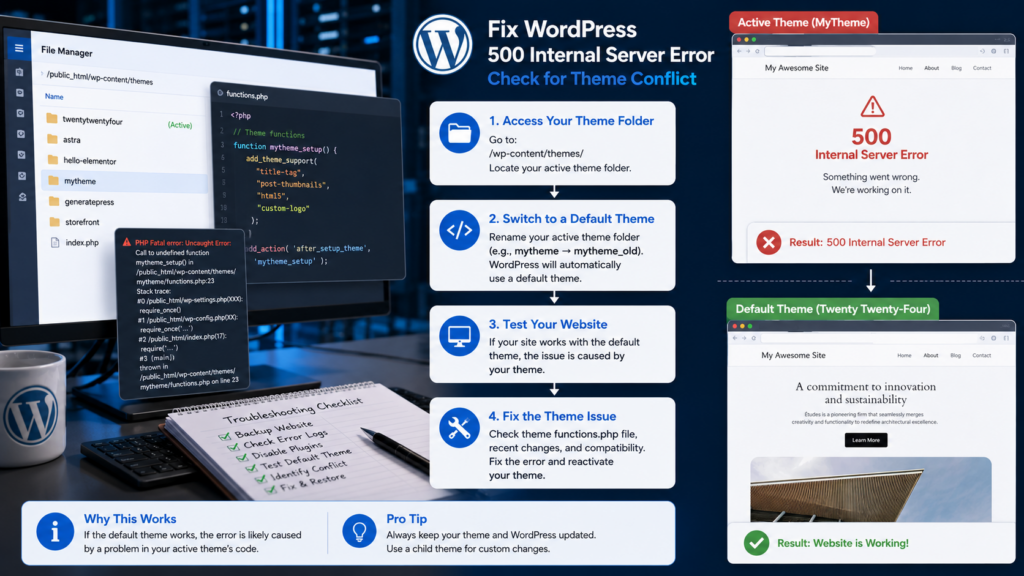
Step 6 – Check Whether the Active Theme Is Causing the Error
If plugins are not responsible, test the active theme.
This is especially useful when the problem started after:
- A theme update
- Theme customization
- Editing functions.php
- Installing a new theme
- Adding theme-specific PHP code
If WordPress admin works:
Appearance → Themes
Temporarily activate a compatible default WordPress theme that is already installed.
Reload the affected pages.
If the error disappears, investigate the previous theme for:
- PHP errors
- Failed updates
- Outdated code
- PHP incompatibility
- Theme/plugin conflicts
- Customization problems
Do not permanently abandon the theme based on one test. Confirm the cause first. WordPress’s official Internal Server Error guidance also recommends testing with a default theme.
👉 WordPress Theme Testing Documentation
Step 7 – Check the PHP Memory Limit
WordPress, themes and plugins require PHP memory to execute.
If a process exceeds the available memory, the request may fail.
However, low memory can be a symptom of another problem. A faulty plugin, inefficient code or resource-intensive operation may consume excessive memory.
Check your logs for messages such as:
Allowed memory size exhausted
A WordPress-level setting sometimes used in appropriate environments is:
PHP
define( ‘WP_MEMORY_LIMIT’, ‘256M’ );
Add it only when appropriate and back up wp-config.php first.
Remember: WordPress cannot force the server to provide more memory than PHP or your hosting account allows. If increasing memory resolves the immediate problem, still investigate why the memory was exhausted.
🔗 Learn more about PHP memory settings: PHP Memory Limit Documentation

Step 8 – Check Your PHP Version and Compatibility
A PHP compatibility problem can trigger a 500 error after:
- Hosting migration
- PHP upgrade
- Plugin update
- Theme update
- Custom-code change
Current WordPress requirements recommend PHP 8.3 or greater as a modern baseline, although compatibility still depends on your installed WordPress version, plugins, themes and custom code.
Check Your PHP Version
From WordPress:
Tools → Site Health → Info → Server
Or use your hosting control panel.
Before changing versions, check:
- WordPress compatibility
- Plugin requirements
- Theme requirements
- Custom PHP compatibility
- Hosting recommendations
Do not randomly switch PHP versions until the website works.
If the error began immediately after a PHP upgrade, temporarily returning to the previously working supported PHP version can be a useful diagnostic test when your host allows it.
👉 Official WordPress Requirements

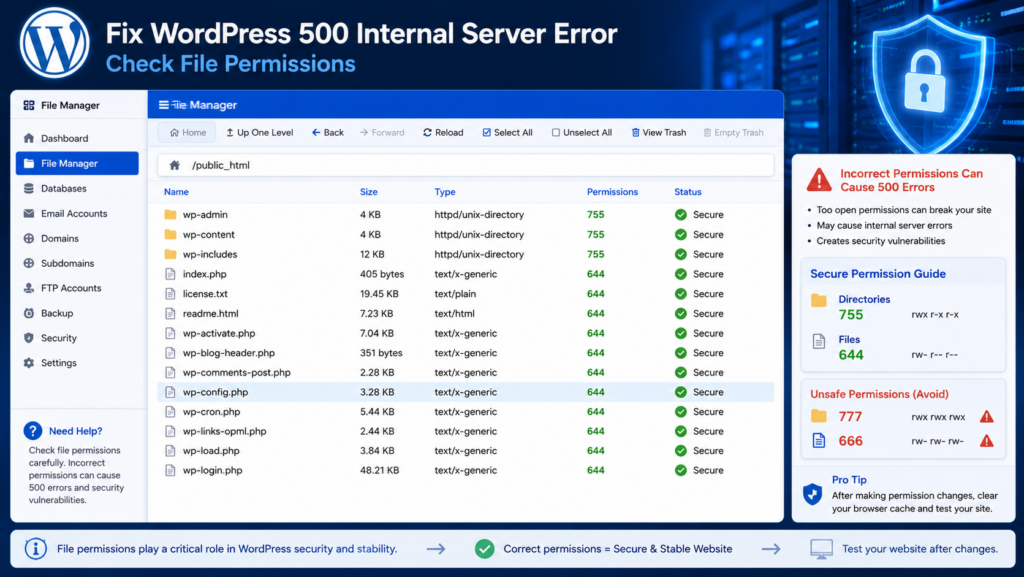
Step 9 – Check WordPress File and Folder Permissions
Incorrect permissions can prevent the server from accessing WordPress files properly.
On many common hosting setups, you may see:
| Item | Common Permission |
| Directories | 755 |
| Files | 644 |
These are common defaults, not universal rules.
Do not blindly change every file.
Pay attention to:
- wp-admin
- wp-content
- wp-includes
- wp-config.php
- .htaccess
- Recently changed plugin/theme files
Important Security Warning
Do not set everything to:
777
That can create unnecessary security exposure.
If ownership or permissions are unclear, ask your hosting provider to check them.
🔗 Official WordPress file permissions guide: WordPress File Permissions Documentation
Step 10 – Enable WordPress Debugging Safely
When simple fixes do not reveal the cause, debugging can provide far more useful evidence.
Before editing wp-config.php, make a backup.
Check whether debugging constants already exist. Do not add duplicates.
For temporary troubleshooting:
PHP
define( ‘WP_DEBUG’, true );
define( ‘WP_DEBUG_LOG’, true );
define( ‘WP_DEBUG_DISPLAY’, false );
WordPress documentation says WP_DEBUG_LOG can save errors to wp-content/debug.log, while disabling WP_DEBUG_DISPLAY prevents debug information from being shown publicly. WordPress also cautions that debugging tools are generally intended for development/staging rather than being left enabled indefinitely on production sites.
After reproducing the problem, inspect:
/wp-content/debug.log
Look for:
- PHP fatal errors
- Memory exhaustion
- Undefined functions
- Missing files
- Plugin paths
- Theme paths
- Syntax errors
- Compatibility problems
After troubleshooting, return your debugging settings to their appropriate production state.
👉 WordPress Debugging Documentation

Step 11 – Check PHP and Server Error Logs
Some 500 errors happen before WordPress can fully handle the request.
In these cases, hosting or PHP logs may reveal the real cause.
Look in your hosting panel for sections such as:
- Error Logs
- PHP Logs
- Server Logs
- Apache Logs
- Nginx Logs
Reproduce the error and note the approximate time.
Then look for recent messages involving:
- PHP fatal errors
- Memory exhaustion
- Permission denied
- Missing extensions
- Invalid server directives
- Timeouts
- Resource limits
- Plugin/theme file paths
Do not focus on old unrelated entries.
The useful log entry usually matches:
- The error time
- The affected URL
- A recently changed component
- A repeatedly occurring message
Do not publicly share passwords, tokens, or private credentials from logs.
Step 12 – Replace Potentially Corrupted WordPress Core Files
If plugins, themes, .htaccess, PHP, and permissions do not explain the problem, incomplete or corrupted WordPress core files may be involved.
This can happen after:
- Interrupted updates
- Failed file transfers
- Accidental core-file modification
Create a full backup first.
Download WordPress only from the official website.
When replacing core files, protect your site-specific data.
Do not casually overwrite or delete:
wp-content
or:
wp-config.php
WordPress’s official manual-update process provides specific steps for replacing core files, and it warns that core-file changes can be overwritten during updates.
If you are not comfortable doing this manually, ask your host or a WordPress professional.
👉 Official WordPress Updating Guide

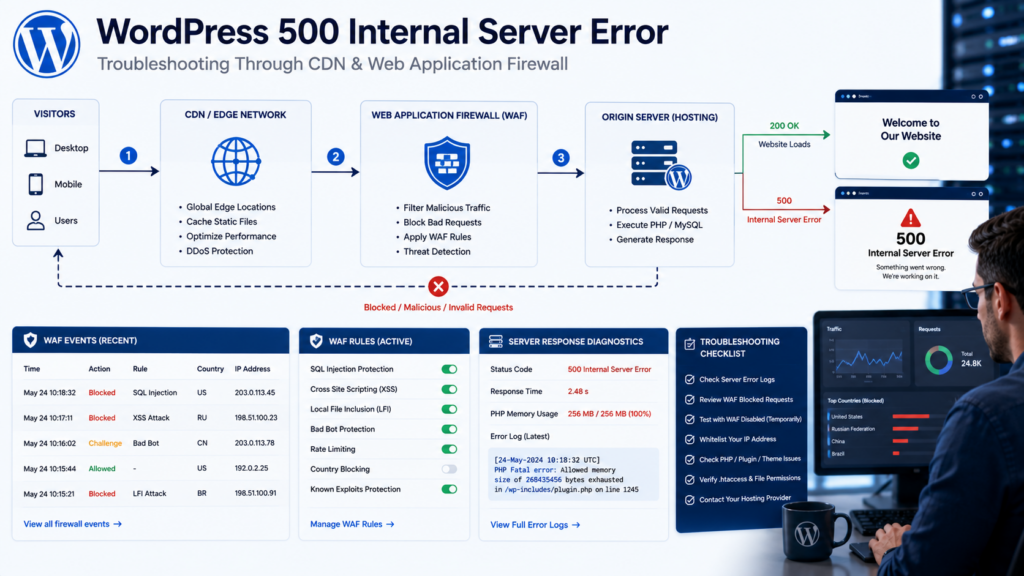
Step 13 – Check CDN, Firewall, and Security Rules
If your website uses Cloudflare, another CDN, a web application firewall, or security software, review any changes made around the time the error started.
Check:
- Firewall events
- Recent WAF rules
- Rate limiting
- Blocked requests
- CDN configuration changes
- Security-plugin logs
A WordPress HTTP 500 error and a Cloudflare-generated 5xx error are not necessarily the same problem.
Cloudflare recommends identifying the specific 5xx code and gathering details such as the affected URL and time of the error when troubleshooting.
Do not disable your entire security setup for long periods just to test the problem.
👉 Cloudflare 5xx Error Documentation
Step 14 – Check Recently Added Custom Code
If the 500 error began after adding code, investigate that change first.
Custom code may exist in:
- functions.php
- Child theme
- Custom plugin
- Snippets plugin
- wp-config.php
- .htaccess
- Server configuration
A PHP syntax error or undefined function can cause a request to fail.
Undo only the latest suspected change and test again. Use a staging website for risky code changes whenever possible.
Step 15 – Check for a Failed WordPress, Plugin, or Theme Update
A failed update can leave files in an incomplete state.
Possible reasons include:
- Interrupted file writes
- Server timeout
- Permissions
- Resource exhaustion
- Compatibility issue
- Incomplete transfer
If dashboard access remains available:
Dashboard → Updates
Review the recently updated component.
Do not repeatedly run the update without identifying why it failed. If a known-good backup exists, restoring the affected component may sometimes be safer.
Step 16 – Ask Your Hosting Provider to Check the Server
If WordPress-level troubleshooting does not solve the issue, your hosting provider may need to investigate it.
Tell them:
- Exact HTTP error
- Affected URL
- When the error started
- Whether wp-admin also fails
- Recent changes
- Steps already tested
- Whether the problem is intermittent or constant
Ask them to investigate:
- PHP error logs
- Web-server logs
- PHP-FPM issues
- Resource limits
- File ownership
- Server configuration
- Account restrictions
- Server-side firewall rules
- Database connection issues
Related: If you see “Error Establishing a Database Connection” instead of a 500 error, follow our dedicated troubleshooting guide: Fix Error Establishing a Database Connection in WordPress.
A useful support message is:
My WordPress website is returning HTTP 500 on the frontend and wp-admin. I have already tested plugins, .htaccess, the active theme, PHP memory, and compatibility. Please check the PHP/server error logs around the failed request and confirm whether a resource limit or server configuration is causing it.

📋 WordPress 500 Error Troubleshooting Checklist
| Problem or Clue | Check | Action |
| Error after plugin update | Plugins | Disable and test individually |
| Error after theme change | Theme | Test a default theme |
| Error after .htaccess change | Rewrite rules | Rename/regenerate file |
| Memory error in logs | PHP/code | Investigate memory usage |
| Error after PHP change | Compatibility | Verify software compatibility |
| Permission denied | Permissions/ownership | Ask host to verify |
| Fatal error names a file | Specific component | Investigate that component |
| Update failed | Core/plugin/theme | Verify or restore files |
| Error after firewall change | CDN/security | Review recent rule |
| Nothing fixes it | Server | Contact host |
The goal is not to try every fix forever. Once evidence identifies the cause, stop changing unrelated settings and focus on that issue.
🎯 Which Fix Should You Try First?
Use the most recent change as your clue.
After a plugin update:
Test that plugin first.
After editing .htaccess:
Restore or regenerate .htaccess.
After changing PHP:
Check PHP compatibility and logs.
After adding code:
Undo the latest code change.
No obvious recent change:
Check logs, recent automatic updates, resource usage, and hosting/server status. This is normally faster than making random changes.
🚫 Do You Need a Paid Tool to Fix a WordPress 500 Error?
In most cases, no.
You can usually troubleshoot a 500 Internal Server Error using:
- WordPress itself
- Hosting control panel
- File Manager/SFTP
- Debug logs
- Server logs
- Existing backups
🆘 Still Getting the WordPress 500 Error?
If you have already checked .htaccess, plugins, themes, PHP, permissions, core files and logs but the error remains, avoid making random server changes.
At this stage, professional diagnosis can save time.
Need Professional WordPress Help?
Our WordPress troubleshooting service can help investigate:
- WordPress errors
- Plugin conflicts
- Theme issues
- PHP problems
- Performance problems
- Server configuration
- Website recovery
👉 Get Professional WordPress Support:
- SEO Services: https://problemfixer.net/seo-tools-services/
- WordPress Services: https://problemfixer.net/wordpress-services/
- AI Tools Services: https://problemfixer.net/ai-tools-services/
For server-level failures, your hosting provider may also need to investigate settings that are not accessible from WordPress.
🛡️ How to Prevent WordPress 500 Internal Server Errors
Not every server error can be prevented, but careful maintenance can reduce avoidable failures.
Keep WordPress, Plugins and Themes Updated Carefully
Before major updates:
- Create a backup
- Check compatibility
- Use staging when practical
- Avoid updating many critical components simultaneously
Test important pages afterward
After fixing server errors, it’s also important to optimize your website’s performance to prevent future issues. Read our guide: How to Speed Up a WordPress Website.
Keep Regular Backups
Back up:
- Website files
- Database
A backup is only valuable when it can actually be restored.
Remove Software You No Longer Need
Unused plugins and themes create extra maintenance and security overhead.
Avoid Editing Live Files Without a Backup
Before changing:
- .htaccess
- wp-config.php
- functions.php
- Custom PHP
- Server configuration
save the working version.
Monitor PHP Compatibility
Before changing PHP, verify compatibility with:
- WordPress
- Themes
- Plugins
- Custom code
Use Logs Instead of Guessing
Error logs can turn a vague HTTP 500 message into a specific PHP, permissions, resource or server issue.

✅ Final Thoughts: Fixing WordPress 500 Internal Server Error
A WordPress 500 Internal Server Error can have several causes, so the safest solution is systematic troubleshooting.
Start with what changed immediately before the error appeared.
Then work through .htaccess, plugins, the active theme, PHP memory and compatibility, file permissions, debugging information, and server logs.
Do not make several major changes at the same time.
If WordPress-level troubleshooting does not solve the problem, ask your hosting provider to check server logs, resource limits, file ownership, and server configuration.
Most importantly, keep a current backup before modifying important files.
❓ Frequently Asked Questions About WordPress 500 Internal Server Error
What causes a 500 Internal Server Error in WordPress?
Possible causes include plugin or theme conflicts, invalid .htaccess rules, PHP errors, memory exhaustion, compatibility problems, incorrect permissions, corrupted core files and server configuration problems.
How do I fix WordPress 500 Internal Server Error?
Check what changed immediately before the error. Then investigate .htaccess, plugins, the active theme, PHP memory/version, permissions, and error logs. Contact your hosting provider if the problem is server-side.
Can a WordPress plugin cause a 500 error?
Yes. A plugin may trigger an HTTP 500 response because of PHP errors, incompatibility, conflicts, damaged update files, or server-related problems.
Can a corrupted .htaccess file cause a WordPress 500 error?
Yes, on hosting environments that use .htaccess. Invalid or unsupported directives may cause an Internal Server Error.
Can low PHP memory cause a 500 Internal Server Error?
Yes. PHP memory exhaustion can make a request fail. Check logs for memory-related errors rather than increasing memory blindly.
Why did WordPress show a 500 error after an update?
The update may have exposed a compatibility problem, failed during file replacement, encountered insufficient resources, or introduced a PHP error.
How can I find the exact cause of a WordPress 500 error?
Use WordPress debugging, PHP logs and web-server error logs. Focus on entries matching the time and URL of the failed request.
Will reinstalling WordPress delete my website content?
Replacing WordPress core files correctly should not require deleting your database or wp-content, but manual file replacement can damage a website when done incorrectly. Always create a backup first.
Should I set WordPress file permissions to 777?
No. 777 is not a safe general solution. Use the permissions recommended for your specific hosting environment.
Will a WordPress 500 Internal Server Error affect SEO?
Yes. Persistent 500 server errors can cause Google to reduce crawling, and URLs that continue returning server errors can eventually be removed from Google’s index.
When should I contact my hosting provider?
Contact your host when WordPress-level troubleshooting fails, you cannot access the required server logs, or the evidence points to resource limits, ownership, PHP services, or server configuration.