
You schedule a WordPress post for a specific time, but the publishing time passes, and nothing happens.
When you check Posts → All Posts, you may see:
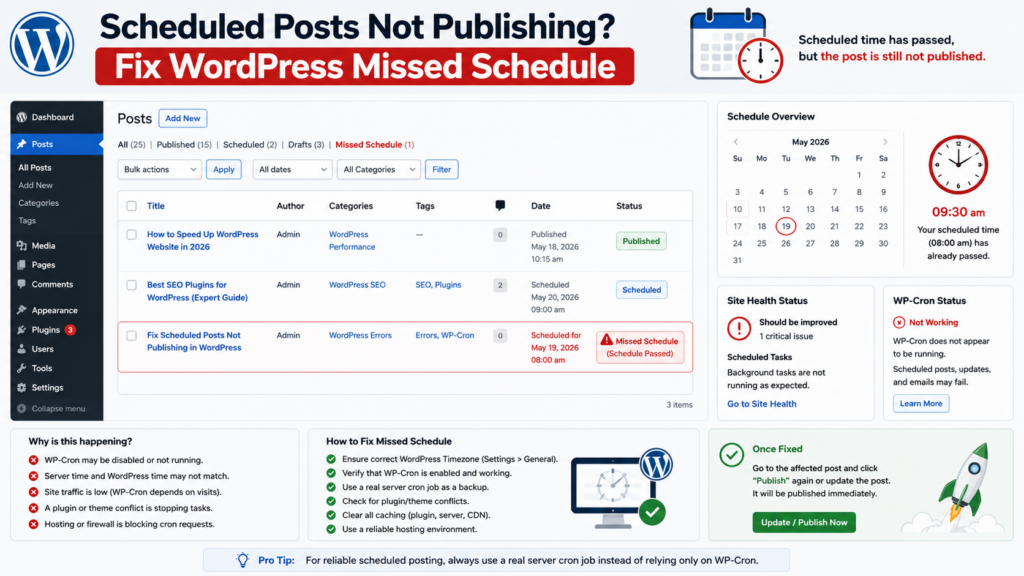
Missed Schedule
Sometimes the post remains scheduled for hours. In other cases, it publishes only after someone visits the website or goes live much later than expected.
The problem is usually not the WordPress editor itself.
Scheduled publishing depends on a chain of background processes:
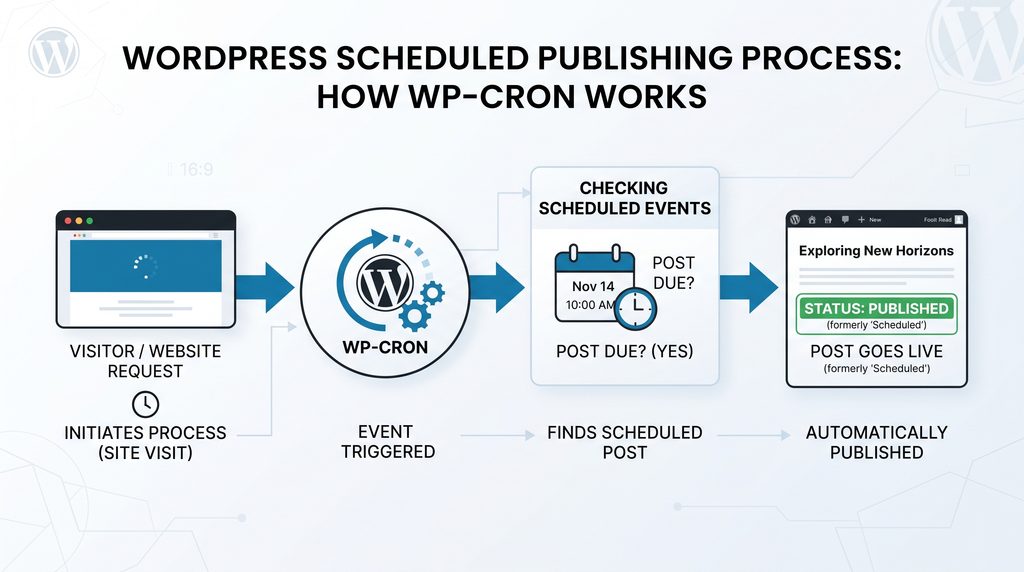
Post Scheduled → Correct Time Arrives → WP-Cron Runs → Scheduled Event Executes → Post Becomes Published
If one part of this process fails, you can end up with scheduled posts not publishing in WordPress.
Common causes include:
- WP-Cron not running
- Low website traffic
- DISABLE_WP_CRON configuration
- Broken server cron
- Loopback request failures
- Wrong timezone
- Security or firewall blocks
- Cache/plugin conflicts
- Server resource problems
- Downstream feed or social automation failures
This guide shows you how to identify the actual cause and fix it step by step.
⏰ Why WordPress Shows a Missed Schedule Error
A Missed Schedule error means the scheduled publishing time has passed, but WordPress did not complete the expected publishing event.
For example:
Scheduled time: 10:00 AM
Current time: 10:20 AM
Post status: Missed Schedule
This usually means the event was not processed when expected.
Possible reasons include:
- WP-Cron did not trigger
- Loopback request failed
- Server cron failed
- WordPress timezone is wrong
- The plugin interfered with scheduling
- The server was overloaded
Do not repeatedly reschedule the same post without finding out why the event was missed.
⚙️ How WordPress Triggers Scheduled Publishing
WordPress uses scheduled events for future posts.
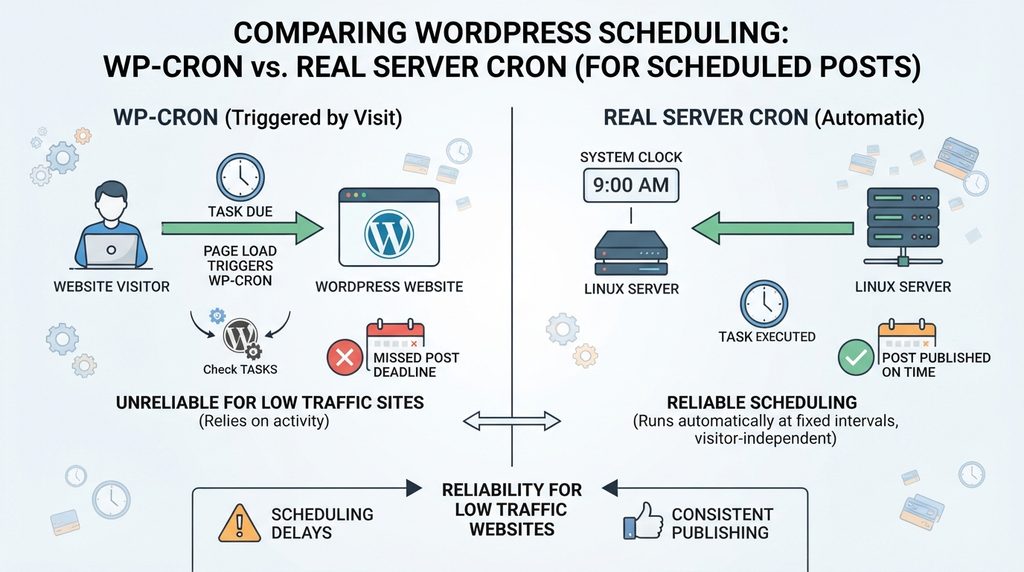
Unlike a traditional system cron daemon, the default WP-Cron is typically triggered by requests to your WordPress site.
A simplified process is:
Visitor/Request → WP-Cron Check → Due Event Found → Scheduled Post Published
This distinction becomes important on websites with very little traffic.
👉 Learn how WordPress handles scheduled tasks: WordPress Cron Documentation
A post scheduled for 3:00 AM may not be processed as reliably as it would with a properly configured system cron job. WordPress also uses loopback requests for cron and scheduled events.
1. Confirm the Post Was Actually Scheduled
Start with the simplest check.
Go to:
Posts → All Posts
Open the affected article.
Confirm:
- Status is Scheduled
- The date is in the future when initially scheduled
- Time is correct
- You clicked Schedule
- The post was not left as Draft or Pending Review
If these settings are correct, continue troubleshooting.
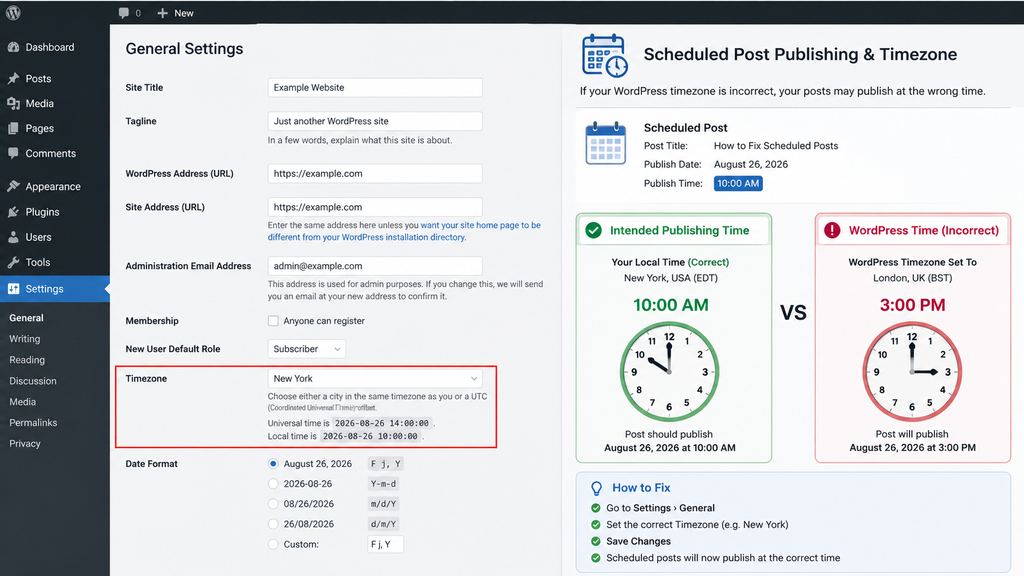
2. Check Your WordPress Timezone
Go to:
Settings → General → Timezone
Make sure it matches the timezone you use for publishing.
For example:
Europe/United Kingdom
If that is the timezone your editorial schedule follows.
A timezone mismatch can make a perfectly valid scheduled post appear late or scheduled for the wrong time. Where practical, using an appropriate city/region timezone is usually easier to manage than manually calculating offsets, especially in locations that observe daylight-saving changes.
3. Do Not Confuse Server Time With WordPress Time
Your hosting server may use UTC while WordPress displays your local time zone.
That is normal.
You usually do not need to change the server clock.
Check:
WordPress timezone → Intended publishing timezone
first. Also check editorial, social, or newsletter plugins if they maintain their own timezone setting.
4. Check Site Health
Go to:
Tools → Site Health → Status
Look for warnings involving:
- Scheduled events
- Loopback requests
- REST API
- Background processing
If Site Health also reports REST API failures, fix that issue separately using our WordPress REST API Error troubleshooting guide.
A message such as:
“A scheduled event has failed”
Or a late scheduled event indicates the problem may affect WordPress background processing generally rather than only one article.
👉 Learn more about WordPress diagnostics: WordPress Site Health Documentation
5. Test Whether WP-Cron Is Triggering
Create a simple temporary post.
Schedule it approximately 5–10 minutes ahead.
Wait until the scheduled time passes.
If it remains unpublished, open your public website in another browser or private window.
Then check the post again.
If the Post Suddenly Publishes
Traffic-triggered WP-Cron is a strong suspect.
Your cron event can work, but it is not being triggered predictably enough.
If It Still Does Not Publish
Continue to the cron, loopback, plugin, and hosting checks below.
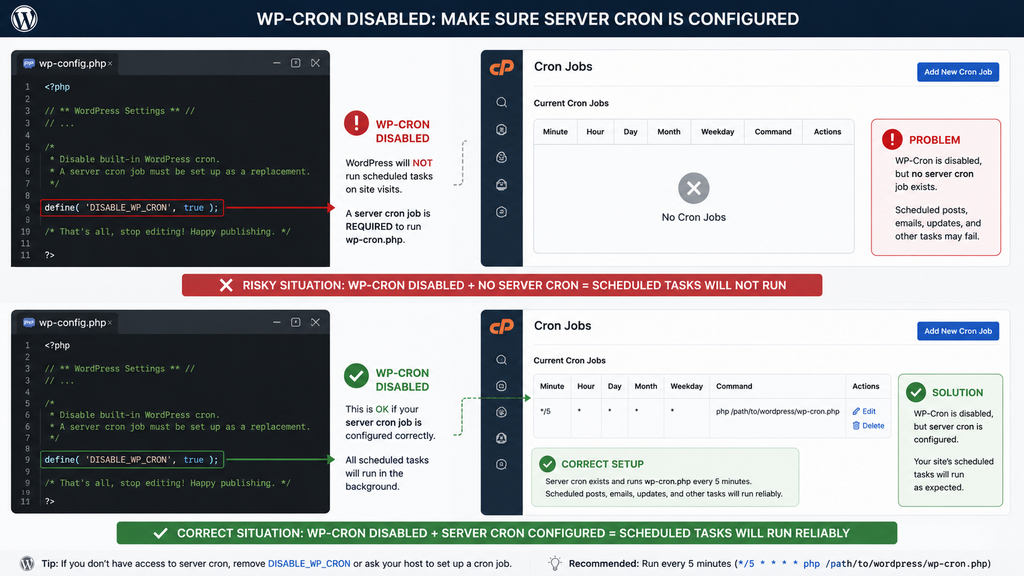
6. Check DISABLE_WP_CRON
Open:
wp-config.php Search for:
define( 'DISABLE_WP_CRON', true ); This tells WordPress not to use its normal request-triggered WP-Cron spawning.
That configuration is not automatically wrong.
Many optimized WordPress websites disable normal WP-Cron because a real server cron replaces it.
The dangerous configuration is:
WP-Cron Disabled + No Working Server Cron
That can leave scheduled tasks without a reliable trigger.
7. Do Not Remove DISABLE_WP_CRON Blindly
First, check your hosting control panel for:
- Cron Jobs
- Scheduled Tasks
- Task Scheduler
If a server cron already exists, inspect it before changing wp-config.php.
It may have been intentionally configured by:
- Your developer
- Hosting provider
- Previous administrator
- Performance specialist
If no replacement cron exists and normal WP-Cron was disabled accidentally, restoring normal WordPress cron behavior may solve the problem. Back up wp-config.php before editing it.
8. Check for Conflicting Cron Definitions
Avoid configurations where wp-config.php contains contradictory definitions such as:
define( 'DISABLE_WP_CRON', true );and somewhere else:
define( 'DISABLE_WP_CRON', false ); Keep one clear configuration.
Do not fix cron by adding more conflicting constants.
9. Fix Low-Traffic WP-Cron Problems
Low-traffic sites deserve special attention.
Suppose a post is scheduled for:
2:00 AM
But your website receives almost no traffic overnight.
Default WP-Cron is not identical to a traditional clock-driven operating-system scheduler.
For a website where publication timing matters, a real server cron can provide more predictable triggering.
This is especially useful for:
- New blogs
- Low-traffic sites
- News/editorial websites
- Time-sensitive campaigns
- Sites with many scheduled tasks
10. Set Up a Real Server Cron
Most hosting control panels provide a Cron Jobs or Scheduled Tasks section.
A server cron can trigger WordPress regularly without relying solely on normal website traffic. One HTTP-based approach can conceptually look like:
wget -q -O - https://example.com/wp-cron.php?doing_wp_cron >/dev/null 2>&1Some servers use curl, while others use PHP directly.
Do not blindly copy this command into your hosting account.
The correct command depends on:
- Hosting provider
- Server configuration
- PHP path
- WordPress installation path
- Available shell commands
Use your host’s recommended WordPress cron method.
11. Choose a Reasonable Cron Interval
For a normal blog where scheduled publishing matters, a server cron running every:
5–10 minutes
is often practical.
If cron runs every 15 minutes, a small publishing delay may be expected.
Running it every minute is usually unnecessary for a standard blog.
Choose the interval based on:
- Publishing requirements
- Hosting limits
- Number of scheduled jobs
- Site workload
12. Test the Server, Cron
Do not assume the job works because it appears in your hosting panel.
After configuring it:
- Create a new test post.
- Schedule it 10–15 minutes ahead.
- Do not manually trigger WP-Cron.
- Wait for the scheduled time.
- Check the publication time.
If it still fails, inspect:
- Cron execution logs
- PHP path
- WordPress path
- Command errors
- Permissions
- DNS/SSL problems
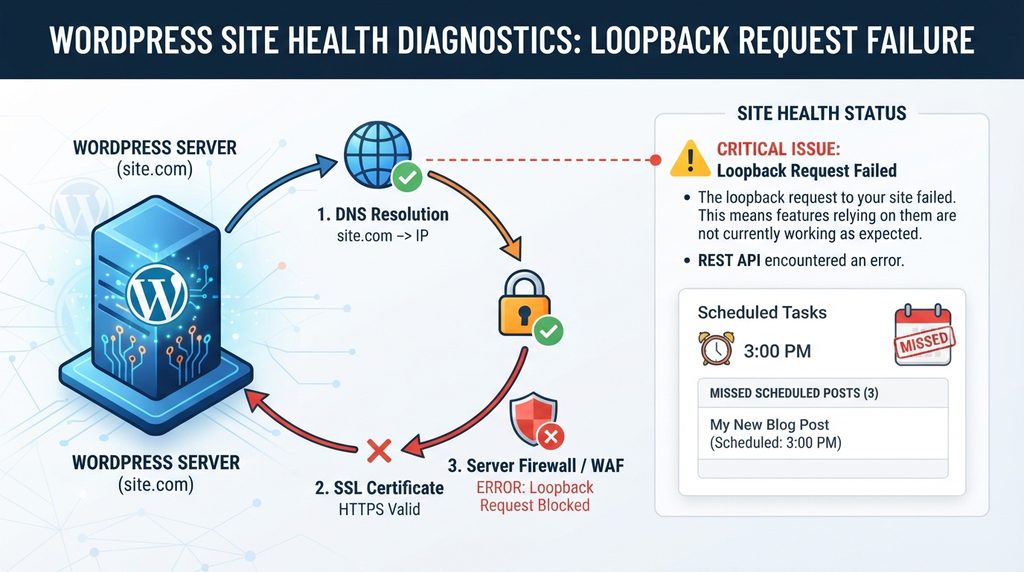
13. Check Loopback Requests
Go back to:
Tools → Site Health
Look for:
Loopback request failed
A loopback request happens when your WordPress server makes a request back to its own website.
Conceptually:
Server → Own Domain → WordPress → Scheduled Task
If this request fails, scheduled events can be affected.
👉 Official guide: WordPress Loopback Requests
14. Browser Access Does Not Prove Loopback Works
Your browser and your server are two different clients.
This can work:
Your Computer → Website
while this fails:
Server → Its Own Website
If Site Health reports loopback problems, ask your host to verify that the server can make an HTTPS request to its own domain.
15. Check cURL Errors
Site Health may show errors such as:
cURL Error 6
Often related to DNS or hostname resolution.
cURL Error 7
Usually a connection failure.
cURL Error 28
Usually a timeout.
Do not treat every cURL error as the same problem.
For timeouts, investigate:
- Server load
- Firewall
- DNS
- SSL
- Security plugin
- Hosting network
16. Check SSL and Redirect Loops
Loopback requests can fail if the site continuously redirects between:
http://example.com
and:
https://example.com
or:
www.example.com
and:
example.com
Check:
- WordPress Address
- Site Address
- .htaccess
- Nginx rules
- Hosting redirects
- CDN redirects
Use one consistent canonical configuration. Do not disable SSL verification as a permanent workaround.
17. Check Security Plugins
Security plugins can block:
- wp-cron.php
- Loopback requests
- Server IPs
- Bots
- Internal requests
- Certain HTTP methods
If the scheduling problem began after changing a security plugin, check its logs.
Do not permanently disable the whole security system. Find the specific rule responsible.
18. Check Cloudflare or Another WAF
If you use Cloudflare or another web application firewall, inspect security events around the missed publication time.
Look for requests involving:
/wp-cron.php
and check:
- Block action
- Challenge
- Rate limit
- Server IP
- Firewall rule
If a legitimate cron request is blocked, create the narrowest appropriate exception. Do not bypass security for the entire website.
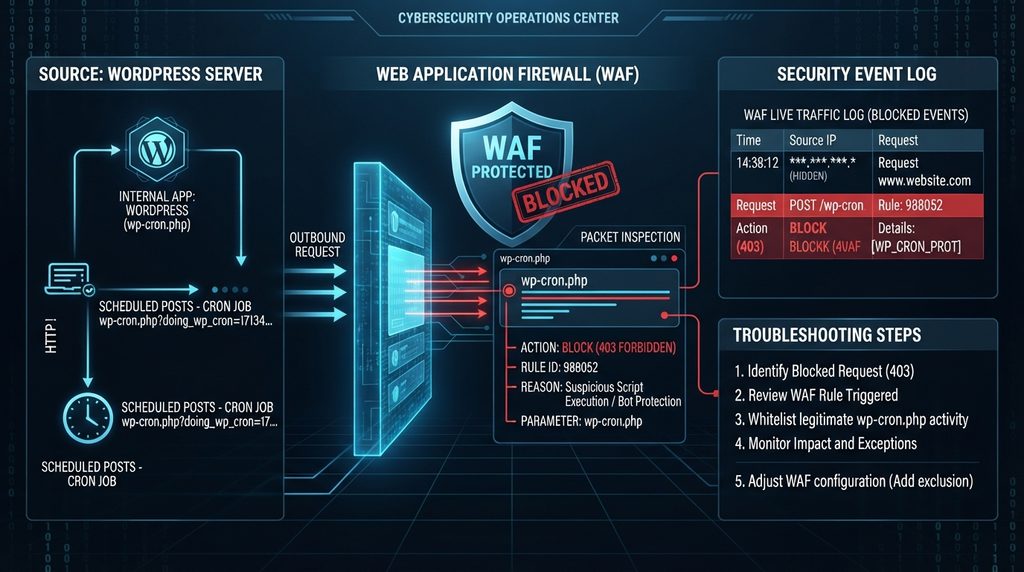
19. Check ModSecurity
Some hosting environments use ModSecurity.
If cron requests return 403 Forbidden, ask your hosting provider to check whether a ModSecurity rule is responsible. If 403 errors also appear elsewhere on your site, follow our guide to fix the WordPress 403 Forbidden Error.
Ask for the specific rule ID. A targeted exception is safer than disabling ModSecurity globally.
20. Check Cache and Optimization Plugins
Caching does not automatically mean cron is broken.
However, cache/optimization tools can contribute to scheduling problems or make a successful publication look like a failure.
If the issue began after changing:
- Page caching
- Object cache
- Cron optimization
- Cache preload
- Database optimization
Test the relevant feature on staging. Clear relevant caches after changing the cron configuration.
21. Check Plugin Conflicts
Plugins can interact with:
- Cron hooks
- Post status
- Publishing workflows
- Security
- Caching
- Social automation
If scheduled posts stopped after installing or updating a plugin, test the change on staging.
A controlled process is:
- Back up the site.
- Use staging.
- Disable non-essential plugins.
- Schedule a test post.
- Re-enable plugins gradually.
- Retest.
When the error returns, you have a much stronger lead.
22. Do Not Use a “Missed Schedule” Plugin as Your First Fix
Plugins exist that detect overdue posts and publish them later.
They can be useful as a fallback.
But if you’re:
- WP-Cron
- Loopback
- Server cron
- Hosting scheduler
is broken, the plugin may only hide the underlying problem.
Other scheduled tasks could still fail.
Diagnose the scheduler first.
23. Check Theme and Custom Code
Custom themes and snippets can interfere with scheduled publishing.
Review code involving:
wp_schedule_event
wp_schedule_single_event
transition_post_status
future_to_publish
publish_future_post
A custom function could:
- Change post status
- Remove events
- Reschedule events
- Interrupt publishing
Test a current default WordPress theme on staging if necessary. Never edit WordPress core to fix this.
24. Check PHP Error Logs
A cron request may trigger correctly but crash before the post is published.
For temporary troubleshooting, WordPress logging can be configured with:
define( 'WP_DEBUG', true );
define( 'WP_DEBUG_LOG', true );
define( 'WP_DEBUG_DISPLAY', false );
Then inspect:
/wp-content/debug.log
Look for:
- Fatal errors
- Memory exhaustion
- Plugin errors
- Theme errors
- Type errors
Do not leave verbose debugging enabled unnecessarily on a live website.
25. Check PHP Memory
If logs show:
Allowed memory size exhausted
Cron processing may terminate before the scheduled event finishes.
Fix the memory problem first. If your logs show a PHP memory exhaustion error, fix the underlying problem before testing scheduled publishing again. See our guide to fixing the WordPress Memory Exhausted Error.
26. Check Server Resources
Scheduled jobs can be delayed when the server is overloaded.
Check:
- CPU
- RAM
- PHP workers
- I/O
- Database load
- Process limits
Pay special attention if missed schedules happen during:
- Backups
- Malware scans
- Imports
- Traffic spikes
- Database optimization
27. Separate Heavy Jobs From Publishing Times
Avoid scheduling several resource-heavy jobs at the same time.
A better schedule could be:
2:00 AM → Backup
4:00 AM → Security scan
9:00 AM → Important scheduled article
This can be especially useful on shared or resource-limited hosting.
28. Post Publishes Late by 5–10 Minutes
A small delay does not automatically mean WordPress is broken.
If your real server cron runs every 10 minutes, the next cron cycle may process the post after its exact scheduled minute.
Check:
- Cron interval
- Server load
- Low traffic
- Competing events
If precise publishing matters, adjust the scheduler appropriately.
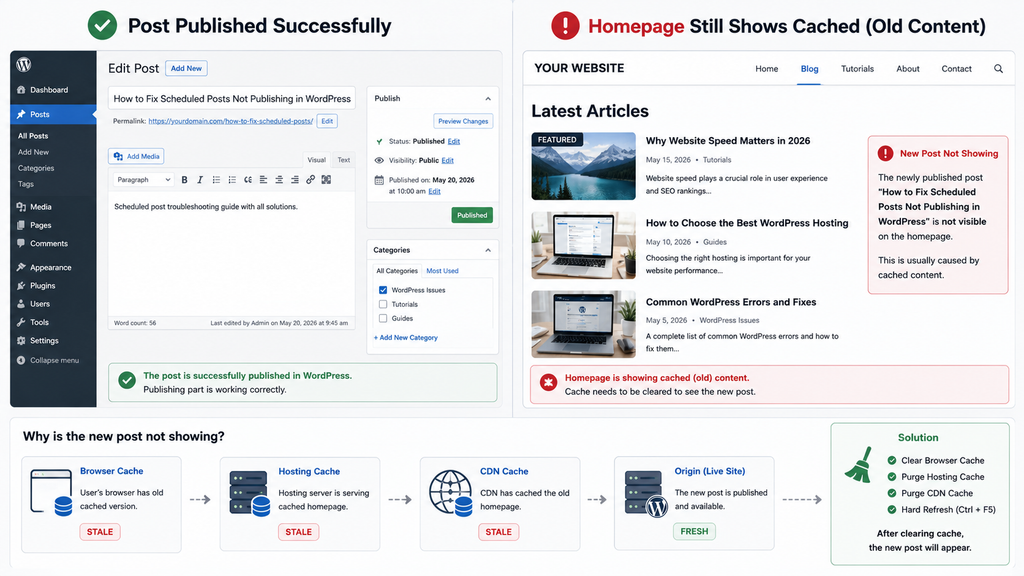
29. Post Is Published, but Homepage Still Looks Old
First, check the post itself.
If:
Post Status = Published
and its URL works; the scheduling event succeeded.
The homepage may simply be cached.
Clear:
- WordPress page cache
- Hosting cache
- CDN cache
Also check category and archive caching. Do not change WP-Cron when the post is already published.
30. Post Is Published but Missing From RSS Feed
Open:
https://example.com/feed
Check whether the article appears.
If it is published but missing from the feed, investigate:
- Feed cache
- Feed plugin
- Custom feed code
- CDN/cache layer
This is now a feed problem rather than a core scheduling problem.
31. Post Is Published but Not Showing in Google
WordPress publishing and Google indexing are separate processes.
The workflow is:
WordPress Publishes → Google Discovers/Crawls → Google Decides Whether to Index
A scheduled post can publish successfully and still take time to appear in Google.
Check:
- XML sitemap
- Internal links
- Noindex
- Google Search Console
Do not modify WP-Cron to fix an indexing problem.
32. Scheduled Post Publishes but Social Sharing Fails
A social plugin may run after the WordPress publishing event.
If the article is published but not shared, check:
- Social API connection
- Expired token
- Account permissions
- Plugin logs
- Webhook
- Platform API
Separate:
WordPress publishing
from: Social distribution
33. Scheduled Post Publishes but Newsletter Does Not Send
The same rule applies to email automation.
Check:
- Newsletter queue
- Email plugin cron
- API connection
- Mail provider
- Automation trigger
If WordPress itself is also failing to send emails, use our guide to fix WordPress Not Sending Emails.
🧩 10 Scheduled Post Failures and the Best First Fix
Problem 1: “Missed Schedule” Appears After Publish Time
Likely cause: Cron did not process the future-post event.
Solution: Check Site Health, WP-Cron, server cron, and loopback requests.
Problem 2: Post Publishes Only After Someone Visits the Website
Likely cause: Request-triggered WP-Cron is not being triggered predictably enough.
Solution: Consider a reliable real server cron when timely publishing matters.
Problem 3: DISABLE_WP_CRON Is Enabled, but No Server Cron Exists
Likely cause: Normal cron was disabled without a replacement.
Solution: Verify the intended configuration and restore normal WP-Cron or configure and test a proper server cron.
Problem 4: Site Health Reports Loopback or Scheduled Event Failure
Likely cause: WordPress cannot complete its background request.
Solution: Check DNS, SSL, firewall, security plugins, cURL errors, and hosting.
Problem 5: Posts Published at the Wrong Time
Likely cause: Timezone mismatch.
Solution: Verify Settings → General → Timezone and check plugin-specific timezones.
Problem 6: Problem Starts After Cache/Optimization Changes
Likely cause: New optimization configuration or misleading cached output.
Solution: Test relevant cache features on staging, clear caches, and confirm the actual post status.
Problem 7: Server Cron Exists, but Scheduled Posts Still Fail
Likely cause: Cron job exists but does not execute correctly.
Solution: Check command, PHP path, WordPress path, execution logs, firewall, DNS, and SSL.
Problem 8: Posts Fail During Backups or Heavy Server Activity
Likely cause: Resource pressure or competing scheduled jobs.
Solution: Check CPU, memory, PHP workers, cron queue, and move heavy jobs away from publishing times.
Problem 9: Manual Cron Run Publishes the Post
Likely cause: The event works, but automatic triggering is failing.
Solution: Focus on WP-Cron spawning, loopback, server cron, firewall, or hosting configuration.
Problem 10: Post Is Published but Missing From Homepage, Google, Social Media, or Newsletter
Likely cause: Core publishing succeeded; a downstream system failed.
Solution: Check cache, indexing, feed, social API, newsletter queue, or integration separately.
🗺️ Match the Scheduling Problem to Its Likely Cause
| Symptom | Likely Area | First Check |
| Missed Schedule | Cron | Site Health |
| Publishes after site visit | WP-Cron trigger | Traffic/server cron |
| Every scheduled post fails | Global cron | DISABLE_WP_CRON |
| Wrong publish time | Timezone | General Settings |
| Loopback failed | Internal request | Site Health |
| cURL 6 | DNS | Hosting |
| cURL 7 | Connection | Firewall/network |
| cURL 28 | Timeout | Server/network |
| wp-cron.php 403 | Security | WAF/ModSecurity |
| Fails during backups | Resources | Hosting usage |
| Published, but the homepage is stale | Cache | Page/CDN cache |
| Published, but Google is missing | Indexing | Sitemap/GSC |
| Published but social missing | Integration | API/plugin logs |
🚫 Scheduling Fixes That Can Make the Problem Worse
Do not:
- Keep rescheduling missed posts without a diagnosis.
- Disable WP-Cron without a replacement.
- Create several duplicate server cron jobs.
- Install multiple missed-schedule plugins.
- Set file permissions to 777.
- Disable your firewall permanently.
- Disable SSL verification.
- Change server time randomly.
- Delete all WordPress cron events.
- Edit WordPress core files.
- Assume cache means cron failed.
- Assume delayed Google indexing means publishing failed.
- Ignore PHP and hosting logs.
Fix the failing layer instead.
✅ Keep WordPress Scheduled Publishing Reliable
Use a simple maintenance routine:
- Keep the WordPress timezone correct.
- Check Site Health.
- Verify WP-Cron after migrations.
- Test server cron after hosting changes.
- Monitor loopback errors.
- Review security/WAF changes.
- Keep WordPress, plugins, and themes updated.
- Monitor PHP errors.
- Avoid unnecessary cron-heavy plugins.
- Separate heavy backups from publishing windows.
- Keep reliable backups.
- Test major server changes on staging.
- Schedule a test article after cron changes.
❔ Frequently Asked Questions
1. Why are scheduled posts not publishing in WordPress?
Common causes include WP-Cron not running, low traffic, loopback failures, disabled cron, broken server cron, wrong timezone, security restrictions, plugin conflicts, and server resource problems. Start with Site Health and the site’s cron configuration.
2. What does Missed Schedule mean in WordPress?
It means the scheduled publication time passed without WordPress completing the future-post publishing event. Check WP-Cron, loopbacks, server cron, and hosting conditions.
3. How do I fix a WordPress Missed Schedule error?
Check the timezone first, then Site Health, WP-Cron, DISABLE_WP_CRON, server cron, loopback requests, security rules, plugins, and hosting resources. Test the fix with a new scheduled post.
4. Can low traffic cause scheduled posts to publish late?
Yes. Default WP-Cron is request-triggered rather than a traditional continuously running system scheduler. A real server cron can provide more predictable triggering when publication timing matters.
5. Should I disable WP-Cron?
Only when you have a tested replacement, such as a reliable server cron. Disabling WP-Cron without replacing its trigger can cause scheduled posts and other timed tasks to stop working correctly.
6. Why are my scheduled posts publishing at the wrong time?
Check Settings → General → Timezone and any scheduling plugins that have their own timezone settings. Do not change your hosting server clock simply because WordPress displays another timezone.
7. Can a cache plugin cause a scheduled-post problem?
Caching or optimization can sometimes interfere with related workflows or make a successful publication appear missing because the homepage remains cached. Always check the actual post status before blaming cron.
8. Why does my scheduled post publish only after someone visits my website?
This strongly suggests that normal request-triggered WP-Cron is involved. For low-traffic sites or time-sensitive publishing, a properly configured server cron can make triggering more predictable.
9. Why is my scheduled post published but not showing in Google?
Publishing and Google indexing are separate processes. If WordPress shows the article as Published, check the sitemap, indexability, internal links, and Google Search Console instead of changing WP-Cron.
10. Why did the scheduled post publish, but social sharing or email automation fail?
The WordPress publishing event and downstream integrations are separate. Check the social API, access token, webhook, email queue, plugin logs, or provider connection.
⚠️ Scheduled Posts Still Failing? Check These Final Areas
If you’ve checked WP-Cron, server cron, timezone, loopback requests, plugins, security rules, and hosting resources but scheduled posts still fail, deeper server-level troubleshooting may be required.
Ask your hosting provider or WordPress professional to inspect:
- WP-Cron spawning
- Server cron execution
- PHP path
- Loopback requests
- cURL errors
- DNS
- SSL
- WAF/ModSecurity
- PHP fatal errors
- Server resources
- Custom cron hooks
- Future-post events
Give them the scheduled time, actual result, Site Health error, and relevant server-log timestamp.
That is much more useful than simply saying:
“WordPress scheduling isn’t working.”
Need Professional WordPress Help?
If scheduled posts still fail after checking WP-Cron, loopbacks, server cron, plugins, and hosting resources, our WordPress troubleshooting service can help identify the cause.
WordPress Services:
https://problemfixer.net/wordpress-services/
🏁 The Best Way to Keep Scheduled Posts Publishing
When scheduled posts are not publishing in WordPress, do not start by installing another plugin.
Follow the publishing chain:
Correct Schedule → Correct Timezone → Cron Trigger → Loopback → Future Post Event → Published
If the article remains Scheduled or shows Missed Schedule, investigate cron and background processing.
If the article is already published, stop changing WP-Cron and investigate the next layer:
Cache → Feed → Google → Social → Newsletter
This approach helps you fix the real cause instead of temporarily hiding the symptom.