
📍 Start Here: Find Where the Email Is Failing
If WordPress is not sending emails, first find out where the email is failing.
Check whether:
- WordPress created the email.
- Your contact form or WooCommerce triggered it.
- Your SMTP or mail provider accepted it.
- SPF and DKIM authentication passed.
- Gmail or another receiving server rejected it.
- The email went to spam or quarantine.
- A scheduled WordPress task failed.
Do not start by installing several SMTP plugins. Find the exact problem first, then apply the correct fix.
WordPress emails can stop working without warning.
A customer may submit a contact form, but you never receive the notification. Someone may request a password reset and wait for an email that never arrives. Your WooCommerce store may accept an order correctly while the customer receives no confirmation.
Sometimes WordPress even reports that an email was sent successfully, but nothing appears in the recipient’s inbox.
The important thing to understand is that these situations do not always have the same cause.
WordPress may fail to create the message. Your SMTP or email provider may reject it. Your domain authentication may fail. Gmail, Outlook, Yahoo, or a business email server may also accept the message but send it to spam or quarantine.
WordPress uses the wp_mail() function for email. A successful result from wp_mail() does not prove that the recipient received the message. It only means the sending method processed the request without reporting an error.
👉 Learn more about WordPress email functions: wp_mail() Function Reference
This guide will help you fix WordPress not sending emails by finding the exact point where the problem happens.
You will learn how to check SMTP, contact forms, WooCommerce emails, password resets, hosting restrictions, SPF, DKIM, DMARC, WP-Cron, migrations, Gmail errors, and email logs. Instead of trying random fixes, we will follow the email from WordPress all the way to the inbox.
📨 Follow a WordPress Email from Site to Inbox
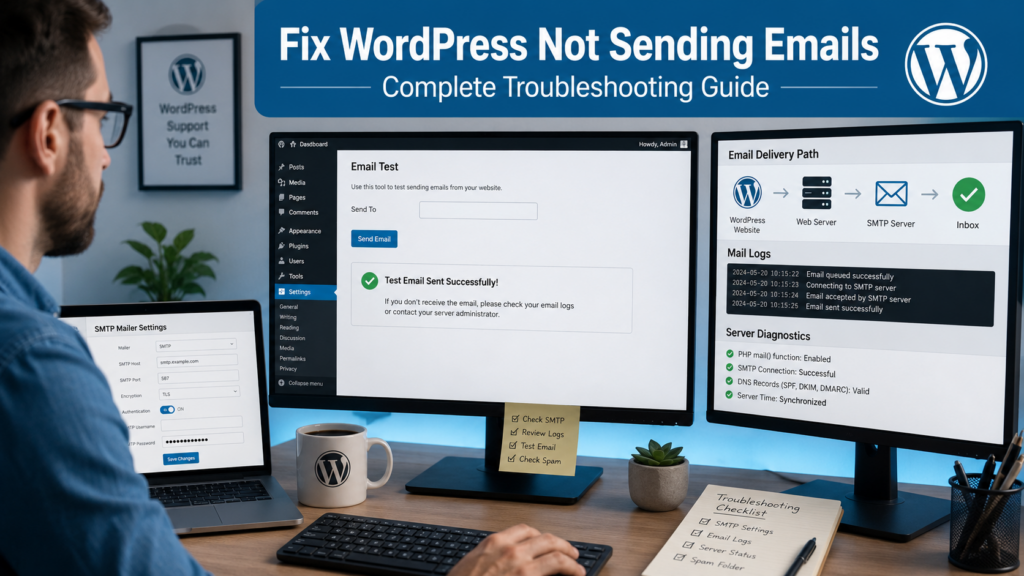
A simple WordPress email journey looks like this:
WordPress or Plugin → wp_mail() → SMTP/API Mail Provider →
Email Authentication → Receiving Server → Inbox or Spam
A problem can happen at any stage.
For example:
- A contact form may have the wrong recipient.
- WooCommerce may not trigger the expected notification.
- SMTP login details may be incorrect.
- Your hosting provider may block an outgoing connection.
- SPF or DKIM may fail.
- Gmail may reject an unauthenticated message.
- A company email system may quarantine it.
This is why installing another SMTP plugin is not always the answer.

Sending Failure vs. Delivery Failure
Before changing anything, determine which problem you have.
| Problem | Check First |
| Test email cannot be sent | SMTP or hosting |
| SMTP authentication fails | Login details or mail provider |
| WordPress says sent but nothing arrives | Delivery and authentication |
| Email reaches spam | Authentication and sender reputation |
| Only contact forms fail | Form settings |
| Only WooCommerce emails fail | WooCommerce settings and triggers |
| Scheduled emails fail | WP-Cron or background jobs |
| Problem started after migration | DNS, server, or mailer setup |
Knowing the difference can save hours of unnecessary troubleshooting.
🚨 Why WordPress Emails Fail or Disappear
1. Contact Form Says Sent but No Email Arrives
A successful form message does not prove that the email reached your inbox.
Possible causes include:
- Wrong recipient address
- Incorrect From address
- SMTP failure
- Failed email authentication
- Spam filtering
If other WordPress emails work, troubleshoot the contact form before changing your whole email setup.
2. WordPress Emails Go to Spam
If messages reach the spam folder, WordPress is probably creating and sending them.
Focus on:
- SPF
- DKIM
- DMARC
- Sender domain alignment
- Sender reputation
- Sending practices
Authentication simply means proving to Gmail or another email provider that your domain is allowed to send the message.
3. SMTP Is Configured but Emails Still Fail
Installing an SMTP plugin does not guarantee successful email delivery.
Possible problems include:
- Wrong username or password
- Wrong SMTP server
- Incorrect port
- Encryption mismatch
- Expired API key
- Expired OAuth connection
- Unverified sender
- Hosting restrictions
Always read the exact SMTP error before changing settings.
4. WooCommerce Order Emails Are Missing
WooCommerce uses different emails for different events.
Examples include:
- New order
- Processing order
- Completed order
- Failed order
- Refunded order
- New account
- Reset password
If one email is missing, the problem may be the WooCommerce trigger or order status rather than SMTP.
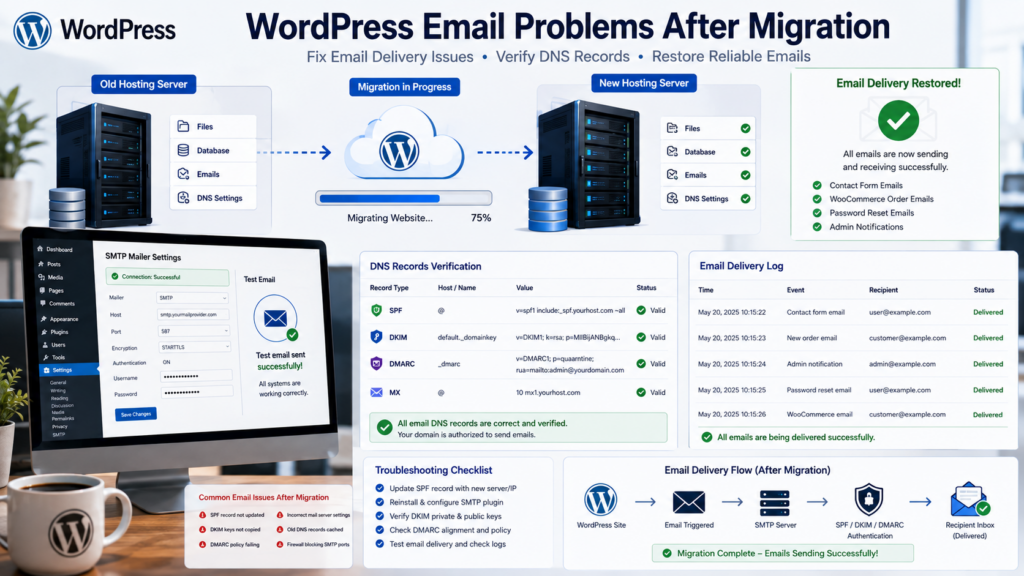
5. Emails Stop After a Migration or DNS Change
Moving a WordPress website can affect:
- SMTP login details
- API keys
- SPF
- DKIM
- DMARC
- Domain verification
- Mail-related DNS records
- Server restrictions
Your website pages can work normally while email remains broken.
6. Gmail Rejects WordPress Emails
Gmail has email authentication requirements.
For email sent to personal Gmail accounts, Google requires all senders to meet its sender guidelines, including SPF or DKIM authentication. Senders sending more than 5,000 messages per day to Gmail accounts must meet additional requirements, including SPF, DKIM, DMARC, and domain alignment.
👉 Google email sender guidelines: Email Sender Guidelines
Unauthenticated or incorrectly configured messages may be rejected or sent to spam.
✅ How to Fix WordPress Not Sending Emails Step by Step
Step 1: Check Spam, Junk, and Quarantine
Start with the easiest check.
Send a test email and look inside:
- Inbox
- Spam
- Junk
- Promotions
- Quarantine, if your email system has one
If the email reaches spam, your problem is probably email delivery rather than a complete sending failure.
Do not install another SMTP plugin yet.
Step 2: Verify the WordPress Admin Email
Go to:
WordPress Dashboard → Settings → General
Check the Administration Email Address.
- Typing mistakes
- Old email addresses
- Deleted mailboxes
- Incorrect domains
Remember that individual plugins can use their own notification addresses. Changing the WordPress admin email does not automatically change every plugin’s email settings.
Step 3: Check the From Address
Suppose your website is:
example.com
A suitable sender could be:
notifications@example.com
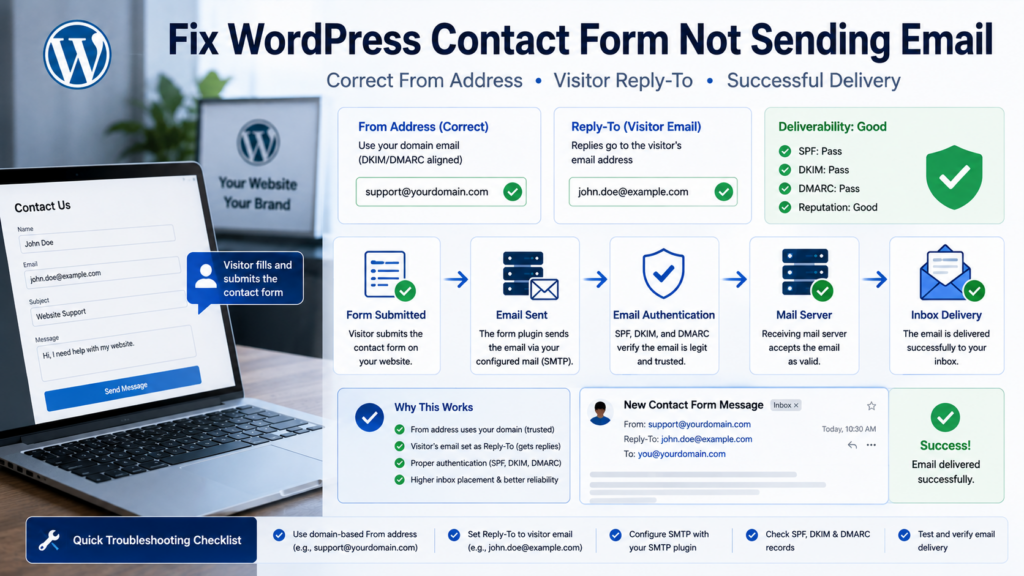
Avoid making WordPress pretend that a form email came directly from:
visitor@gmail.com
A better setup is:
From: forms@example.com
Reply-To: visitor@gmail.com
This keeps the sender on a domain you control while still allowing you to reply directly to the visitor.
Step 4: Test More Than One Type of Email
Do not test only your contact form.
- A contact form submission
- A password-reset email
- An SMTP or mailer test
- A WooCommerce test email if you run a store
If Nothing Works
Check the site-wide SMTP, API mailer, hosting, or email configuration.
If Password Reset Works but the Contact Form Does Not
Check the form settings.
If SMTP Test Works but WooCommerce Does Not
Check WooCommerce settings, triggers, and logs before changing SMTP.
Step 5: Check Email Logs
An email log can answer several important questions:
- Was an email created?
- Who was the recipient?
- When was it created?
- Was an error reported?
If the message never appears in your mail log, check the plugin, form, order trigger, or scheduled task.
If the message appears in the log, continue checking the delivery process.
Privacy Warning
Email logs can contain recipient addresses and message information.
Keep only the logs you need and protect them from unauthorized access.
Step 6: Configure SMTP or an API Mailer
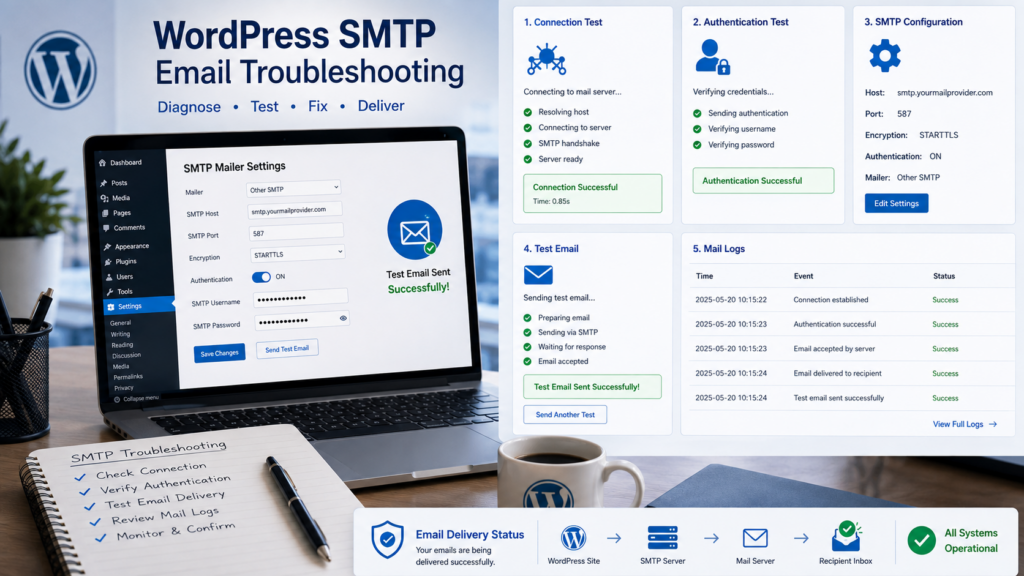
Many WordPress websites benefit from using an authenticated SMTP or API-based transactional email provider.
A typical SMTP setup may require:
| Setting | Purpose |
| SMTP Host | Outgoing email server |
| Port | Connection port |
| Encryption | Secure connection |
| Username | Login |
| Password/App Password | Authentication |
| From Email | Sender address |
| From Name | Sender name |
Always use the exact settings supplied by your email provider.
Never copy SMTP hostnames, ports, usernames, or other settings from a random tutorial.
Step 7: Fix a Failed SMTP Test
If your SMTP test fails, read the actual error.
If your SMTP test fails, read the actual error.
Authentication Failed
Check:
- Username
- Password
- App password
- API key
- OAuth connection
Connection Timed Out
Check:
- SMTP hostname
- Port
- Firewall
- Hosting restrictions
- Provider availability
Sender Not Verified
Verify your From address or sending domain with your email provider.
Could Not Connect to SMTP Host
Check:
- Hostname
- Port
- Encryption
- DNS
- Outgoing server restrictions
The exact error often tells you what to fix.
🔐 Email Authentication Fixes
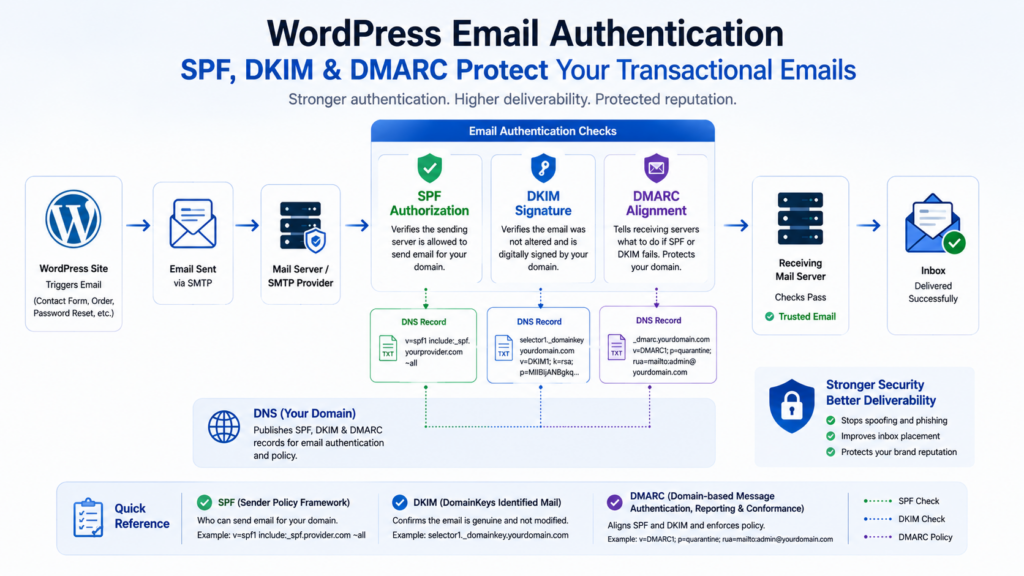
Step 8: Configure SPF Correctly
SPF helps receiving email servers check which systems are allowed to send mail for your domain.
Your domain may send mail through several services, such as:
- Business email
- WordPress transactional mail
- CRM software
- Newsletter service
Your SPF setup should account for the legitimate services that actually send email for your domain.
Important SPF Warning
Do not blindly create a second SPF record if your domain already has one.
Multiple separate SPF policies can cause problems.
Follow the instructions from your actual email providers and make sure legitimate senders are included in the correct SPF configuration.
Step 9: Configure DKIM
DKIM adds a digital signature to outgoing messages.
Your email provider normally gives you a DNS record to add to your domain.
After configuring it, send another test message.
When viewing email authentication results, you want to see a successful DKIM result such as:
dkim=pass
Use the DKIM settings supplied by your email provider rather than creating random DNS values yourself.
Step 10: Configure DMARC Carefully
DMARC works with SPF and DKIM.
It helps receiving email servers decide what to do when authentication or domain alignment fails.
Common policies include:
p=none
p=quarantine
p=reject
Do not immediately use a strict p=reject policy unless you understand your complete email setup.
A safer process is:
- Identify all legitimate senders.
- Configure SPF.
- Configure DKIM.
- Test authentication.
- Add DMARC based on your setup.
- Monitor the results.
- Increase enforcement when appropriate.
A strict policy added too early can block legitimate email.
Step 11: Understand DMARC Alignment
DMARC does more than check whether SPF or DKIM exists.
It also checks whether the authenticated domain matches, or properly aligns with, the domain shown to the recipient in the From address.
In simple words:
The domain claiming to send the email should match the domain that has permission to send it. This is another reason not to make your WordPress site pretend that an email came directly from a visitor’s Gmail address.
Step 12: Fix Gmail 5.7.26 Errors
If Gmail returns a 5.7.26 authentication-related error, do not reinstall WordPress.
Check:
- Does SPF pass?
- Does DKIM pass?
- Is the correct sending domain being used?
- Is DMARC configured correctly for your setup?
- Is the From address correct?
- Which service actually sent the message?
Always read the full Gmail error message, not only the number. Different email errors can look similar, and the full response provides the best clue.
🧩 Troubleshoot Forms and Woo Commerce Emails
Step 13: Fix Contact Form 7 Not Sending Emails
Go to:
Dashboard → Contact → Contact Forms → Your Form → Mail
👉 Official Contact Form 7 mail settings: Contact Form 7 Mail Tab
Check the following settings.
To
Make sure the recipient address exists and is typed correctly.
From
Use an email address belonging to your website’s domain.
Example:
forms@example.com
Reply-To
Use the visitor’s email here.
For example:
Reply-To: [your-email]
This allows you to reply to the visitor without pretending that the message was originally sent from their Gmail or Yahoo account.
If the form still fails:
- Submit another test.
- Check the email log.
- Check SMTP or provider logs.
- Check spam.
Verify SPF and DKIM.
Step 14: Fix WPForms Notifications
Open:
WPForms → All Forms → Your Form → Settings → Notifications
Check:
- Notifications are enabled.
- Send To address is correct.
- From address is correct.
- Reply-To is correct.
- Smart Tags are correct.
- Conditional notification rules are not blocking the message.
If SMTP tests and password-reset emails work but WPForms notifications do not, troubleshoot the form before changing the main mailer.
Step 15: Fix WooCommerce Emails Not Sending
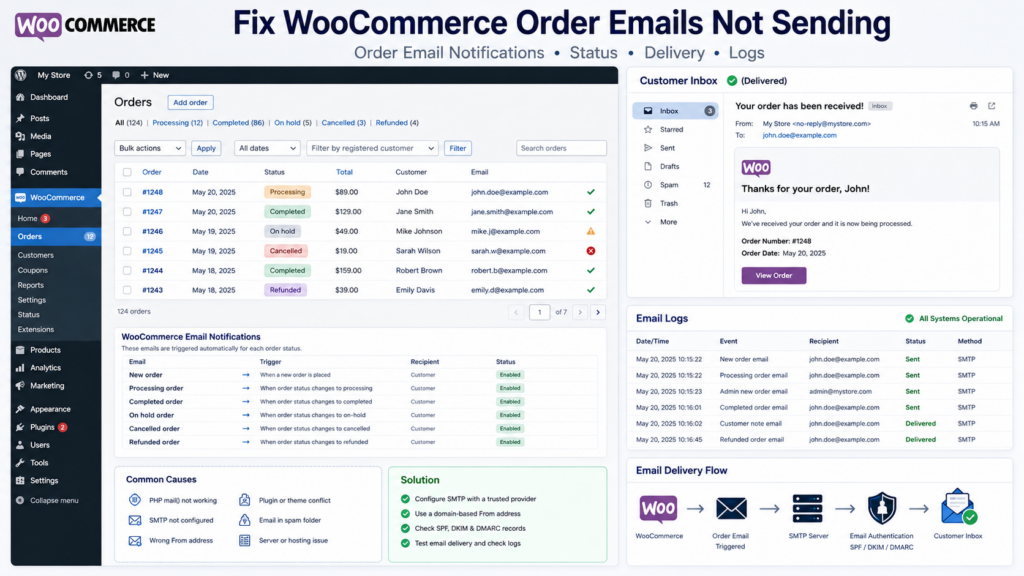
Go to:
WooCommerce → Settings → Emails
👉 WooCommerce email documentation: WooCommerce Email Settings
Check the affected email notification.
WooCommerce includes emails such as:
- New order
- Cancelled order
- Failed order
- On-hold order
- Processing order
- Completed order
- Refunded order
- Customer note
- Reset password
- New account
Check Whether the Email Is Enabled
Open the affected notification and make sure it is enabled.
Check the Order Status
Different order statuses trigger different emails.
For example, a Completed Order email will not behave the same way as a New Order email.
Check the Customer Address
Open the order and confirm that the customer’s email address is correct.
Send a Test Email
Current WooCommerce email settings support test emails, which can help separate a template/settings issue from a delivery problem.
Check WooCommerce Transactional Email Logs
Go to WooCommerce → Status → Logs and look for the transactional-emails log source. It can show whether WooCommerce marked an email as sent, failed, disabled, or skipped.
If the email should have been generated but was not, check WooCommerce logs for failed or skipped transactional emails and fatal errors.
If no expected transactional email is created, investigate the trigger, plugin conflicts, or PHP errors.
Step 16: Fix Password Reset Emails
If WordPress password-reset messages do not arrive:
- Check the user’s saved email address.
- Check spam and junk.
- Check your WordPress email log.
- Check SMTP or provider logs.
- Test another WordPress email.
If every other email works, investigate:
- Security plugins
- Membership plugins
- Login plugins
- Recipient filtering
Password-reset workflow
🌍 Check Hosting, DNS, and Migration Changes
Step 17: Fix Emails After Moving Your Website
After changing hosting, test:
- SMTP credentials
- API keys
- From address
- SPF
- DKIM
- DMARC
- Domain verification
- Outgoing email restrictions
Do not consider a website migration complete until important transactional emails have also been tested.
Step 18: Check DNS After Changing Nameservers
Changing nameservers can accidentally remove or replace important mail records.
Verify:
- MX
- SPF
- DKIM
- DMARC
- Email-provider verification records
A working homepage does not prove that your email DNS is correct.
Step 19: Do Not Randomly Change MX Records
MX records mainly tell other email servers where incoming mail for your domain should be delivered.
Changing MX records blindly to fix a WordPress outgoing notification can break your business email.
Only change them when your actual email provider tells you to.
Step 20: Check Hosting Email Restrictions
Hosting providers may restrict:
- PHP mail
- SMTP connections
- Certain ports
- Sending volume
- Server resources
If your SMTP details look correct but WordPress cannot connect, contact your hosting provider.
Ask:
Are outgoing connections from my WordPress website to my email provider and required SMTP port allowed?
This can quickly rule out a server-level block.
If your server is also blocking access to parts of WordPress, check our guide: Fix WordPress 403 Forbidden Error
🔍 When the Basic Email Fixes Don’t Work

Step 21: Check Plugin Conflicts
If emails stopped immediately after a plugin update, investigate that change.
Possible causes include:
- SMTP plugins
- Contact form plugins
- Security plugins
- WooCommerce extensions
- Membership plugins
- Email customizers
- Login plugins
Use a staging site when possible.
Disable the suspected plugin and run the same email test again.
Avoid using multiple SMTP plugins at the same time unless you have a specific technical reason.
Step 22: Check WP-Cron and Background Tasks
Not every WordPress email is sent immediately.
Plugins may use scheduled jobs for:
- Reports
- Membership reminders
- Follow-up emails
- Subscription tasks
- WooCommerce automation
- Scheduled notifications
If normal emails work but scheduled emails fail, investigate WordPress scheduling.
Check wp-config.php for:
define( ‘DISABLE_WP_CRON’, true );
This setting is not automatically wrong.
Some websites disable normal WP-Cron because they use a real server cron job instead.
If WP-Cron is disabled, confirm that another scheduler is actually running.
Step 23: Check PHP and WordPress Error Logs
A PHP error can stop a process before WordPress creates the email.
If your site is also returning a server error while emails fail, follow our guide: Fix WordPress 500 Internal Server Error before continuing with mail troubleshooting.
For temporary troubleshooting, WordPress debugging can be configured like this:
define( ‘WP_DEBUG’, true );
define( ‘WP_DEBUG_LOG’, true );
define( ‘WP_DEBUG_DISPLAY’, false );
The log is normally stored at:
/wp-content/debug.log
Reproduce the problem and review recent errors.
If the same plugin, theme, or function appears repeatedly, investigate it.
Important
Do not leave unnecessary debugging enabled forever on a live website.
Protect debug logs from public access because they may contain sensitive technical information.
If the logs point to database connectivity problems instead, follow our guide: Fix Error Establishing a Database Connection in WordPress
Step 24: Check API-Based Email Providers
Not every WordPress mailer uses traditional SMTP.
Some use an email provider’s API.
If an API-based mailer stops working, check:
- API key
- OAuth connection
- Token expiration
- Domain verification
- Account status
- Provider logs
Do not troubleshoot every API failure as an SMTP-password problem.
⛔ Email Fixes That Can Make the Problem Worse
Avoid these common mistakes:
- Installing several SMTP plugins.
- Using the visitor’s email as the From address.
- Creating random SPF records.
- Adding multiple SPF policies without understanding the existing setup.
- Moving immediately to a strict DMARC policy.
- Changing MX records blindly.
- Testing only one email address.
- Ignoring SMTP or bounce logs.
- Assuming “sent” means “delivered.”
- Publishing SMTP passwords or API keys.
- Changing many settings at the same time.
Make one meaningful change, test again, and record the result.
🧭 Trace the Email from WordPress to the Inbox
⚡ Match the Email Problem to the First Check
| No WordPress emails work | SMTP/API mailer test |
| Contact Form 7 only fails | Form Mail settings |
| WPForms only fails | Notification settings |
| WooCommerce only fails | Email trigger, status, and logs |
| SMTP test fails | Exact SMTP error |
| SMTP works but email is missing | Authentication and delivery |
| Gmail shows 5.7.26 | Full error + SPF/DKIM/DMARC |
| Emails reach spam | Authentication and sender reputation |
| Broke after migration | Mailer + DNS |
| Scheduled emails fail | WP-Cron/background jobs |
| Only one recipient fails | Recipient filtering |
Use this simple process whenever WordPress email fails.
1. Was the email triggered?
If not, check the form, WooCommerce order status, registration process, or scheduled task.
2. Did WordPress create the email?
Check your email log.
If it did not, investigate plugin settings or PHP errors.
3. Did the Email Provider Accept It?
Check SMTP or API logs.
If not, investigate login details, connectivity, account status, or provider settings.
4. Did Authentication Pass?
Check:
- SPF
- DKIM
- DMARC
5. What Did the Receiving Server Do?
Look for:
- Delivered
- Deferred
- Bounced
- Rejected
6. Where Did the Message Land?
Check:
- Inbox
- Spam
- Promotions
- Quarantine
- Recipient filters
This process turns a vague “WordPress email doesn’t work” problem into a specific technical issue.
✅ Keep WordPress Emails Working Reliably
Once your emails are working correctly:
- Use one properly configured SMTP or API mailer.
- Use a domain-based From address.
- Configure SPF correctly.
- Enable DKIM.
- Configure DMARC carefully.
- Keep WordPress updated.
- Keep email and form plugins updated.
- Test important transactional emails regularly.
- Check logs after major changes.
- Test emails after website migrations.
- Verify DNS after changing nameservers.
- Monitor scheduled email workflows.
- Protect SMTP passwords and API keys.
A dependable setup looks like this:
WordPress → SMTP/API Provider → Authenticated Domain →
Receiving Server → Recipient
Once email delivery is stable, you can also improve your overall site performance: Speed Up Your WordPress Website
🧑💻 Still Not Receiving WordPress Emails?
If you have checked the trigger, email logs, SMTP/API connection, authentication, DNS, and recipient filtering but messages still fail, deeper troubleshooting may be required.
Professional WordPress support can help investigate:
- SMTP configuration
- Contact form problems
- WooCommerce email failures
- Plugin conflicts
- PHP errors
- DNS and authentication problems
- WP-Cron failures
- Website migration issues
- Server restrictions
- Service Page:
SEO Services: https://problemfixer.net/seo-tools-services/ - WordPress Services: https://problemfixer.net/wordpress-services/
- AI Tools Services: https://problemfixer.net/ai-tools-services/
When asking for technical help, provide:
- Exact error message
- Approximate test time
- Sender address
- Recipient domain
- Message ID, if available
- Relevant mail logs
Specific evidence is much easier to diagnose than simply saying, “WordPress email doesn’t work.”
💬 WordPress Email FAQs
Why is WordPress not sending emails?
Common causes include incorrect sender or recipient settings, SMTP failures, hosting restrictions, plugin problems, failed scheduled tasks, and email authentication issues. Start by finding out whether WordPress created the email and whether your mail provider accepted it.
Why does WordPress say an email was sent but nothing arrives?
A successful WordPress sending result does not guarantee inbox delivery. The message can still be delayed, bounced, rejected, quarantined, or placed in spam.
Do I need SMTP for WordPress?
Not always. WordPress can send email when the hosting environment provides a working mail system. However, an authenticated SMTP or API-based transactional mailer often provides better logging, authentication, and troubleshooting.
Why is Contact Form 7 not sending emails?
Check the To, From, and Reply-To fields. The From address should belong to your website’s domain. The visitor’s address can normally be used in Reply-To.
Why are WooCommerce order emails missing?
Check whether the correct notification is enabled, whether the order reached the status that triggers the email, and whether the customer’s address is correct. Then check WooCommerce and mail-provider logs.
Why are WordPress emails going to spam?
Possible causes include authentication problems, sender reputation, spam complaints, sending patterns, or recipient filtering. SPF, DKIM, and DMARC are important, but authentication alone does not guarantee inbox placement.
What are SPF, DKIM, and DMARC?
SPF helps identify servers allowed to send mail for your domain. DKIM adds a digital signature that helps prove the message is genuine. DMARC uses authentication and domain alignment to apply a policy and provide reporting.
What does Gmail 5.7.26 mean?
It can indicate an email authentication problem. Read the complete Gmail error and check SPF, DKIM, DMARC, the From address, and the domain actually sending the email.
Why did WordPress emails stop after changing hosting?
Your new server may have different outgoing email restrictions or may be missing your SMTP/API configuration. DNS authentication and sender verification may also need to be checked.
Why do test emails work but scheduled emails fail?
Your email connection may be working correctly while WP-Cron, server cron, a plugin queue, or another background task is failing.