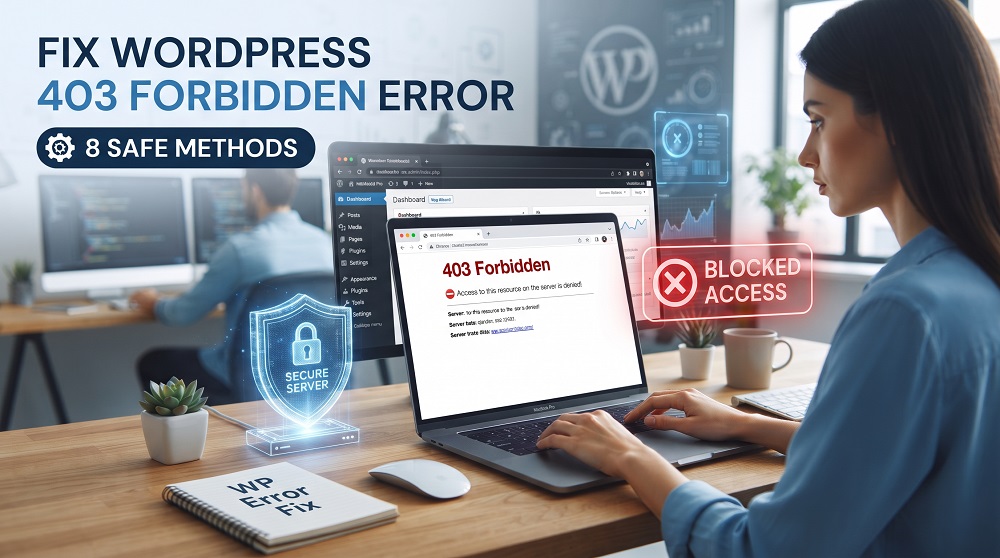

The 403 Forbidden Error means your website server is refusing access to a page or file.
In most cases, this happens because of:
• Incorrect file permissions
• Security plugins
• Corrupted .htaccess file
• Server configuration
• Hosting security settings
This guide explains simple step-by-step methods to solve the problem safely.
Estimated Fix Time: 15–60 minutes, depending on the cause.
Fix WordPress 403 Forbidden Error by checking permissions, plugins, security rules, and server settings. This error can prevent visitors or website owners from accessing the homepage, login page, dashboard, or specific files.
Although the error looks serious, it is usually possible to identify the cause safely. In this guide, you will learn the most common reasons for a 403 error and follow practical steps to fix it without damaging your website.

🔍 What Is the WordPress 403 Forbidden Error?
A 403 Forbidden Error means the web server understands your request but refuses permission to access the page. The error can return different status messages depending on your hosting environment, server software, or security configuration.
Unlike a 404 error, the page exists, but access is blocked.
This error may appear on:
• Homepage
• WordPress login page
• Admin dashboard
• Media library
• Plugin pages
⚠️ Common Causes of the 403 Forbidden Error
Cause 1 – Incorrect File Permissions
Every WordPress file has permission settings. If the permissions are incorrect, the server blocks access. This is one of the most common reasons for a 403 error.
Cause 2 – Security Plugin Blocking Access
Some security plugins automatically block requests that look suspicious. Sometimes they accidentally block the website owner. If the error started after changing security settings, this may be the cause.
Cause 3 – Corrupted .htaccess File
The .htaccess file controls many important website settings. If it becomes corrupted, WordPress may return a 403 Forbidden Error.

🛠️ Step-by-Step Methods to Fix WordPress 403 Forbidden Error
Step 1 – Create a Website Backup
Before changing file permissions, plugins, .htaccess, or server settings, create a complete backup of your website. Back up both your WordPress files and database so you can restore the website if anything goes wrong.
Step 2 – Check File and Folder Permissions
Many WordPress hosting environments commonly use:
| Item | Recommended Permission |
| Folders | 755 |
| Files | 644 |
Some managed WordPress hosts may use different ownership or permission configurations. Always follow your hosting provider’s recommendations.
The correct permissions may depend on your hosting server and file ownership. Never set files or folders to 777 because this creates a security risk. If you are unsure, ask your hosting provider before changing permissions in bulk.
🔗 Learn more about WordPress file permissions: WordPress File Permissions Guide
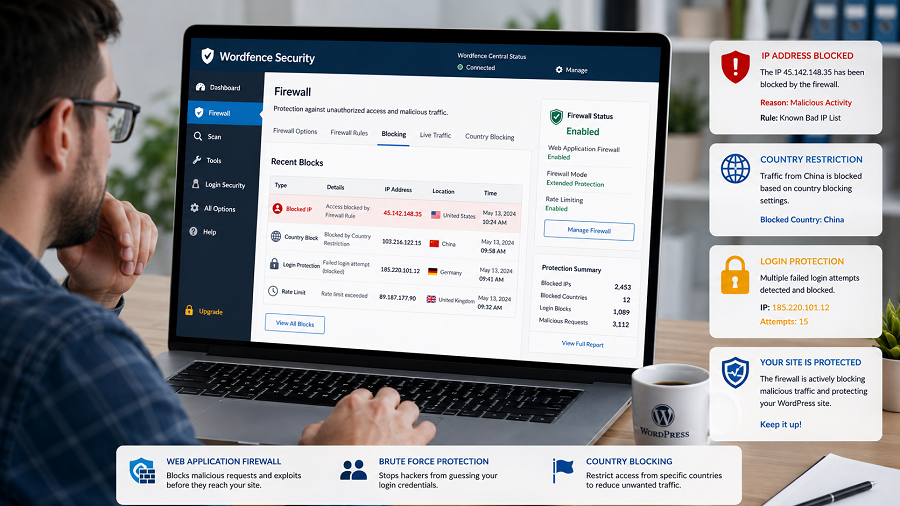
Step 3 – Temporarily Disable Security Plugins
If you can access the WordPress dashboard, deactivate the security plugin temporarily and test the affected page.
If the dashboard is blocked:
- Open your hosting File Manager or connect through FTP.
- Go to /wp-content/plugins/.
- Find the security plugin folder.
- Rename the folder by adding -disabled to its name.
- Reload your website.
If the error disappears, restore the folder name and review the plugin firewall, country blocking, login protection, and IP restriction settings.
Step 4 – Regenerate the .htaccess File
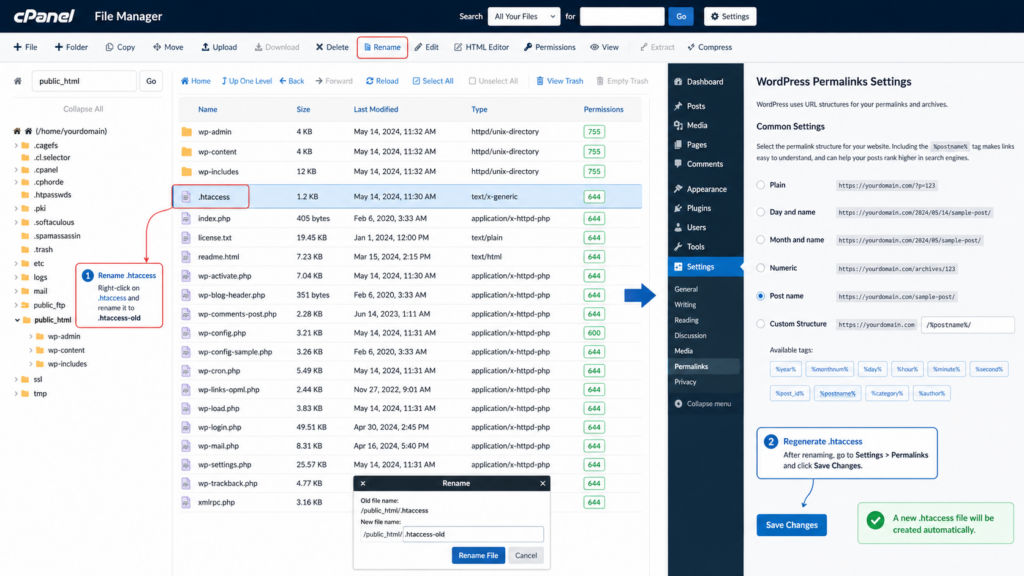
A corrupted .htaccess file is one of the most common reasons for a 403 Forbidden Error. The .htaccess file controls URL rewrites, redirects, security rules, and caching settings on Apache and LiteSpeed servers.
Follow these steps:
- Connect to your website using File Manager or FTP.
- Rename .htaccess to .htaccess-old.
- Log in to your WordPress dashboard.
- Go to Settings → Permalinks.
- Click Save Changes without changing anything.
- WordPress will automatically create a new .htaccess file.
🔗 Learn more about .htaccess configuration: Apache .htaccess Tutorial
Note: This method mainly applies to Apache or LiteSpeed servers. If your website uses Nginx, contact your hosting provider because Nginx does not normally use a WordPress .htaccess file.
Step 5 – Check File Ownership
Sometimes files belong to the wrong server user. This usually happens:
• After manual migration
• After restoring backups
• After changing hosting If file ownership is incorrect, contact your hosting provider instead of changing it yourself.
Step 6 – Review Security Rules
Some hosting firewalls or security rules may block access. ModSecurity is a web application firewall that can accidentally block legitimate WordPress requests.
Ask your hosting provider to check:
• ModSecurity rules
• Firewall rules
• Server security logs
🔗 Learn more about ModSecurity: ModSecurity Official Documentation
These checks usually solve server-related 403 errors.
Step 7 – Check CDN, Country, and IP Blocking
If you use Cloudflare, a CDN, or a website firewall, check its security events. Cloudflare’s Web Application Firewall (WAF) can block legitimate requests if a security rule is too strict.
Look for:
• Your IP address being blocked
• Country restrictions
• Firewall rules blocking WordPress pages
• Bot protection blocking real users
• Hotlink protection affecting website files
🔗 Learn how to check Cloudflare firewall events: Cloudflare Firewall Events Documentation
Do not disable the complete firewall permanently. Find and correct only the rule causing the 403 error.

Step 8 – Contact Your Hosting Provider
If:
• File permissions are correct
• Plugins are not causing the problem
• .htaccess looks fine
then the issue may be on the hosting server.
Ask your hosting provider to check:
| Server Component | What to Check |
| Server security rules | Firewall blocking requests |
| File ownership | Incorrect user ownership |
| ModSecurity rules | Blocking legitimate traffic |
| Blocked IP addresses | Your IP or visitor IPs |
| Server error logs | Detailed error messages |
| Access rules | Directory browsing disabled |
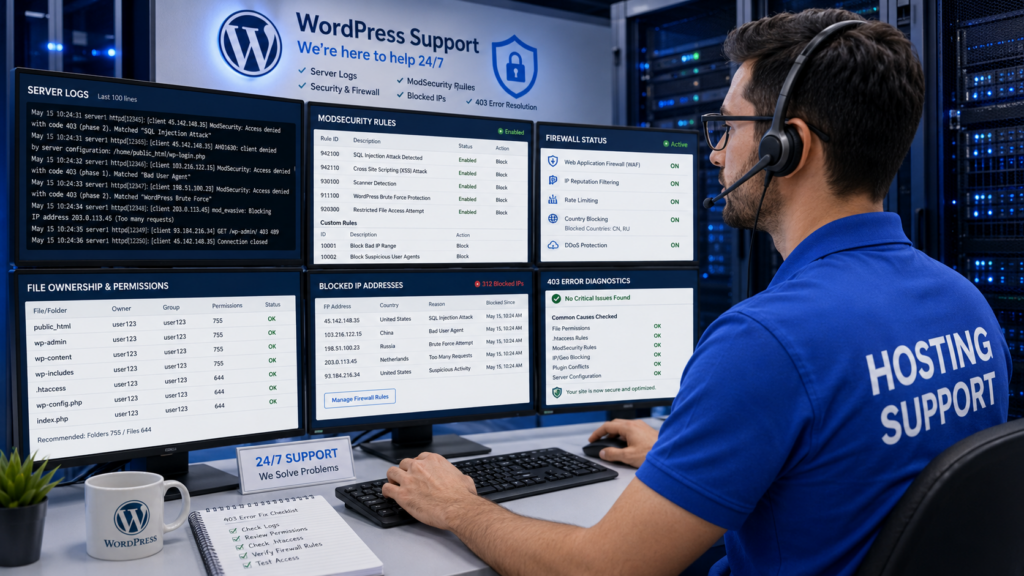
A reliable hosting support team can often identify the issue quickly.
🔗 Related WordPress Error Fixes
If your website displays a server error instead of an access-denied message, read our guide:
👉 Fix WordPress 500 Internal Server Error
If your website also has database problems, read:
👉 Fix Error Establishing a Database Connection in WordPress
⚠️ Common Mistakes to Avoid
Many beginners accidentally make the problem worse. Avoid these mistakes:
| ❌ Mistake | ✅ Correct Approach |
| Setting folder permission to 777 | Use 755 for folders and 644 for files |
| Editing system files without backup | Always create a backup first |
| Deleting the .htaccess file permanently | Rename it instead of deleting |
| Disabling every plugin at once | Disable plugins one by one |
| Changing server settings without understanding | Contact hosting support |
Always make one change at a time and test your website.
🛡️ How to Prevent the 403 Forbidden Error
You can reduce the chances of seeing this error again by following these best practices:
• Keep WordPress updated
• Update plugins and themes regularly
• Use trusted plugins only
• Create regular website backups
• Check file permissions after migration
• Choose reliable hosting
Simple maintenance can prevent many WordPress problems.
🔗 Learn more about WordPress security: WordPress Security Hardening Guide
After fixing the 403 error, improve your website performance with this guide:
👉 How to Speed Up a WordPress Website

💼 Need Professional WordPress Help?
If you cannot fix the WordPress 403 Forbidden Error or do not want to risk breaking your website, professional help can save time and protect your website.
Our services include:
• WordPress troubleshooting
• Website migration
• Speed optimization
• Technical SEO fixes
• WordPress maintenance
• Security issue resolution
👉 Get Professional WordPress Support:
- SEO Services: https://problemfixer.net/seo-tools-services/
- WordPress Services: https://problemfixer.net/wordpress-services/
- AI Tools Services: https://problemfixer.net/ai-tools-services/
✅ Conclusion
The WordPress 403 Forbidden Error may look serious, but in most cases it can be fixed by checking file permissions, repairing the .htaccess file, reviewing security plugins, or contacting your hosting provider. Follow each step carefully instead of making random changes. A well-maintained WordPress website is less likely to experience this error in the future.
❓ Frequently Asked Questions
What does the WordPress 403 Forbidden Error mean?
It means your web server is refusing permission to access a page or file.
Can a plugin cause a 403 Forbidden Error?
Yes. Security plugins or incorrectly configured plugins can block access.
Will a 403 Forbidden Error affect SEO?
Yes. If Google cannot access your pages for a long time, crawling and rankings may be affected.
Should I change file permissions to 777?
No. This creates serious security risks. Use the recommended permissions instead.
Can Cloudflare or a firewall cause a WordPress 403 error?
Yes. Cloudflare, hosting firewalls, ModSecurity, and security plugins can block an IP address, country, URL, or request that they consider suspicious.