If your WordPress website shows “Error establishing a database connection,” it usually means WordPress cannot connect to the database required to load your site.
Common causes include incorrect database credentials, an unavailable database server, missing database privileges, corrupted tables, hosting resource issues, or configuration problems after a migration or backup restore.
Before making changes, create or confirm that you have a recent backup of your website files and database whenever possible.
⚡ Quick Answer
To fix Error Establishing a Database Connection in WordPress, start with these high-priority checks:
| Step | Check | Why |
| 1 | Confirm error affects everyone | Rule out local cache |
| 2 | Check hosting/database status | Server may be down |
| 3 | Verify wp-config.php credentials | Most common cause |
| 4 | Confirm database exists | May be deleted/renamed |
| 5 | Check database user privileges | User needs access |
| 6 | Test database server connection | Service may be unreachable |
| 7 | Repair corrupted tables | If evidence shows corruption |
| 8 | Check resource limits | Connection limits may be hit |
| 9 | Review migration changes | Common after moving sites |
| 10 | Contact hosting provider | Server-level investigation needed |
Estimated fix time: 15-60 minutes for common causes.
🔍 Why Does WordPress Need a Database Connection?
WordPress does not store all of your website’s content directly inside its PHP files.
Important information is stored in a MySQL-compatible database used by your WordPress installation. Depending on the hosting environment, this may be provided through MySQL or MariaDB.
The database can contain information such as:
- Posts
- Pages
- Comments
- User accounts
- WordPress settings
- Plugin settings
- Theme-related settings
- WooCommerce data when WooCommerce is installed
- Other structured site information
WordPress needs valid database connection details to access this information.
Those details are normally configured in:
wp-config.php
The key settings include:
PHP
define( ‘DB_NAME’, ‘database_name_here’ );
define( ‘DB_USER’, ‘username_here’ );
define( ‘DB_PASSWORD’, ‘password_here’ );
define( ‘DB_HOST’, ‘localhost’ );
The values above are examples only.
Do not replace your real database information with these example values.
If one of the actual connection values is wrong—or the configured database server cannot be reached—WordPress may fail to establish the connection.
WordPress currently recommends MySQL 8.0 or greater or MariaDB 10.11 or greater for a modern supported setup.
🔗 Learn more: WordPress Server Requirements

⚠️ What Causes an Error Establishing a Database Connection in WordPress?
Several problems can interrupt the connection between WordPress and its database.
The most common areas to investigate include:
- Incorrect database name
- Incorrect database username
- Incorrect database password
- Incorrect database host
- Database server unavailable
- Database user removed or changed
- Missing database privileges
- Corrupted database tables
- Hosting resource problems
- Failed website migration
- Incorrect configuration after restoring a backup
- Database-server configuration problems
- Hosting outage or maintenance
- Recent changes to wp-config.php
The best first step depends on what happened immediately before the error appeared.
For example, if the error started after migrating the website, database credentials and the database host deserve immediate attention.
If nothing was manually changed and the site suddenly stopped connecting, server availability and hosting-level problems become more important to investigate.
📋 Quick Database Connection Diagnostic Table
| When the Error Appeared | Possible Cause | Check First |
| After editing wp-config.php | Incorrect credentials | Compare all database values |
| After changing database password | Old password in WordPress | Update DB_PASSWORD correctly |
| After website migration | Database/host mismatch | Verify all connection details |
| After restoring a backup | Configuration mismatch | Check database and wp-config.php |
| Website suddenly failed | Database server problem | Check hosting/server status |
| Database-related admin errors appear | Possible table corruption | Investigate database health |
| Error appears intermittently | Server/resource problem | Check logs and hosting resources |
| New database/user was created | Missing privileges | Verify user permissions |
This table helps narrow the search, but do not treat it as proof of the cause. Logs and hosting/database information provide stronger evidence.
🛠️ How to Fix Error Establishing a Database Connection in WordPress
Start with the least disruptive checks.
Do not reset passwords, repair databases, restore backups, and edit several configuration values simultaneously. If you make too many changes at once, it becomes much harder to identify the original problem.
Step 1 – Check Whether the Error Is Temporary
Before editing WordPress files, reload the website after a short interval and check whether the problem persists.
Also test:
https://yourdomain.com
and:
https://yourdomain.com/wp-admin
If possible, check the website from another connection or use your hosting dashboard to determine whether the server is available.
A temporary database-server problem can sometimes make the site unavailable even when your WordPress credentials have not changed.
If the website starts working again without any configuration changes, investigate your hosting/server logs or status information before assuming the problem is permanently resolved. Repeated database outages still require investigation
Step 2 – Check Whether Your Hosting or Database Server Is Down
If the site suddenly stopped working and you did not change WordPress, check your hosting environment before editing wp-config.php.
Depending on your provider, look for:
- Hosting service status
- Database/MySQL status
- Resource usage
- Maintenance notices
- Server incidents
- Database errors
- Account restrictions
If several websites using the same hosting account or database infrastructure are affected simultaneously, that can also point toward a server-level issue.
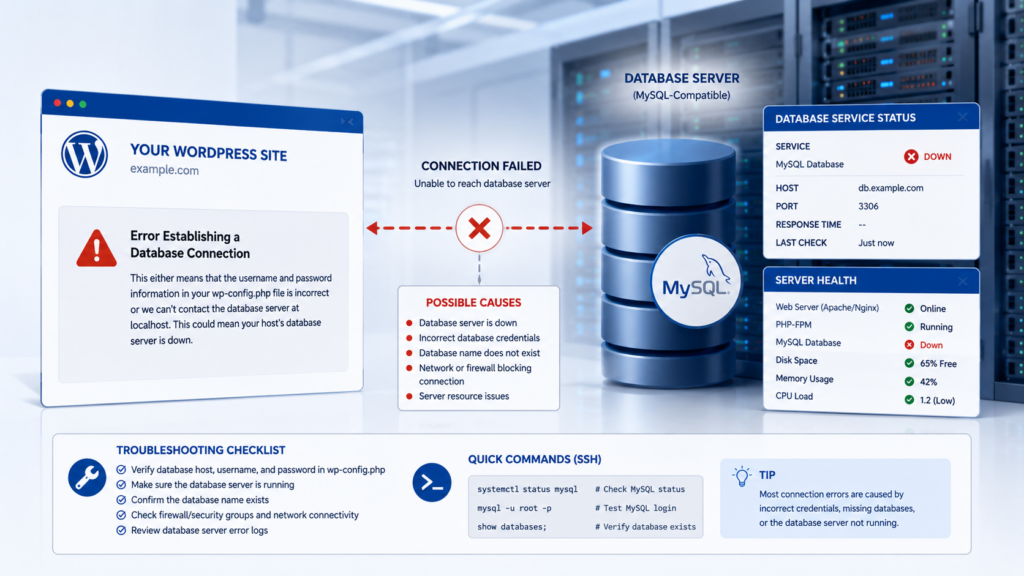
Your database can be configured correctly while WordPress still fails because the database service itself is unavailable.
In that situation, changing the database password or editing WordPress files will not fix the underlying outage.
If you cannot determine whether the database service is running, contact your hosting provider and ask them to verify database availability. If your website is returning a server error instead of a database connection message, read our guide: Fix WordPress 500 Internal Server Error.
Step 3 – Check the Database Credentials in wp-config.php
Incorrect database credentials are one of the most important things to check when WordPress cannot connect to its database.
WordPress normally reads these credentials from:
wp-config.php
You can access the file using:
- Hosting File Manager
- SFTP
- Another file-management method provided by your host
The file is normally located in or around the main WordPress installation directory, depending on how the site has been configured.
Important: Download or save a backup copy of wp-config.php before changing anything.
Open the file and locate these definitions:
PHP
define( ‘DB_NAME’, ‘your_database_name’ );
define( ‘DB_USER’, ‘your_database_username’ );
define( ‘DB_PASSWORD’, ‘your_database_password’ );
define( ‘DB_HOST’, ‘your_database_host’ );
You need to verify all four values.
Check DB_NAME
DB_NAME tells WordPress which database to use.
Example:
PHP
define( ‘DB_NAME’, ‘your_database_name’ );
Compare the configured name with the actual database assigned to the website in your hosting control panel.
Watch for:
- Typing mistakes
- Old database names
- Migration-related changes
- Hosting account prefixes
Do not guess the database name.
Check DB_USER
DB_USER specifies the database user WordPress uses to connect.
Example:
PHP
define( ‘DB_USER’, ‘your_database_username’ );
Confirm that:
- The user exists.
- It is associated with the correct database.
- The value in wp-config.php matches the hosting configuration.
A correct database name with an incorrect database user can still prevent WordPress from connecting.
Check DB_PASSWORD
DB_PASSWORD contains the password for the configured database user.
Example:
PHP
define( ‘DB_PASSWORD’, ‘your_database_password’ );
If you recently changed the database user’s password in the hosting panel but did not update wp-config.php, WordPress may still be attempting to connect with the old password.
If you intentionally reset the database password, update the corresponding WordPress configuration carefully.
Passwords are case-sensitive.
Security warning: Never publish or share your real database username or password in screenshots, support forums, blog posts, or public messages.
🔗 Secure your wp-config.php file: WordPress Security Hardening Guide
Check DB_HOST
DB_HOST tells WordPress where the database server is located.
A common value is:
PHP
define( ‘DB_HOST’, ‘localhost’ );
However, do not assume localhost is correct for every hosting provider.
Some hosting environments use a different database hostname, address, socket, or configuration.
Use the database host value provided by your hosting company. If you recently migrated to a new host, an old DB_HOST value can prevent the new installation from connecting correctly.
Database Credentials Checklist
Before saving wp-config.php, verify:
| DB_NAME | Actual WordPress database |
| DB_USER | User assigned to that database |
| DB_PASSWORD | Current password for that database user |
| DB_HOST | Database host supplied by your hosting environment |
Do not change values that already match your hosting configuration.
After making a necessary correction, save the file and reload the website.
If the website works, the connection details were likely involved.
If the error remains, continue troubleshooting rather than repeatedly changing valid credentials.
👉 Official WordPress wp-config.php Documentation

Step 4 – Confirm That the WordPress Database Still Exists
Correct credentials cannot connect to a database that has been removed, renamed, or was not imported correctly.
Open the database section of your hosting control panel.
Depending on your hosting provider, you may have access to tools such as a database manager or phpMyAdmin.
Look for the database name referenced by DB_NAME in wp-config.php.
Confirm that the database actually exists.
If you open the correct WordPress database in a database-management tool, you would normally expect to see WordPress tables. Common default table names include:
- wp_posts
- wp_options
- wp_users
- wp_postmeta
- wp_terms
However, the wp_ prefix is only the default.
Your website may use a custom table prefix, so do not assume tables are missing simply because they do not begin with wp_.
The configured prefix can be checked in wp-config.php, for example:
PHP
$table_prefix = ‘wp_’;
Do not change the table prefix merely to troubleshoot the connection error unless you have clear evidence that it is incorrect.
What If the Database Is Missing?
Do not immediately create an empty database with the same name and assume the website will return.
An empty database does not contain your existing WordPress content.
Instead:
- Check whether the correct database exists under another name.
- Check recent backups.
- Check whether a migration/import failed.
- Ask your hosting provider whether the database was removed or renamed.
Restore the correct database from a valid backup if necessary.

Step 5 – Verify the Database User and Privileges
The database may exist, and your username may look correct, but the user still needs permission to access the database.
This is particularly important after:
- Moving a website
- Creating a new database
- Creating a new database user
- Restoring a site
- Changing hosting accounts
- Modifying database settings
Open your hosting database-management section and verify that the database user referenced by DB_USER is associated with the correct database.
The exact interface differs between hosting providers.
If the database user was accidentally detached from the database or its required privileges were removed, WordPress may be unable to perform the operations it needs.
Do not grant permissions to unrelated users or databases.
If you are unsure which privileges your hosting setup requires, ask your hosting provider to verify the WordPress database user’s permissions rather than changing database security settings blindly.
After correcting a confirmed user/permission problem, reload the website.
Security Note
If you see an access-denied error (HTTP 403) instead of a database connection error, the problem may be related to file permissions or security rules rather than database credentials. Read our guide: Fix WordPress 403 Forbidden Error.

Step 6 – Check Whether WordPress Can Reach the Database Server
At this point, you may have confirmed that:
- The database exists.
- The database user exists.
- The credentials appear correct.
- The user is associated with the database.
If WordPress still cannot connect, the database server itself may be unreachable or rejecting the connection.
Possible causes include:
- Database service unavailable
- Incorrect database hostname
- Server/network problem
- Hosting configuration issue
- Database connection limits
- Account resource restrictions
For many site owners, the safest next step is to ask the hosting provider to test the database connection from the server.
Tell support that you have already verified the WordPress database credentials and ask them to confirm:
- The database service is running.
- The configured host is correct.
- The database accepts connections from your WordPress environment.
- The account is not hitting a database/server limit.
- Relevant server logs do not show connection failures.
This prevents you from changing valid WordPress settings when the real problem exists at the server level. 🔗 Common MySQL connection errors explained: MySQL Connection Error Documentation
Step 7 – Check for a Corrupted WordPress Database
If the database credentials are correct and the database server is available, the next area to investigate is database corruption.
WordPress stores different types of information across multiple database tables. If important tables become damaged or inconsistent, parts of the website or WordPress admin area may stop working correctly.
Possible signs of a database problem can include:
- Database-related errors in WordPress admin
- Missing or inaccessible content
- Errors referencing database tables
- Problems that appeared after a server interruption
- Database repair messages
- Errors identified in hosting or database logs
However, do not assume every database connection error means the database is corrupted.
If the database server itself is unavailable or the credentials are wrong, repairing tables will not solve the connection problem.
Important: Create or confirm a current database backup before attempting a repair whenever possible.
Step 8 – Use the Built-In WordPress Database Repair Tool
WordPress includes a database repair feature, but it is disabled by default. If the evidence suggests damaged database tables, you can temporarily enable it through wp-config.php.
1 – Back Up wp-config.php and the Database
Before editing anything, save a copy of:
wp-config.php. Also create or confirm a recent database backup if your hosting environment allows it.
2 – Enable Database Repair
Open:
wp-config.php
Add the following line before the comment near the end of the file that tells you to stop editing:
PHP
define( ‘WP_ALLOW_REPAIR’, true );
Save the file.
3 – Open the WordPress Repair Page
Visit:
https://yourdomain.com/wp-admin/maint/repair.php
You should see database repair options.
Depending on the available WordPress interface, you may be offered options such as:
- Repair Database
- Repair and Optimize Database
If your immediate goal is troubleshooting suspected corruption, start with the least disruptive repair action that addresses the problem.
Important Security Step
The repair page can be accessed without the normal WordPress login while WP_ALLOW_REPAIR is enabled.
For that reason, remove this line from wp-config.php immediately after you finish using the repair tool:
PHP
define( ‘WP_ALLOW_REPAIR’, true );
Do not leave database repair mode enabled permanently.
After removing the line, save wp-config.php and test the website again.
If the error remains, continue to the next diagnostic step.
👉 Official WordPress Database Repair Documentation

Step 9 – Check Database Tables Through Your Hosting Tools
If the built-in WordPress repair tool cannot be used, your hosting provider may offer a database-management interface such as phpMyAdmin or another database tool.
Open the correct WordPress database and inspect its tables.
Do not modify or delete tables simply because their names look unfamiliar. Plugins and themes can create their own database tables.
Depending on the management interface, table-checking or repair functions may be available.
Before performing a database-level repair:
- Confirm that you selected the correct database.
- Create a database backup.
- Identify which tables actually show a problem.
- Use the repair function supported by your database/hosting environment.
- Test WordPress again after the repair.
Do not manually delete tables as a general fix for a database connection error.
For an eCommerce, membership, booking, or other dynamic website, careless database changes can affect important live data.
If you are unsure what a database table contains, ask your hosting provider or a qualified WordPress professional before modifying it.
👉 Learn how to use phpMyAdmin: phpMyAdmin Official Documentation
Step 10 – Check the WordPress Database Host Again
If the database name, username, and password are correct but WordPress still cannot connect, pay special attention to:
DB_HOST
Many WordPress installations use:
PHP
define( ‘DB_HOST’, ‘localhost’ );
But localhost is not universal.
A hosting provider may use another hostname or database endpoint.
This is particularly important after:
- Migrating to a new host
- Moving between servers
- Restoring an old configuration
- Changing database infrastructure
- Cloning a staging site
- Importing a website manually
Check your hosting provider’s database information and compare the correct host with the value in wp-config.php.
Do not replace DB_HOST with a random hostname from an online tutorial.
If you cannot find the correct value, ask your hosting provider:
“What DB_HOST value should this WordPress installation use to connect to its database?”
Step 11 – Check for Too Many Database Connections or Resource Limits
A website can have correct database credentials and still experience connection failures if the database server cannot accept another connection or the hosting account is hitting resource limits.
This is more likely when the error is intermittent rather than permanent.
Possible contributing factors include:
- High traffic
- Resource-intensive plugins
- Slow database queries
- Hosting account limits
- Database connection limits
- Server overload
- Long-running processes
- A database service under heavy load
The exact limits depend on your hosting environment.
What Should You Do?
Check your hosting dashboard for:
- CPU usage
- Memory usage
- Database usage
- Account limits
- Server warnings
- Resource-limit events
Then check the relevant logs.
If the site works normally at some times but repeatedly shows database connection errors during busy periods, tell your hosting provider about the pattern.
Do not immediately upgrade hosting simply because you see one database error. First ask the host to confirm whether your account is actually reaching a limit.

Step 12 – Review Recent Website Migration Changes
Database connection errors are especially common immediately after moving a WordPress website between hosting environments.
A migration can leave WordPress with configuration values that belong to the previous server.
If the error appeared after migration, verify:
- The database was imported successfully.
- DB_NAME points to the new database.
- DB_USER is the correct user on the new host.
- DB_PASSWORD matches that user.
- DB_HOST matches the new hosting environment.
- The database user is assigned to the database.
- Required database privileges are present.
- The database service is running.
Do not focus on changing the WordPress site URL first if WordPress cannot establish a database connection at all. The database connection itself needs to work before WordPress can retrieve most settings stored inside the database.
Step 13 – Check a Recent Backup Restore
If the error started after restoring a backup, verify that both sides of the website were restored correctly:
- Website files
- Database
A mismatch can occur when files come from one backup while the database or configuration comes from another environment.
For example, the restored wp-config.php may contain credentials from an old hosting account while the active database uses different credentials.
Check:
- Which backup was restored.
- Whether the database was included.
- Whether the database import completed successfully.
- Whether wp-config.php contains the current credentials.
- Whether the database user is associated with the restored database.
- Whether DB_HOST is correct for the current server.
Do not repeatedly restore different backups without tracking what is being changed.
If you have a known-good backup but are unsure how to restore it safely, ask your hosting provider for assistance.
Step 14 – Check Database and Server Error Logs
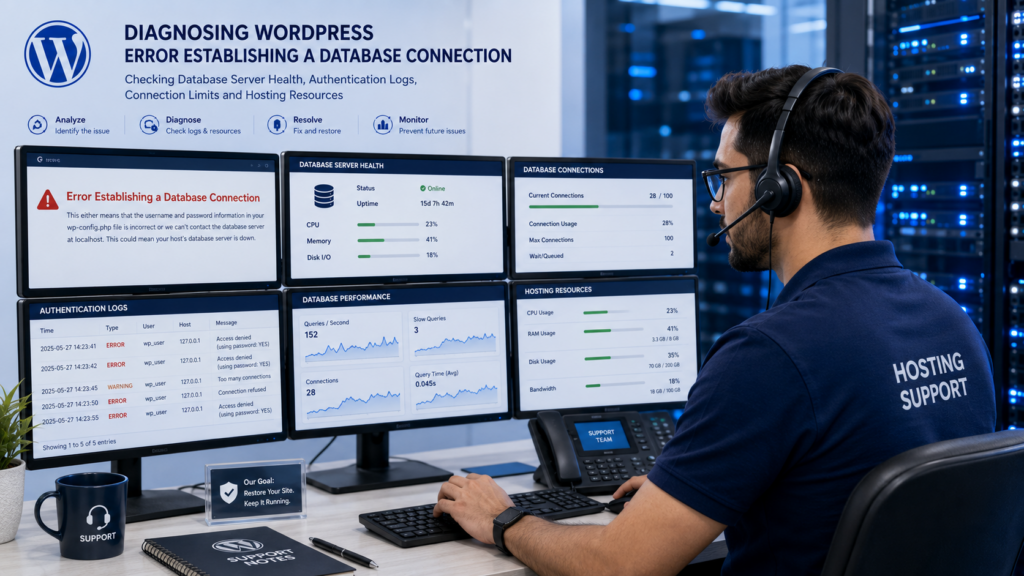
When basic troubleshooting does not identify the problem, logs can provide stronger evidence.
Depending on your hosting environment, useful information may appear in:
- PHP error logs
- Web-server logs
- Database/MySQL/MariaDB logs
- Hosting account logs
- WordPress debugging logs
Look at entries around the exact time the connection failure occurred.
Useful messages may indicate:
- Access denied
- Unknown database
- Connection refused
- Database host resolution problems
- Too many connections
- Server unavailable
- Resource exhaustion
- Database crashes
- Permission or authentication failures
Match the Error to the Cause
For example:
Access denied may point toward credentials or database-user permissions.
Unknown database may indicate that the configured database name does not exist on that server.
Connection refused can indicate that the database service or network endpoint is unavailable.
Too many connections points toward a server/database connection limit rather than a typo in your WordPress password. Do not publish complete raw logs online without reviewing them first. Logs can contain server paths, IP addresses, database information, or other details that should remain private.

Step 15 – Check Plugins Only When Evidence Points There
A normal WordPress plugin conflict is not the first thing to blame when WordPress cannot establish its basic database connection.
However, plugins can contribute indirectly in some situations—for example, through unusually heavy database activity, custom database integrations, or code that interacts with external databases.
If the connection problem is intermittent and logs point toward resource exhaustion or excessive queries, investigate plugins that perform heavy database operations.
Examples can include:
- Backup processes
- Import/export tools
- Search/indexing tools
- Analytics/logging plugins
- Security logging
- Complex eCommerce extensions
- Custom database integrations
Do not deactivate every plugin merely because a database connection error appears. Start with evidence from logs, recent changes, and resource usage.
Step 16 – Contact Your Hosting Provider
If the database credentials, user privileges, database tables, repair process, migration settings, and server resources have all been checked but the error remains, contact your hosting provider.
Give support useful information instead of only saying:
“My website is down.”
Tell them:
- Your site displays “Error establishing a database connection.”
- When the problem started
- Whether it is permanent or intermittent
- Whether you recently migrated/restored the site
- Whether database credentials were changed
- Which troubleshooting steps you completed
- Any relevant log message you found
You can ask:
“My WordPress site is showing ‘Error establishing a database connection.’ I have verified the database name, user, password, host, and user assignment. Could you please confirm whether the database service is running and check the server/database logs for authentication failures, connection limits, or service errors?” This gives the hosting team a much clearer starting point.
📋 WordPress Database Connection Troubleshooting Checklist
Use this table to decide where to investigate first.
| Symptom or Recent Change | Most Likely Area to Check | First Action |
| Error after editing wp-config.php | Database credentials | Verify all four connection values |
| Error after password change | DB_PASSWORD | Match WordPress with current database password |
| Error after migration | New database configuration | Verify database, user, host and privileges |
| Error after backup restore | Configuration mismatch | Compare restored files and database |
| Database repair message appears | Database tables | Back up and investigate table health |
| “Access denied” in logs | Credentials/privileges | Verify database user and permissions |
| “Unknown database” in logs | DB_NAME | Confirm the database exists |
| “Connection refused” in logs | Database service/server | Contact host/check service |
| “Too many connections” in logs | Server/database limits | Check resource and connection limits |
| Error happens only sometimes | Server/resources | Review logs and hosting usage |
| Everything looks correct | Hosting/database server | Ask host to test the connection |
The fastest fix usually comes from matching the error message or recent change to the correct troubleshooting area rather than trying every method.
🆘 Still Seeing “Error Establishing a Database Connection”?
If you have verified the database credentials, database user, privileges, database host, table health, server availability, resource limits, and logs but WordPress still cannot connect, avoid making random database changes.
At this stage, the problem may require access to the hosting or database server that you do not have from WordPress.
Contact your hosting provider or a WordPress troubleshooting professional and provide the exact error details and the steps you have already completed.
👉 Need Professional WordPress Help?
If you do not want to edit database credentials, repair tables, or troubleshoot server settings yourself, our WordPress troubleshooting service can help diagnose the problem safely.
- SEO Services: https://problemfixer.net/seo-tools-services/
- WordPress Services: https://problemfixer.net/wordpress-services/
- AI Tools Services: https://problemfixer.net/ai-tools-services/
Do not promise guaranteed recovery before the underlying database problem has been diagnosed.
🛡️ How to Prevent WordPress Database Connection Problems
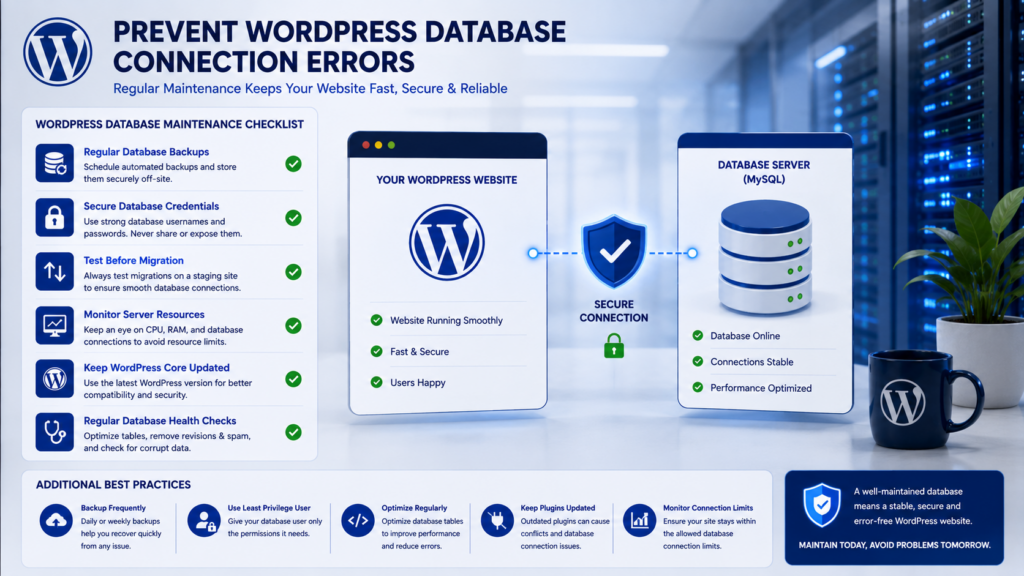
You cannot prevent every hosting or database outage, but good maintenance can reduce avoidable connection failures.
Keep Reliable Website and Database Backups
A WordPress backup should include both:
- Website files
- Database
Having only the files is not enough to restore posts, settings, users, and other database content.
Periodically confirm that your backup system is working and that you know how the restore process works.
👉 Database backup best practices: WordPress Backup Guide
Be Careful When Changing Database Credentials
If you change a database username, password, database name, or host configuration, make sure the corresponding WordPress configuration is updated correctly. Do not expose database credentials publicly.
Test Website Migrations Carefully
After migrating a WordPress website, verify:
- Database import
- DB_NAME
- DB_USER
- DB_PASSWORD
- DB_HOST
- Database-user assignment
- Required privileges
- Important frontend and admin pages
Do this before considering the migration complete.
Monitor Hosting Resource Usage
If database connection errors appear intermittently, check whether they correlate with traffic spikes, backups, imports, heavy processes, or hosting limits. Repeated resource problems should be investigated rather than treated as isolated errors.
Keep WordPress Software Maintained
Keep WordPress core, plugins, and themes maintained and compatible.
Although updates do not directly correct every database connection issue, a healthy WordPress environment reduces the chance that outdated or malfunctioning components create unnecessary database load or other problems. After fixing database connection errors, it’s also important to optimize your website’s performance to prevent future resource-related issues. Read our guide: How to Speed Up a WordPress Website.
Keep a Record of Important Configuration Changes
For important websites, document significant changes such as:
- Hosting migration
- Database password change
- PHP/server changes
- Backup restoration
- Database repair
- New database user
- Major plugin changes
If an error appears later, this history can make troubleshooting much faster.
✅ Conclusion
The Error Establishing a Database Connection in WordPress means WordPress cannot successfully communicate with the database it needs to load your website.
The cause can be as simple as incorrect credentials in wp-config.php, but it can also involve a missing database, incorrect database host, user privileges, corrupted tables, resource limits, a failed migration, or an unavailable database server.
The safest troubleshooting approach is to start with the most likely cause based on what changed immediately before the error appeared.
Check your database credentials and server availability first. Then verify the database, user privileges, table health, resource usage, and logs. Avoid changing several database settings at the same time because doing so can make the original problem harder to identify.
If the credentials and WordPress configuration are correct but the database server cannot be reached, your hosting provider may need to investigate the database service, authentication logs, connection limits, or server configuration.
Most importantly, keep reliable backups of both your WordPress files and database before performing repairs, migrations, or major configuration changes. Still seeing the database connection error? Contact your hosting provider or a WordPress troubleshooting professional if the problem requires server-level access or you are uncomfortable modifying database configuration.
❓ Frequently Asked Questions About WordPress Database Connection Errors
What does “Error Establishing a Database Connection” mean in WordPress?
It means WordPress cannot successfully connect to the database it needs to retrieve website content and settings. Common causes include incorrect database credentials, an unavailable database server, incorrect user permissions, database problems, or hosting/server issues.
How do I fix Error Establishing a Database Connection in WordPress?
Start by checking whether the database server is available. Then verify DB_NAME, DB_USER, DB_PASSWORD, and DB_HOST in wp-config.php. Confirm that the database exists, the correct user is assigned to it, and the user has the required privileges. If those settings are correct, investigate database health, server resources, and logs.
Where are WordPress database credentials stored?
WordPress database connection settings are normally configured in the wp-config.php file. The main values are DB_NAME, DB_USER, DB_PASSWORD, and DB_HOST. Keep these credentials private and create a backup of the file before editing it.
Is DB_HOST always localhost in WordPress?
No. localhost is common, but it is not correct for every hosting environment. Some providers use a different database hostname or endpoint. Use the DB_HOST value specified by your hosting provider.
Can a corrupted database cause a WordPress database connection error?
Database corruption can cause database-related problems and may require table repair, but it should not automatically be assumed to be the cause of every connection error. Check credentials and database-server availability first, then investigate table health when the evidence points toward corruption.
How do I repair a WordPress database?
WordPress includes a built-in database repair feature that can be temporarily enabled by adding WP_ALLOW_REPAIR to wp-config.php. After enabling it, the repair interface can be accessed at /wp-admin/maint/repair.php. Back up the database first when possible and remove the WP_ALLOW_REPAIR setting immediately after finishing.
Why did the database connection error appear after moving WordPress?
A migration can leave WordPress using database details from the old hosting environment. Verify that the database was imported successfully and check DB_NAME, DB_USER, DB_PASSWORD, DB_HOST, database-user assignment, and privileges on the new server.
Can high traffic cause WordPress database connection errors?
It can contribute in some environments if traffic or resource-intensive processes cause the hosting account or database server to reach connection or resource limits. If the error appears intermittently during busy periods, inspect server resource usage and database logs rather than assuming the credentials are wrong.
Will changing the database password fix the error?
Only if the current password is actually incorrect or has changed. Randomly resetting the database password can create another mismatch between the database user and wp-config.php. Verify the existing configuration before changing credentials.
When should I contact my hosting provider?
Contact your host when WordPress-level troubleshooting fails, you cannot access the required server logs, or the evidence points to resource limits, ownership, PHP services, or server configuration.