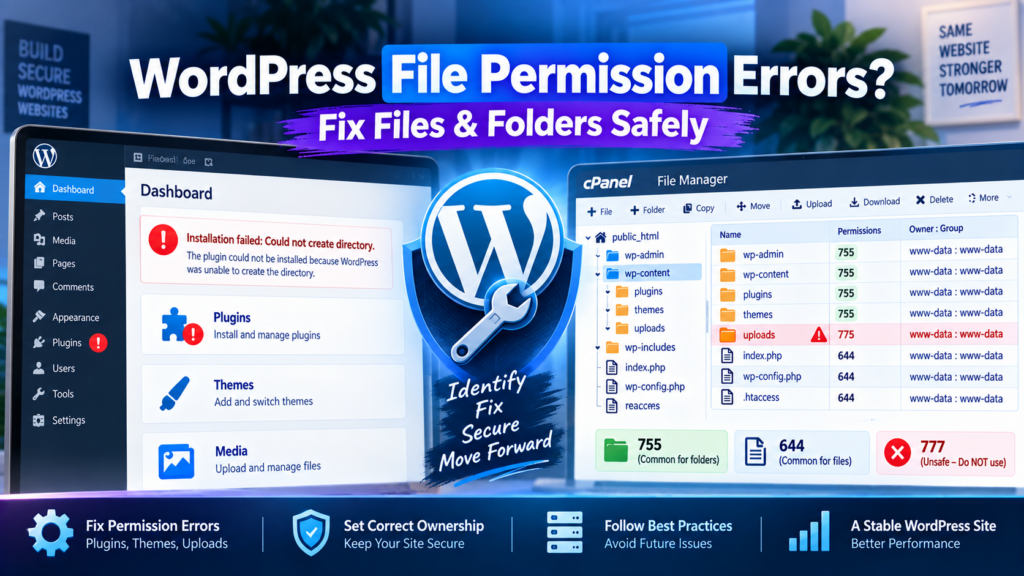

WordPress file permission errors can stop your website from uploading images, installing plugins, updating themes, or creating files and folders.
You may see errors such as:
- Installation failed: Could not create directory
- Unable to create directory. Is its parent directory writable by the server?
- The update cannot be installed because some files could not be copied
- Permission denied
- 403 Forbidden
- Plugin or theme installation failures
On many standard WordPress hosting environments, a common starting point is directories: 755 and regular files: 644. But these numbers are only part of the solution.
A WordPress site can still fail even when its directories show 755 and its files show 644. File ownership, server users, parent directories, storage limits, security rules, PHP configuration, and hosting setup can all affect whether WordPress can write files.
This guide explains how to diagnose and fix WordPress file permissions safely without making your website unnecessarily writable.
Quick Answer: What Are the Correct WordPress File Permissions?
For many common WordPress installations, these are useful starting values:
| WordPress Item | Common Starting Setting | Important Note |
| Directories | 755 | Some secure environments use different modes |
| Regular files | 644 | Ownership also matters |
| wp-admin | Usually follows directory permissions | Should not be unnecessarily writable |
| wp-includes | Usually follows directory permissions | Core files should remain protected |
| wp-content | Often 755 | Some contents need WordPress write access |
| plugins | Often 755 | Server configuration matters |
| themes | Often 755 | Server configuration matters |
| uploads | Often 755 | WordPress must be able to create media files |
| .htaccess | Often 644 | May need write access when WordPress changes rewrite rules |
| wp-config.php | Often more restrictive where supported | Depends on hosting configuration |
Do not treat this table as a command to recursively change your entire WordPress installation. Correct permissions depend on how your host handles file ownership, groups, PHP, and the web-server process. For the official explanation of permission modes and WordPress filesystem settings, see the WordPress File Permissions documentation. If your site is working normally and you do not have a permission problem, do not change permissions only because another website shows different numbers.
What Are WordPress File Permissions?
Every WordPress website contains files and directories. Common examples include:
wp-admin/
wp-content/
wp-includes/
wp-config.php
.htaccess
Inside wp-content, you normally find directories such as plugins/, themes/, and uploads/.
Your server uses filesystem permissions to control who can read, modify, or access those files and directories. If WordPress does not have the access required for an operation, that operation may fail. If access is unnecessarily broad, however, your website can become less secure. The goal is therefore not to give WordPress maximum access. The goal is to give each process only the access it actually needs.
Read, Write, and Execute Explained
Linux-style permissions are usually based on three types of access.
Read — Read permission allows a file’s contents to be viewed. For a directory, read permission helps control whether its contents can be listed.
Write — Write permission allows data to be changed. For a regular file, it controls whether permitted users can modify its contents. For a directory, write access helps control whether entries inside it can be created, renamed, or removed. Directory access also depends on the execute permission and the server’s ownership setup.
WordPress needs suitable write access for operations such as media uploads, plugin installation, software updates, and cache creation.
Execute — For directories, execute permission allows the directory to be traversed so files and subdirectories can be accessed by their paths.
Owner, Group, and Others
Permissions normally apply to three classes: Owner, Group, and Others.
The owner is the user that owns the file. The group is the group assigned to that file. Others covers users outside those first two classes. This distinction matters because two files can have exactly the same numeric permission but behave differently if their ownership is different.
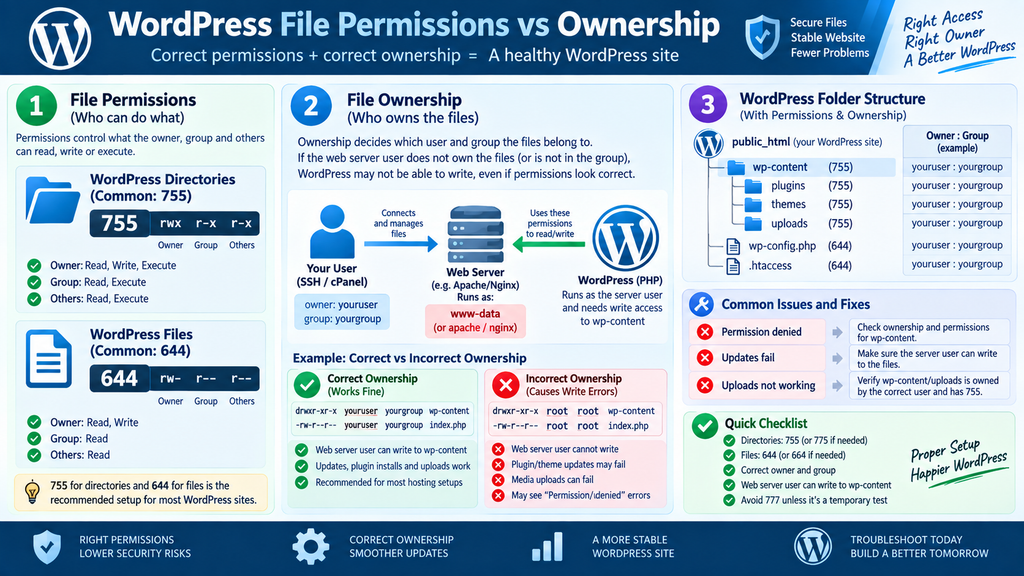
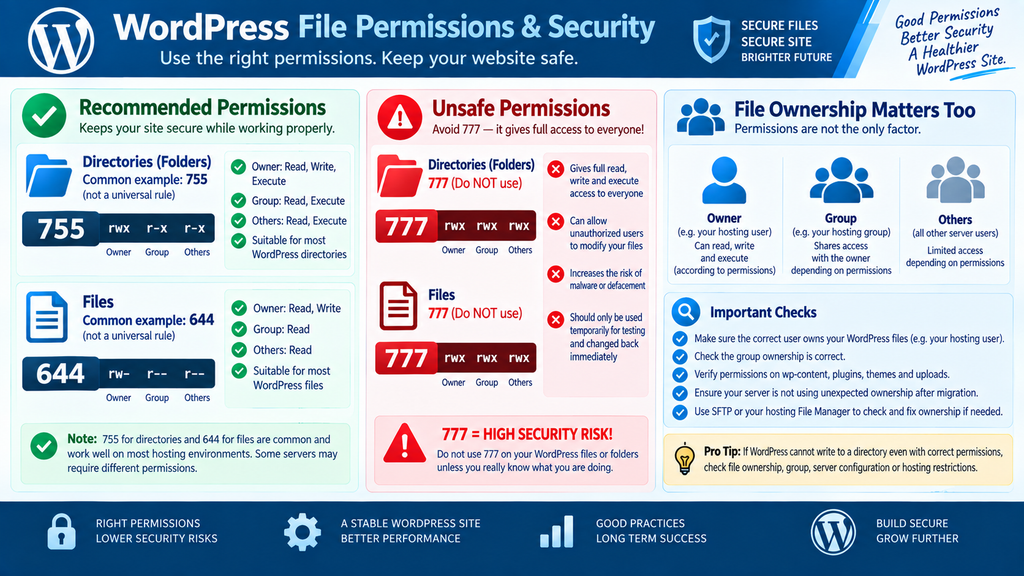
What Does 755 Mean?
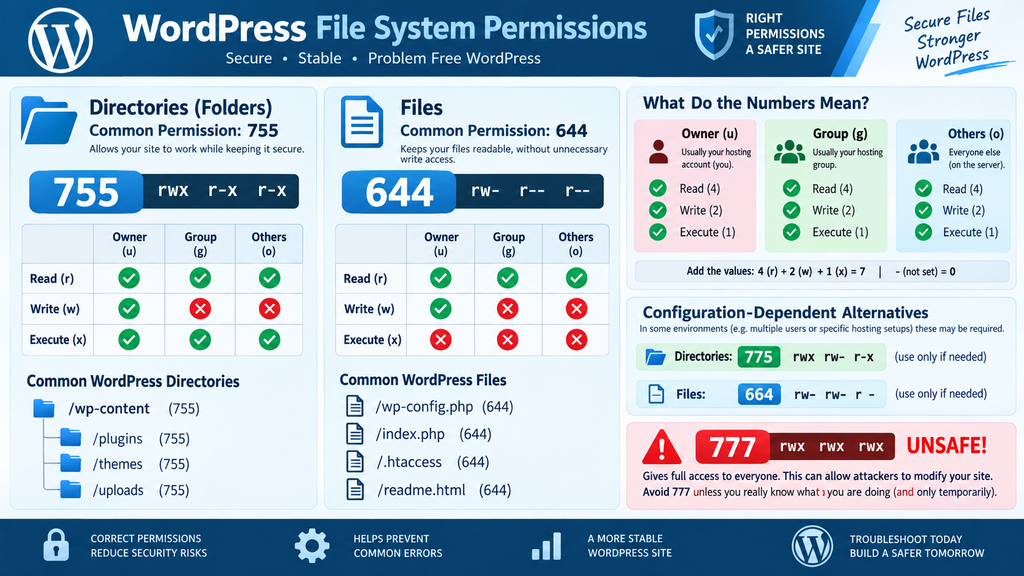
For a directory, 755 usually means owner: read + write + execute, group: read + execute, others: read + execute.
The numbers come from Read = 4, Write = 2, Execute = 1. Therefore: Owner: 7 = 4 + 2 + 1, Group: 5 = 4 + 1, Others: 5 = 4 + 1. This is why 755 is commonly seen on WordPress directories.
What Does 644 Mean?
For a normal file, 644 commonly means owner: read + write, group: read, others: read.
Example: Owner: 6 = 4 + 2, Group: 4 = 4, Others: 4 = 4.
This is commonly used for regular WordPress files on many servers.
What About 775 and 664?
Some servers intentionally use group-based write access. You may therefore encounter directories: 775 and files: 664.
These settings are not automatically wrong. But do not switch from 755/644 to 775/664 simply because WordPress cannot write. Group write access is appropriate only when your server is intentionally configured so that the relevant trusted group needs that access. The correct choice depends on the file owner, file group, PHP process, web-server user, and hosting architecture.
Why 755 and 644 Do Not Always Fix the Problem
This is one of the most important points in this guide.
You may check your server and see directories: 755 and files: 644, but WordPress still cannot upload media, install plugins, update themes, delete plugins, or create directories.
That does not automatically mean you need larger permission numbers. The problem may be file ownership.
Permissions vs Ownership
Think of it this way: Permissions = what the owner, group, and others are allowed to do. Ownership = which user and group those rules actually belong to.
For example, a file may show 644, but if the process performing the WordPress operation does not receive the necessary owner or group access, WordPress may still be unable to change that file.
Ownership problems commonly appear after website migrations, manual file uploads, backup restoration, server moves, deployment changes, or files copied by another server account. This is why blindly increasing numeric permissions often fails.
Before Fixing WordPress Permission Errors
Before changing files:
- Create a reliable backup.
- Copy the exact error message.
- Identify the affected file or directory.
- Record its current permissions.
- Confirm you are working on the correct WordPress installation.
- Note what happened immediately before the problem started.
Do not begin by changing thousands of files. A failed WordPress operation may be caused by ownership, storage, security, or configuration rather than numeric permission values.
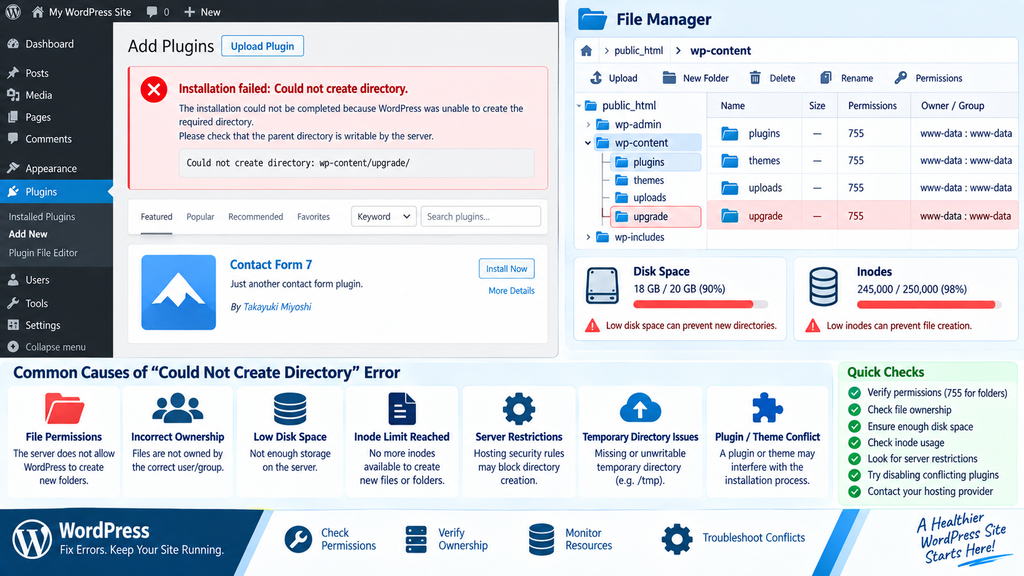
📂 Installation Failed: Could Not Create Directory
You may try to install a plugin or theme and see:
Installation failed: Could not create directory. Possible causes include a directory not writable by the required process, wrong ownership, a parent-directory access problem, a hosting restriction, a full disk, an inode/file-count limit, or a temporary filesystem problem.
How to Fix It
For plugins, inspect /wp-content/plugins/. For themes, inspect /wp-content/themes/. Also inspect the exact directory shown in the WordPress error.
Check the current permission mode, file or directory owner, group, parent directory, available disk space, available inodes, and hosting filesystem restrictions. If permissions already match your host’s expected configuration, do not immediately increase them. Check ownership next.
Check for an Existing Folder
Do not confuse “Could not create directory” with “Destination folder already exists.” If WordPress finds an existing plugin or theme directory left behind by another installation, that is a different problem. For an existing plugin or theme folder conflict, follow our Destination Folder Already Exists WordPress guide.
🖼️ WordPress Cannot Upload Images
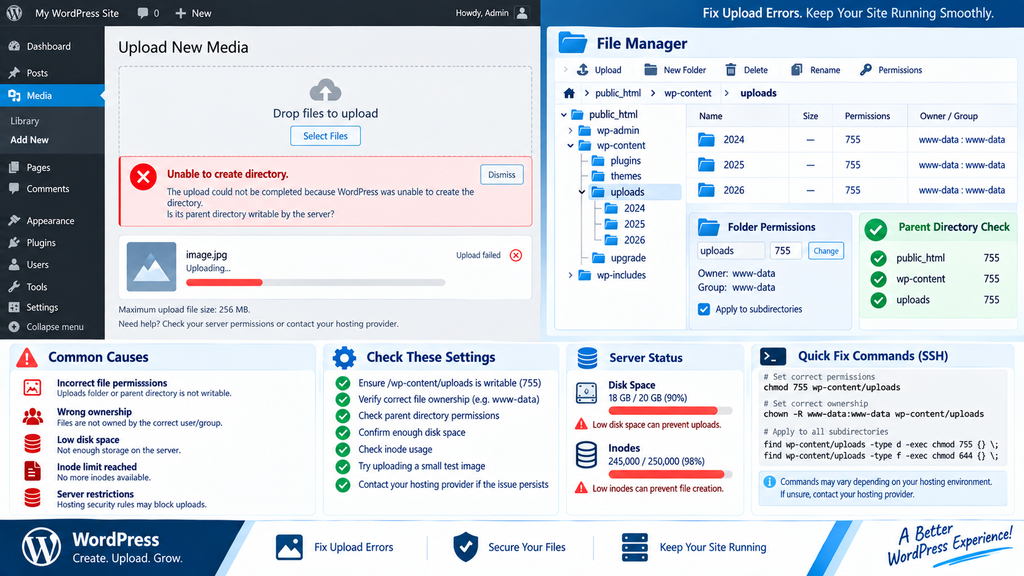
Another common message is:
Unable to create directory. Is its parent directory writable by the server? WordPress normally stores media under /wp-content/uploads/. If WordPress cannot create the required directory, image, PDF, and other media uploads may fail.
Step 1: Inspect the Uploads Directory
Confirm the directory exists, its permissions are appropriate, ownership is correct, the parent directory is accessible, storage is available, and inode limits have not been reached.
If the directory already uses normal-looking permissions, do not change it to 777. Ownership may be the real problem.
Step 2: Check the Parent Directory
Inspect /wp-content/. A child directory can appear correct while access to its parent directory prevents WordPress from reaching it properly.
Step 3: Test an Upload
Go to Media → Add New Media File and upload one small test image. Confirm the upload completes, the file appears in Media Library, the file opens normally, and WordPress can create the required date-based directory where applicable.
If the test fails, continue with ownership and storage checks below.
🔄 Plugin or Theme Updates Cannot Copy Files
During an update, WordPress may report that some files could not be copied. The problem may affect one plugin, one theme, multiple plugins, several themes, or a wider WordPress update.
If Only One Plugin Fails
Inspect that plugin’s directory, e.g. /wp-content/plugins/example-plugin/. Check for incorrect ownership, incorrect permissions, a previous incomplete update, manually uploaded files, stale or damaged files, or plugin-specific installation problems.
Do not change every WordPress file because one plugin cannot update.
If Many Plugins or Themes Fail
The problem is more likely to involve wp-content, file ownership, the PHP/server user, storage, inodes, the temporary filesystem, or hosting configuration. Also check the exact path WordPress reports.
If update problems go beyond file permissions, follow our WordPress Update Failed Error guide for the wider update issue.
🧑💻 755/644 Looks Correct but WordPress Still Cannot Write
Suppose you see directories: 755 and files: 644, but WordPress still cannot install plugins, upload images, delete plugins, update themes, or create directories.
Do not keep raising the permission values. Investigate ownership and the user performing the WordPress filesystem operation.
How to Check Ownership
Advanced users with SSH can inspect files using ls -la. For important WordPress directories:
ls -ld wp-content wp-content/plugins wp-content/themes wp-content/uploads
These commands help you inspect the permission mode, owner, and group. Use them for diagnosis first. Do not change ownership until you know what the correct user and group should be.
Do Not Assume www-data Is Always Correct
Many Linux tutorials use www-data as the web-server user. That is not universal. The correct account can differ between shared hosting, cPanel, Plesk, Apache, Nginx, PHP-FPM, managed WordPress, and VPS configurations. Ask your hosting provider if you are unsure.
Avoid Blind Recursive chown
Do not copy a random command such as chown -R … and run it across the whole website. Incorrect ownership can interfere with WordPress updates, backups, Hosting File Manager, deployment systems, and security rules.
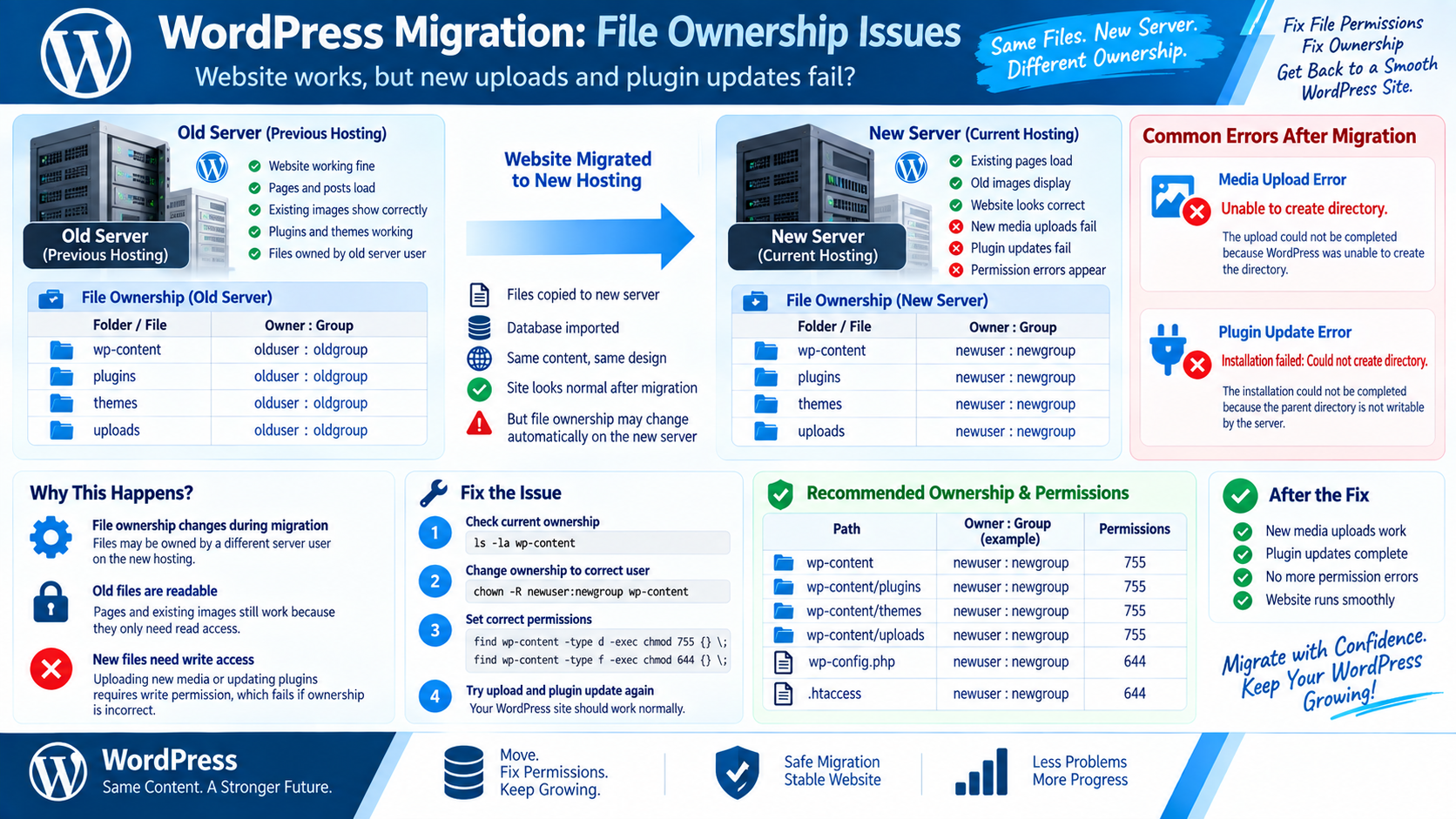
🚚 Permission Problems After Migration or Backup Restore
A site can work normally on the old server and develop filesystem problems after moving.
Possible situations include: existing images load, but new images cannot be uploaded; existing plugins work, but cannot be updated; a theme works, but cannot write new files; a cache or backup plugin cannot create files.
This happens because reading existing files and creating new files are different operations.
Confirm the Correct WordPress Root
A normal WordPress root usually contains wp-admin/, wp-content/, wp-includes/, wp-config.php, and index.php. Your account may also contain /staging/, /old-site/, or /backup/. Confirm that you are repairing the live WordPress installation.
Compare Ownership
Check WordPress core files, wp-content, plugins, themes, and uploads. If one section has a different owner or group after migration, investigate that mismatch.
🚫 When a 403 Error Is Not Really a File Permission Problem
Sometimes WordPress or your server returns “403 Forbidden” or “You don’t have permission to access this resource.” That does not automatically mean your Unix file permissions are wrong.
A 403 response may also be caused by .htaccess, a security plugin, a Web Application Firewall, ModSecurity, hosting security rules, or server configuration.
Filesystem Permission Error vs HTTP 403: A filesystem permission error means a process cannot perform a required filesystem operation. An HTTP 403 means a web request has been refused. They can sometimes be related, but they are not the same problem.
If your filesystem looks normal but one WordPress request returns 403, investigate the request/security layer. If the problem is a genuine HTTP 403 response, follow our WordPress 403 Forbidden Error guide.
Why You Should Not Use 777 as a Quick Fix
Some outdated tutorials suggest changing a directory to 777 when WordPress cannot write. Do not use this as your normal solution.
777 gives very broad read, write, and execute access through the permission mode. The official WordPress Hardening guide also recommends limiting write access instead of making files and directories unnecessarily writable.
If WordPress cannot operate with an appropriate secure configuration, investigate ownership, group, PHP user, web-server user, parent directory, hosting configuration, and filesystem restrictions before opening access further.
Better Troubleshooting Order
Use: Exact Error → Correct Path → Permissions → Ownership → Parent Directory → Storage → Server Configuration.
Do not use insecure permissions to hide the root problem.
How to Fix WordPress File Permissions Using cPanel
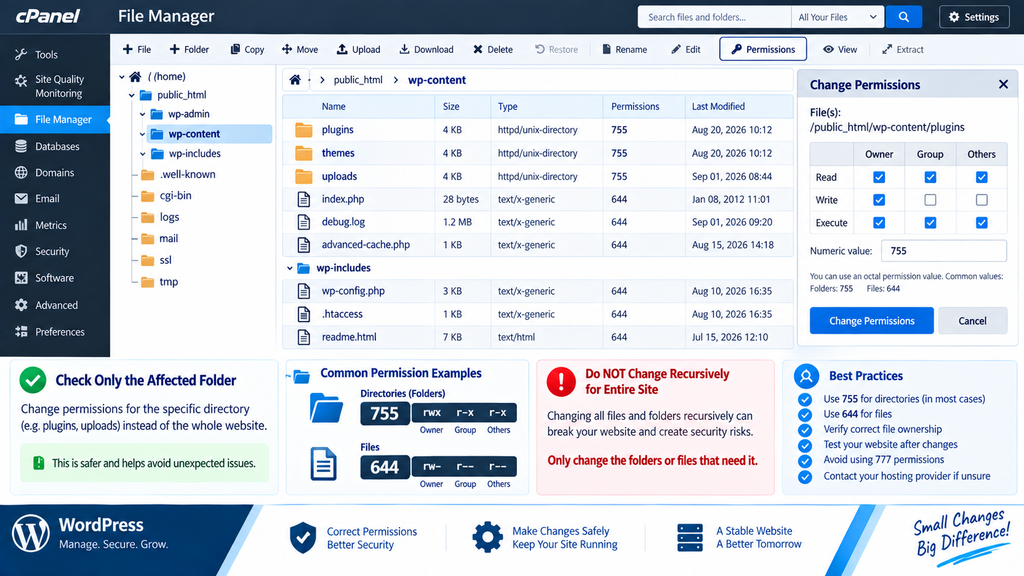
For many shared-hosting users, File Manager is the easiest way to inspect permissions.
Open cPanel → File Manager, then find your WordPress installation. A common location is /public_html/, but this is not universal. Confirm the directory contains files such as wp-admin, wp-content, wp-includes, and wp-config.php.
Step 1: Inspect the Affected File or Directory
— Right-click it, select an option such as Change Permissions, and record the existing setting before changing anything.
Step 2: Compare With the Expected Configuration
— On many standard environments, you may see directories: 755 and files: 644. If these already match the expected configuration, investigate ownership instead of increasing access.
Step 3: Change Only the Confirmed Problem
— Do not select your entire hosting account and apply a recursive permission change. Fix the affected item first.
Step 4: Test Again
— Repeat only the operation that failed (upload one image, update one plugin, install one theme). If it works, check both the dashboard and frontend.
Check Permissions Using SFTP
If your host supports SFTP, you can use a trusted SFTP client to inspect WordPress files securely. Depending on your software, you may be able to view permissions, change a specific mode, rename files, or download a backup copy.
Remember: changing the numeric permission through SFTP does not automatically repair incorrect ownership. If 755/644 already looks correct, investigate ownership before making permissions broader.
Advanced: Diagnose File Permissions With SSH
SSH is useful for users who understand Linux filesystem permissions or manage their own server.
To inspect the current directory: ls -la. To inspect important WordPress directories:
ls -ld wp-content wp-content/plugins wp-content/themes wp-content/uploads
Example Permission Reset Commands
Common patterns for directories:
find /path/to/wordpress/ -type d -exec chmod 755 {} \;
and regular files:
find /path/to/wordpress/ -type f -exec chmod 644 {} \;
These are examples, not universal commands. Do not run them until you have confirmed the exact WordPress root, hosting permission requirements, existing ownership, correct server configuration, and backup availability. A recursive command against the wrong path can modify thousands of files.
Advanced: When Permissions and Ownership Look Correct
On a self-managed VPS, normal Unix permission modes and ownership may appear correct while WordPress still cannot write.
Advanced causes can include SELinux, ACLs, a PHP-FPM user mismatch, container filesystem permissions, read-only mounts, or server security policies.
Do not disable security systems simply to make WordPress writable. Check server logs, SELinux status where applicable, ACLs, PHP-FPM configuration, and mount configuration. If you do not manage the server yourself, ask your system administrator or host.
Check Disk Space Before Changing Permissions
A full hosting account can produce symptoms that look like permission problems. WordPress may fail while uploading media, extracting a plugin, updating a theme, creating temporary files, or writing cache files.
Check available disk storage before changing filesystem permissions.
Check Inode Usage
Disk space and inode limits are different. You can sometimes have available storage space but still reach your hosting provider’s maximum file count limit.
When that happens, WordPress may be unable to create new images, plugin files, theme files, cache files, temporary files, or backup files. If your control panel does not show inode usage, ask your host.
Check PHP Temporary Storage
Plugin and theme packages may use temporary storage before files are moved to their final WordPress directories.
If that temporary location is full, unavailable, unwritable, or restricted, installation can fail even when /wp-content/plugins/ looks correct.
If repeated installations fail before reaching the final directory, ask your host to check PHP temporary storage and filesystem access.
WordPress Updates May Be Intentionally Disabled
Not every failed plugin or theme installation is a Unix permission problem. Your wp-config.php may contain:
define( ‘DISALLOW_FILE_MODS’, true );
This intentionally prevents plugin and theme installation or updates through WordPress admin. Do not remove it until you know why it exists — it may be part of managed hosting, a security policy, a developer workflow, or a deployment process.
If it is intentional, changing directory permissions will not solve the problem.
Advanced: Custom WordPress Permission Modes
WordPress also supports:
define( ‘FS_CHMOD_DIR’, ( 0755 & ~ umask() ) );
define( ‘FS_CHMOD_FILE’, ( 0644 & ~ umask() ) );
These constants are documented in the official WordPress wp-config.php documentation and are intended for server environments that need custom filesystem permission handling. Do not add them to every website. They are mainly useful when a hosting or filesystem configuration requires custom permission handling. Use them only when your host recommends them, your server configuration requires them, or you understand the filesystem issue being solved. They should not be the first fix for an ordinary installation failure.
Special Case: Protect wp-config.php
wp-config.php contains sensitive WordPress configuration. It should not be more writable than necessary.
On some server configurations, stricter values such as 440 or 400 may work. However, do not force these settings on every website. Your PHP/web-server process still needs appropriate read access. Use the most restrictive setting that works correctly with your hosting environment.
What About .htaccess Permissions?
A common setting for .htaccess is 644, but requirements depend on the server and whether WordPress needs to update rewrite rules automatically.
If .htaccess is too restrictive, WordPress may be unable to update it. If it is unnecessarily writable, file protection may be weaker than needed. Do not change .htaccess permissions without knowing what operation is failing.
What about wp-content/uploads?
The uploads directory normally needs enough access for WordPress to create media directories and save uploaded files.
If uploads fail, check whether the directory exists, whether the required process can write to it, whether ownership is correct, whether the parent directory can be traversed, whether disk space is available, and whether inode limits are available.
Do not use 777 as the general solution.
What About Plugin and Theme Directories?
Common locations are /wp-content/plugins/ and /wp-content/themes/. These directories need the access required by your server setup for installation and updates.
However, that does not mean every file inside them needs broad write access at all times. Use the least access your configuration requires.
WordPress May Use Custom Paths
Do not assume every WordPress installation uses /public_html/ or even the standard /wp-content/. Advanced and managed installations can use customized content and plugin locations.
Before running permission commands, confirm the actual WordPress root, content directory, plugin directory, theme directory, upload directory, and hosting document root. This is especially important when one account contains production, staging, and old copies of a website.
Check .htaccess, WAF, and Security Rules
If filesystem permissions look correct but a request produces a 403 response, check .htaccess, security plugin rules, ModSecurity, hosting WAF, and other server restrictions.
Do not make WordPress directories world-writable to solve an HTTP request restriction. Find the exact request or rule being blocked.
What If You Get a 500 Error After Changing Permissions?
If your site starts showing a 500 Internal Server Error after filesystem changes, stop making additional random changes.
If safe, restore the last known-working configuration and check server error logs, .htaccess, PHP errors, file permissions, and ownership.
If the server error remains, follow our WordPress 500 Internal Server Error guide for complete troubleshooting.
What If Permissions Keep Changing Back?
If you correct a permission and it changes again later, another system may be managing the filesystem.
Possible causes include deployment scripts, Git/CI workflows, backup restore, hosting automation, file synchronization, security software, or server management tools.
Repeatedly changing the numeric value will not solve the problem if another process keeps replacing it. Find the controlling process.
What If Unexpected File Changes Suggest a Security Problem?
Unexpected permission or ownership changes can sometimes appear alongside a compromised website.
Look for additional warning signs such as unknown PHP files, unexpected administrator accounts, modified WordPress core files, strange redirects, or unknown scheduled processes.
Changing chmod values alone does not clean a compromised website. Investigate the security incident and restore trustworthy files where appropriate.
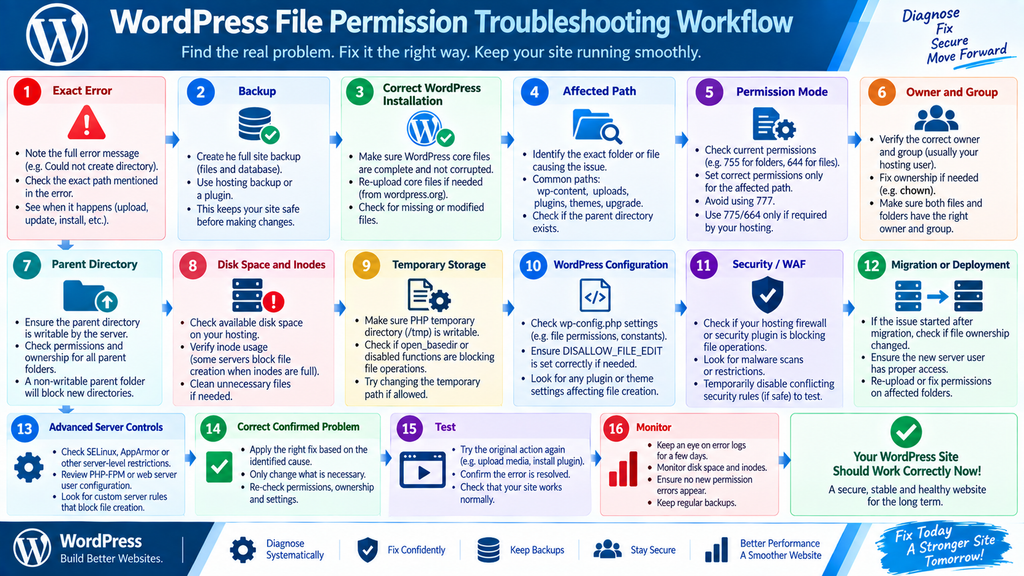
Complete WordPress Permission Troubleshooting Flow
- Record the exact error
↓ - Create a backup
↓ - Confirm the correct WordPress installation
↓ - Identify the exact affected path
↓ - Check its current permission mode
↓ - Check owner and group
↓ - Inspect the parent directory
↓ - Check disk space and inodes
↓ - Check temporary storage
↓ - Check WordPress configuration
↓ - Check security/WAF restrictions
↓ - Consider migration or deployment problems
↓ - Check advanced server controls if applicable
↓ - Correct only the confirmed problem
↓ - Test one failed operation
↓ - Monitor the website
🩺 Match the WordPress Permission Error With the Right Check
| Problem | Check First | Check Next |
| Cannot upload media | uploads directory | Ownership/storage |
| Cannot install plugin | Exact plugin/upgrade path | Ownership/temp storage |
| Cannot install theme | Exact theme/upgrade path | Ownership |
| Update cannot copy files | Reported path | Ownership/update process |
| 755/644 but still broken | Ownership | PHP/server user |
| Problem after migration | Owner/group | New server configuration |
| 403 during admin action | Security/WAF | .htaccess and logs |
| 500 after permission changes | Server logs | Restore known-working settings |
| Disk space available but no new files | Inodes | Hosting quota |
| Permissions change back | Deployment/automation | Find controlling process |
| Dashboard updates disabled | wp-config.php | DISALLOW_FILE_MODS |
| Only one plugin fails | Plugin directory | Package/plugin-specific issue |
Dangerous WordPress Permission Fixes to Avoid
Avoid these shortcuts:
- Setting the whole WordPress installation to 777
- Giving every file and directory the same permission mode
- Running random recursive chmod commands
- Running random recursive chown commands
- Assuming www-data is always the correct owner
- Changing your entire hosting account instead of the affected WordPress site
- Deleting files simply because WordPress cannot write to them
- Disabling server security permanently to finish an installation
- Making wp-config.php unnecessarily writable
- Copying permission settings from an unrelated hosting environment
The safest fix is usually the smallest confirmed change that restores the required operation.
How to Prevent Future WordPress Permission Problems
Use a Reliable Migration Process — After moving WordPress, test media upload, plugin updates, theme updates, file ownership, and important writable directories. Do not wait until a future update to discover a migration problem.
Avoid Mixing File Management Methods Without a Plan — Be careful when combining root SSH, Hosting File Manager, SFTP, deployment tools, and WordPress dashboard updates. Files created by different server users can produce ownership inconsistencies.
Monitor Storage and Inodes — Regularly check disk usage, file-count/inode usage, old backups, cache growth, staging copies, and large logs.
Keep Reliable Backups — Back up before migration, ownership changes, recursive permission changes, major server changes, and large WordPress updates. A backup is most useful when you also know how to restore it.Use Staging for High-Risk Changes — For important business sites, stores, membership platforms, or heavily customized WordPress installations, test major filesystem changes on staging whenever possible.
Still Facing WordPress File Permission Errors?
If your permission modes look normal but WordPress still cannot upload files, install plugins, or complete updates, the problem may require deeper server-level troubleshooting.
A host or WordPress developer may need to check file ownership, owner/group configuration, PHP user, parent-directory access, disk and inode limits, temporary storage, server security, migration configuration, deployment configuration, and advanced filesystem restrictions.
Give them the exact error and path, for example,/wp-content/uploads/.
A useful support request would be:
WordPress cannot create files inside /wp-content/uploads/. The permission mode appears normal. Please check ownership, PHP/web-server access, parent-directory permissions, disk and inode limits, and server filesystem restrictions.
Need Professional WordPress Help?
ProblemFixer can help troubleshoot WordPress file permissions, ownership problems, failed updates, upload errors, and other server-related WordPress issues.
Need deeper server-level help? Visit our WordPress troubleshooting services page.
🏁 Fix the Access Problem, Not Just the Permission Number
WordPress file permission errors should not be fixed by simply making everything writable.
For many standard environments, directories: 755 and files: 644 are useful starting settings. But they do not tell the whole story.
If those values are already present, investigate: Ownership → Parent Directory → Server User → Storage → Configuration → Security, before increasing access.
The safest approach is: find the exact cause, make the smallest safe change, and test the failed operation again.
❓ WordPress File Permission Questions Answered
1. What are the correct WordPress file permissions?
On many common hosting setups, directories use 755 and regular files use 644 as starting settings. However, the correct configuration also depends on file ownership, groups, PHP/web-server users, and the hosting environment.
2. Should WordPress folders be 755 or 775?
755 is common on many WordPress installations. Some server configurations use 775 when trusted group write access is intentionally required. Do not change every WordPress directory to 775 simply because 755 did not fix an error.
3. Should WordPress files be 644?
644 is commonly used for ordinary WordPress files on many servers. Some hosting configurations use different secure modes based on their ownership and group setup.
4. Is 777 safe for WordPress?\
Do not use 777 as a normal WordPress troubleshooting solution. If WordPress cannot write using an appropriate secure configuration, investigate ownership, groups, PHP/server users, parent directories, and hosting restrictions instead.
5. Why does WordPress say “Could not create directory”?
Possible causes include incorrect permissions, wrong ownership, inaccessible parent directories, storage limits, inode limits, temporary filesystem problems, or server restrictions. Check the exact path shown in the error before changing anything.
6. Why can’t WordPress upload images?
Check /wp-content/uploads/, its parent directory, ownership, available storage, inode quota, and any custom uploads configuration. Do not assume the numeric permission alone is responsible.
7. Why do WordPress updates fail even when permissions are 755 and 644?
The files may belong to the wrong owner or group. The PHP or web-server process performing the operation may therefore lack the write access it needs even though the numeric mode looks normal.
8. What is the difference between WordPress permissions and ownership?
Permissions define what the owner, group, and others are allowed to do. Ownership determines which user and group those rules apply to. You need to understand both when troubleshooting filesystem access.
9. How do I fix WordPress file permissions in cPanel?
Open cPanel → File Manager, locate the correct WordPress installation, inspect the affected file or directory, record its current permission mode, compare it with your host’s expected configuration, and change only the confirmed problem. Then test the failed WordPress operation again.
10. Can incorrect permissions cause 403 or 500 errors?
They can contribute to some server errors, but not every 403 or 500 response is caused by filesystem permissions. A 403 may involve .htaccess, WAF, ModSecurity, or another security rule. A 500 error may involve PHP, .htaccess, server configuration, or other problems.