

Introduction – 404 Error on Website
A 404 error on website is a very common problem.
When a visitor opens a page and sees “404 Page Not Found”, it means the page does not exist.
This creates confusion, makes users leave quickly, and can reduce Google trust in your website.
Many beginners ignore 404 errors, but this is a big mistake.
Too many broken pages can damage SEO and rankings.
In this guide, you will learn easy and safe steps to fix 404 error on website.
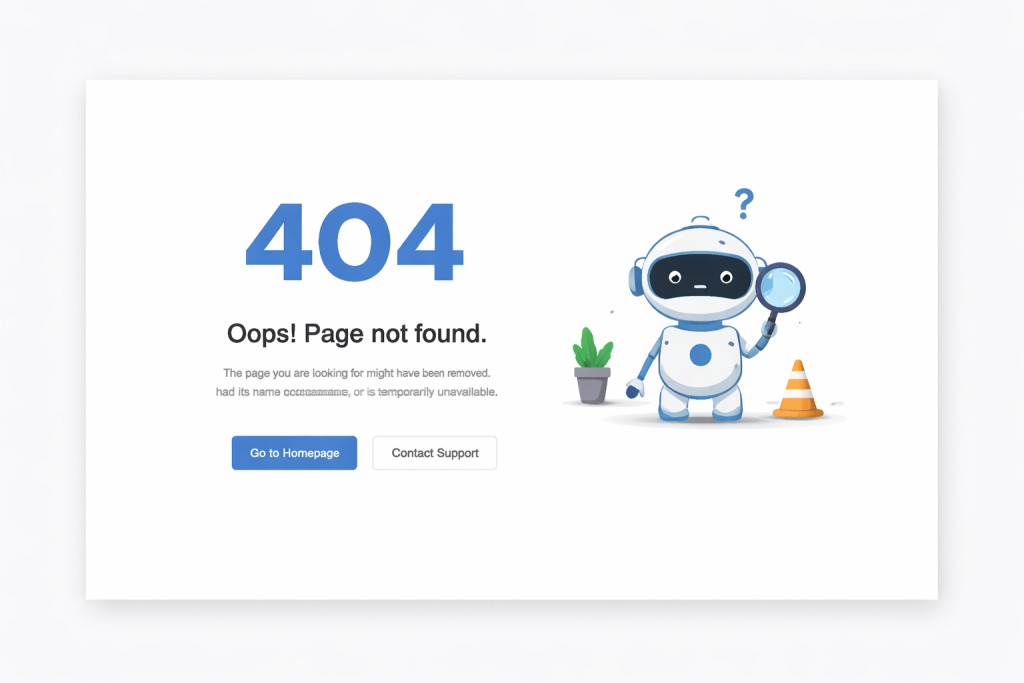
What Is a 404 Error on Website?
A 404 error means the server is working, but the page is missing.
The browser asks for a page, but the server cannot find it.
This usually happens when a page is deleted or the URL is changed.
A few 404 errors are normal, but many 404 pages are bad for SEO.
Why 404 Errors Are Bad for SEO
404 errors hurt your website in many ways:
- Visitors leave your site fast
- Bounce rate increases
- Google crawlers waste time
- Link value is lost
If Google finds many broken pages, it may stop crawling important pages.

Common Causes of 404 Error
Deleted Pages
When pages are removed without redirect, users see 404 error.
Wrong URLs
Small spelling mistakes in links break pages.
Website Redesign or Migration
Changing website structure without redirects creates errors.
Broken Internal Links
Old links inside blogs, menus, or footer cause 404 issues.
How to Find 404 Errors on Your Website
Use Google Search Console (Best Way)
Google Search Console shows pages with errors.
https://search.google.com/search-console
Check Manually
Click menus, old blog posts, and footer links.
Use SEO Tools
SEO tools can scan the website and show broken links.

Step-by-Step: How to Fix 404 Error on Website
Step 1: Fix Broken Internal Links
Go to posts, pages, menus, and footer.
Update wrong links or remove them.
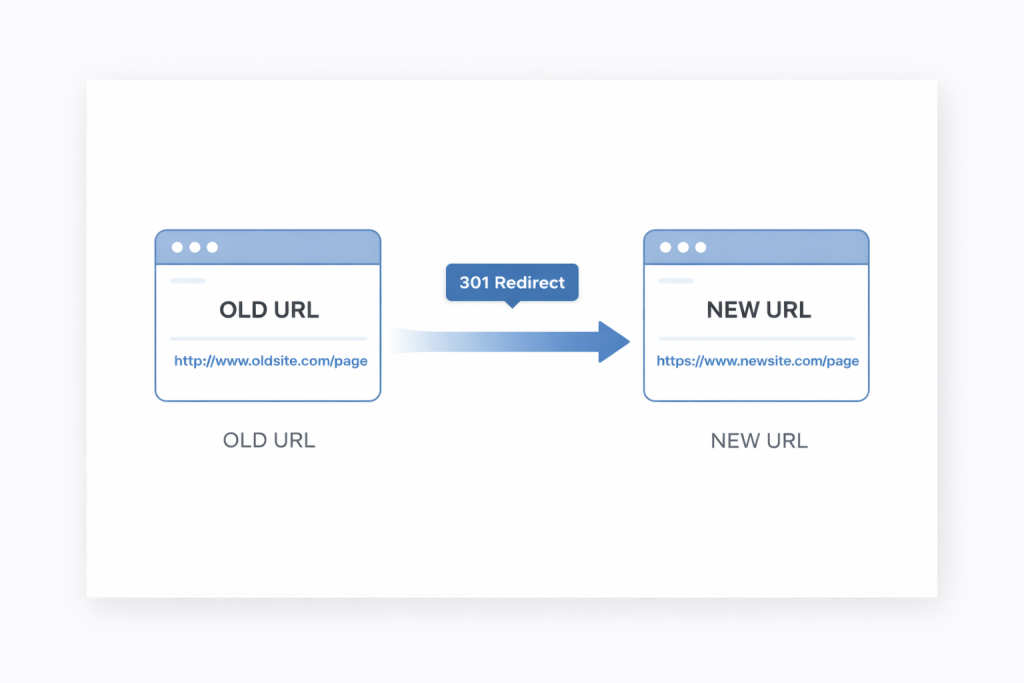
Step 2: Set Up 301 Redirects (Very Important)
301 redirects send users from old pages to new pages.
This saves SEO power and improves user experience.
When to Use 301 Redirect
- Page deleted
- URL changed
- Blog updated
Step 3: Restore Important Pages
If a page had traffic or backlinks, restore it instead of deleting.
Step 4: Create a Custom 404 Page
A custom 404 page helps users stay on your site.
Include:
- Home page link
- Blog page link
- Contact page link
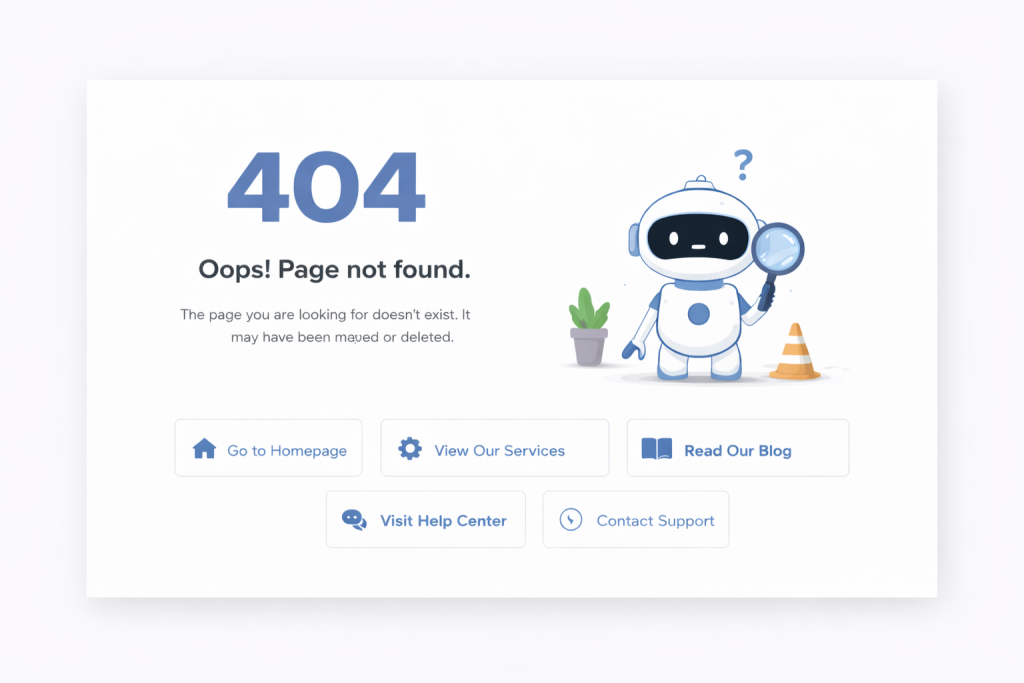
Image Prompt:
Modern custom 404 page design with helpful navigation links, clean white UI
ALT Text:
Custom 404 error page design with navigation links
How to Fix 404 Errors in WordPress
WordPress users can fix 404 errors easily.
Check Permalinks
- Settings → Permalinks
- Click Save
Fix Menu and Footer Links
Remove broken URLs.
Update Internal Links in Old Blogs
Should You Redirect All 404 Pages?
No.
Only redirect pages that had:
- Traffic
- Backlinks
- SEO value
Do not redirect random URLs to homepage.
Helpful Tools to Manage 404 Errors
If your website has many pages, using SEO tools can help you find broken links and manage 404 errors easily.
These tools save time, improve user experience, and protect your website SEO.
When your site grows, you can later use professional tools to monitor errors and manage redirects.
Prefer an official option?
Some users prefer to buy directly from the official website.
You can check the official source here:
[Official Link / Affiliate Link – optional]
You’re free to choose the official option above, or contact us if you want the same tool set up for you at a lower cost.
Need Any Tool or Service?
If you need any AI tool, SEO tool, WordPress plugin, or theme at a low price, just message us on WhatsApp.
Tell us what you need, and we’ll confirm availability and the best affordable price.
Contact us on WhatsApp Need help or want a tool at a low price?
Our Services
WordPress Services: https://problemfixer.net/wordpress-services/
AI Tools Services: https://problemfixer.net/ai-tools-services/
SEO Tools Services: https://problemfixer.net/seo-tools-services/
Conclusion
404 error on website is common, but ignoring it is dangerous.
Broken pages reduce trust and harm SEO.
By fixing internal links, adding 301 redirects, and using a custom 404 page, you can fully solve this issue.