Introduction – Why Your WordPress Website Shows a White Screen
The WordPress white screen error is a very common problem that can suddenly stop your website from working. When this error happens, your website shows a blank white page. No text, no images, and no error message appear on the screen. This situation can be very scary, especially for beginners.
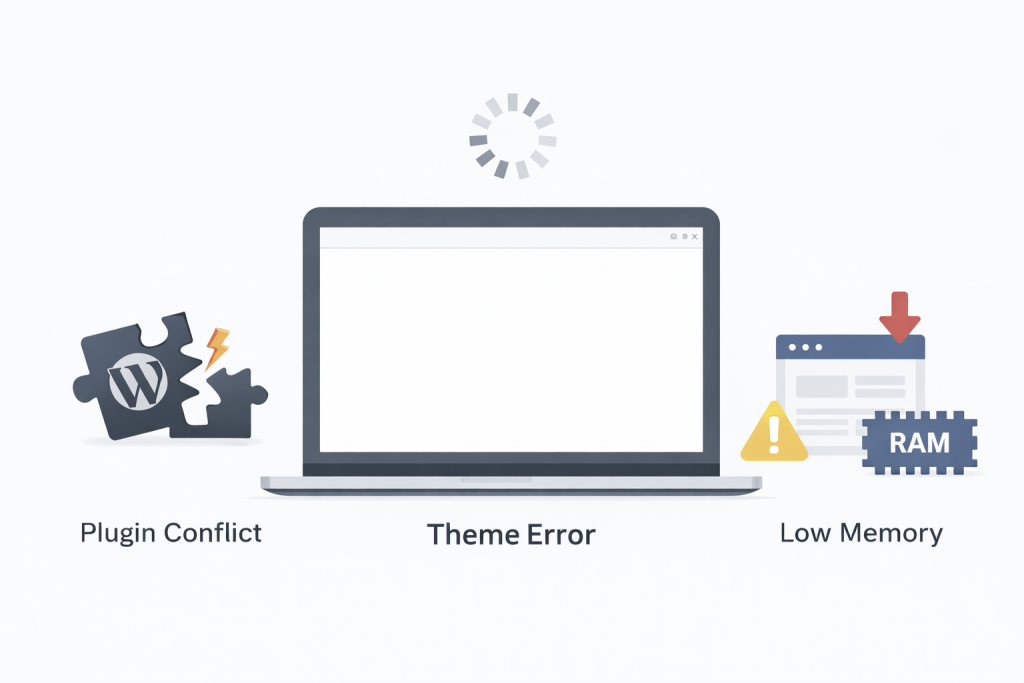
Many website owners think their website is hacked or completely broken, but in most cases this is not true. The white screen error usually happens because of a plugin conflict, a theme problem, or a WordPress memory limit issue. These problems prevent WordPress from loading properly.
This error can appear on the frontend or inside the WordPress admin panel. Sometimes you cannot even log in to your dashboard, which makes fixing the problem more difficult. If the white screen error is not fixed quickly, it can harm your website traffic, user trust, and Google rankings.
In this guide, you will learn the real causes of the WordPress white screen error and how to fix it step by step. Everything is explained in simple English so even beginners can follow the steps and solve the problem easily.

What Is WordPress White Screen Error
The WordPress white screen error means your website stops loading and only shows a white screen. There is no error message, so it becomes difficult to understand the problem.
This error usually happens when something breaks the website code. WordPress cannot load files properly, so it shows a blank screen instead.
The error can happen after:
- Installing a new plugin
- Updating a theme
- Changing website files
- Low memory limit
Common Causes of WordPress White Screen Error
There are several reasons why this error happens.
One common reason is plugin conflict. When two plugins do not work well together, they can crash the website.
Another reason is theme issues. A broken or outdated theme can cause a white screen.
Low PHP memory limit is also a big cause. If your website needs more memory than allowed, it may stop loading.
Corrupted files, wrong code changes, and server problems can also trigger this error.
👉 To learn about other website issues, visit our Website Problems guides:
How to Fix WordPress White Screen Error (Step-by-Step)
Now let us fix the problem using easy steps. Follow them in order.
Step 1: Clear Browser and WordPress Cache
Sometimes the white screen error is caused by cache issues.
Clear your browser cache first.
If you are using a cache plugin, clear WordPress cache from the plugin settings.
After clearing cache, refresh your website and check if the issue is fixed.
Step 2: Disable All Plugins
Plugin conflict is the most common cause.
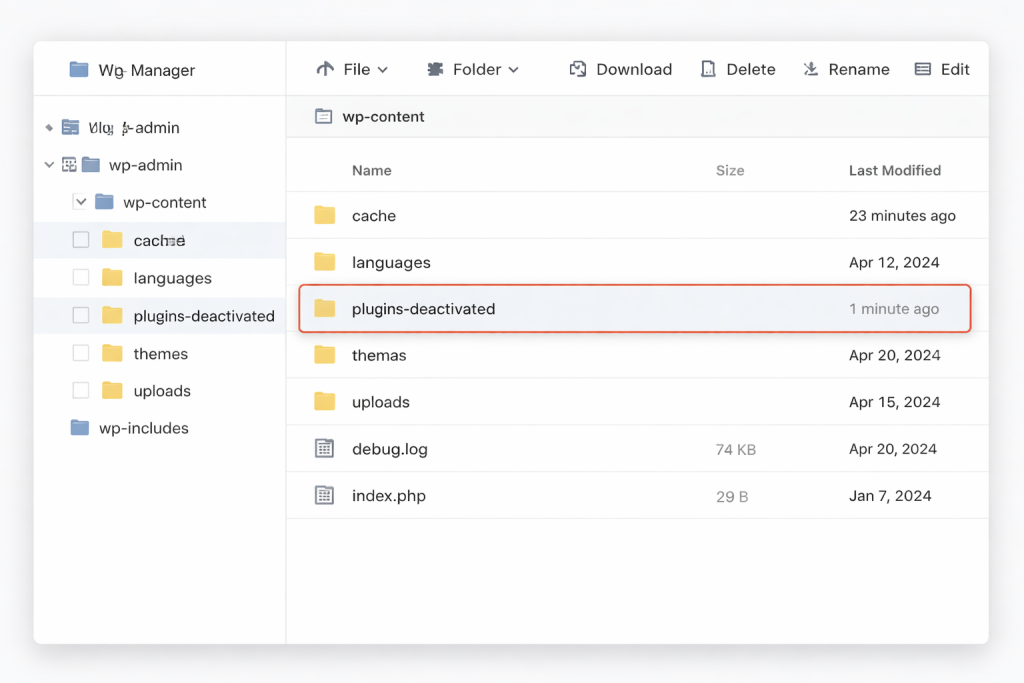
Go to your hosting file manager or FTP.
Open the wp-content folder.
Rename the plugins folder to plugins-old.
This will disable all plugins at once.
Now check your website.
If it works, rename the folder back to plugins and activate plugins one by one to find the problem plugin.
Step 3: Switch to Default WordPress Theme
If plugins are not the issue, the problem may be the theme.
Go to wp-content/themes folder.
Rename your active theme folder.
WordPress will automatically switch to a default theme like Twenty Twenty-Four.
Check your website again.
Step 4: Increase PHP Memory Limit
Low memory can cause the white screen error.
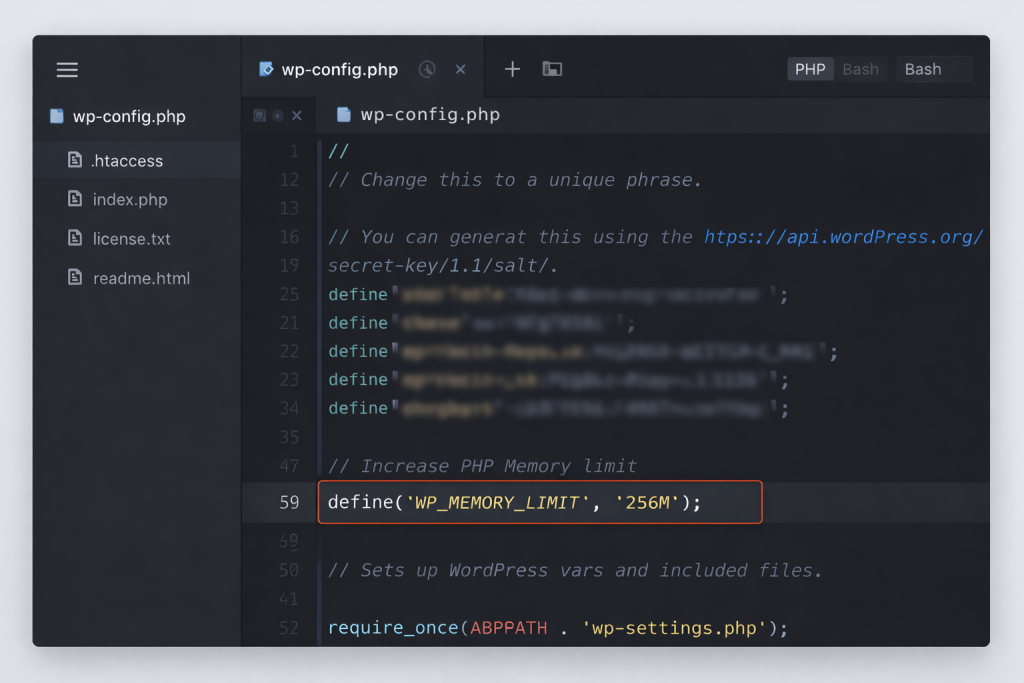
Open the wp-config.php file and add this line:
define(‘WP_MEMORY_LIMIT’, ‘256M’);
Save the file and refresh your website.
Step 5: Enable Debug Mode
Debug mode helps you see hidden errors.
Add these lines to wp-config.php:
define(‘WP_DEBUG’, true);
define(‘WP_DEBUG_LOG’, true);
define(‘WP_DEBUG_DISPLAY’, true);
Now reload your website.
You may see an error message that helps identify the issue.
Step 6: Check Corrupted Files
Sometimes WordPress core files get corrupted.
Download a fresh copy of WordPress from the official website.
Replace only the wp-admin and wp-includes folders.
Do not touch the wp-content folder.
Step 7: Contact Hosting Support
If nothing works, contact your hosting support team. They can check server errors, PHP issues, or permission problems.
If you are new to WordPress, read our guide on
Need help? Visit our Contact page:
WordPress official debugging guide:

Prefer an official option?
Some users prefer to buy directly from the official website.
You can check the official source here:
[Official Link / Affiliate Link – optional]
You’re free to choose the official option above, or contact us if you want the same tool set up for you at a lower cost.
Need Any Tool or Service?
If you need any AI tool, SEO tool, WordPress plugin, or theme at a low price, just message us on WhatsApp.
Tell us what you need, and we’ll confirm availability and the best affordable price.
Contact us on WhatsApp Need help or want a tool at a low price?
Our Services
WordPress Services: https://problemfixer.net/wordpress-services/
AI Tools Services: https://problemfixer.net/ai-tools-services/
SEO Tools Services: https://problemfixer.net/seo-tools-services/
Conclusion
The WordPress white screen error looks scary, but it is easy to fix if you follow the right steps. Most of the time, the problem is caused by plugins, themes, or low memory.
By disabling plugins, switching themes, increasing memory, and enabling debug mode, you can fix this issue quickly. Always keep your plugins, themes, and WordPress updated to avoid future problems.
Fixing errors on time helps protect your traffic, ranking, and trust. This guide works for both beginners and advanced WordPress users.