
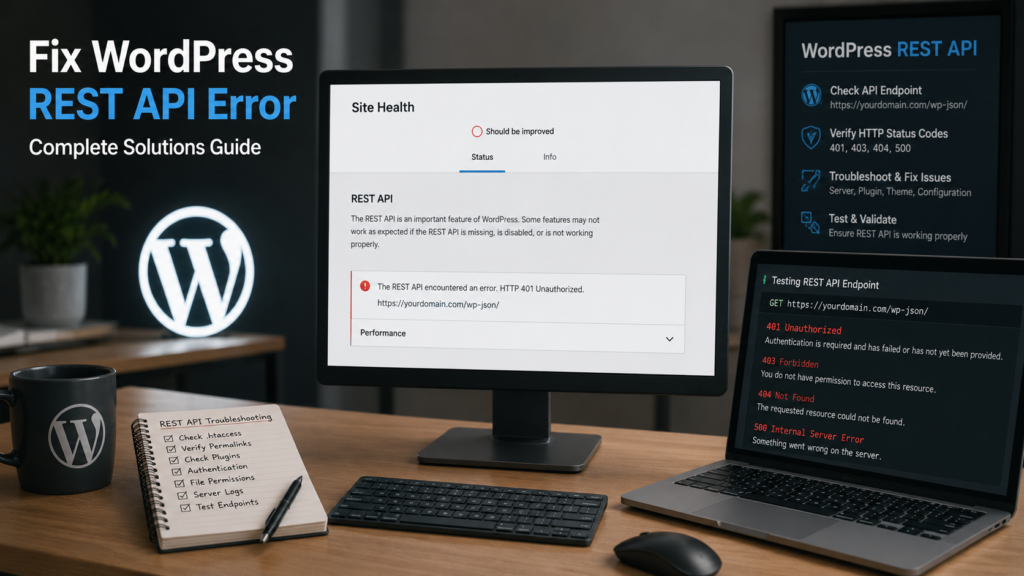

A WordPress REST API error can appear in several ways.
You may open Tools → Site Health and see:
“The REST API encountered an error.”
The block editor may refuse to save a post and display:
“Updating failed. The response is not a valid JSON response.”
Or a REST request may return:
- 401 Unauthorized
- 403 Forbidden
- 404 Not Found
- 500 Internal Server Error
- Timeout
- cURL error
- Invalid JSON
These errors are related to the REST API, but they do not have the same cause.
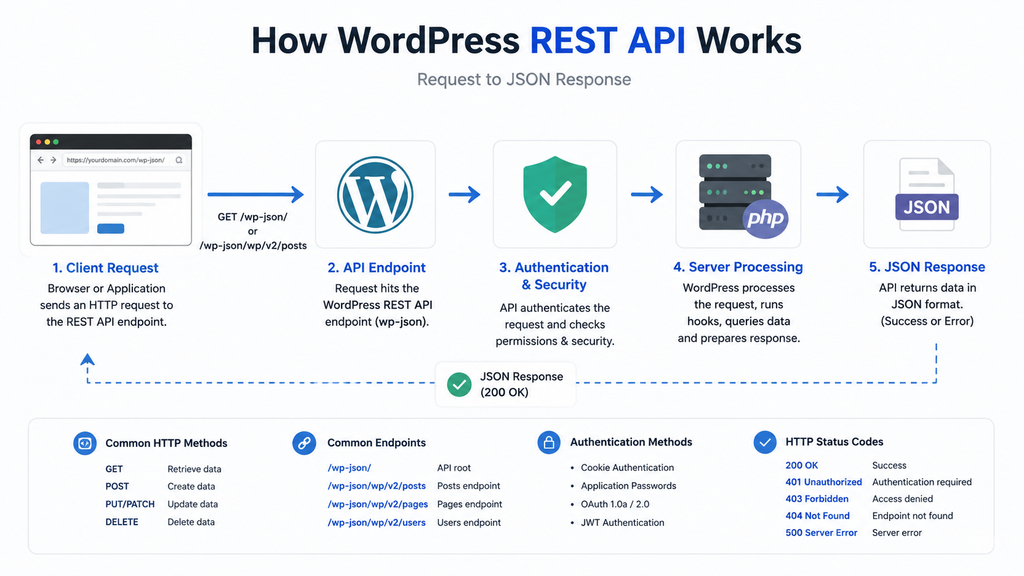
The WordPress REST API lets WordPress, plugins, themes, the block editor, and external applications communicate using HTTP requests and structured data.
A typical REST URL looks like:
https://example.com/wp-json
The best way to fix a WordPress REST API Error is to identify where the request fails:
Routing → Authentication → Security → PHP/Server → Response
This guide covers the common REST API problems and shows you how to troubleshoot each one without randomly disabling security, changing server files, or reinstalling WordPress.
🧠 Understanding the WordPress REST API
The REST API provides endpoints that WordPress and other applications can use to read or change website data.
WordPress uses REST functionality for important features, including the block editor. Because of that, completely disabling the REST API can break normal WordPress functionality.
👉 WordPress REST API documentation: REST API Handbook
REST endpoints commonly begin with:
https://example.com/wp-json
WordPress core routes may look like:
https://example.com/wp-json/wp/v2/posts
Plugins can register their own REST routes too.
⚠️ What Does “The REST API Encountered an Error” Mean?
WordPress Site Health checks whether REST functionality is available.
Go to:
Tools → Site Health → Status
If REST access fails, WordPress may report:
“The REST API encountered an error.”
Do not stop at that message.
Open the details and look for:
- Endpoint
- HTTP status
- Error code
- Response
- cURL error
The status code is one of your best diagnostic clues.
🧾 Match the REST API Error Code to the Cause
| Error | Usually Points To | Check First |
| 401 Unauthorized | Authentication | Credentials/session |
| 403 Forbidden | Security restriction | WAF/security plugin |
| 404 Not Found | Routing | Permalinks/rewrites |
| 500 Server Error | PHP/server | Error logs |
| Invalid JSON | Wrong/corrupted response | Actual REST response |
| Timeout | Network/process | Hosting/loopback |
Do not use a 403 solution for a 404 error.
🛟 Protect Your Site Before Troubleshooting
Create a backup before editing:
- .htaccess
- wp-config.php
- Nginx configuration
- Plugins
- Theme files
- Database
Also record the exact error before changing anything.
For a business, WooCommerce, membership, or LMS site, use staging for conflict testing whenever possible.
🔬 How to Test the WordPress REST API
Open:
https://yourdomain.com/wp-json
Replace yourdomain.com with your actual domain.
If REST is accessible, you should normally receive structured JSON.
If you instead receive:
- 404 page
- 403 page
- Login page
- PHP warning
- Blank page
- 500 error
you already have a useful clue.
Also test:
https://yourdomain.com/?rest_route=/ This comparison becomes especially useful for diagnosing rewrite problems.
🧭 Fix WordPress REST API 404 Error
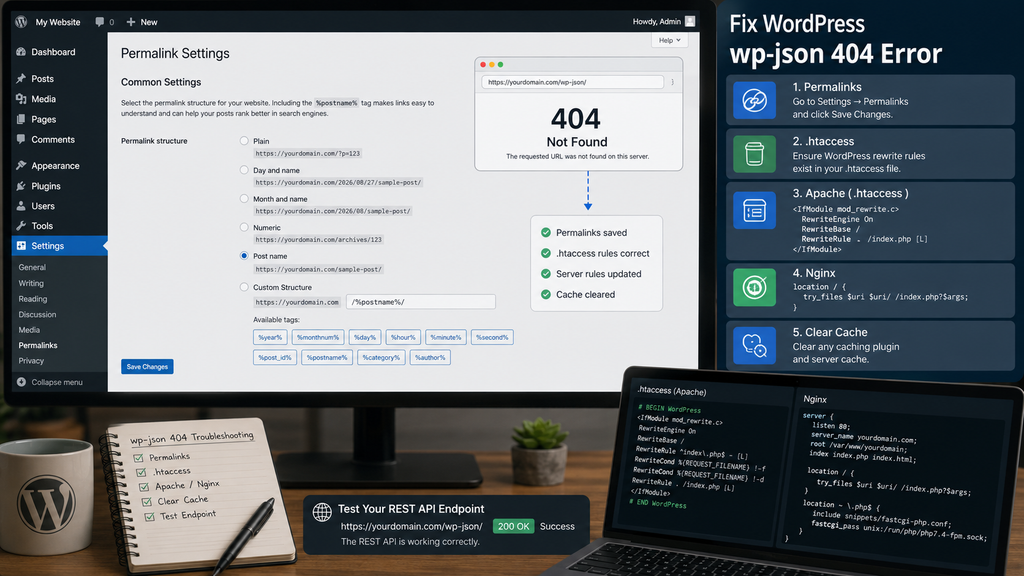
Go to:
Settings → Permalinks
Click:
Save Changes
You do not need to change the permalink structure first.
Then test:
/wp-json/
Again.
👉 Learn more about WordPress permalinks: Using Permalinks
Compare /wp-json/ With ?rest_route=/
Test both:
https://example.com/wp-json
and:
https://example.com/?rest_route=
If the second works while /wp-json/ returns 404, WordPress REST itself may be working.
The likely problem is the pretty-URL rewrite layer.
Focus on:
- Permalinks
- .htaccess
- Apache/LiteSpeed
- Nginx routing
Check .htaccess
On a standard Apache-based WordPress installation, WordPress rewrite rules may look similar to:
# BEGIN WordPress

<IfModule mod_rewrite.c>

RewriteEngine On

RewriteRule .* - [E=HTTP_AUTHORIZATION:%{HTTP:Authorization}]

RewriteBase /

RewriteRule ^index\.php$ - [L]

RewriteCond %{REQUEST_FILENAME} !-f

RewriteCond %{REQUEST_FILENAME} !-d

RewriteRule . /index.php [L]

</IfModule>

# END WordPress
Back up your existing .htaccess before changing it.
Do not blindly replace custom rules if your website uses:
- Multisite
- Subdirectory WordPress
- Security rules
- Redirects
- Custom server configuration
If .htaccess cannot be updated, ask your host to check permissions and ownership.
Check Apache Rewrite Support
If normal pretty permalinks and /wp-json/ both fail, ask your hosting provider to verify:
- mod_rewrite
- .htaccess overrides
- Document root
- WordPress rewrite configuration
If all pretty URLs fail, the problem is broader than the REST API.
Fix REST API 404 on Nginx
Nginx does not normally use .htaccess.
A common WordPress routing pattern is:
nginx
location / {
    try_files $uri $uri/ /index.php?$args;
}
Your server configuration may be different.
Do not replace your live Nginx server block with a generic example.
Ask your server administrator to verify that WordPress routes that do not map to physical files are passed to index.php.
Check Redirect Rules
A redirect plugin, CDN, or server rule may accidentally catch:
/wp-json/
Check rules involving:
- /wp-*
- /wp-json/*
- Wildcards
- Regex
- Catch-all redirects
If /wp-json/ redirects to the homepage, a redirect or security rule is a strong suspect.
🔒 Fix WordPress REST API 403 Forbidden
A 403 normally means the request reached a security layer but was denied.
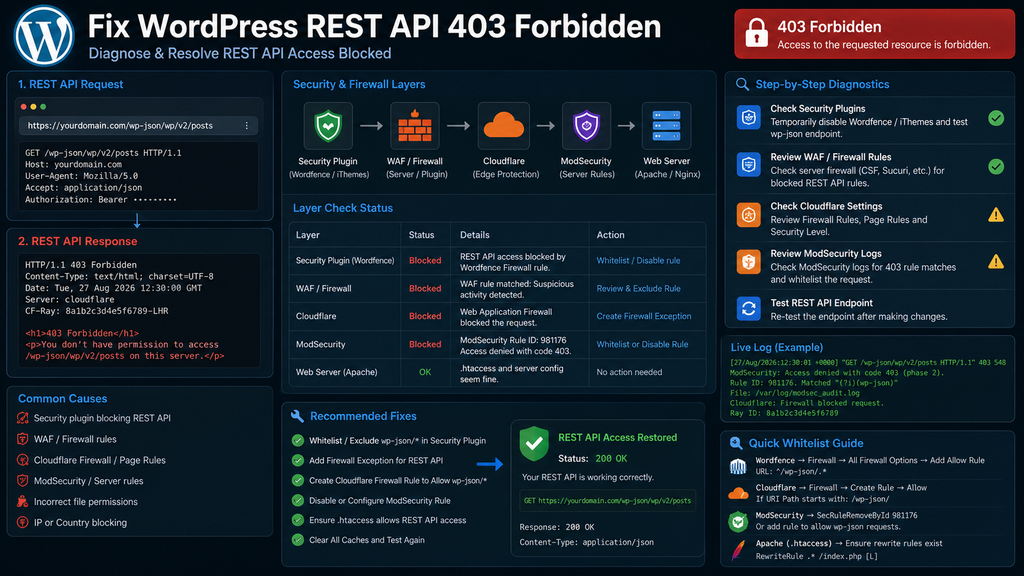
Check:
- Security plugin
- Cloudflare/WAF
- ModSecurity
- Hosting firewall
- Custom REST restrictions
- IP blocking
- HTTP methods
Check Security Plugins
Review options such as:
- Disable REST API
- Block unauthenticated REST requests
- REST protection
- Bot protection
- IP restrictions
Do not disable your security plugin permanently.
Identify the rule responsible for the legitimate block.
If 403 errors affect other areas of the website too, read our complete guide: Fix WordPress 403 Forbidden Error
Check Cloudflare or Another WAF
If you use a WAF, inspect security events around the exact time of the failed request.
Look for:
- /wp-json/
- HTTP method
- IP
- Rule ID
- Block/challenge action
Do not create a global rule that allows everything under /wp-json/*.
Create the narrowest exception required for legitimate traffic.
👉 Cloudflare WAF documentation: Cloudflare Web Application Firewall
Check ModSecurity
A useful pattern is:
GET works → POST returns 403
This can indicate a WAF or ModSecurity rule blocking the request body.
Ask your host:
A legitimate WordPress REST API request is returning 403. Can you check the ModSecurity logs and tell me the rule ID that blocked this request? A targeted exception is safer than disabling ModSecurity site-wide.
Check HTTP Methods
REST routes can use:
- GET
- POST
- PUT
- PATCH
- DELETE
If viewing content works but saving it fails, check whether the firewall or server blocks the required method.
🔑 Repair REST API Authentication and 401 Errors
A 401 normally points to authentication.
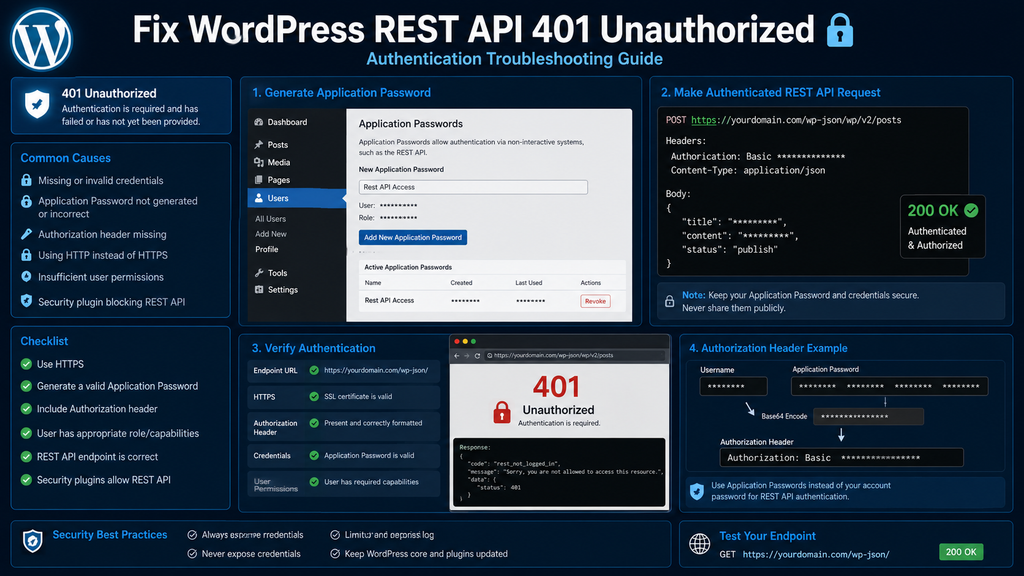
First, determine whether the request comes from:
- WordPress dashboard
- External application
- Plugin
- Mobile application
- Custom integration
The correct authentication method depends on the request.
Fix Dashboard Authentication
For requests from the WordPress dashboard:
- Save your work if possible.
- Log out.
- Log back in.
- Reload the editor.
- Retry.
WordPress commonly uses logged-in cookies and REST nonces for same-origin dashboard requests.
Check the REST Nonce
Authenticated dashboard REST requests commonly use:
X-WP-Nonce
A stale or missing nonce can cause authentication failure.
Possible causes include:
- Old admin page
- Incorrect admin caching
- Expired session
- Proxy/header issue
Do not hard-code an old nonce.
Check WordPress URL Settings
Go to:
Settings → General
WordPress Address
Site Address
Watch for inconsistencies:
- HTTP vs HTTPS
- www vs non-www
- Domain names
A mismatch can cause cookie, redirect, and authentication problems. Do not change these URLs casually on a production site.
Use Application Passwords for External REST Access
WordPress provides Application Passwords for authenticated programmatic access.
These are separate from your normal account password and can be individually revoked.
Use HTTPS.
Never expose Application Passwords in:
- Screenshots
- Public JavaScript
- GitHub
- Support posts
- Tutorials
👉 Official authentication documentation: REST API Authentication
Check the Authorization Header
A correct username and Application Password can still fail if the server strips:
Authorization
Before the request reaches WordPress.
Ask your host:
Can you confirm that the HTTP Authorization header is passed through to PHP and WordPress for REST API requests?
Check:
- Apache/FastCGI
- Nginx/PHP-FPM
- Reverse proxy
- Hosting security
Do not put real Authorization headers into public screenshots.
📨 Find the Real Cause of the Invalid JSON Response
You may see:
“Updating failed. The response is not a valid JSON response.”
or: “Publishing failed. The response is not a valid JSON response.”
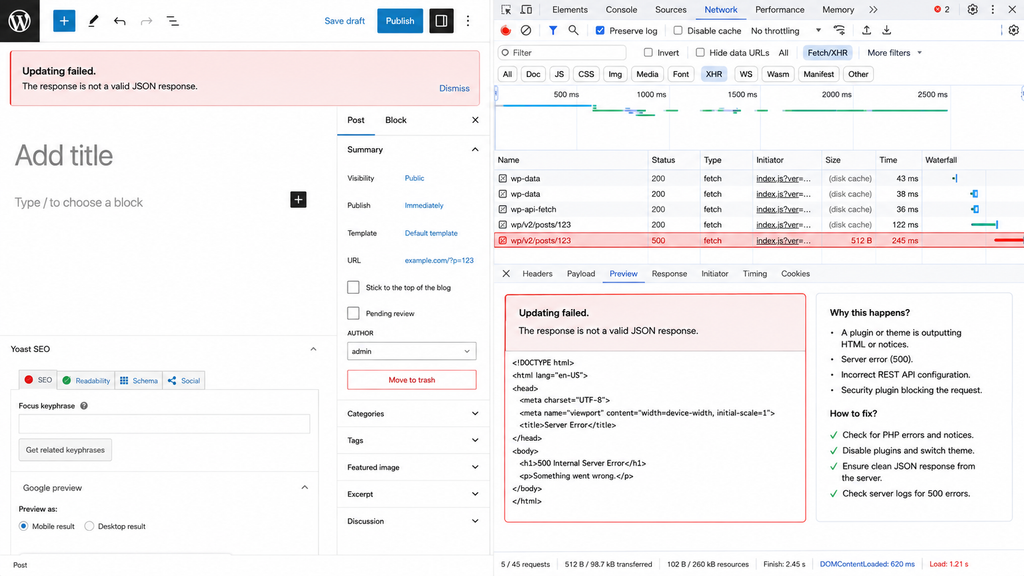
This does not necessarily mean JSON itself is broken.
The editor expected a REST response but may have received:
- 404 page
- 403 page
- 500 error
- PHP warning
- Login page
- Redirect
- Timeout
The key is to inspect what actually came back.
Inspect the Failed REST Request
Open the browser Developer Tools.
Then:
- Select Network.
- Update or publish the post.
- Find the failed /wp-json/ request.
- Check its status.
- Read the response.
Use this flow:
404 → Routing
401 → Authentication
403 → Security/WAF
500 → PHP/server
This is more reliable than repeatedly saving permalinks.
Check PHP Warnings
If PHP outputs something like:
Warning: Undefined variable…
Inside the REST response, the editor may no longer receive valid JSON.
For troubleshooting, WordPress supports debug logging:
Open wp-config.php and add these lines before the /* That’s all, stop editing! Happy blogging. */ line:
define( 'WP_DEBUG', true );
define( 'WP_DEBUG_LOG', true );
define( 'WP_DEBUG_DISPLAY', false );
Then reproduce the problem and inspect:
/wp-content/debug.log
👉 WordPress debugging guide: Debugging in WordPress
Do not leave verbose debugging enabled unnecessarily on production. Never publish logs containing credentials, private paths, tokens, or personal data.
Check Plugin Conflicts
Plugins can affect:
- REST routes
- Authentication
- Security
- Redirects
- Output
- Caching
On staging:
- Disable non-essential plugins.
- Test the failing request.
- Re-enable plugins one by one.
- Test after each activation.
If the error returns after one plugin is enabled, investigate that component.
Check Theme Conflicts
Themes can affect REST responses through:
- functions.php
- Custom REST filters
- Redirects
- PHP warnings
- Custom code
On staging, test with a current default WordPress theme. If the REST problem disappears, inspect your active theme or child theme.
Check Custom PHP Code
Review recent snippets for:
rest_api_init
rest_authentication_errors
and custom:
- Redirects
- Headers
- Authentication
- Output
Also remove accidental debugging output such as:
echo 'test';or
var_dump( $value );Unexpected PHP output can corrupt a REST response.
🧯 Fix WordPress REST API 500 Server Failures
If the failed request returns:
500 Internal Server Error, the REST API may only be where the server problem became visible.
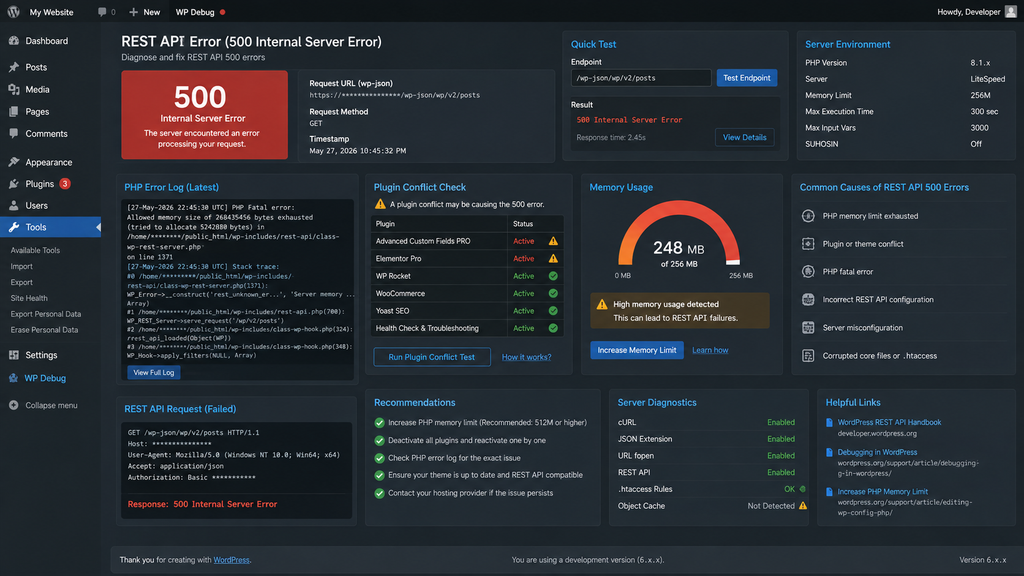
Check:
- WordPress debug log
- PHP error log
- Hosting error log
- Plugin conflictswordpress-rest-api-500-error.webp
- Theme conflicts
- PHP memory
- Database
- Server resources
If the whole site also shows a 500 error, follow our guide: Fix WordPress 500 Internal Server Error
Check PHP Memory
If your logs show:
Allowed memory size exhausted
Fix the memory problem before retrying the REST request.
If memory exhaustion is causing the REST API timeout, follow our detailed guide: Fix WordPress Memory Exhausted Error
Do not keep increasing memory if a faulty plugin is consuming abnormal resources.
Check Timeouts
A REST request can time out because of:
- Slow plugin
- Database query
- External API
- Server overload
- Hosting network
- Large request
Find the slow operation first.
Do not automatically increase the execution limit to several minutes.
🔁 Troubleshoot REST and Loopback Connection Failures
WordPress can make HTTP requests back to its own site. These are known as loopback requests.
They are used by background processes such as WP-Cron.
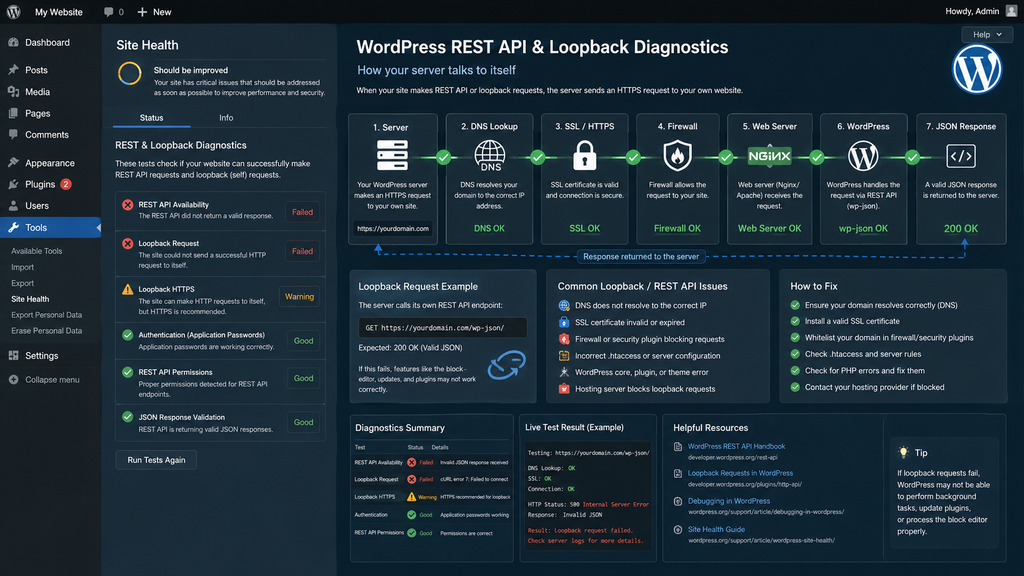
If Site Health reports a loopback problem, check:
- DNS
- SSL
- Firewall
- Basic Authentication
- Security plugin
- Hosting restrictions
- Redirect loops
👉 Learn more about Site Health: WordPress Site Health Guide
Browser REST Works, but Site Health Fails
This is an important clue.
Your browser and your server are different clients.
If:
/wp-json/
works in your browser, but WordPress cannot complete its internal request.
Check:
- Server-to-self connection
- DNS
- SSL
- Firewall
- Basic Auth
- Hosting networking
Do not keep changing public permalink settings.
Check cURL Errors
Common examples include:
cURL Error 6
Often related to hostname/DNS resolution.
cURL Error 7
Connection failure.
cURL Error 28
Timeout.
The exact cURL error matters.
Do not treat all cURL failures as the same problem.
👉 cURL error code reference: cURL Error Codes
Check Caching and Object Cache
REST problems can also appear after changing:
- Page cache
- Server cache
- CDN cache
- Redis
- Memcached
If the problem started immediately after a cache change, check that layer.
Authenticated and user-specific REST requests should not be cached like ordinary public static pages.
🎯 Real REST API Problems and Their Fastest Fixes
1. /wp-json/ Returns 404
Check: Permalinks and rewrite routing.
Try:
?rest_route=/ If that works, investigate .htaccess, Apache/LiteSpeed, or Nginx routing.
2. /wp-json/ Returns 403
Check: Security plugin, WAF, ModSecurity, and hosting firewall.
Find the exact rule that blocked the request.
3. External API Returns 401
Check: Credentials, Application Password, user permissions, and Authorization-header forwarding.
4. Gutenberg Shows “Not a Valid JSON Response”
Inspect the failed request in the browser’s Network tools.
Follow its real status:
404 / 401 / 403 / 500
Instead of trying random JSON fixes.
5. REST Works in Browser, but Site Health Reports an Error
Check:
- Loopback
- DNS
- SSL
- Firewall
- Server-to-self connectivity
The public API itself may be healthy.
6. REST Error Starts After Plugin, PHP, Hosting, or Security Change
Start with the most recent change.
- Plugins
- Theme
- PHP
- WAF
- Server configuration
- Cache
- Hosting environment
Do not reinstall WordPress first.
🗺️ REST API Error Diagnosis Map
| Problem | First Check | Likely Area |
| /wp-json/ 404 | ?rest_route=/ | Rewrite |
| REST 401 | Authentication | Session/header |
| REST 403 | Security logs | WAF/firewall |
| REST 500 | Error logs | PHP/server |
| Invalid JSON | Network response | Underlying REST error |
| GET works, POST fails | Security rules | WAF/method |
| Browser works, Site Health fails | Loopback | Hosting |
| cURL 6 | DNS | Resolution |
| cURL 7 | Network | Connection |
| cURL 28 | Timeout | Server/network |
| One plugin route fails | Plugin | Custom endpoint |
| Started after migration | Environment | URL/server config |
⛔ REST API Fixes That Can Make the Problem Worse
Do not:
- Disable the REST API completely.
- Set permissions to 777.
- Disable SSL verification.
- Turn off every firewall permanently.
- Allow every /wp-json/* request through the WAF.
- Change WordPress URLs randomly.
- Replace .htaccess without a backup.
- Add Apache rules to an Nginx-only server.
- Publish REST credentials.
- Hard-code REST nonces.
- Ignore PHP fatal errors.
- Reinstall WordPress before diagnosing the response.
The goal is to identify the failing layer.
🛡️ How to Prevent Future REST API Errors
Keep a simple maintenance routine:
- Keep WordPress updated.
- Maintain plugins and themes.
- Use supported PHP.
- Review Site Health.
- Monitor PHP errors.
- Keep security rules targeted.
- Test WAF changes.
- Avoid caching authenticated REST traffic.
- Test migrations on staging.
- Keep WordPress URLs consistent.
- Test major plugin updates.
- Remove unused integrations.
- Revoke old Application Passwords.
- Keep reliable backups.
If WordPress core, plugin, or theme updates are failing, first fix the underlying update problem before troubleshooting version-related REST issues. See our guide: Fix WordPress Update Failed Error
For important business websites, test major server, PHP, security, and caching changes on staging first. Once your REST API is working properly and errors are resolved, you can also improve your overall site performance: Speed Up Your WordPress Website
🧑💻 REST API Still Failing? Check These Final Areas
If you’ve checked routing, authentication, security, plugins, PHP logs, loopbacks, and hosting but REST still fails, the problem may require server-level troubleshooting.
Need Help Fixing a WordPress REST API Error?
If the REST API still fails after checking routing, authentication, security rules, plugins, PHP errors, and server settings, our WordPress troubleshooting service can help identify the cause and restore normal REST functionality.
WordPress Services:
https://problemfixer.net/wordpress-services/
Ask your hosting provider or WordPress professional to check:
- Apache/Nginx routing
- Authorization-header forwarding
- ModSecurity/WAF logs
- PHP fatal errors
- REST callbacks
- DNS
- SSL
- Loopback connectivity
- Reverse proxy
- Object cache
- Server resources
Give them:
Exact endpoint + HTTP method + status code + time + response
This is much more useful than simply saying:
“My REST API is broken.”
❓ WordPress REST API FAQs
1. What causes a WordPress REST API error?
Common causes include broken rewrite rules, authentication failures, security plugins, WAF rules, PHP errors, plugin conflicts, caching, server configuration, and loopback problems. Start with the exact status code instead of trying every fix.
2. How can I check whether the WordPress REST API works?
Open /wp-json/ on your website. A working public base endpoint should normally return structured JSON. If it returns a 404, 403, HTML page, or server error, troubleshoot that response.
3. How do I fix a WordPress REST API 404 error?
Resave permalinks and compare /wp-json/ with ?rest_route=/. If the query-string route works, check .htaccess, Apache/LiteSpeed rewrites, or Nginx routing.
4. Why does the WordPress REST API return 403 Forbidden?
A 403 commonly points to a security restriction. Check your security plugin, WAF, ModSecurity, hosting firewall, custom REST restrictions, and blocked HTTP methods.
5. Why does the WordPress REST API return 401 Unauthorized?
Check the login session and nonce for dashboard requests. For external applications, verify authentication credentials, Application Passwords, user permissions, HTTPS, and Authorization-header forwarding.
6. Why does WordPress say “The response is not a valid JSON response”?
The editor expected a REST response but received something different, such as a 404, 403, 500 error, redirect, login page, PHP warning, or timeout. Inspect the failed request in your browser’s Network panel.
7. Can Cloudflare cause a REST API error?
Yes. WAF rules, bot protection, rate limits, custom firewall rules, or caching can affect legitimate REST requests. Check the specific security event before changing rules.
8. Can a WordPress plugin break the REST API?
Yes. Plugins can modify REST routes, authentication, redirects, security, output, and caching. Use staging to perform controlled conflict testing.
9. What should I do if the REST API returns 500?
Check WordPress, PHP, and hosting error logs. Look for fatal errors, memory exhaustion, plugin/theme failures, database problems, or server resource limits.
10. Should I disable the WordPress REST API for security?
Usually no. WordPress uses REST functionality for important features, including the block editor. Apply targeted restrictions rather than disabling the entire API.

Helpful content Thanks.