Introduction – Fix Internet Connected but No Access on Windows
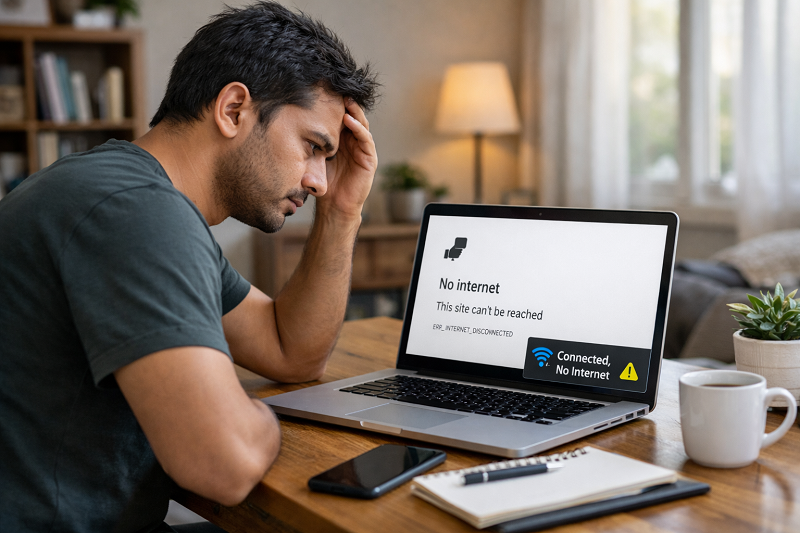
Sometimes your computer shows that WiFi or Ethernet is connected, but websites do not open. You may see messages like “No Internet Access” or “Connected but no internet.” This problem is very common on Windows systems.
This issue usually happens because of incorrect IP settings, DNS problems, router issues, or corrupted network configuration. The good thing is that you can fix it yourself by following a few simple steps.
In this guide, you will learn easy step-by-step solutions to fix the “internet connected but no access” problem on Windows.
Common Signs of This Problem
You may be facing this issue if:
WiFi is connected but websites do not open
Ethernet is connected but no internet
“No Internet Access” message appears
Only some websites open
Internet works on mobile but not on PC
Why Internet Shows Connected but No Access on Windows
Incorrect IP or DNS settings
Wrong network configuration can block internet access.
Router or modem issues
Router may be stuck or misconfigured.
Network cache problems
Old network cache can break connectivity.
Antivirus or firewall blocking access
Security software may block network traffic.
ISP temporary issues
Sometimes the issue is from your internet provider.
Step 1 – Restart Router and Computer
This fixes temporary network issues.
Steps:
Turn off router and modem
Wait 30 seconds
Turn them back on
Restart your computer
If internet starts working, the issue was temporary.
If your internet connected but no access issue disappears after restart, the problem was temporary.
Step 2 – Run Windows Network Troubleshooter
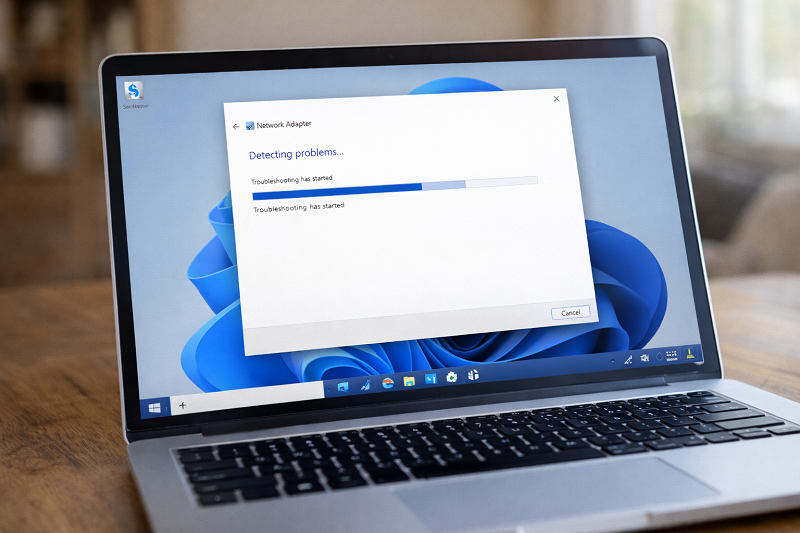
Windows can automatically detect issues.
Steps:
Go to Settings → Network & Internet
Click Network Troubleshooter
Follow on-screen instructions
Step 3 – Reset Network Settings (Very Effective)
Network reset often fixes the internet connected but no access problem caused by IP or DNS errors.
Steps:
Open Command Prompt as Administrator
Run these commands one by one:
Copy code
ipconfig /release
ipconfig /flushdns
ipconfig /renew
Restart your computer If your browser also fails to open after internet is restored, this browser guide can help.
👉 fix Google Chrome not opening issue
Step 4 – Change DNS to Google DNS
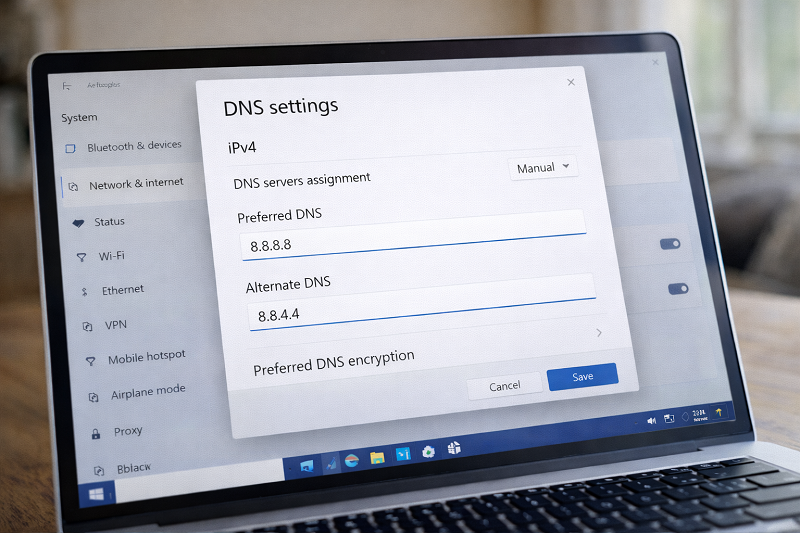
DNS issues often cause no internet access.
Steps:
Open Network Adapter settings
Select Internet Protocol Version 4 (IPv4)
Use these DNS values:
Copy code:
8.8.8.8
8.8.4.4
Save settings and reconnect
https://developers.google.com/speed/public-dns
H2: Step 5 – Disable Antivirus or Firewall (Test Only)
Sometimes antivirus blocks internet.
Temporarily disable antivirus
Check internet access
Enable antivirus again
Step 6 – Update Network Drivers
Outdated drivers can break internet access.
If your system is slow overall, fixing performance issues can also help network stability.
👉 fix laptop running slow problem
https://problemfixer.net/blog/fix-laptop-running-slow
Recommended Tools (Affiliate Placeholder)
Recommended tools to keep your network and system stable:
👉 (Affiliate links will be added here later)
Need Professional Technical Help?
If internet issues keep coming back and you don’t want to troubleshoot yourself, professional help can save time.
Need Any Tool or Service?
If you need any AI tool, SEO tool, WordPress plugin, or theme at a low price, just message us on WhatsApp.
Tell us what you need, and we’ll confirm availability and the best affordable price.
Contact us on WhatsApp Need help or want a tool at a low price?
Our Services
WordPress Services: https://problemfixer.net/wordpress-services/
AI Tools Services: https://problemfixer.net/ai-tools-services/
SEO Tools Services: https://problemfixer.net/seo-tools-services/
Conclusion
The internet connected but no access problem on Windows is usually caused by DNS, IP, or network configuration issues. Restarting the router, resetting network settings, and changing DNS fixes the issue in most cases.
If the problem keeps happening, updating drivers or checking antivirus settings can help.
FAQs
Why does WiFi say connected but internet not working?
This happens because of DNS issues, IP conflicts, or router problems.
Will changing DNS improve internet access?
Yes, using Google DNS often fixes connection issues.
Can antivirus block internet?
Yes, some antivirus programs block network traffic.
Is network reset safe?
Yes, it only resets network settings.