
Introduction – Fix Laptop Running Slow on Windows
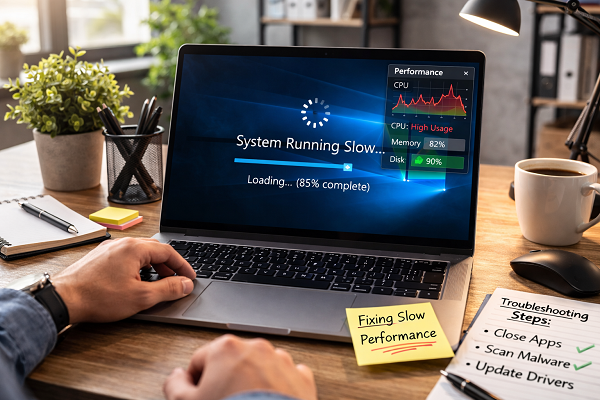
If your laptop running slow on Windows, even simple tasks become frustrating. Programs take longer to open, browsing feels, and sometimes the system freezes completely. This problem is very common on Windows laptops, especially after long-term use.
The good news is that most laptop speed issues are caused by software problems, not hardware failure. By cleaning startup programs, fixing background processes, and optimizing system settings, you can make your laptop fast again.
In this guide, you will learn easy step-by-step solutions to fix a laptop running slow on Windows.
Common Signs Your Laptop Is Running Slow
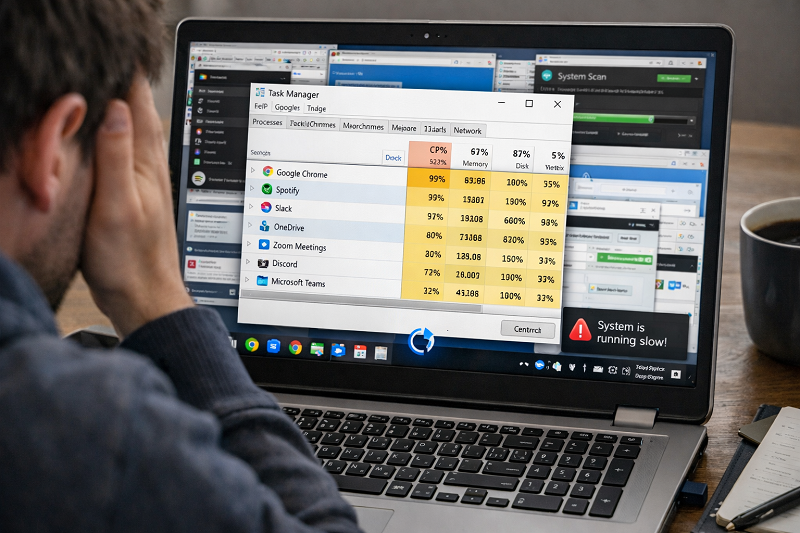
You may notice:
Laptop takes long time to start
Programs open slowly
Browser tabs lag or freeze
Fan noise increases
System responds slowly
Why Your Laptop Is Running Slow on Windows
Too many startup programs
Apps starting automatically slow down boot time.
Background processes
Hidden apps consume RAM and CPU.
Low storage space
Full disk slows Windows operations.
Outdated drivers or Windows
Old updates cause performance issues.
Malware or unwanted software
Malicious programs slow down the system.
Step 1 – Restart Your Laptop
A simple restart clears memory and temporary processes. If your laptop running slow issue is temporary, restarting often fixes it.
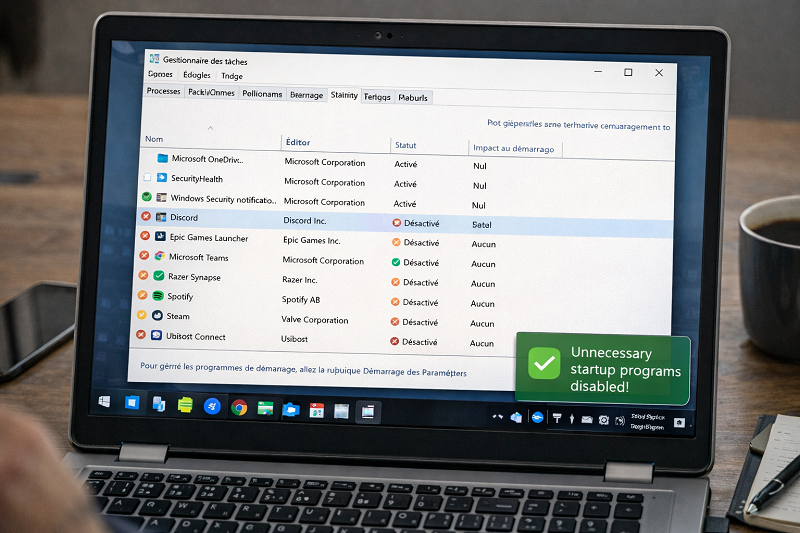
Step 2 – Disable Startup Programs
Too many startup apps slow down Windows.
Steps:
Press Ctrl + Shift + Esc
Open Startup tab
Disable unnecessary programs
Restart laptop
If your internet also feels unstable, this guide can help.
How to Fix Internet Connected but No Access
Step 3 – Free Up Disk Space
Low disk space is a common reason a laptop running slow problem appears.
Steps:
Delete unused files
Clear Recycle Bin
Remove unused programs
If your website or browser feels slow too, this guide may help.
How to Fix Website Slow Loading
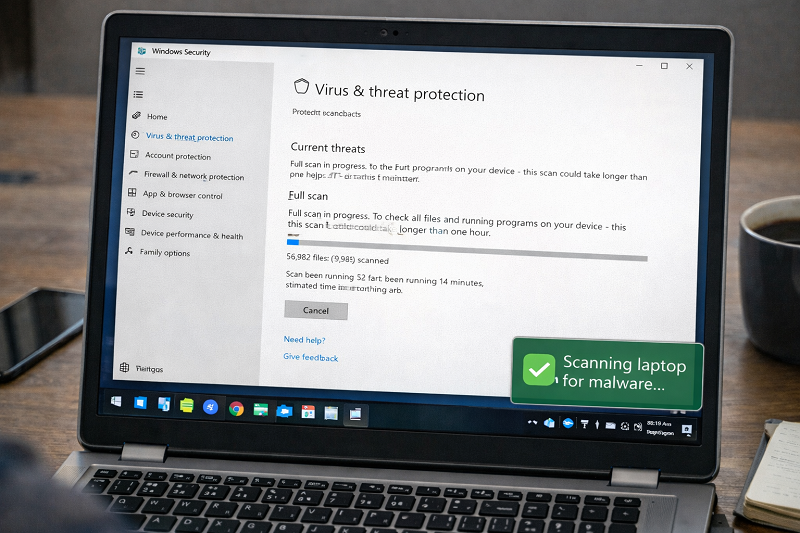
Step 4 – Scan for Malware
Malware silently slows laptops.
Steps:
Open Windows Security
Run Full Scan
Remove detected threats
Step 5 – Update Windows and Drivers
Updates improve stability and performance.
Steps:
Go to Settings → Windows Update
Install all updates
Restart system
Step 6 – Adjust Performance Settings
Visual effects can slow older laptops.
Steps:
Search Performance Options
Select Adjust for best performance
Apply changes
Recommended Optimization Tools (Affiliate Placeholder)
Useful tools to clean and optimize laptop performance:
Recommended optimization tools will be added here soon.
Need Professional Technical Help?
If your laptop running slow problem continues even after trying these fixes, professional technical support can diagnose hardware issues, remove deep malware, and optimize system performance safely.
Need Any Tool or Service?
If you need any AI tool, SEO tool, WordPress plugin, or theme at a low price, just message us on WhatsApp.
Tell us what you need, and we’ll confirm availability and the best affordable price.
Contact us on WhatsApp Need help or want a tool at a low price?
Conclusion
If your laptop running slow on Windows, it is usually caused by startup apps, background processes, low storage, or outdated software. By following these steps, you can significantly improve laptop speed and performance.
Regular maintenance keeps your laptop fast and reliable.
FAQs
Why is my laptop slow even after restart?
Background apps, malware, or low storage can still cause slowness.Background apps, malware, or low storage can still cause slowness.
Does disabling startup apps improve speed?
Yes, it greatly improves boot time and performance.
Can malware slow down a laptop?
Yes, malware consumes system resources.
Is upgrading RAM necessary?
Only if software optimization does not help.