
Fix Google Chrome Not Opening on Windows
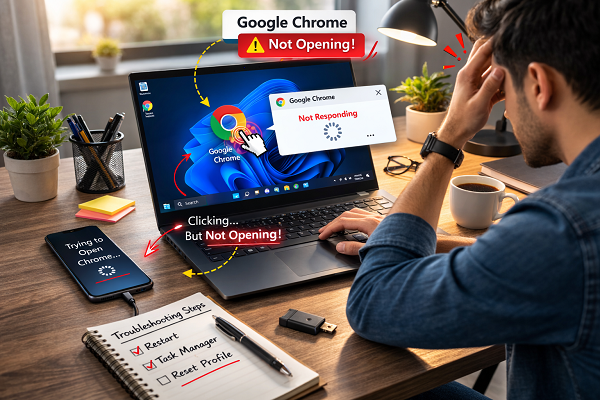
Google Chrome is one of the most popular web browsers, but sometimes it may not open. You click the Chrome icon and nothing happens. In other cases, Chrome opens and closes quickly. Sometimes it runs in the background but the window does not appear.
This problem is common on Windows and usually happens due to corrupted profile files, broken extensions, antivirus conflicts, or outdated browser files. The good news is that you can fix it using simple steps. You do not need technical skills.
In this guide, you will learn easy and safe fixes to open Chrome again.
Common Signs of This Problem
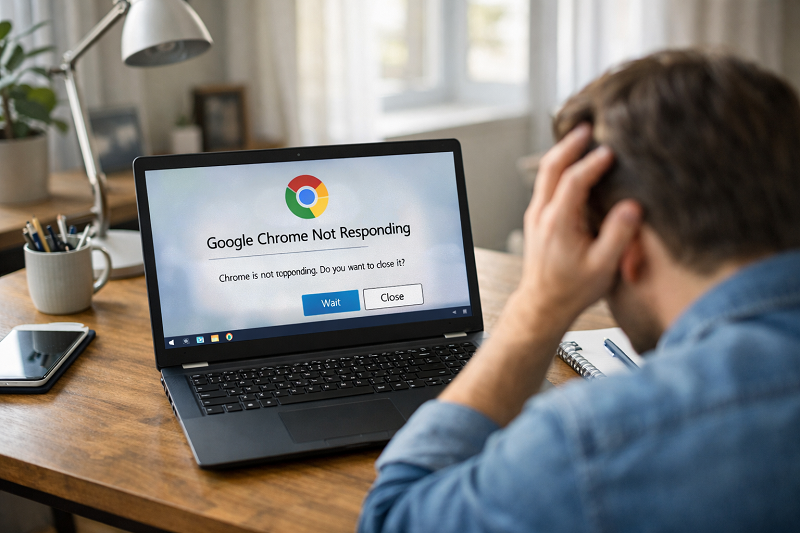
Chrome does not open at all
Chrome opens then closes immediately
Chrome freezes on startup
Chrome runs in background but no window shows
“Not responding” appears
Why Google Chrome Is Not Opening
Chrome running in background
Chrome may be stuck in background processes.
Corrupted Chrome profile
Profile files can get damaged and stop startup.
Bad extensions
One extension can crash Chrome.
Antivirus conflict
Security software may block Chrome files.
Outdated or broken Chrome files
Old installation can fail on startup.
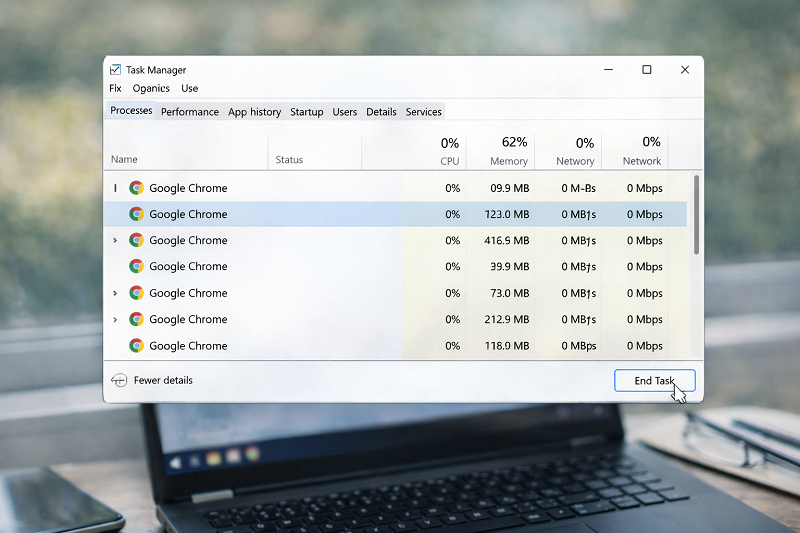
Step 1 – End Chrome Processes in Task Manager
Press Ctrl + Shift + Esc
Open Task Manager
Find Google Chrome
Click End Task
Try opening Chrome again
Step 2 – Restart Your Computer
Restart your PC
Open Chrome again
This clears stuck background services.
Step 3 – Disable Extensions
If Chrome opens sometimes:
Open Extensions page
Disable all extensions
Restart Chrome
Enable one by one
If the browser keeps crashing even after disabling extensions, use the related guide below.
How to Fix Browser Keeps Crashing
https://problemfixer.net/blog/fix-browser-keeps-crashing
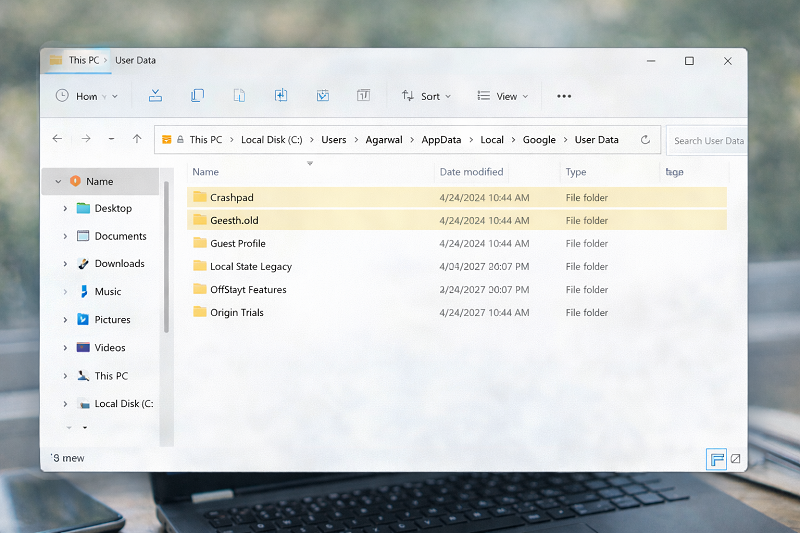
Step 4 – Reset Chrome User Profile (Best Fix)
Press Windows + R
Type:
Copy code
%localappdata%\Google\Chrome\User Data
Rename Default folder to Default.old
Open Chrome again
Chrome will create a fresh profile.
Step 5 – Clear Browser Cache (When Chrome Opens)
If Chrome opens but behaves badly, clear cache.
Google Chrome official cache guide
https://support.google.com/chrome/answer/2392709
Step 6 – Update Chrome
Old versions crash more often.
Chrome update help
https://support.google.com/chrome/answer/95414
Step 7 – Reinstall Google Chrome (Last Option)
Uninstall Chrome
Restart PC
Download from official site
Install again
(Use official download only.)
If Internet Is Connected But Websites Still Don’t Work
Sometimes Chrome opens but websites do not load because of network issues.
Internet Connected but No Access
https://problemfixer.net/blog/internet-connected-but-no-access
Recommended Tools (Affiliate Placeholder)
(No links yet — add later)
Recommended tools to keep browsing smooth:
👉 (Add affiliate link here later)
Need Any Tool or Service?
If you need any AI tool, SEO tool, WordPress plugin, or theme at a low price, just message us on WhatsApp.
Tell us what you need, and we’ll confirm availability and the best affordable price.
Contact us on WhatsApp Need help or want a tool at a low price?
Our Services
WordPress Services: https://problemfixer.net/wordpress-services/
AI Tools Services: https://problemfixer.net/ai-tools-services/
SEO Tools Services: https://problemfixer.net/seo-tools-services/
Conclusion
Google Chrome not opening on Windows is frustrating, but it is usually easy to fix. Ending background tasks, resetting the Chrome profile, and updating or reinstalling Chrome solves most issues. Avoid unnecessary extensions and keep Chrome updated to prevent future problems.
If Chrome still does not open after these fixes, create a new Windows user account and test Chrome there to rule out system-level profile corruption.
FAQs
Why does Chrome not open when I click it?
It may be stuck in background, profile files are corrupted, or antivirus is blocking it.
Will profile reset delete my bookmarks?
If you are signed in with Google, bookmarks can sync back.
Is reinstalling Chrome safe?
Yes, if you download it from the official Chrome website.
Can antivirus block Chrome?
Yes, some antivirus tools block browsers by mistake.