
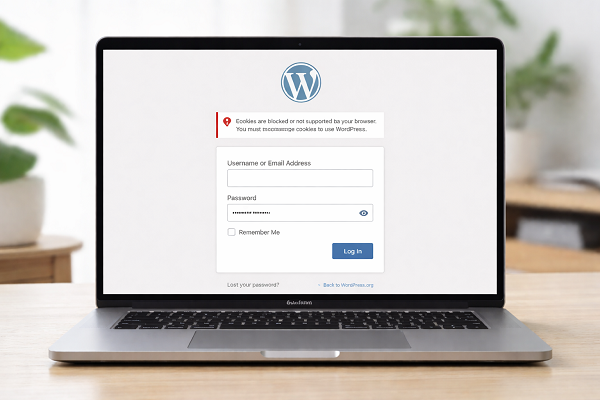

Introduction – Fix WordPress Login Issues
When the WordPress login page is not working, it can completely stop your website work. You may not be able to access wp-admin, publish content, or manage settings.
Many users face this issue when the login page keeps refreshing, shows a blank screen, or redirects again and again. This problem is very common and usually happens because of plugins, themes, cache, or incorrect settings.
The good news is that you do not need to be a developer to fix it. In this guide, you will learn simple and safe solutions written in easy English that anyone can follow.
Common Signs of WordPress Login Page Problems
You may be facing a login issue if you notice any of these signs:
wp-admin page does not open
Login page keeps refreshing
White or blank screen appears
“Too many redirects” error Correct username and password but login fails
Why Is the WordPress Login Page Not Working?
There are multiple reasons behind this issue.
Browser Cache and Cookies
Old browser cache or cookies can block the login session.
Plugin Conflicts
A single faulty plugin can break the entire login system.
Theme Problems
Poorly coded or corrupted themes may cause login errors.
Corrupted .htaccess File
This file controls redirects and access rules.
Incorrect WordPress URLs
Wrong site URLs can create redirect loops.
How to Fix WordPress Login Page Not Working
Follow the solutions below one by one. Stop when your issue is fixed.
Step 1 – Clear Browser Cache and Cookies
This should always be the first step.
Open your browser settings
Click Clear browsing data
Select cookies and cache
Restart the browser Now try logging in again.
https://support.google.com/chrome/answer/2392709
Step 2 – Try Incognito or Private Window
Sometimes browser extensions block the login process.
Open an incognito window
Visit: yourwebsite.com/wp-admin
If login works, disable extensions one by one.
Step 3 – Disable All WordPress Plugins (Most Common Fix)
Plugins are the most common reason behind login issues.
Steps:
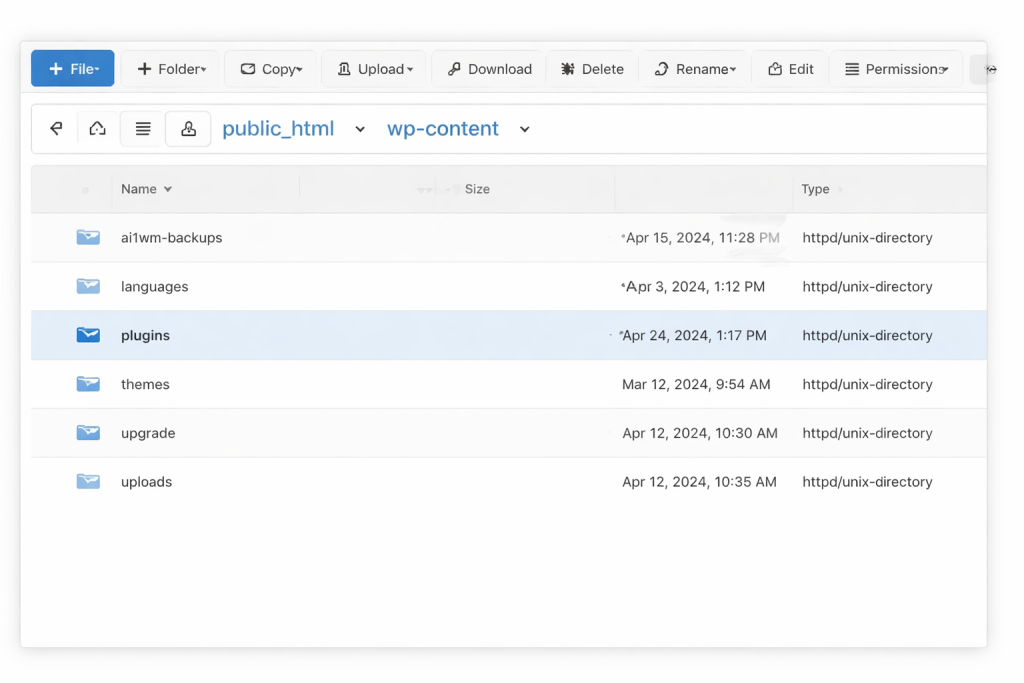
Open your hosting control panel
Go to File Manager → wp-content
Rename the plugins folder to plugins_old
Now try logging in.
https://problemfixer.net/blog/fix-wordpress-plugins-not-working
Step 4 – Switch to a Default WordPress Theme
If plugins are not the issue, your theme might be.
Open wp-content/themes
Rename your active theme folder
WordPress will activate a default theme automatically
Step 5 – Reset the .htaccess File
A corrupted .htaccess file can block wp-admin access.
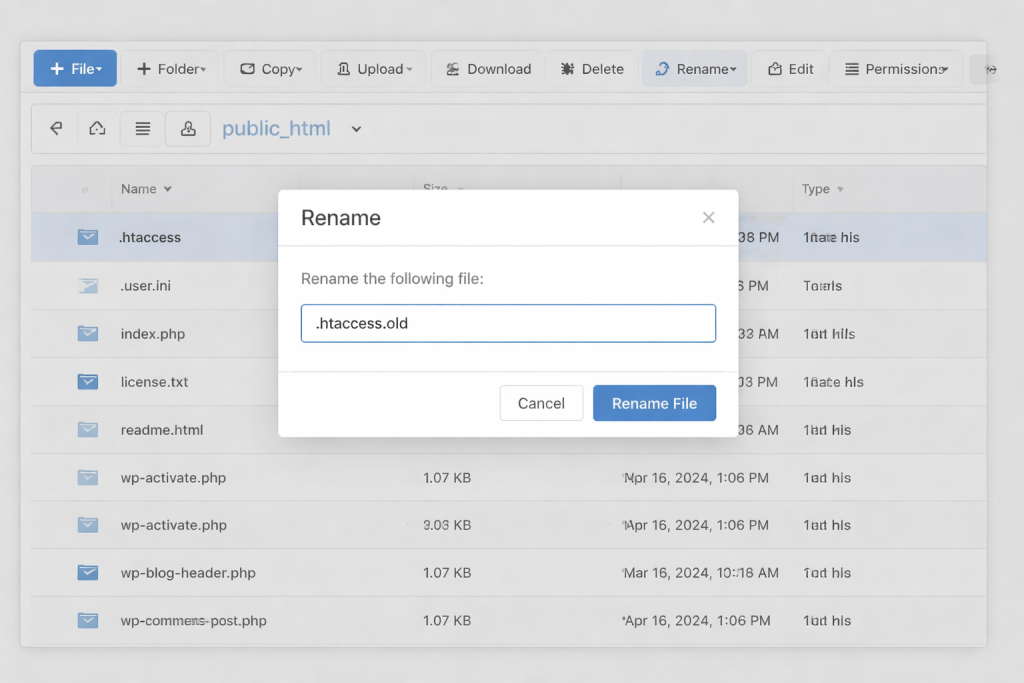
Find .htaccess in the root folder
Rename it to .htaccess_old
Login to WordPress
Go to Settings → Permalinks → Save
https://wordpress.org/support/article/htaccess
Step 6 – Correct WordPress Site URLs
Open wp-config.php and add:
Copy code
Php
define(‘WP_HOME’,’https://yourwebsite.com’);
define(‘WP_SITEURL’,’https://yourwebsite.com’);
Save the file and try again.
Step 7 – Increase PHP Memory Limit
Low memory can stop WordPress from loading.
Copy code
Php
define(‘WP_MEMORY_LIMIT’, ‘256M’);
https://problemfixer.net/blog/fix-wordpress-maintenance-mode
Prefer an official option?
Some users prefer to buy directly from the official website.
You can check the official source here:
[Official Link / Affiliate Link – optional]
You’re free to choose the official option above, or contact us if you want the same tool set up for you at a lower cost.
Need Any Tool or Service?
If you need any AI tool, SEO tool, WordPress plugin, or theme at a low price, just message us on WhatsApp.
Tell us what you need, and we’ll confirm availability and the best affordable price.
Contact us on WhatsApp Need help or want a tool at a low price?
Our Services
WordPress Services: https://problemfixer.net/wordpress-services/
AI Tools Services: https://problemfixer.net/ai-tools-services/
SEO Tools Services: https://problemfixer.net/seo-tools-services/
Conclusion
When the WordPress login page is not working, it can feel frustrating, but the solution is usually simple. By clearing cache, disabling plugins, fixing the .htaccess file, and checking site settings, most login problems can be solved without expert help.
Always use trusted plugins, reliable hosting, and regular backups to avoid future issues.
FAQs
Why does my WordPress login page keep refreshing?
This usually happens because of plugin conflicts or wrong site URLs.
Can I fix login issues without wp-admin access?
Yes, you can fix it using File Manager or FTP.
Is this issue related to hosting?
Yes, poor hosting performance can cause login failures.
How can I prevent login problems in the future?
Keep WordPress updated, use quality plugins, and take regular backups.


Hi, I do believe this is an excellent web
site. I stumbledupon it 😉 I’m going to return once again since I book marked it.