
Introduction – Fix Images Not Showing on Website
Images not showing on website is a very common problem faced by website owners.
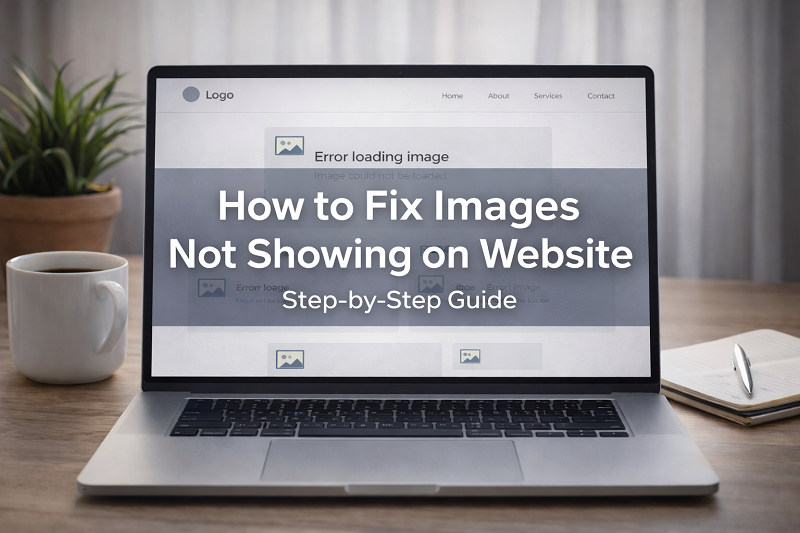
Sometimes images appear as broken icons, sometimes they do not load at all, and in some cases, only text is visible on the page.
This issue can make your website look unprofessional and can also increase bounce rate.
The good news is that this problem is usually easy to fix if you follow the right steps.
In this guide, you will learn simple and practical solutions written in easy English, so beginners can also fix images not loading on a website without technical skills.
Common Signs of Images Not Showing on Website
You may be facing this problem if:
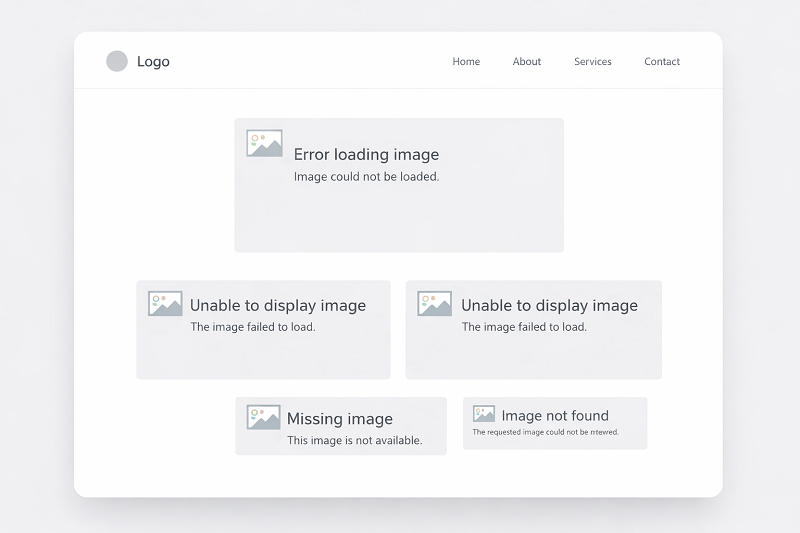
Images show as broken icons
Images do not load after page refresh
Website text loads but images are missing
Media library images are not visible Images work on one browser but not on another
Why Are Images Not Showing on Website?
There are multiple reasons why images fail to load.
Incorrect Image URL
Wrong or broken image path can stop images from loading.
File Permission Issues
Incorrect permissions can block image access.
CDN or Cache Problems
CDN or cache can serve broken image versions.
Mixed Content Error (HTTP/HTTPS)
Images loaded via HTTP on an HTTPS site may be blocked.
Plugin or Theme Conflict
Some plugins or themes can break image loading.
How to Fix Images Not Showing on Website
Follow these fixes one by one.
Step 1 – Check Image URL and File Path
Broken image links are the most common cause.
What to do:
Right-click the image → Open image in new tab
If it shows 404 error, the image path is wrong
Re-upload the image and update the link
Step 2 – Clear Browser and Website Cache
Cache can show outdated image versions.
Steps:
Clear browser cache
Clear website cache (plugin or hosting)
Refresh the page
https://support.google.com/chrome/answer/2392709
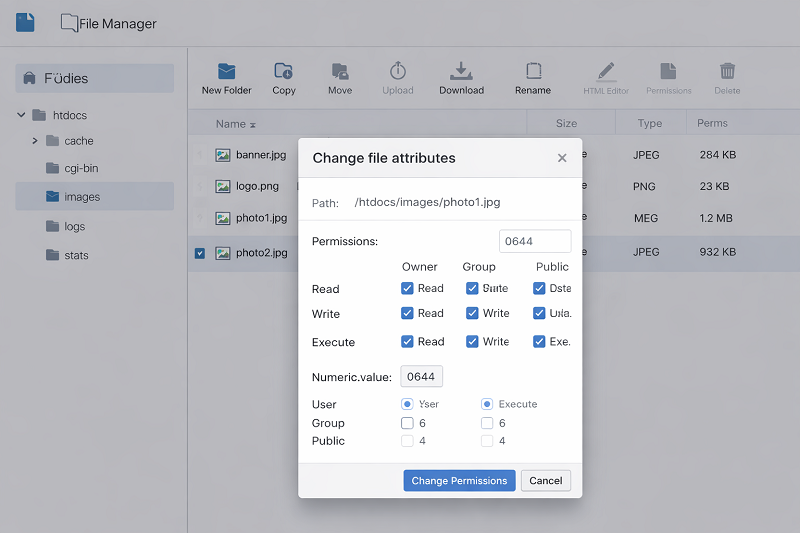
Step 3 – Check File Permissions
Wrong permissions can block image files.
Recommended permissions:
Folders: 755
Files: 644
Use File Manager or FTP to update permissions.
Step 4 – Disable CDN Temporarily
Sometimes CDN delivers broken image files.
What to do:
Disable CDN from hosting or plugin
Clear cache
Check if images load
If images appear, re-configure CDN settings.
Step 5 – Fix Mixed Content Error (HTTP/HTTPS)
Images loaded via HTTP on HTTPS sites are blocked.
You can also use a search-replace tool to replace HTTP with HTTPS.
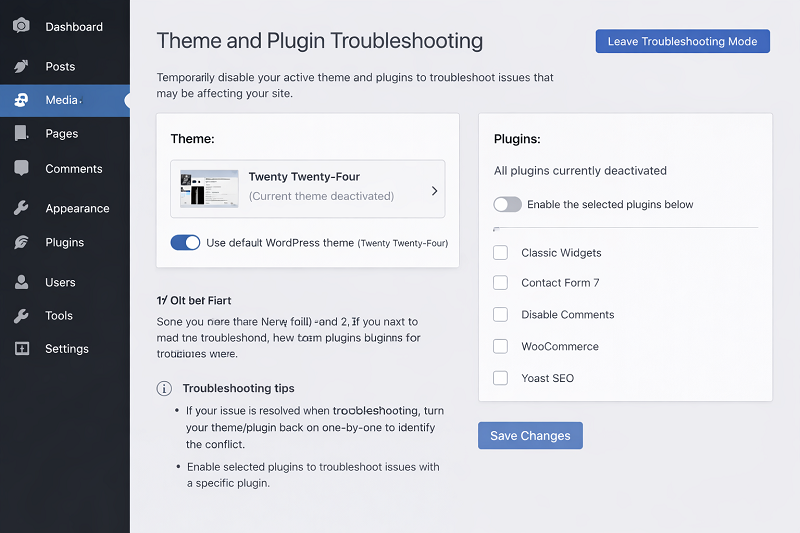
Step 6 – Disable Plugins and Switch Theme
A faulty plugin or theme can stop images from loading.
Steps:
Disable all plugins
Check images
Switch to default theme
Step 7 – Check Media Library and Re-Upload Images
If images are missing from Media Library:
Re-upload images
Regenerate thumbnails
Update image links
WordPress Media Troubleshooting
Fix Broken Images Guide
Prefer an official option?
Some users prefer to buy directly from the official website.
You can check the official source here:
[Official Link / Affiliate Link – optional]
You’re free to choose the official option above, or contact us if you want the same tool set up for you at a lower cost.
Need Any Tool or Service?
If you need any AI tool, SEO tool, WordPress plugin, or theme at a low price, just message us on WhatsApp.
Tell us what you need, and we’ll confirm availability and the best affordable price.
Contact us on WhatsApp Need help or want a tool at a low price?
Our Services
WordPress Services: https://problemfixer.net/wordpress-services/
AI Tools Services: https://problemfixer.net/ai-tools-services/
SEO Tools Services: https://problemfixer.net/seo-tools-services/
Conclusion
Images not showing on website can reduce user trust and SEO performance.
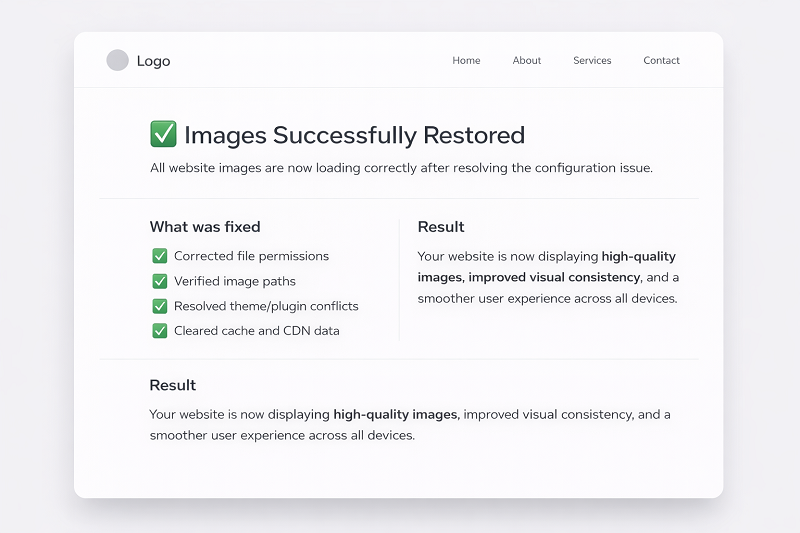
By checking image URLs, clearing cache, fixing permissions, and resolving mixed content issues, you can solve most image loading problems easily.
Always use optimized images, reliable plugins, and proper hosting settings to avoid future issues.
If you are still facing image loading issues, try implementing these fixes one by one or contact your hosting support for further help.
FAQs
Why are images not loading on my website?
This usually happens because of broken links, cache issues, or permissions.
Can plugins cause image loading issues?
Yes, some plugins can conflict and block images.
Does HTTPS affect image loading?
Yes, HTTP images on HTTPS sites can be blocked.
How can I prevent image issues in future?
Use optimized images, trusted plugins, and clear cache regularly.
Does image size affect loading issues?
Yes, very large or unoptimized images can cause loading problems or slow down your website. Always use compressed and optimized images.