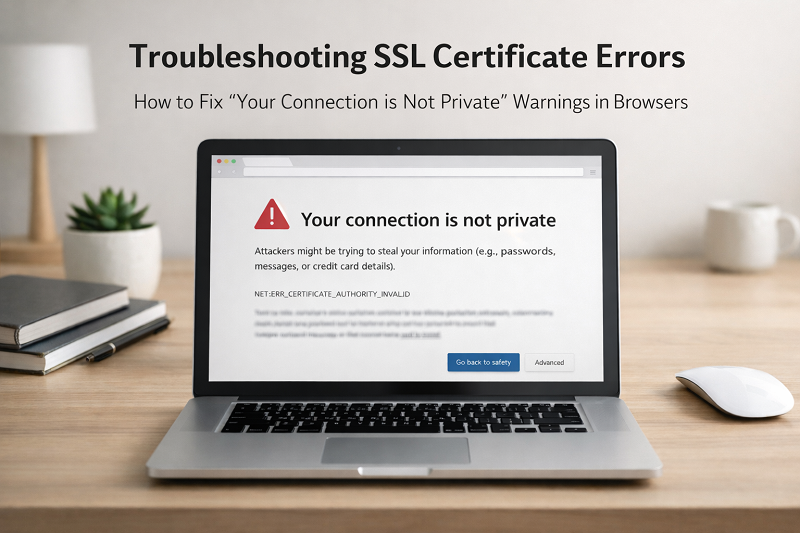

Introduction – Fix SSL Certificate Error
SSL certificate error is a very common website problem. When visitors open your site and see messages like “Your connection is not private” or “SSL certificate error”, they usually leave immediately. This can hurt your website traffic, trust, and Google ranking.
The good news is that this error is fixable, even if you are not a technical expert. In this guide, you will learn what causes SSL errors and how to fix them step-by-step using easy methods. This guide works for WordPress websites, hosting panels, and browsers.

Checking SSL lock icon to fix SSL certificate error
What Is an SSL Certificate Error?
An SSL certificate keeps your website secure by encrypting data between the visitor and your server. When something goes wrong with this security connection, browsers show an SSL error.
Common SSL error messages include:
Your connection is not private
SSL certificate is not trusted
NET::ERR_CERT_COMMON_NAME_INVALID
These warnings tell users that the website may not be safe.
Why SSL Certificate Error Happens
These warnings tell users that the website may not be safe.
Why SSL Certificate Error Happens
SSL errors usually happen because of one or more of these reasons:
Expired SSL Certificate
SSL certificates have an expiry date. If not renewed, browsers will block access.
Wrong Domain Name
The SSL certificate must match your domain exactly (with or without www).
Mixed Content Issue
Some files load on HTTP instead of HTTPS.
👉 Related fix guide:
How to Fix Mixed Content Error
Browser Cache Problem
Old cached SSL data can cause false warnings.
How to Fix SSL Certificate Error (Step-by-Step)
Step 1 – Check SSL Certificate Status
Use a free SSL checker tool to see if your certificate is valid.
SSL Checker by SSL Labs
https://www.ssllabs.com/ssltest
This tool shows expiry date, domain match, and errors.
Step 2 – Renew or Install SSL Certificate
Login to your hosting control panel:
Go to SSL / Security
Install or renew SSL certificate
Enable Auto-Renew if available
Most hosting providers offer free SSL certificates.
Step 3 – Force HTTPS on Website
If your site loads both HTTP and HTTPS, force HTTPS.
For WordPress:
Go to Settings → General
Set WordPress Address & Site Address to HTTPS
👉 Related guide:
How to Fix Too Many Redirects Error
Step 4 – Fix Mixed Content Errors
Mixed content happens when images or scripts load on HTTP.
You can:
Update image URLs
Use SSL fix plugins
Replace HTTP links in database
Step 5 – Clear Browser Cache
Sometimes SSL errors stay because of cached data.
Steps:
Clear browser cache
Restart browser
Try incognito mode
Step 6 – Check System Date & Time
Incorrect system date can cause SSL validation failure.
Set time to automatic
Restart browser
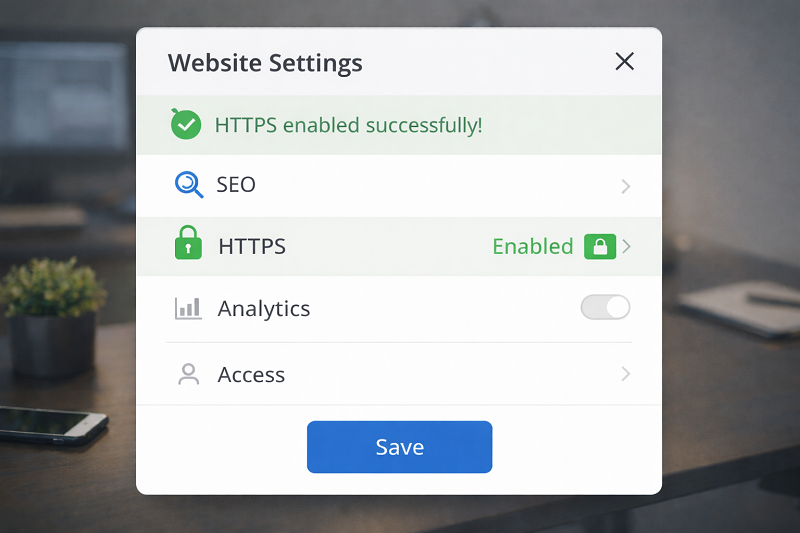
Website settings panel showing HTTPS enabled, green lock icon visible, clean UI
ALT Text:
Fix SSL Certificate Error in WordPress
If you use WordPress, these steps help:
Update WordPress to latest version
Update theme and plugins
Use SSL helper plugin if needed
👉 Related guide:
How to Fix Critical Error on WordPress
How SSL Errors Affect SEO & Trust
SSL errors can:
Increase bounce rate
Reduce Google rankings
Stop AdSense approval
Break visitor trust
Google prefers HTTPS websites and may show warnings in search results if SSL is broken.
Best Practices to Avoid SSL Errors
Enable auto-renew SSL
Always use HTTPS links
Monitor SSL expiry dates
Use reliable hosting
Prefer an official option?
Some users prefer to buy directly from the official website.
You can check the official source here:
[Official Link / Affiliate Link – optional]
You’re free to choose the official option above, or contact us if you want the same tool set up for you at a lower cost.
Need Any Tool or Service?
If you need any AI tool, SEO tool, WordPress plugin, or theme at a low price, just message us on WhatsApp.
Tell us what you need, and we’ll confirm availability and the best affordable price.
Contact us on WhatsApp Need help or want a tool at a low price?
Our Services
WordPress Services: https://problemfixer.net/wordpress-services/
AI Tools Services: https://problemfixer.net/ai-tools-services/
SEO Tools Services: https://problemfixer.net/seo-tools-services/
Conclusion
SSL certificate errors can look scary, but they are easy to fix if you follow the right steps. By checking your certificate, fixing mixed content, forcing HTTPS, and keeping your site updated, you can remove SSL warnings completely.
A secure website builds trust, traffic, and income potential. Fix SSL errors early to keep your website safe and Google-friendly.
FAQs
❓ Why does my website show SSL certificate error?
Because the SSL certificate may be expired, invalid, or mismatched with the domain.
❓ Is SSL certificate mandatory for Google ranking?
Yes, HTTPS is a ranking factor and important for trust.
❓ Can SSL error affect AdSense approval?
Yes, Google prefers secure websites for AdSense.
❓ How long does SSL fix take?
Usually 5–30 minutes after proper installation.
❓ Is free SSL safe?
Yes, free SSL certificates are secure and trusted.