Introduction – Fix Critical Error on WordPress
The Critical Error on WordPress is one of the most scary problems for beginners.
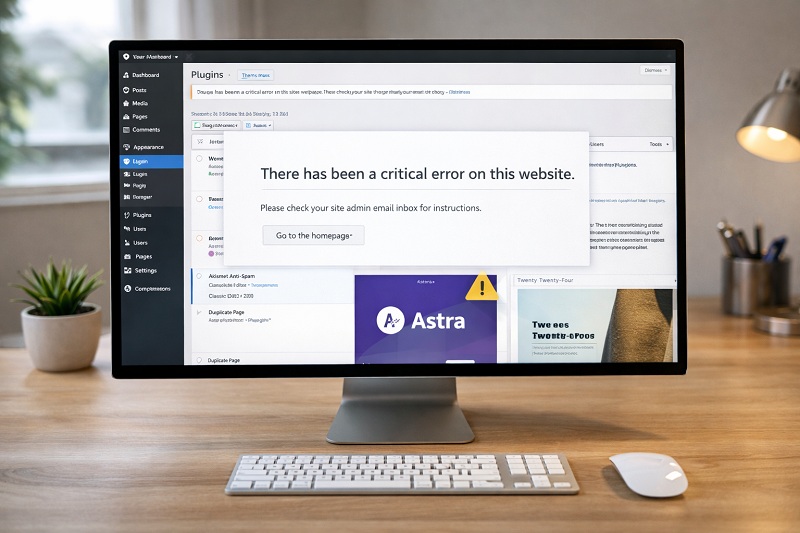
When this error appears, your website stops loading and shows a message like:
“There has been a critical error on this website.”
This usually happens after:
Plugin update
Theme change
PHP issue
Hosting conflict
The good news is that this error is fixable — even if you are not a developer.
In this guide, I will explain easy and safe methods to fix the critical error and bring your WordPress site back online.
What Is the Critical Error in WordPress?
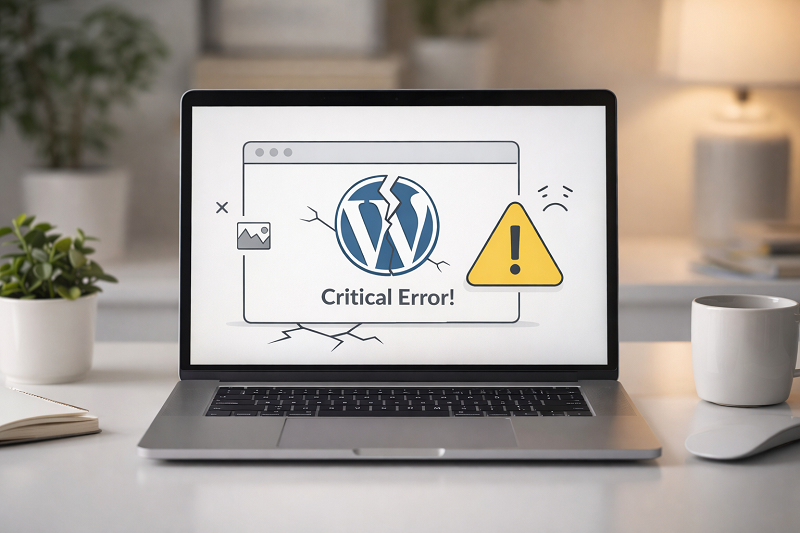
The critical error means WordPress cannot run properly due to a serious issue in code or configuration.
Instead of loading your website, WordPress stops execution to protect your site from damage.
This error affects:
Frontend (website not opening)
Backend (admin panel inaccessible)
Common Causes of WordPress Critical Error
Plugin Conflict
A badly coded or incompatible plugin can break your site.
Theme Issue
A theme update may not support your WordPress version.
PHP Version Problem
Wrong PHP version can cause fatal errors.
Memory Limit Exhausted
Your site may not have enough memory to run scripts.
How to Fix WordPress Login Page Not Working
Corrupted WordPress Core Files
Sometimes WordPress core files get damaged during updates or file transfers.
Re-uploading fresh WordPress core files usually fixes this problem quickly.
How to Fix Critical Error on WordPress (Step by Step)
Quick Fix (Try This First)
If your website suddenly shows a critical error, start with these quick checks:
- Open the recovery email from WordPress
- Disable recently updated plugins
- Switch to a default theme
- Clear hosting cache
Enable WordPress Recovery Mode
WordPress sends a recovery email when a critical error occurs.
Steps:
Check admin email inbox
Open recovery link
Disable problematic plugin or theme This is the fastest fix for many users.
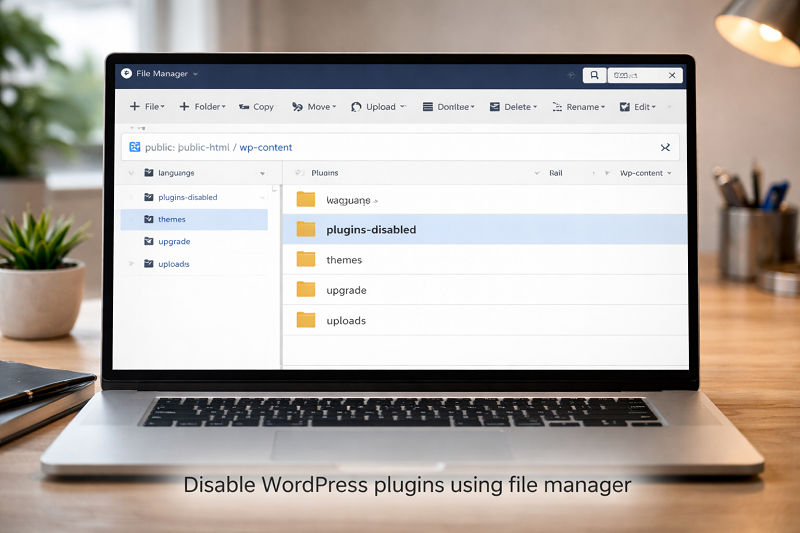
Disable All Plugins via File Manager
If admin panel not opening:
Login to hosting control panel
Open File Manager
Go to /wp-content/
Rename plugins folder to plugins-old
Now refresh your site.
If site opens → plugin issue confirmed.
How to Fix WordPress Media Upload Error
Switch to Default WordPress Theme
If plugins are not the issue:
Go to /wp-content/themes/
Rename current theme folder
WordPress auto-loads default theme
This helps identify theme-related errors.
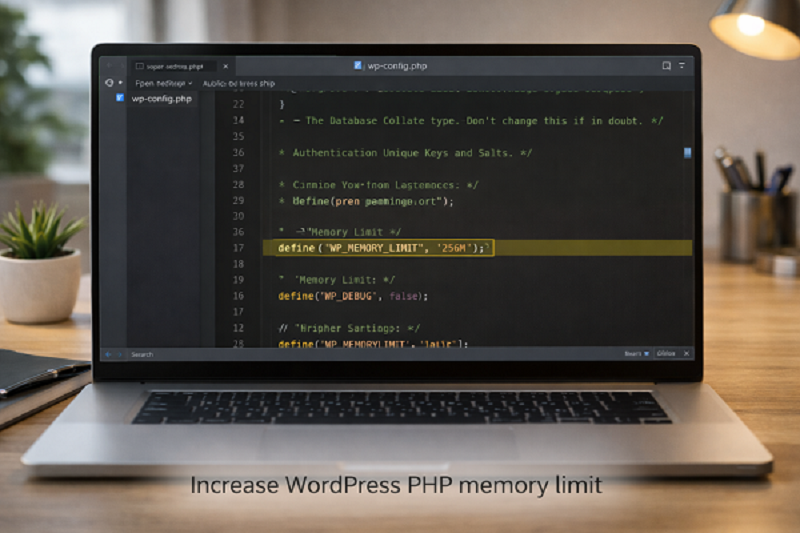
Increase PHP Memory Limit
Low memory can crash WordPress.
Add this code to wp-config.php:
Copy code
Php
define(‘WP_MEMORY_LIMIT’, ‘256M’);
This allows WordPress to run heavy processes.
Change PHP Version
Wrong PHP version can cause fatal errors.
Recommended:
PHP 8.0 or 8.1 (based on hosting)
WordPress PHP Requirements
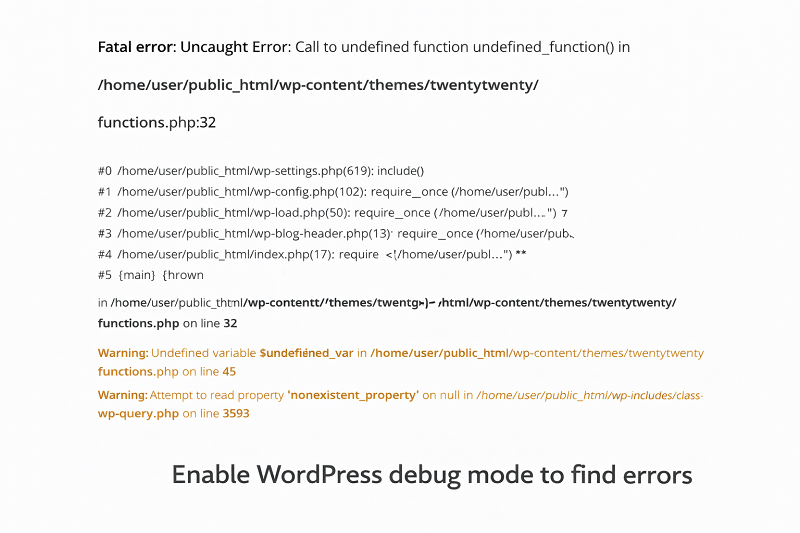
Enable Debug Mode
Enable debug to see error details.
Add in wp-config.php:
Copy code
Php
define(‘WP_DEBUG’, true);
This helps identify exact problem.
Hosting-Level Fixes
Sometimes the issue is from hosting side.
Clear Server Cache
Clear cache from hosting dashboard.
Contact Hosting Support
Ask them to check error logs.
How Hosting Affects WordPress Errors
https://www.wpbeginner.com/hosting
How to Prevent Critical Error in Future
Update plugins carefully
Avoid nulled themes/plugins
Keep backups enabled
Use trusted hosting
Test updates on staging site
How to Fix WordPress Stuck in Maintenance Mode
https://problemfixer.net/blog/fix-wordpress-maintenance-mode
When to Contact Hosting Provider
If none of the fixes work, the issue may be server-related.
Contact your hosting provider and ask them to review server error logs.
Official Tools Option
Some users prefer to buy directly from the official website.
You can check the official source here:
[Official Link / Affiliate Link – optional]
You’re free to choose the official option above, or contact us if you want the same tool set up for you at a lower cost.
Need Any Tool or Service at a Low Price?
If you need any AI tool, SEO tool, WordPress plugin, or theme at a low price, just message us on WhatsApp.
Tell us what you need, and we’ll confirm availability and the best affordable price.
Contact us on WhatsApp Need help or want a tool at a low price?
Our Affordable Tools Services
WordPress Services: https://problemfixer.net/wordpress-services/
AI Tools Services: https://problemfixer.net/ai-tools-services/
SEO Tools Services: https://problemfixer.net/seo-tools-services/
Conclusion
The Critical Error on WordPress looks scary but is usually caused by simple issues like plugins, themes, or PHP settings.
By following the steps above, you can fix the error safely and restore your website without losing data.
Always take backups before updates and avoid unknown plugins.
FAQs
What causes the critical error on WordPress?
Plugin conflicts, theme issues, or PHP incompatibility.
Can hosting cause critical error?
Yes, server configuration can trigger this error.
Is debug mode safe?
Yes, but turn it off after fixing the issue.
Will this error affect SEO?
Yes, if site remains down for long time.