Introduction
Sometimes websites do not load correctly.
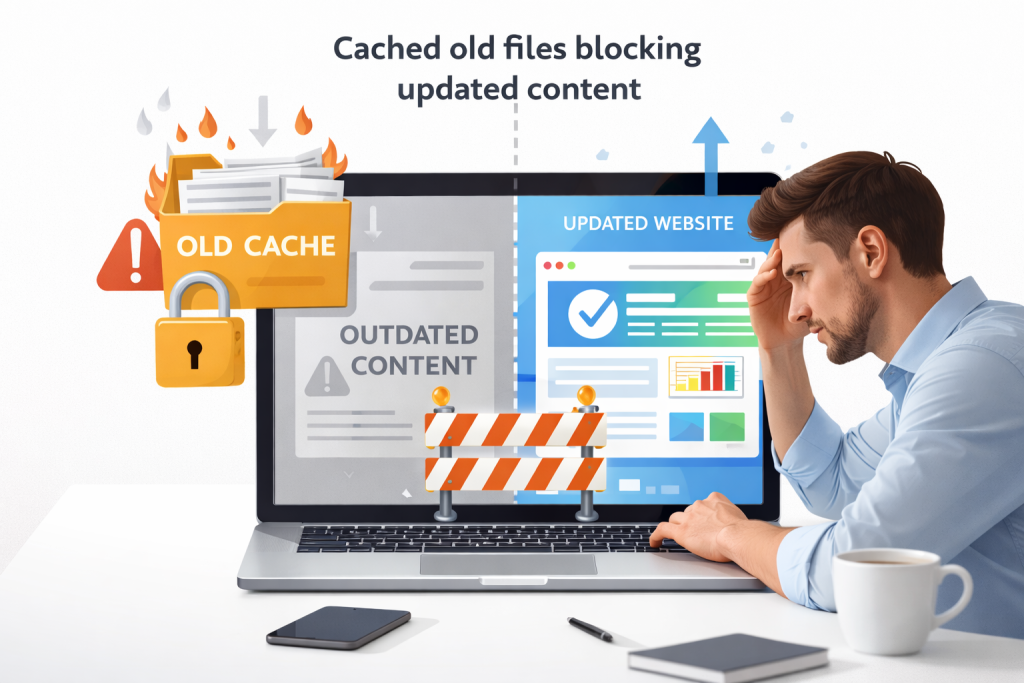
Pages look broken, images do not show, or old content appears again and again.
This problem happens because of browser cache.
Browser cache saves old files to load websites faster.
But when cache becomes old or corrupted, it creates problems.
Clearing browser cache is a simple and safe fix.
In this guide, you will learn how to clear browser cache step by step in very easy language.

What Is Browser Cache?
Browser cache is storage inside your browser.
It saves images, scripts, and files from websites you visit.
Next time you open the same site, the browser loads files faster.
Cache is helpful, but old cache can cause errors.
Why You Should Clear Browser Cache
Clearing browser cache helps when:
- Website not updating
- Page layout broken
- Images missing
- Login problems
- Website loading slowly
When Should You Clear Browser Cache?
You should clear cache when:
- Website looks broken
- After website updates
- During SEO testing
- After fixing errors
Do not clear cache daily.
Once every few weeks is enough.
Step-by-Step: How to Clear Browser Cache
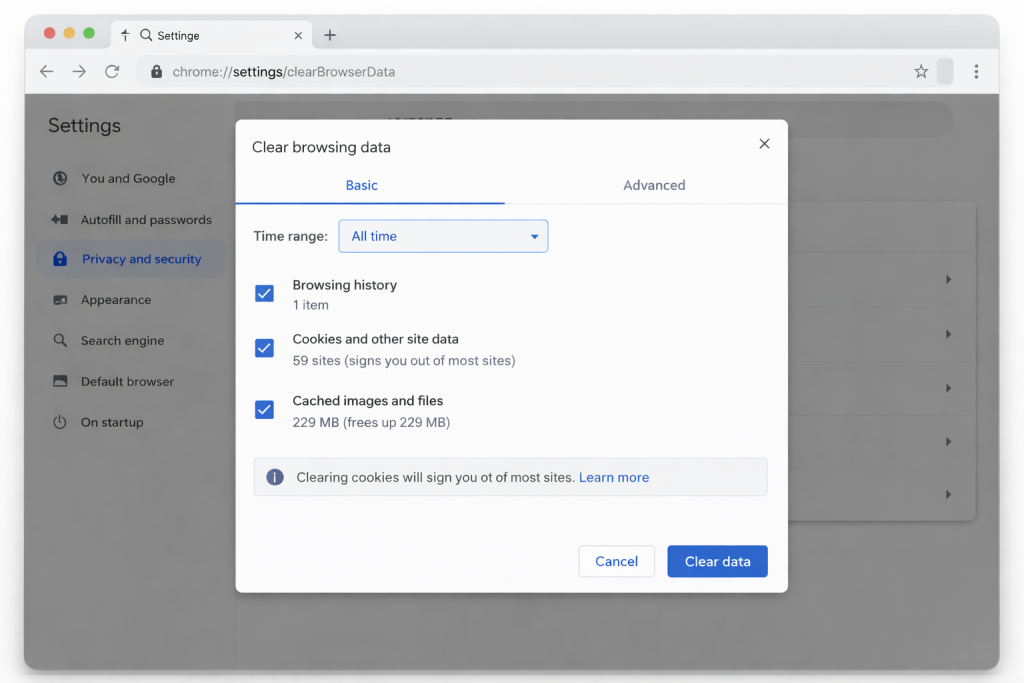
How to Clear Cache in Google Chrome
Open Chrome Settings
Click three dots → Settings.
Step 2: Open Privacy and Security
Click Privacy & Security → Clear browsing data.
Step 3: Select Cached Images
Check Cached images and files only.
Step 4: Clear Data
Click Clear data and restart browser.
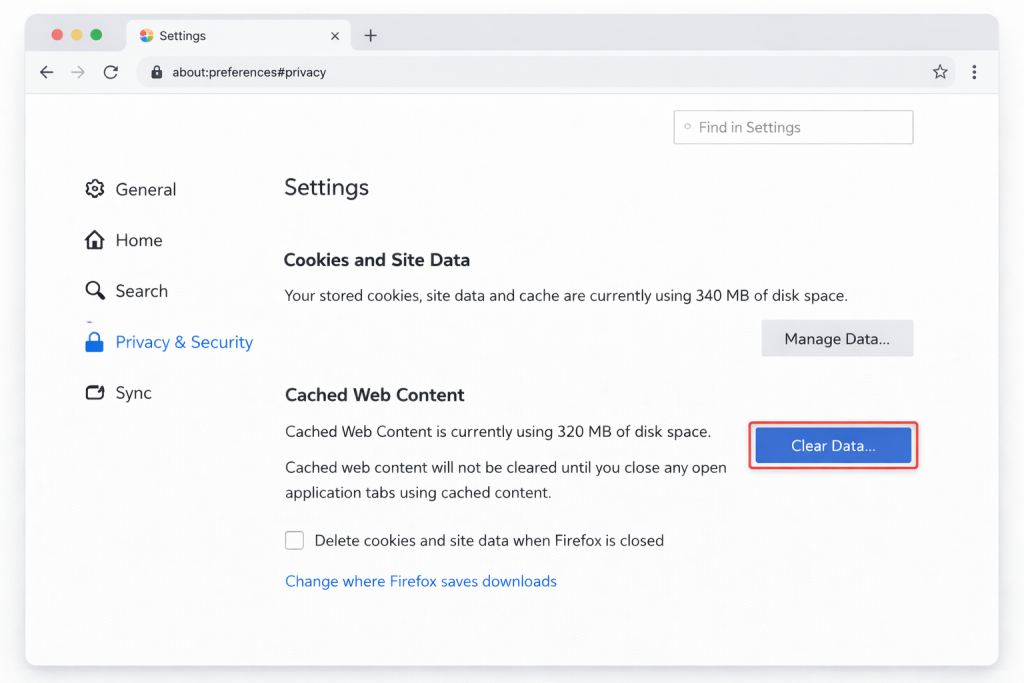
How to Clear Cache in Mozilla Firefox
Steps
- Menu → Settings
- Privacy & Security
- Cookies and Site Data
- Clear Data
How to Clear Cache in Microsoft Edge
Steps
- Settings
- Privacy, search, and services
- Clear browsing data
- Select cache
- Clear
How to Clear Cache on Mobile Browser
On mobile browsers:
- Open browser app
- Go to Settings
- Privacy
- Clear browsing data
- Select cache
Works for Android and iPhone.
Common Mistakes to Avoid
- Clearing passwords by mistake
- Clearing cookies when logged in
- Clearing cache too often
Always select cached images and files only.
Does Clearing Cache Improve SEO?
Clearing cache does not directly improve SEO.
But it helps you see the latest website version.
This is important during SEO testing.
https://support.google.com/chrome/answer/2392709
How Cache Issues Affect Website Speed
Old cache can make websites slow or broken.
Helpful Tools for Browser Cleanup
If you use multiple browsers or systems, cleanup tools can help remove temporary files and improve performance.
These tools are useful for regular maintenance and troubleshooting website issues.
You can explore professional tools later when managing multiple devices or websites.
Prefer an official option?
Some users prefer to buy directly from the official website.
You can check the official source here:
[Official Link / Affiliate Link – optional]
You’re free to choose the official option above, or contact us if you want the same tool set up for you at a lower cost.
Need Any Tool or Service?
If you need any AI tool, SEO tool, WordPress plugin, or theme at a low price, just message us on WhatsApp.
Tell us what you need, and we’ll confirm availability and the best affordable price.
Contact us on WhatsApp Need help or want a tool at a low price?
Our Services
WordPress Services: https://problemfixer.net/wordpress-services/
AI Tools Services: https://problemfixer.net/ai-tools-services/
SEO Tools Services: https://problemfixer.net/seo-tools-services/
Conclusion
Clearing browser cache is a simple but powerful fix.
It solves many website issues in minutes.
Every beginner should know this basic step.
If a website looks broken, clear cache first.