If Google Search Console is showing Mobile Usability Errors, it means your website is not user-friendly on mobile devices.
Since Google uses mobile-first indexing, these errors can hurt rankings and traffic badly.
In this guide, you will learn what mobile usability errors are, why they happen, and step-by-step ways to fix them properly.
This guide will help you fix mobile usability errors step by step.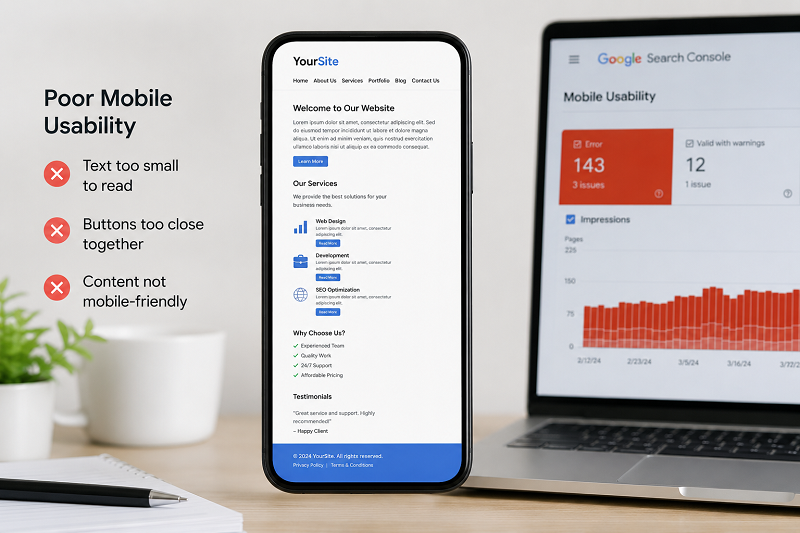
What Are Mobile Usability Errors?
Mobile usability errors mean:
- Your site does not work well on mobile
- Text, buttons, or layout are hard to use
- Google considers the page poor for mobile users
Common errors include:
- Text too small to read
- Clickable elements are too close together
- Content wider than the screen
Why Mobile Usability Errors Appear
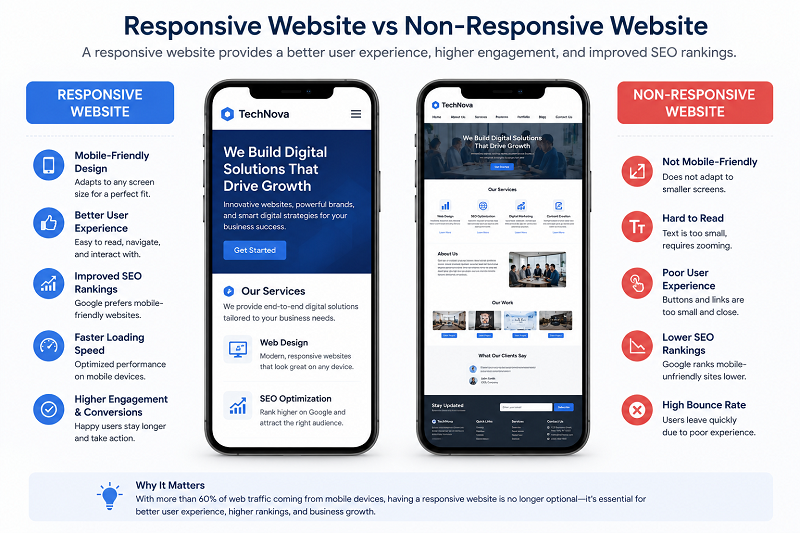
Non-Responsive Theme
Old or poorly coded themes break the mobile layout.
👉 Learn how to fix Core Web Vitals issues:
Fixed-Width Elements
Tables, images, or ads with fixed width cause horizontal scrolling.
Bad Font Sizes
Small text makes content unreadable on phones.
👉 Learn how to improve CTR in Google Search:
Step-by-Step Ways to Fix Mobile Usability Errors
Step 1 – Use Responsive Design
- Use a mobile-friendly theme
- Avoid fixed-width layouts
- Test design on different devices
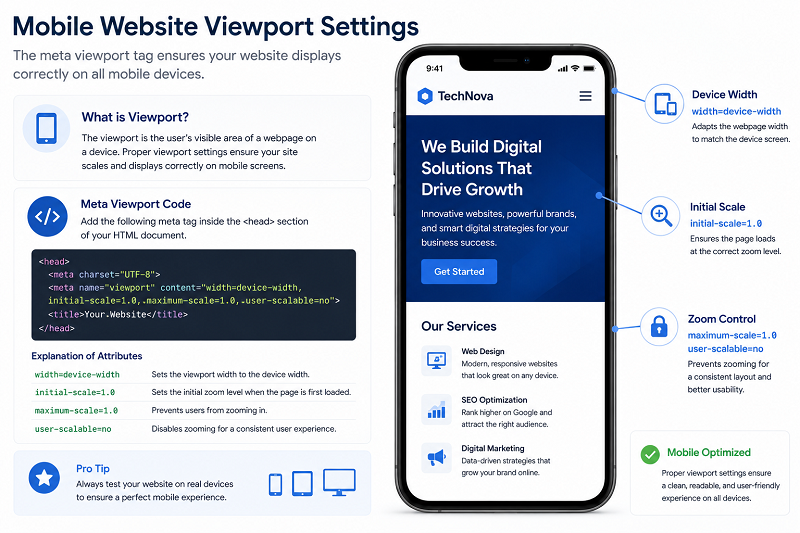
Step 2 – Fix Viewport Settings
Ensure this code exists in your site:
<meta name=”viewport” content=”width=device-width, initial-scale=1″>
👉 https://developers.google.com/search/docs/fundamentals/seo-starter-guide
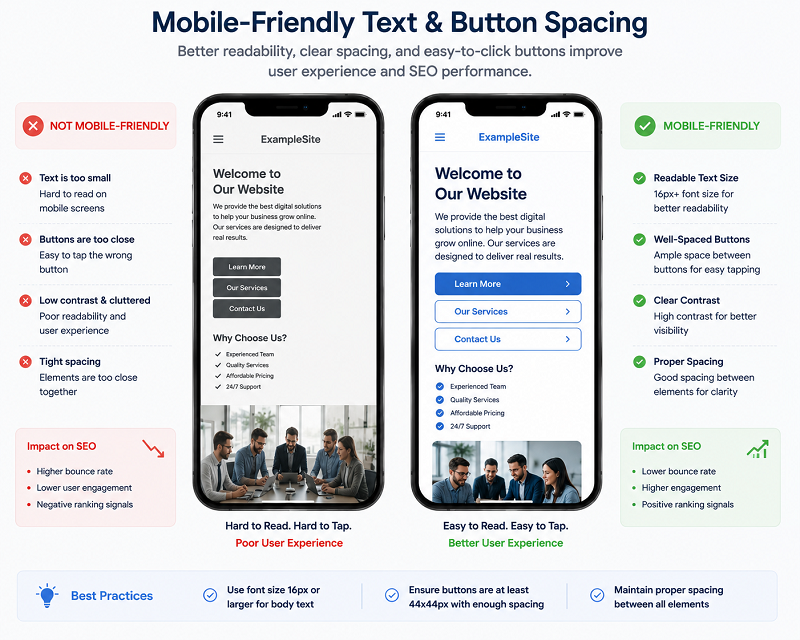
Step 3 – Increase Font & Button Size
- Font size: minimum 14px
- Buttons should have enough space
👉 Learn how to fix a page not indexed in Google:
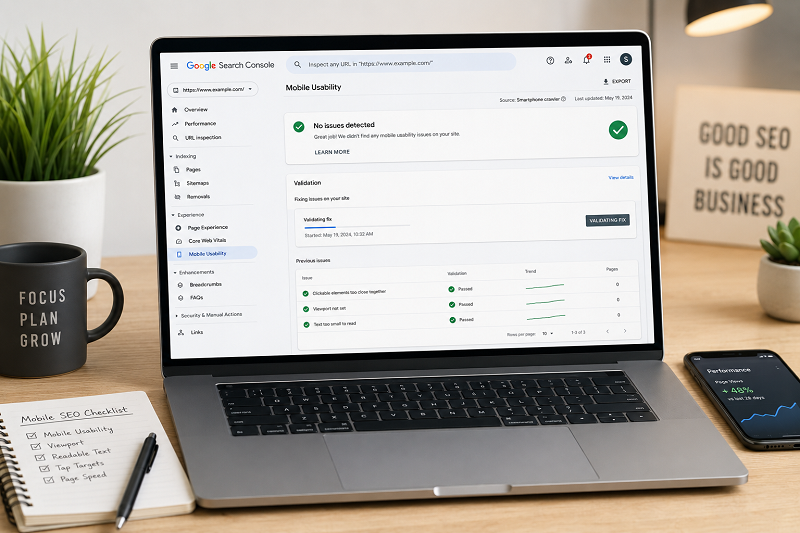
How to Test Mobile Usability in Google Search Console
Steps:
- Open Google Search Console
- Go to Mobile Usability
- Click on error type
- Test affected URLs
- Fix and validate
👉 https://support.google.com/webmasters/answer/9063469
How Long Does Google Take to Update?
Normally:
- 7–14 days after validation
- Up to 30 days for full improvement
Avoid making frequent design changes.
Need Professional Mobile SEO Help?
If your website still has mobile usability issues, professional optimization can help improve mobile rankings and user experience faster.
👉 Get Professional SEO Help:
SEO Services: https://problemfixer.net/seo-tools-services/
WordPress Services: https://problemfixer.net/wordpress-services/
AI Tools Services: https://problemfixer.net/ai-tools-services/
Conclusion
Mobile usability errors can seriously damage SEO, but they are easy to fix.
By using responsive design, proper font sizes, and clean layouts, you can improve both rankings and user experience.
Fix issues carefully and let Google reprocess your site.
If your mobile usability errors are still not fixed, continue testing your design and make sure your site works properly on all mobile devices.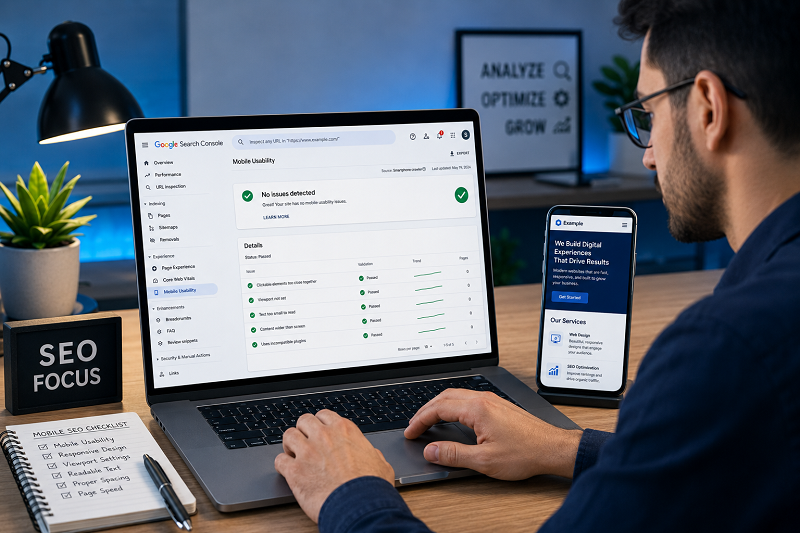
❓ FAQs
Are mobile usability errors serious?
Yes, they affect mobile rankings.
Does Google use mobile-first indexing?
Yes, for almost all websites.
Can plugins fix mobile usability?
They help, but the theme quality matters more.
Should I validate fixes in Search Console?
Yes, always after changes.
Can mobile usability errors reduce traffic?
Yes, a poor mobile experience can reduce rankings and lower user engagement.