
⚡ Fastest Safe Fix for This Installation Error
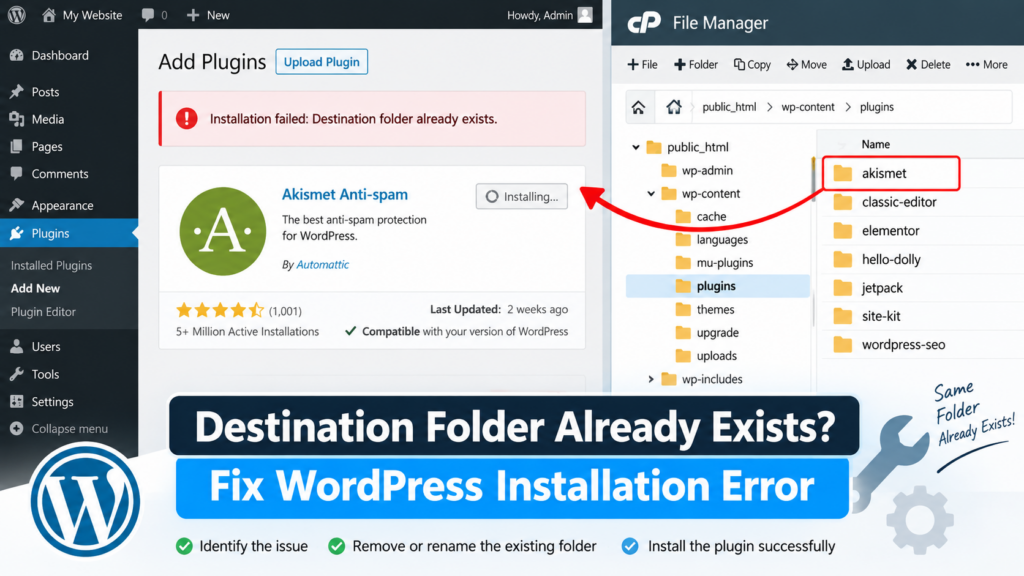
The “Destination folder already exists” error usually appears when WordPress tries to install a plugin or theme but finds a folder with the same name already on the server.
Before deleting anything:
- Check whether the plugin or theme is already installed.
- Check whether it only needs activation or an update.
- If you are uploading another version, see whether WordPress offers Replace current with uploaded.
- If the plugin or theme is missing from the dashboard, check its folder using File Manager or SFTP.
- Back up the website before changing files.
- Rename a confirmed stale folder instead of deleting it immediately.
- Install a clean official copy.
- Check permissions, ownership, storage, or hosting restrictions if the folder cannot be changed.
- Test the website before removing the old backup folder.
The safest rule is simple: find out why the folder exists before removing it.
📁 Why WordPress Says the Destination Folder Already Exists
WordPress usually installs plugins inside /wp-content/plugins/ and themes inside /wp-content/themes/.
For example, a plugin may use:
/wp-content/plugins/example-plugin/
If WordPress tries to install another package into the same destination while that folder already exists, the installation may stop.
You may see:
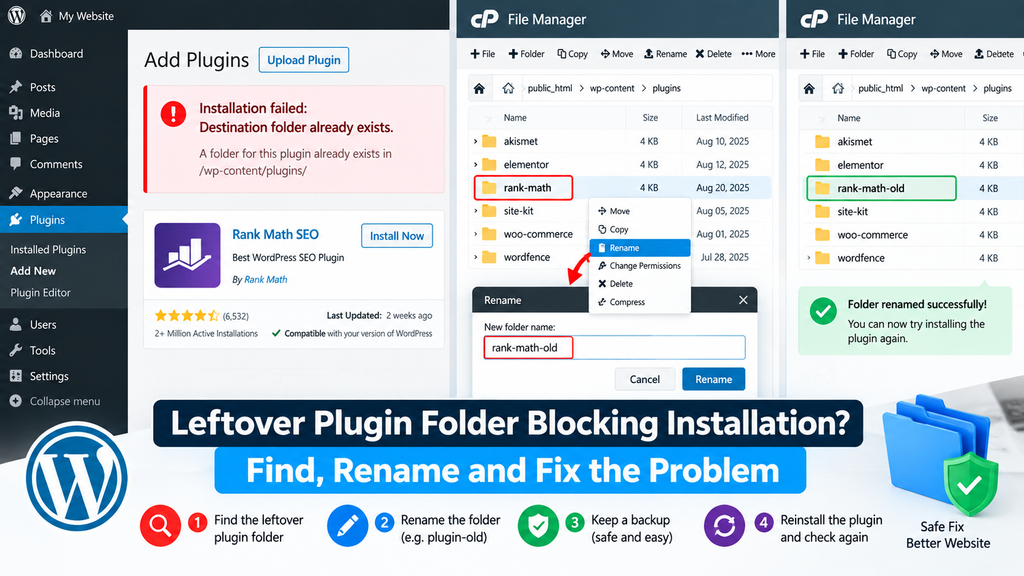
Installation failed: Destination folder already exists.
This does not always mean the plugin or theme is properly installed. The existing folder may belong to a working installation, an inactive plugin or theme, a failed installation, an interrupted update, a manually uploaded copy, incomplete or corrupted files, a different WordPress installation, or a host-managed component. That is why blindly deleting the folder is not a good first step.
🧩 Why Does This Error Happen?
Here are the most common causes:
| Problem | What May Have Happened |
| Plugin already installed | You are trying to install it again |
| Theme already installed | The existing theme folder is present |
| Previous install failed | Leftover destination folder remains |
| Update stopped halfway | Partial files remain |
| Plugin disappeared from dashboard | Main plugin file may be missing or damaged |
| Folder cannot be changed | Ownership or permissions problem |
| All installs keep failing | Filesystem, storage, security, or hosting issue |
| Multiple sites exist | You may be editing the wrong WordPress installation |
| The premium package behaves differently | Free and Pro versions may use different folders |
Start with the simplest checks before making server-level changes.
Step 1: Check Whether the Plugin Is Already Installed
Go to:
Dashboard → Plugins → Installed Plugins
Search for the plugin you are trying to install.
If the Plugin Is Listed and Inactive, you may only need to click Activate. There is no need to install a second copy if the existing plugin is healthy.
If the Plugin Is Already Active, check whether you were actually trying to update it, reinstall it, downgrade it, upload a premium version, or replace it with a newer ZIP. That determines the next step.
Step 2: Check Whether the Theme Is Already Installed
For themes, go to Dashboard → Appearance → Themes and check whether the theme already exists.
If it does, you may only need to activate it, update it, repair it, or replace it carefully.
Be more cautious with themes because changing or removing the active theme can affect the entire frontend.
✅ The Plugin or Theme Is Already There
This is the simplest case. You upload a plugin or theme, but WordPress says:
Destination folder already exists.
Solution: Check Plugins → Installed Plugins or Appearance → Themes.
If the component is already there:
- Do not install another copy unnecessarily.
- Activate it if needed.
- Update it if appropriate.
- If it appears damaged, create a backup before replacing its files.
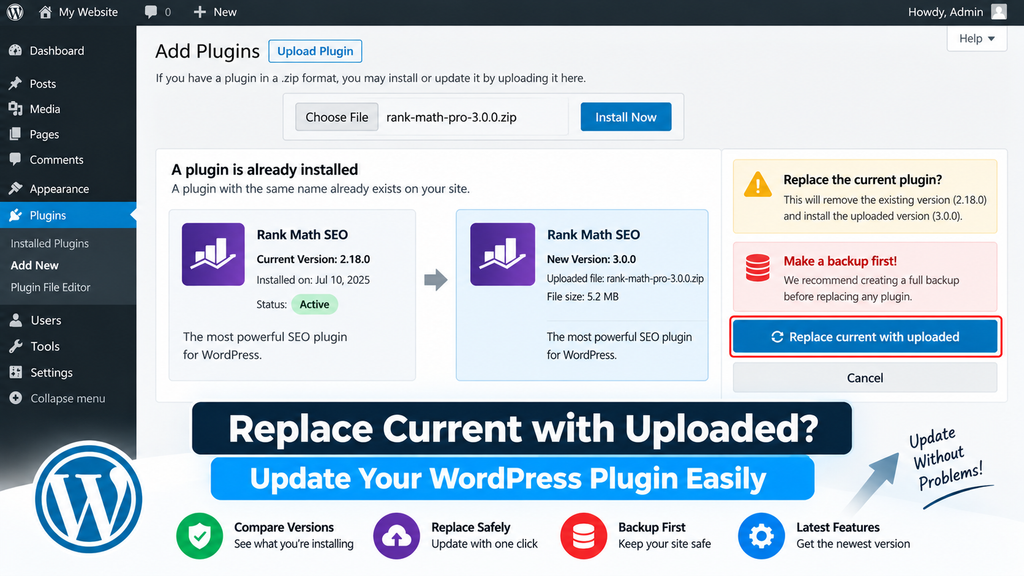
Step 3: Use “Replace Current With Uploaded” When Appropriate
If you intentionally upload another version of an existing plugin or theme, WordPress may recognize the existing installation and offer a replacement option. This is often better than immediately deleting the existing folder manually. The official WordPress plugin installation documentation walks through this upload-and-replace workflow in detail.
For plugins: Plugins → Add New → Upload Plugin. Upload the correct ZIP package.
If WordPress detects the existing plugin, you may see:
Replace current with uploaded
WordPress may also show version information so you can compare the installed and uploaded copies.
Safe Replacement Process
- Create a backup.
- Confirm the ZIP comes from the official or trusted source.
- Check the installed and uploaded versions.
- Use Replace current with uploaded only if you actually intend to replace the existing copy.
- Test the website after replacement.
💎 Check Free and Pro Versions Before Replacing Files
Be careful with the free and Pro versions.
Some products use two separate plugins, for example, example-plugin and example-plugin-pro. Others use one premium package to replace the original plugin.
Do not assume the premium ZIP should overwrite the free plugin. Check the developer’s official installation instructions first. Also, make sure you are uploading the actual installable ZIP rather than a larger download that contains documentation and several files.
Step 4: Find the Existing Folder
If the plugin or theme is not appearing normally inside WordPress, check the server.
Use hosting File Manager, cPanel File Manager, SFTP, or SSH if you are comfortable using it.
Common plugin location: /wp-content/plugins/ Common theme location: /wp-content/themes/
Look for the folder that matches the plugin or theme.
Step 5: Confirm You Are Editing the Correct WordPress Installation
Do not assume every website lives inside /public_html/.
A hosting account may contain:
/public_html/
/staging/
/old-site/
/dev/
A normal WordPress root usually contains files and folders such as:
wp-admin/
wp-content/
wp-includes/
wp-config.php
index.php
Confirm the domain and document root before changing files. Editing the wrong installation will not fix the error and may break another website.
🗂️ Custom WordPress Paths
The common paths shown in this guide are not universal. WordPress can use customized content or plugin directories, defined through constants such as WP_CONTENT_DIR and WP_PLUGIN_DIR in wp-config.php.
If your site’s file structure looks different, do not delete folders just because they do not match a tutorial. Confirm the actual WordPress root, content directory, plugin directory, theme directory, and hosting document root before changing anything. Developers can review the official WordPress wp-config.php and content directory documentation when a site uses customized paths.
Step 6: Inspect the Existing Folder
Do not immediately delete the folder. Open it first.
A typical plugin may contain files such as plugin-name.php, includes/, assets/, and languages/. But plugin structures vary, and the main PHP file does not always have the same name as the folder.
An incomplete folder may contain very few files, empty directories, a missing main plugin file, partial update files, or incorrect nested folders. This helps you decide whether the folder is valid or stale.
🧹 A Failed Install Left Old Files Behind
A common sequence is:
Install Plugin
↓
Installation Fails
↓
Folder Remains
↓
Try Again
↓
Destination Folder Already Exists
Safe Fix
- Back up the website.
- Confirm the affected folder.
- Make sure the plugin or theme is not currently needed in its existing state.
- Rename the folder.
- Install a clean official copy.
- Test the component.
- Remove the old folder only after confirming everything works.
Step 7: Rename Before Deleting
When appropriate, renaming can be safer than permanent deletion. For example, example-plugin becomes example-plugin-old.
WordPress can then create the original destination again during a clean installation. The previous files remain available if you need to inspect or restore them.
Important: Renaming an active plugin folder can disable that plugin immediately. This can affect checkout, forms, membership systems, security, SEO, page builders, caching, and booking systems.
Use staging or a maintenance plan for important live websites.
👻 Plugin Is Missing From the Dashboard but Its Folder Still Exists
Sometimes the plugin disappears from Plugins → Installed Plugins but its directory remains on the server.
Possible causes include a missing main plugin file, corrupted files, a failed update, an incomplete migration, manually changed files, or an incorrect folder structure.
Safe Recovery
- Back up the site.
- Inspect the folder.
- Confirm whether the main plugin files are present.
- Rename the suspicious folder.
- Download a clean official package.
- Install it normally.
- Test important plugin functions.
Remove the old backup folder only when safe.
📦 Look for an Extra Folder Inside the Plugin Package
A bad manual upload can sometimes create an extra folder level. For example:
wp-content/
└── plugins/
└── example-plugin/
└── example-plugin/
├── example-plugin.php
└── includes/
instead of:
wp-content/
└── plugins/
└── example-plugin/
├── example-plugin.php
└── includes/ Do not move files blindly. Check the plugin developer’s expected package structure first.
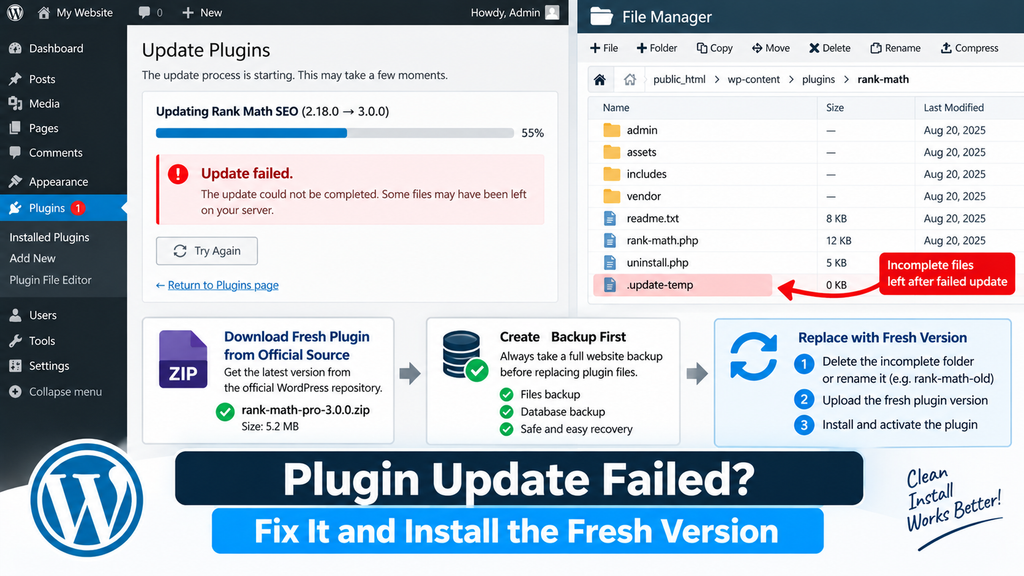
Step 8: Fix the Error After a Failed Plugin or Theme Update
An update may start normally but stop before completion.
Update starts
↓
Package downloads
↓
Files begin replacing
↓
Process fails
↓
Incomplete folder remains
Possible triggers include an interrupted update, a server timeout, a filesystem problem, a storage issue, a PHP error, or a hosting restriction.
Solution
- Create a backup.
- Identify the exact plugin or theme that failed.
- Inspect its existing folder.
- Rename the incomplete copy when safe.
- Download the latest official version.
- Install or replace the component.
- Test the site.
- Remove the old folder only after confirming recovery.
If several plugin or theme updates are also failing, troubleshoot the wider problem with our WordPress Update Failed Error guide.
Step 9: Handle Theme Folders Carefully
Themes usually live inside /wp-content/themes/. If a theme folder already exists, first check Appearance → Themes. The official WordPress theme management documentation explains how installing, activating, and updating themes work from this screen.
If the Theme Is Inactive — back it up, rename the old folder if necessary, install a clean copy, and test it before activation. If the Theme Is Active, be more careful. Create a full backup, use staging if possible, confirm another working theme is available, check whether a child theme depends on it, replace files carefully, and test the frontend immediately.
🧬 Check Parent and Child Themes
You may have my-theme and my-theme-child. The child theme may depend on the parent theme.
Do not remove or rename the parent theme without checking that relationship. Also check whether customizations exist in the child theme before replacing anything.
🎨 Existing Theme Folder Is Blocking the Installation
Suppose WordPress tries to install /wp-content/themes/example-theme/, but that directory is already present.
Solution: Check whether the theme is installed normally, active, used as a parent theme, partially installed, or left over from a failed update.
Back up first, then use WordPress’s replacement workflow where appropriate or rename a confirmed stale folder before reinstalling a clean copy.
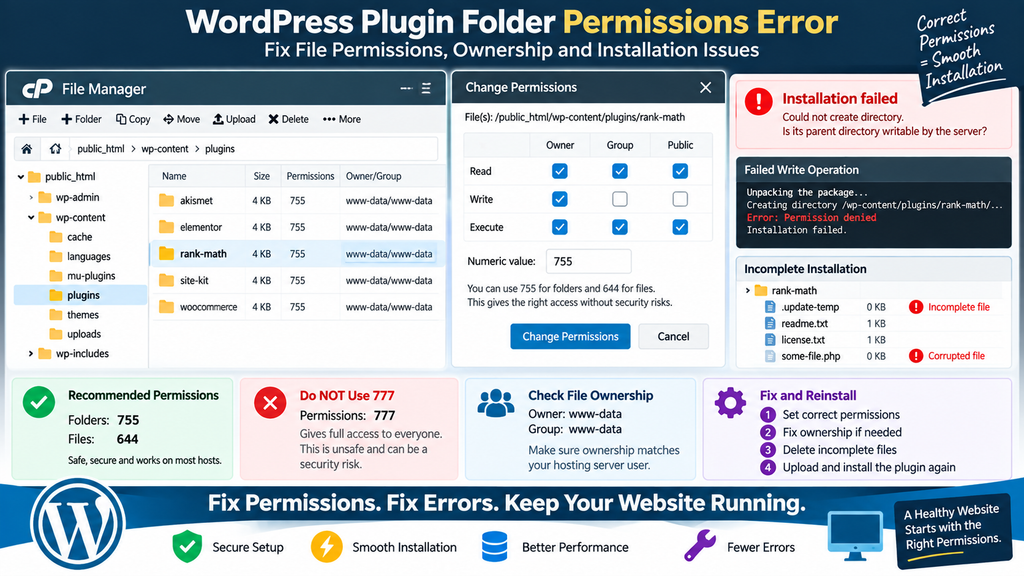
Step 10: Check Permissions and File Ownership
WordPress needs permission to create folders, write files, replace files, rename folders, and delete old files.
On many Linux hosting setups, common values are folders: 755 and files: 644 — but these are not universal. For safer guidance, see the official WordPress File Permissions documentation.
Correct permissions depend on hosting setup, file ownership, PHP handler, user/group configuration, and managed hosting rules. Do not recursively change all WordPress permissions just because a tutorial shows common values.
Never Use 777 as a Quick Fix. Do not set WordPress, plugin, theme, or wp-content directories to 777 simply to make them writable. Fix the real ownership or permissions problem instead.
🔐 Existing Folder Cannot Be Renamed or Deleted
You may find the folder, but File Manager shows Permission denied, Cannot delete, Cannot rename, or Operation failed.
This can happen because of incorrect ownership, restricted permissions, managed hosting controls, server security restrictions, or locked files.
Solution: Do not keep changing permissions randomly. Ask hosting support to verify file ownership, folder ownership, correct permissions, security restrictions, and the correct WordPress path.
A useful message is:
WordPress cannot reinstall the plugin because the destination folder already exists. I found the old folder but cannot rename or remove it. Please check its ownership and permissions.
Step 11: If Many Installs Are Failing, Check Hosting Resources
If one plugin fails, the problem may be plugin-specific. If many plugins and themes fail, look deeper.
Check disk space, storage quota, inodes/file count, temporary storage, filesystem permissions, security restrictions, and PHP errors.
💽 Check Storage Space and File Limits
A hosting account may still have storage space but hit an inode or file-count limit. If WordPress cannot create more files, installations can fail. Do not randomly delete WordPress files — remove only files you understand or ask your host to investigate.
🕒 Temporary Directory Problems
Temporary directory or filesystem problems can cause plugin and theme installations to fail before completion. If installations repeatedly stop, ask your host to check temporary storage and filesystem access. A leftover destination folder may then be a result of that failed installation.
Step 12: Check the ZIP Package
A package may fail because it is corrupted, incomplete, interrupted during upload, the wrong download, or a developer/source archive rather than an installable package.
Download a fresh copy from WordPress.org, the official plugin/theme developer, your original premium account, or a trusted marketplace. Avoid random modified plugin or theme downloads.
🖥️ The Problem Is Actually a Filesystem or Hosting Issue
If you fix one stale folder but every new installation continues failing, the destination-folder message may be only a symptom.
Check whether WordPress can normally create directories, write files, update plugins, delete temporary files, and replace existing files.
If not, investigate permissions, ownership, disk/inode limits, temporary directories, hosting security, and filesystem configuration. This is more useful than repeatedly deleting folders.
🔁 Why the Folder Keeps Coming Back After You Remove It
If you rename or remove the folder and it reappears, another process may be recreating it.
Possible causes include auto-update, a backup restore, staging sync, a deployment script, a host management tool, a theme installer, or a plugin management service.
Stop deleting the directory repeatedly. Find the process that is recreating it.
🛡️ Make Sure Security Tools Are Not Blocking File Changes
Security tools may block plugin installation, file replacement, ZIP extraction, folder deletion, and file writes.
Possible sources include a security plugin, ModSecurity, a hosting malware scanner, managed WordPress restrictions, or a web application firewall.
Do not permanently disable security simply to force an installation. If the server returns a genuine 403 response, follow our WordPress 403 Forbidden Error guide.
🧪 Check Logs When Installation Keeps Failing
If a clean package still fails after the stale folder is handled, check PHP or server logs.
On staging, you can temporarily enable WordPress debug logging:
define( ‘WP_DEBUG’, true );
define( ‘WP_DEBUG_LOG’, true );
define( ‘WP_DEBUG_DISPLAY’, false );
WordPress commonly writes the log to /wp-content/debug.log. For the correct setup and limitations, see the official WordPress Debugging documentation.
Do not display debugging errors publicly on a live production site.
Related Errors: If the log shows “Allowed memory size exhausted,” fix the memory problem first with our WordPress Memory Exhausted Error guide. If the website starts returning a 500 Internal Server Error, troubleshoot it separately with our WordPress 500 Internal Server Error guide. The destination-folder issue may only be a side effect of another failure.
⚙️ Check Must-Use or Host-Managed Plugins
Some WordPress installations use must-use plugins or host-managed plugins. These may not behave like normal plugins inside /wp-content/plugins/.
If the folder belongs to a hosting tool, must-use plugin, or management service, do not remove it as if it were a normal plugin. Check the host or plugin documentation first.
🗃️ Deleting Plugin Files Does Not Always Delete Plugin Data
Removing plugin files does not always remove plugin settings or stored data. Plugins may store information in the WordPress database, custom database tables, the uploads directory, or external services.
Do not assume: Deleting the plugin folder = deleting all plugin data. Some plugins clean up data only during their official uninstall process. If the plugin contains important business information, check its documentation before removal.
🚪 Recover the Site When wp-admin Is Unavailable
If you cannot access /wp-admin/, use the hosting File Manager, SFTP, or hosting support.
If one plugin caused the problem, temporarily renaming its folder may disable it. Example: problem-plugin to problem-plugin-disabled. Then test WordPress again.
This is a recovery step, not a permanent fix.
♻️ Reinstall the Plugin or Theme Without Losing Your Recovery Copy
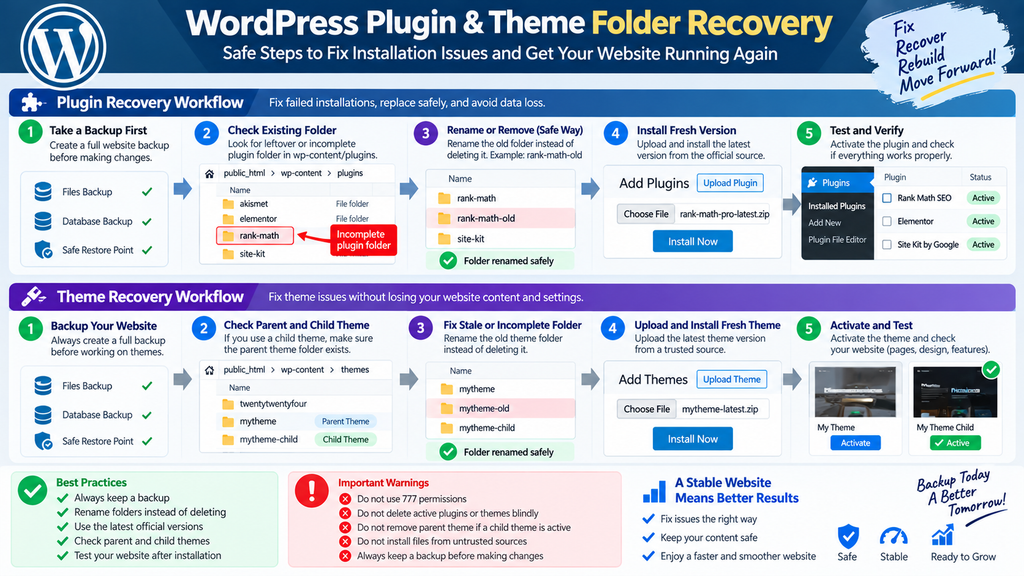
A good recovery workflow is:
- Back up the website.
- Confirm the affected component.
- Check whether WordPress can replace it directly.
- Inspect the existing folder if needed.
- Rename the stale or broken folder.
- Install a clean official copy.
- Activate or test the component.
- Confirm settings and important features.
- Remove the old backup folder only when safe.
This is safer than immediate permanent deletion.
🔎 Test the Website After Recovery
Do not assume a successful installation means everything is working.
Check the homepage, WordPress dashboard, forms, login, checkout, menus, page builder, plugin settings, theme layout, and other important frontend features.
For a business site, test the features connected to the plugin or theme you replaced.
🩺 Quick Troubleshooting Table
| What You See | Likely Cause | Best First Action |
| Plugin already listed | Already installed | Activate/update |
| Theme already listed | Already installed | Activate/update |
| Uploading another plugin version | Existing copy | Use replacement workflow |
| Plugin missing, folder exists | Incomplete/broken files | Inspect folder |
| Empty or partial folder | Failed install | Backup + rename |
| Problem started during update | Incomplete update | Clean replacement |
| Cannot rename folder | Ownership/permissions | Contact host |
| All installs fail | Hosting/filesystem | Check server resources |
| One package fails | Package-specific issue | Fresh official ZIP |
| Folder keeps returning | Sync/deployment process | Find recreating process |
| Multiple WordPress installs | Wrong path | Confirm document root |
| Theme folder exists | Existing/failed theme | Check active/parent/child relationship |
💣 Dangerous Fixes to Avoid
Avoid these shortcuts:
- Deleting random plugin or theme folders
- Deleting an active theme without a recovery plan
- Setting permissions to 777
- Overwriting custom plugins without a backup
- Downloading premium plugins from unknown websites
- Reinstalling WordPress core as the first fix
- Deleting database tables for a folder conflict
- Changing many server settings at the same time
- Repeatedly deleting a folder that keeps returning
- Assuming every site uses the default /wp-content/ path
Make one controlled change and test the result.
🛡️ How to Prevent the Error in the Future
Keep Reliable Backups — Create backups before plugin updates, theme updates, migrations, manual file changes, and premium plugin replacements. The official WordPress backups documentation covers what a full backup should include and how often to run one.
Use Official Packages — Prefer WordPress.org, official developers, original premium accounts, and trusted marketplaces.
Check Versions Before Uploading — Know whether you are updating, downgrading, reinstalling, or replacing.
Keep Enough Hosting Resources — Monitor disk space, inodes, PHP memory, and server limits.
Avoid Interrupting Updates — Let WordPress complete plugin or theme updates before starting another file operation.
Use Staging for Important Sites — Test major plugin and theme changes before applying them to a live store, membership site, booking site, or business website. Keep Customizations Separate — Avoid editing third-party plugin files directly. For themes, use a child theme when appropriate.
🧰 Real Problems Covered in This Guide
| Real Problem | Main Solution |
| Plugin/theme already installed | Activate, update, or replace correctly |
| Failed installation leaves a stale folder | Backup + rename + reinstall |
| Plugin disappears, but folder remains | Inspect and replace broken files |
| Failed update leaves incomplete files | Install clean official replacement |
| Folder cannot be renamed or deleted | Fix ownership/permissions |
| Many installs keep failing | Check hosting/filesystem resources |
❓ Destination Folder Error Questions Answered
What does “Destination folder already exists” mean in WordPress?
It means WordPress is trying to install a plugin or theme into a location where a folder with the same destination name already exists. The folder may belong to a valid installation or may be left over from a failed installation or update.
How do I fix the Destination Folder Already Exists error?
First, check whether the plugin or theme is already installed. If it is not listed but the folder remains on the server, create a backup, inspect the directory, rename a confirmed stale folder, and install a clean official copy.
Can I delete the existing plugin folder?
Only after confirming what the folder belongs to and creating a backup. Renaming it first is often safer during troubleshooting.
Why does the plugin folder exist when the plugin is not visible?
The main plugin file may be missing, corrupted, incorrectly nested, or left incomplete after a failed update or installation.
Can a failed plugin update cause this error?
Yes. An interrupted update can leave incomplete files or a destination folder behind, which may block the next installation.
Can I rename the plugin folder instead of deleting it?
Yes, in many cases. Renaming preserves the old files while you test a clean installation. Do not rename an active plugin casually on a live website.
What does “Replace current with uploaded” do?
It allows WordPress to replace an existing installed plugin or theme with the uploaded version when WordPress recognizes the package. Use it only when you intentionally want to replace the current version, and back up first.
Can file permissions cause this error?
They can contribute indirectly. If WordPress cannot correctly replace, rename, or remove files, a failed installation may leave a folder behind and create the error on the next attempt.
Will deleting a plugin folder delete all plugin data?
Not necessarily. Many plugins store settings and other information in the database or uploads directory. File removal and complete data removal are not always the same thing.
Can this error happen with themes?
Yes. The same problem can occur when a theme folder already exists inside the themes directory. Be especially careful if the existing theme is active or is the parent of an active child theme.
Still Cannot Install the Plugin or Theme?
If the error remains after checking the existing installation, stale files, replacement workflow, permissions, storage, and hosting restrictions, deeper troubleshooting may be needed.
Professional WordPress troubleshooting can help with failed plugin installations, theme installation problems, failed updates, leftover folders, file ownership, permissions, PHP errors, server storage, security restrictions, and custom WordPress paths.
Get Professional WordPress Help: https://problemfixer.net/wordpress-services/
When asking your host or developer for help, provide specific evidence. For example, WordPress reports “Installation failed: Destination folder already exists.” The plugin is not listed in Installed Plugins, but its folder is still present on the server. I have backed up the site. Please help me verify whether the folder is stale and check its ownership and permissions.
🏁 Identify the Folder Before You Remove It
The Destination Folder Already Exists WordPress error usually means WordPress found an existing plugin or theme directory before completing an installation. The correct fix depends on why that folder exists.
Use this order: Check Existing Installation → Check Replacement Option → Back Up → Inspect Folder → Rename if Necessary → Install Clean Copy → Test → Remove Old Files.
If the problem affects every plugin or theme installation, investigate: Permissions → Ownership → Storage → Temporary Files → Security → Hosting. Do not permanently delete a folder until you know what it contains and why it is there. Fixing the actual cause is safer than repeatedly removing the symptom.