When your keyboard not typing on Windows problem appears, even simple work becomes difficult. You press keys, but nothing appears on the screen, or only a few keys respond. This issue is very common on Windows laptops and desktop computers.
In this guide, you will learn clear step-by-step solutions to fix keyboard not typing problems safely. These methods are simple, beginner-friendly, and work for most Windows systems.
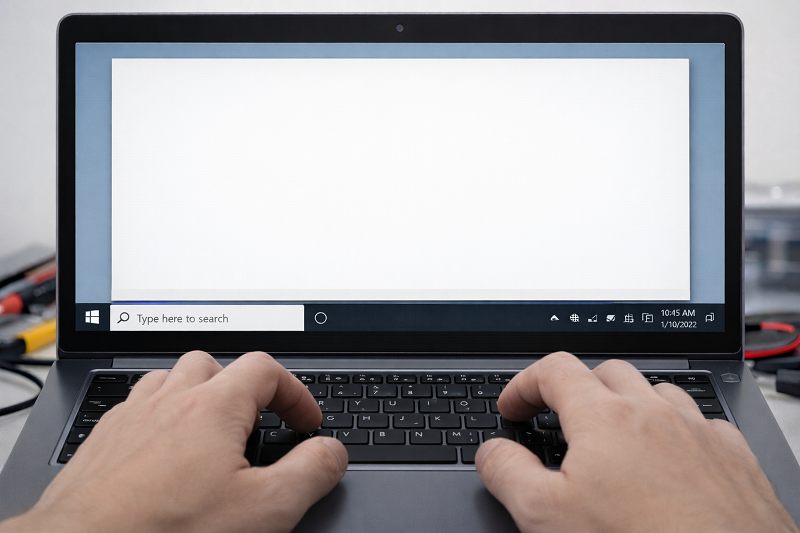
Why Is My Keyboard Not Typing?
Keyboard problems usually happen because of system settings, driver issues, or physical damage.
Common Reasons
- Keyboard driver issue
- Filter Keys turned ON
- Windows update conflict
- Dust or liquid damage
- USB keyboard connection problem
Step 1: Restart Your Computer
Restarting fixes temporary system errors.
What to do:
- Save your work
- Restart your PC or laptop
- Test the keyboard again
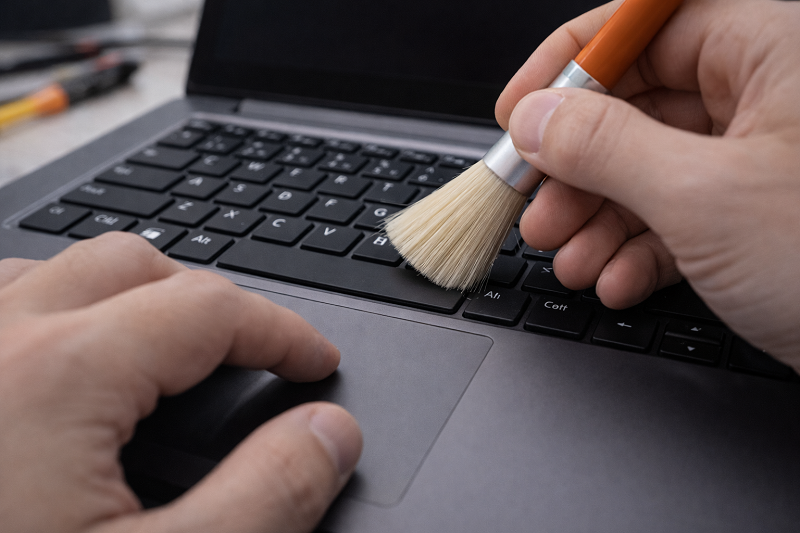
Step 2: Check Physical Keyboard Problems
Before changing settings, check the hardware.
What to Check
Clean keyboard gently
Look for stuck keys
Try another USB port (external keyboard)
If mouse also has issues, read:
Step 3: Update Keyboard Driver in Windows
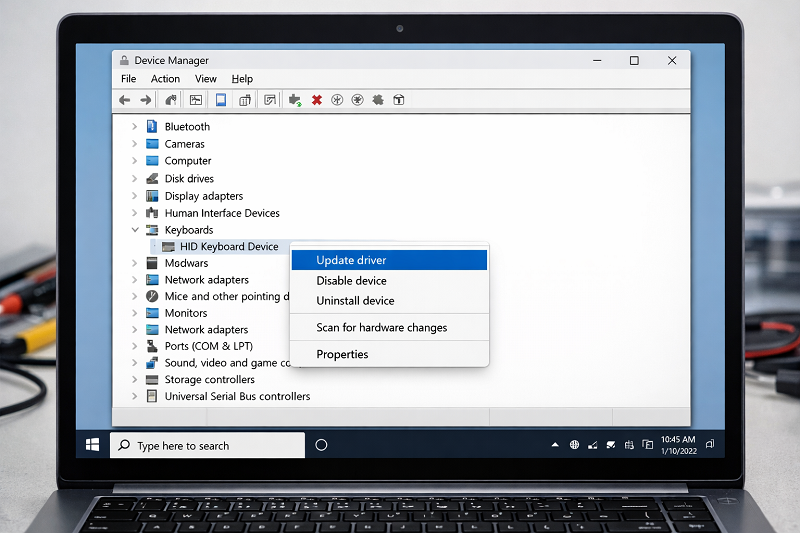
Outdated drivers can stop keyboard input.
Steps:
- Press Windows + X
- Open Device Manager
- Expand Keyboards
- Right-click keyboard → Update driver
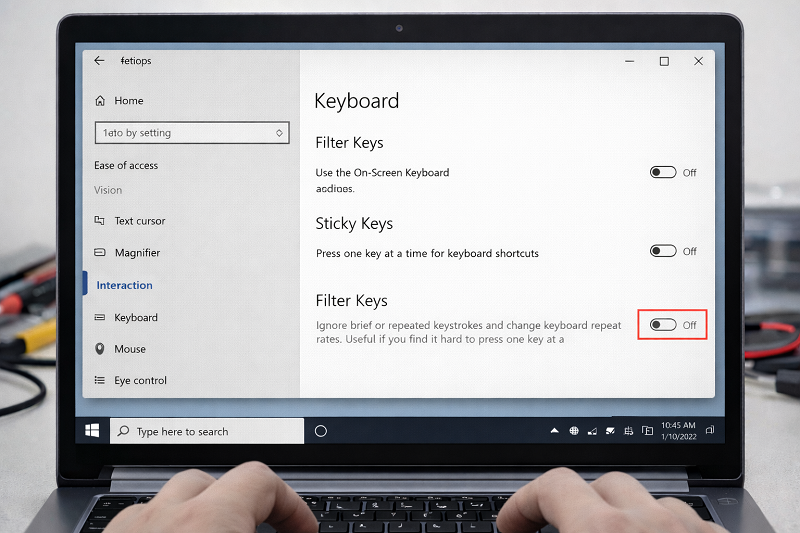
Step 4: Turn OFF Filter Keys
Filter Keys may block typing.
Steps:
- Settings → Accessibility → Keyboard
- Turn Filter Keys OFF
Step 5: Check Keyboard Language Settings
Wrong layout can cause typing issues.
Steps:
- Settings → Time & Language
- Select correct keyboard language
- Remove unused layouts
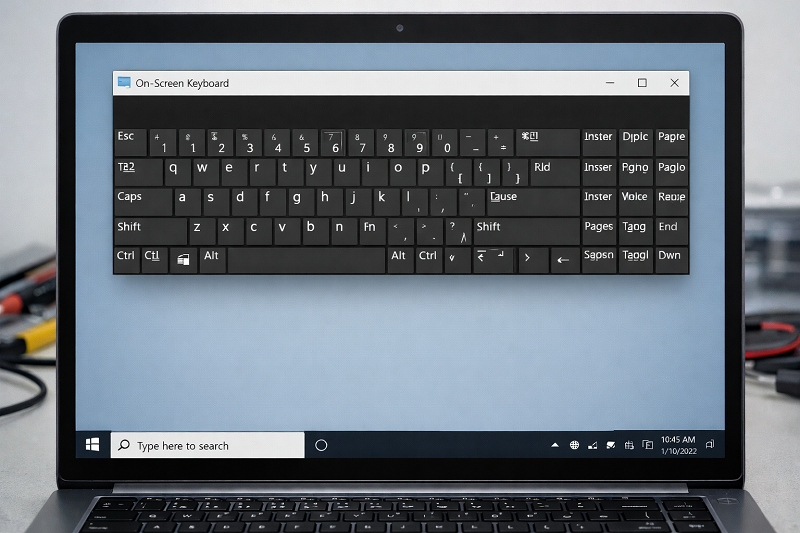
Step 6: Use On-Screen Keyboard to Test
This helps confirm hardware problems.
Steps:
- Press Windows + Ctrl + O
- If on-screen keyboard works, physical keyboard may be faulty
Related issue:
Step 7: Scan for Malware
Malware can block keyboard input.
Recommended Tools
Helpful keyboard cleaning tools or replacement accessories may be listed here in the future if needed.
Need expert help with Windows or WordPress issues?
WordPress Services:
https://problemfixer.net/wordpress-services/
AI Tools Services:
https://problemfixer.net/ai-tools-services/
SEO Tools Services:
https://problemfixer.net/seo-tools-services/
You can also contact us on WhatsApp if you need help fixing system issues or getting tools at a lower price.
Conclusion
Keyboard not typing is a common Windows problem, but it is usually easy to fix. By following these step-by-step solutions, you can identify the real cause and fix the issue without stress. Always try software steps before replacing hardware.
❓ FAQs
Why is my keyboard not typing suddenly?
Driver issues, Filter Keys, or Windows updates are common reasons.
Can Windows updates cause keyboard problems?
Yes, updates can affect drivers or settings.
How do I know if my keyboard is damaged?
If on-screen keyboard works but physical one does not.
Should I replace my keyboard?
Only after all software solutions fail.