A Windows update stuck problem is very common. Sometimes the update stops at 0%, sometimes it gets stuck at 99%, and sometimes the system keeps updating for hours without finishing. When this happens, the computer may become slow and security updates may not install properly.
The good news is that in most cases, a Windows update stuck issue is caused by software problems, not hardware damage. That means you can usually fix it with a few simple troubleshooting steps.
In this guide, you will learn easy and safe methods to complete a Windows update and fix update problems quickly.

Common Signs of Windows Update Stuck
You may notice several signs when a Windows update gets stuck:
- The “Working on updates” screen freezes for a long time
- The computer keeps restarting repeatedly
- The update percentage does not change for hours
- The system becomes very slow during the update process
If your computer shows any of these signs, the update process may not be working properly.
Why Windows Update Gets Stuck
There are several reasons why a Windows update can get stuck.
Slow Internet Connection
A slow or unstable internet connection may prevent update files from downloading properly. This can cause the update process to freeze.
Corrupted Update Files
Sometimes previously downloaded update files become damaged or incomplete. These corrupted files can stop the update from continuing.
Low Disk Space
Windows updates require enough free storage space. If the disk is almost full, the update may fail or freeze.
Background Software Conflict
Some third-party software such as antivirus programs or system tools may interfere with Windows updates.
Step 1 – Wait and Restart Safely
Sometimes updates simply take longer than expected. However, if the update has been stuck for more than one or two hours, you can try restarting the system.
What to do:
- Restart your computer
- Make sure your internet connection is stable
- Allow Windows to resume the update process
In many cases, a simple restart allows the update to continue normally.
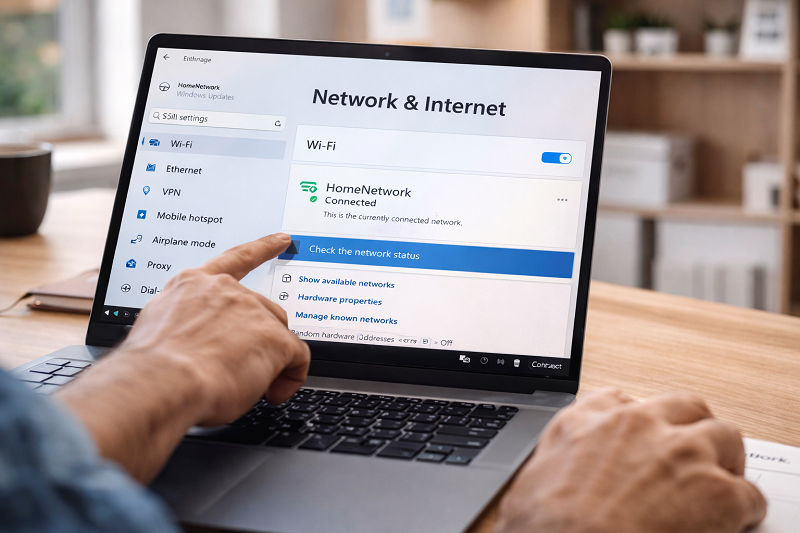
Step 2 – Check Your Internet Connection
An unstable connection can interrupt the download of update files.
Before trying other fixes, make sure your internet connection is working properly.
👉 Related Guide:
How to Fix Internet Connected but No Access
If your internet connection looks connected but still does not work properly, another common issue could be DNS problems.
👉 Related Guide:
How to Fix DNS Server Not Responding
Step 3 – Run the Windows Update Troubleshooter
Windows includes a built-in tool that automatically detects and fixes update problems.
After troubleshooting steps, you can also check other common Windows problems that may affect system updates.
👉 Related Guide:
How to Fix SSL Connection Error
Steps:
- Open Settings
- Go to System
- Click Troubleshoot
- Select Other troubleshooters
- Find Windows Update and click Run
This tool scans the system and repairs common update issues automatically.
👉 Official Microsoft Guide:
Step 4 – Free Up Disk Space
Low storage is one of the most common causes of update failures.
Delete unnecessary files, remove temporary data, or uninstall programs that are not needed.
If your computer is also running slowly, this guide can help:
👉 Related Guide:
How to Fix Laptop Running Slow
Step 5 – Restart Windows Update Services
Restarting the Windows update services can often fix stuck updates.
Steps:
- Press Win + R
- Type services.msc and press Enter
- Find and restart the following services:
- Windows Update
- Background Intelligent Transfer Service
Restarting these services refreshes the update system and may allow the update to continue.
🔗 Windows Server Update Services (WSUS) – Microsoft Learn

Helpful System Tools
System cleanup and optimization tools can help reduce update problems by removing temporary files and improving system performance.
👉 (Affiliate tools and recommended software may be added here in the future.)
Need Professional Windows or WordPress Help?
If Windows updates keep getting stuck or your system shows repeated errors, professional troubleshooting can save time and prevent further problems.
WordPress Services:
https://problemfixer.net/wordpress-services/
AI Tools Services:
https://problemfixer.net/ai-tools-services/
SEO Tools Services:
https://problemfixer.net/seo-tools-services/
You can also contact us on WhatsApp if you need help fixing system issues or getting tools at a lower price.
Conclusion
A Windows update stuck problem can be frustrating, but in most cases it can be fixed with simple troubleshooting steps. Checking your internet connection, freeing disk space, and restarting update services often resolve the issue.
By following the steps in this guide, you can safely complete Windows updates and keep your system secure and stable.
FAQs
How long should I wait for a Windows update?
Normally, a Windows update should not take more than one or two hours. If it takes longer, the update may be stuck.
Is it safe to restart the computer during an update?
Yes, if the update has been stuck for a very long time, restarting the computer can help resume the update process.
Can low disk space cause update problems?
Yes. Windows updates require free storage space. If the disk is full, updates may fail or freeze.
Can antivirus software block Windows updates?
Sometimes third-party antivirus programs can interfere with updates. Temporarily disabling them may help resolve the problem.