Introduction – Fix Browser Keeps Crashing on Windows
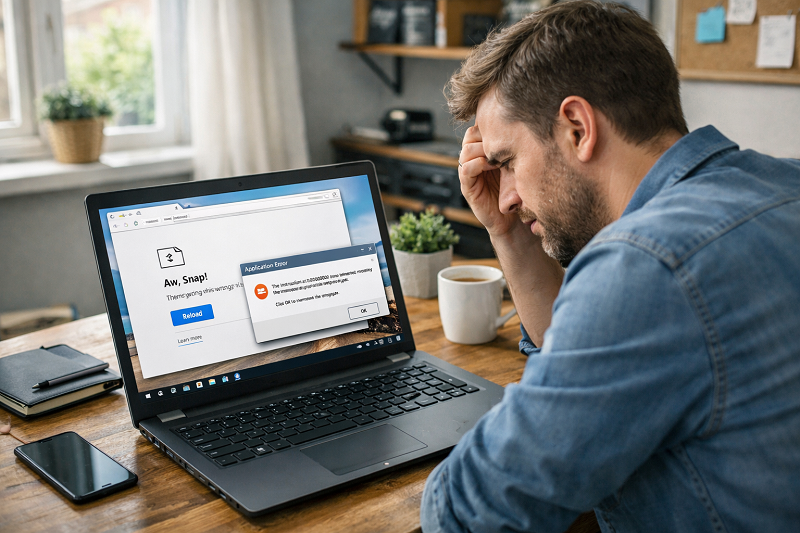
When your browser keeps crashing on Windows, it becomes very frustrating. You open the browser, it works for a few seconds, and then suddenly closes. Sometimes it freezes, sometimes it shows an error message, and sometimes it does not open at all.
This problem can happen on Google Chrome, Edge, Firefox, or any other browser. The reasons are usually simple, such as corrupted cache files, bad extensions, low system memory, or outdated browser versions.
The good thing is that most browser crashing issues can be fixed easily. In this guide, you will learn simple and proven solutions to stop browser crashes on Windows.
Common Signs That Your Browser Is Crashing
You may be facing this issue if:
Browser closes suddenly
Browser freezes and stops responding
Browser crashes when opening a website
Browser crashes after startup
“Not Responding” message appears
Why Your Browser Keeps Crashing on Windows?
Understanding the reason helps fix the problem faster.
If your browser keeps crashing randomly, a simple restart often resolves temporary glitches.
Too Many Extensions Installed
Some extensions are poorly coded and crash browsers.
Corrupted Cache and Data
Old cache files can break browser performance.
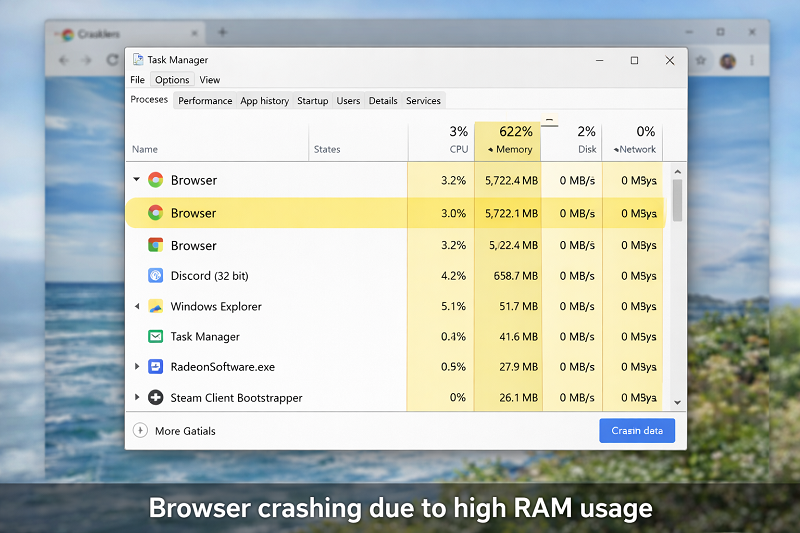
Low System Memory (RAM)
If your PC is slow, the browser may crash frequently.
Outdated Browser Version
Older versions have bugs and security issues.
Malware or Adware
Malicious software can crash browsers repeatedly.
Fix 1 – Restart the Browser and Computer
Sometimes the issue is temporary.
Steps:
Close the browser completely
Restart your computer
Open the browser again
If the browser crashes only once in a while, this fix may be enough.
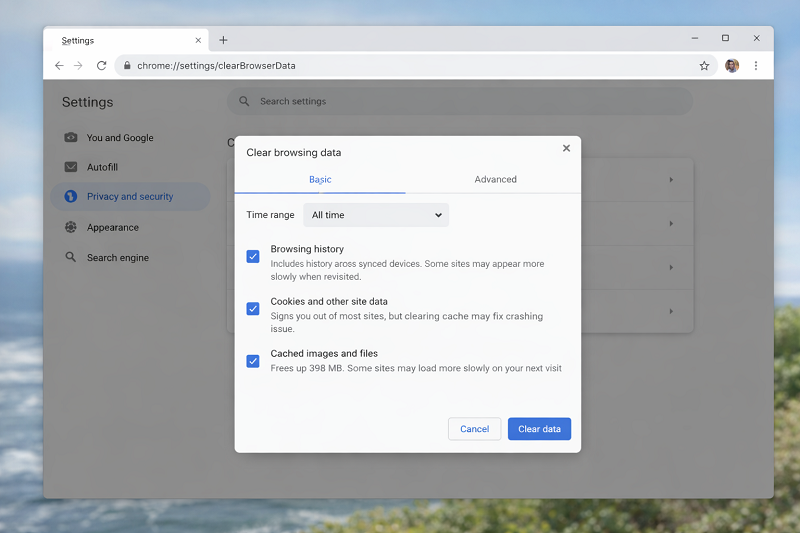
Fix 2 – Clear Browser Cache and Data
Corrupted cache files are a very common reason.
If you already fixed browser opening issues but crashes continue, clearing cache is important.
Fix Google Chrome Not Opening issue
Fix 3 – Disable All Browser Extensions
Extensions are one of the most common reasons a browser keeps crashing.
Steps:
Open browser extensions page
Disable all extensions
Restart browser
Enable extensions one by one
If the browser stops crashing after disabling extensions, you have found the cause.
Fix 4 – Update Your Browser
Using an outdated browser can cause frequent crashes.
https://support.google.com/chrome/answer/95414
Always keep your browser updated to the latest version.
Fix 5 – Check System Performance
If your system is slow, browsers may crash.
If your laptop or PC is running slow overall, this guide can help.
Fix Laptop Running Slow Problem
https://problemfixer.net/blog/fix-laptop-running-slow
Fix 6 – Scan for Malware or Adware
Malware can cause browsers to crash without warning.
Use a trusted security tool to scan your system.
Fix 7 – Reinstall the Browser (Last Option)
If nothing works, reinstalling the browser usually fixes the issue.
Steps:
Uninstall the browser
Restart your PC
Download from official website
Install and open again
Need Professional Technical Help?
If you need any AI tool, SEO tool, WordPress plugin, or theme at a low price, just message us on WhatsApp.
Tell us what you need, and we’ll confirm availability and the best affordable price.
Contact us on WhatsApp Need help or want a tool at a low price?
Our Services
WordPress Services: https://problemfixer.net/wordpress-services/
AI Tools Services: https://problemfixer.net/ai-tools-services/
SEO Tools Services: https://problemfixer.net/seo-tools-services/
Conclusion
If your browser keeps crashing on Windows PC, it is usually due to cache problems, bad extensions, low system resources, or outdated software. Clearing cache, disabling extensions, updating the browser, and checking system performance can solve the issue in most cases.
Keeping your browser updated and avoiding unnecessary extensions will help prevent crashes in the future.
FAQs
Why does my browser keep crashing on Windows startup?
This often happens because of corrupted cache files or bad extensions.
Can low RAM cause browser crashes?
Yes, low system memory can force the browser to close.
Is reinstalling the browser safe?
Yes, if you download it from the official website.
Can malware cause browser crashes?
Yes, malware and adware often crash browsers.