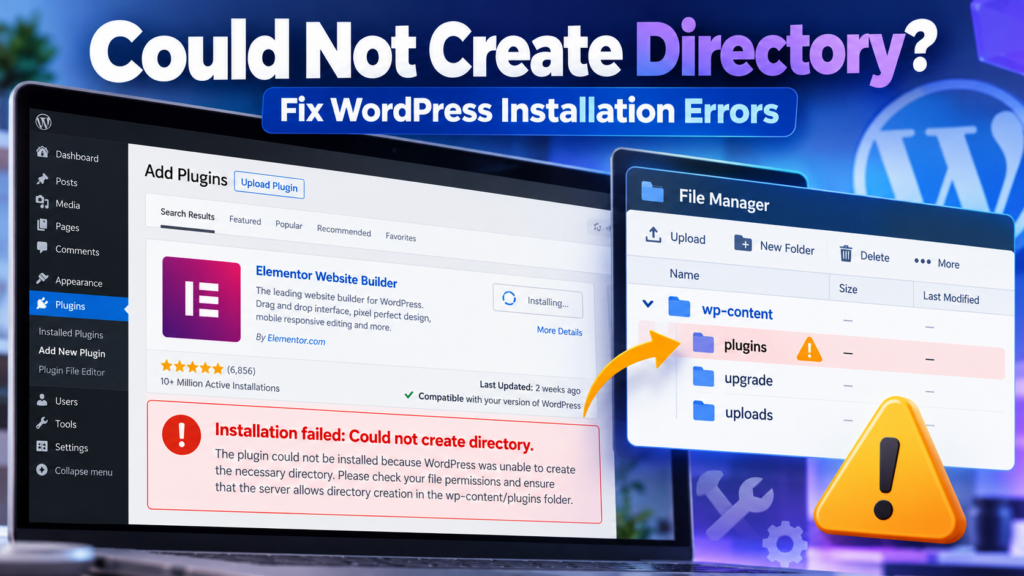

The “Could Not Create Directory” error in WordPress usually appears when you try to install a plugin, add a theme, update your website, or upload media, but WordPress cannot create a folder it needs.
You may see messages such as:
- Installation failed: Could not create directory.
- Could not create directory: wp-content/upgrade/
- Could not create the upgrade-temp-backup directory.
- Unable to create directory. Is its parent directory writable by the server?
- Plugin or theme installation failed.
Many tutorials tell you to change your folder permissions to 755. That can help in some cases, but permissions are not always the problem.
Your hosting account might be full. You may have reached its file-count limit. The files may belong to the wrong user, or your server may be blocking the operation.
This guide helps you find the exact cause and apply a safe fix without making unnecessary changes to your website.
Important: Back up your website before changing files, permissions, ownership, or server settings. Do not set folders to 777 as a general solution.
Quick Answer: Fix the WordPress Could Not Create Directory Error
Start with these checks:
- Copy the full error message and identify the failed folder.
- Confirm you are working with the correct WordPress installation.
- Check your hosting disk space and file-count (inode) limits.
- Inspect the affected folder and its parent directory.
- Check permissions and ownership.
- Look for a file or existing folder blocking the required path.
- Check temporary directories if ZIP installations fail.
- Review Site Health and server logs.
- Correct the confirmed problem and retry one operation.
On many hosting setups, directories use 755 and regular files use 644. These are common starting points, not universal values.
If those settings are already appropriate, do not keep increasing the permission numbers.
Match the Error With the Right Check
| Error or symptom | Check first |
| Plugin installation fails | Exact failed path, plugins, upgrade |
| Theme installation fails | themes, upgrade, available storage |
| wp-content/upgrade cannot be created | Parent wp-content, storage, ownership |
| upgrade-temp-backup error | Backup directory, Site Health, storage |
| Media upload cannot create a folder | uploads, parent directory, ownership |
| Permissions show 755 but error remains | Ownership, PHP user, quota |
| Error started after migration | Correct root, owner/group, server setup |
| Only one plugin fails | Existing folder, package, plugin-specific issue |
What Does “Could Not Create Directory” Mean?
WordPress needs to create directories for different tasks.
For example, plugins are normally installed under:
wp-content/plugins/
Themes use:
wp-content/themes/
Media uploads normally use:
wp-content/uploads/
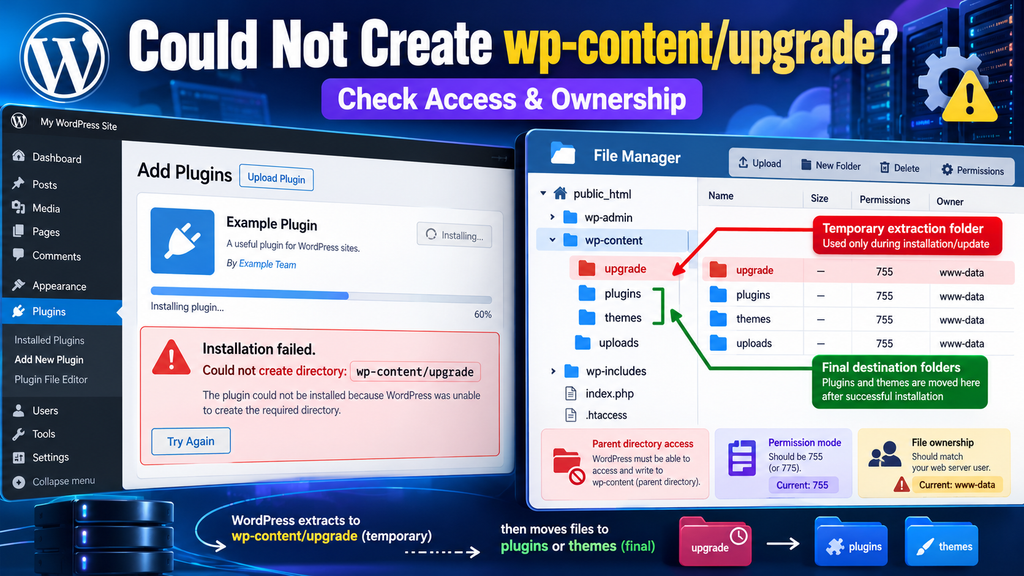
WordPress may also create temporary folders while installing or updating software. A plugin installation can involve two main stages.
Stage 1: Unpack the package
WordPress downloads the plugin package and extracts its contents into a temporary working location, commonly under wp-content/upgrade.
Stage 2: Install the extracted files
WordPress places the plugin files into their final directory under wp-content/plugins.
If the server refuses to create a required folder during either stage, the operation can fail.
The error message alone does not prove that the folder permission number is wrong. You need to find out which folder failed and why.
1. Find the Exact Directory WordPress Cannot Create
Before changing permissions, identify the full path shown in the error.
A message referring to:
wp-content/upgrade/
points toward a temporary installation or extraction location.
A message referring to:
wp-content/plugins/example-plugin/
points toward the plugin’s destination or a folder inside it.
A message containing:
wp-content/uploads/2026/10/
suggests an upload-directory problem. These failures may have different causes, even though WordPress displays similar wording.
What If WordPress Only Shows “Could Not Create Directory”?
Some installation screens may display only a short error.
You can try an alternative installation screen to collect more information.
For a plugin available as a ZIP file from an official or trusted source:
- Download its ZIP package.
- Go to Plugins → Add Plugin → Upload Plugin.
- Choose the package.
- Start the installation.
- Read the detailed installation result.
Depending on the WordPress version and installation method, the result may show more information about where the process stopped.
Use this as a diagnostic attempt, not a guarantee that every failed installation will display a full server path. If you still cannot identify the location, check hosting error logs or ask support for the failed filesystem path
Do not post complete private server paths or logs publicly.
Check for a File Blocking the Folder Name
Occasionally, the location WordPress needs for a directory may already be occupied by a regular file.
For example, WordPress might need a directory called example-plugin, but an unexpected file with that name already exists.
Before changing it:
- Confirm the exact path.
- Determine whether the object is a file or directory.
- Identify what created it.
- Back up anything you intend to change.
Do not delete unfamiliar files simply because their names appear in an error.
2. Check Hosting Disk Space and Inode Limits
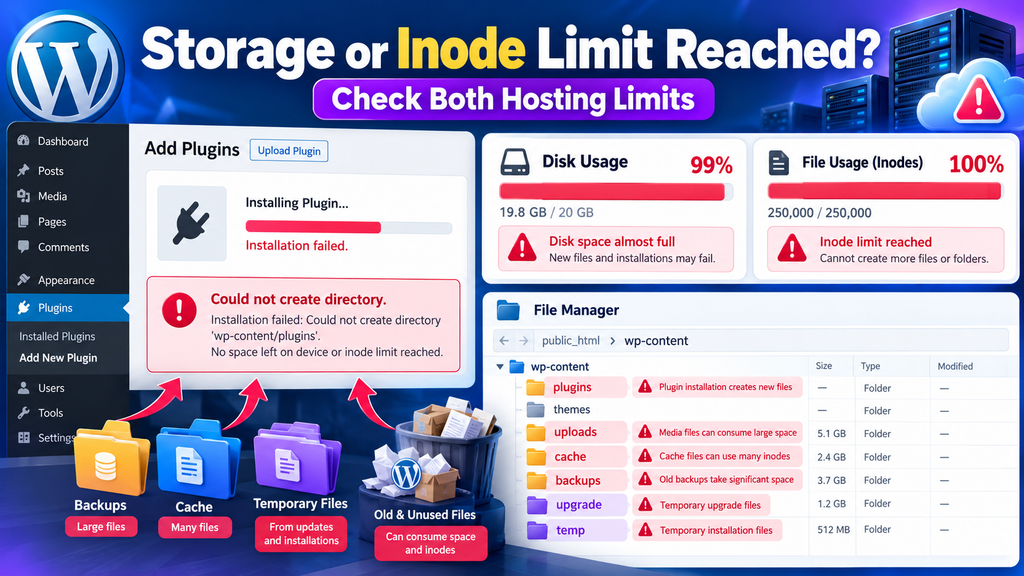
Before editing permissions, check whether your hosting account can create any more files. A full account can produce a directory-creation error even when permissions and ownership are correct.
Check Disk Usage in cPanel
If your hosting uses cPanel:
- Log in to cPanel.
- Find Disk Usage or the relevant resource information.
- Check how much storage is available.
- Review large backups, cache files, logs, and old staging websites.
A plugin installation may need space for its downloaded archive, extracted files, and temporary files.
Therefore, having enough free space for the ZIP file alone may not be sufficient.
If your account is full, remove only files you have confirmed are safe to delete or increase your hosting allowance.
Do not remove active plugin folders, the current theme, or WordPress system files to free space.
Check Inode or File Usage
Disk space and file count are different limits.
An inode is a filesystem structure used to track a file or directory. Some hosting providers limit the number of files and folders your account can use.
That means your website may have plenty of storage available but still be unable to create another directory.
In your hosting dashboard, look for:
- File Usage
- Inodes
- File Count
- Account Limits
If the file-count limit is reached, identify unnecessary backups, outdated staging copies, and safely removable cache files.
If your hosting panel does not show inode usage, ask your provider to check the account limit.
Check Storage With SSH
On servers where you have authorized SSH access, these read-only commands can provide useful information:
df -h
Shows filesystem storage usage.
df -i
Shows filesystem inode usage.
These commands report filesystem information, which may not match a separate hosting-account quota. Check both where applicable.
If disk space and file usage look normal, continue with directory access.
3. Fix wp-content/upgrade Directory Errors
A common plugin or theme installation error points to:
wp-content/upgrade/
WordPress uses this area for temporary files during installation and updates.
Start by locating your active WordPress installation in File Manager or SFTP.
A typical installation includes:
wp-admin/
wp-content/
wp-includes/
wp-config.php
If the Upgrade Directory Exists
Open wp-content and inspect upgrade.
Check:
- The current permission mode.
- The owner and group.
- Whether the required WordPress filesystem process can access it.
- Available disk space and inodes.
- Relevant errors in the hosting logs.
If it already has appropriate permissions, increasing the mode may not help.
If the Upgrade Directory Is Missing
Inspect the parent:
wp-content/
WordPress needs suitable access to create a new directory inside this location.
If the parent cannot be written to by the process performing the installation, WordPress may fail before extraction even begins.
Do not immediately create random folders or change all directories to 777.
Correct the confirmed parent-directory, ownership, storage, or server issue first.
After making one safe correction, retry a single plugin or theme installation. For a broader update failure, see our WordPress Update Failed Error guide.
4. Fix “Could Not Create the upgrade-temp-backup Directory”
This is a related WordPress update error, but the folder has a different purpose.
WordPress uses a temporary backup location to help restore the previous plugin or theme version if a supported manual update fails.
The relevant path is:
wp-content/upgrade-temp-backup/
WordPress introduced this rollback process in version 6.3.
How to Check the Backup Directory
- Go to Tools → Site Health.
- Review warnings about plugin and theme update directories.
- Open the hosting File Manager.
- Check the upgrade-temp-backup location, if it exists.
- Inspect parent-directory access and ownership.
- Check disk space and inodes.
A writable directory does not automatically mean your hosting account has enough space to complete an update.
If Site Health reports a directory-access problem, investigate that specific location.
Do not manually delete an in-progress temporary backup or interrupt an active update.
For more information, see the official WordPress plugin and theme update rollback documentation.
5. Fix WordPress Directory Permissions Safely
File permissions determine what different users and groups can do with files and directories.
On many standard WordPress hosting environments, common starting points are:
| Item | Common starting mode |
| Directories | 755 |
| Regular files | 644 |
These values are not correct for every server configuration.
Some carefully configured hosting environments use different permissions or group-based access.
Check Permissions With File Manager
- Open your hosting File Manager.
- Find the affected directory.
- Right-click it or use the Permissions option.
- Record the current setting.
- Compare it with your hosting provider’s recommended configuration.
- Change it only if you have confirmed it is incorrect.
Also inspect the parent directory.
For example, if WordPress cannot create a folder under plugins, check the plugins directory and the necessary directories above it. A directory generally needs suitable write and search access for a process to create new entries within it.
Why 777 Is Not a Safe Fix
Changing a directory to 777 gives write access to everyone under standard Unix permission rules.
This can introduce security risks.
It may also fail to solve problems caused by:
- Disk quotas
- Inode limits
- Server security controls
- Read-only filesystems
- Incorrect filesystem paths
If your site still fails after someone used 777, restore the appropriate secure permissions and investigate the actual cause.
For a fuller explanation, read our WordPress File Permissions guide and the official WordPress file-permissions documentation.
6. Permissions Are 755 but WordPress Still Cannot Create a Folder
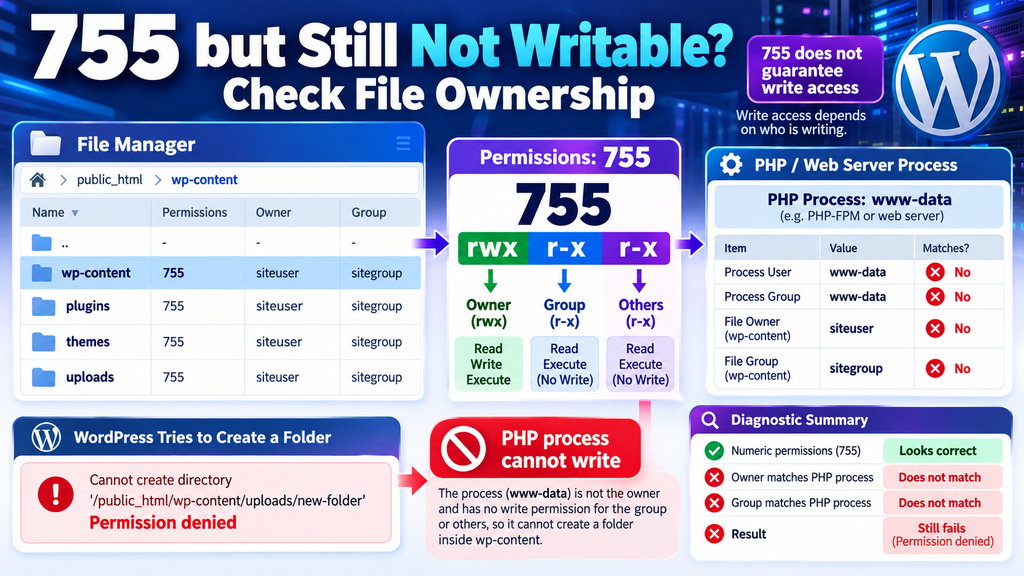
A directory can show 755 and still prevent WordPress from writing.
The reason may be file ownership.
Permissions tell the operating system what the owner, group, and other users may do.
Ownership determines which user and group receive those permissions.
For example, a folder may belong to one hosting account while the PHP process attempting the installation runs under another account.
Even if 755 looks normal, the process may not have write access.
Check Owner and Group
Advanced users can inspect the directory through SSH.
For example, from the correct WordPress installation directory:
ls -ld wp-content
To inspect common subdirectories:
ls -ld wp-content/plugins wp-content/themes wp-content/uploads
If the upgrade directory exists:
ls -ld wp-content/upgrade
These commands display permission and ownership information without changing files.
Do Not Assume www-data Is the Correct Owner
Some tutorials recommend changing ownership to www-data, apache, or nginx.
However, the correct owner depends on your hosting configuration.
On shared hosting, WordPress files may need to belong to the hosting-account user rather than the web-server account.
Do not blindly run recursive chown commands against your entire website. If you do not know the expected owner and group, ask your hosting provider to verify them.
7. Fix the Error After a WordPress Migration
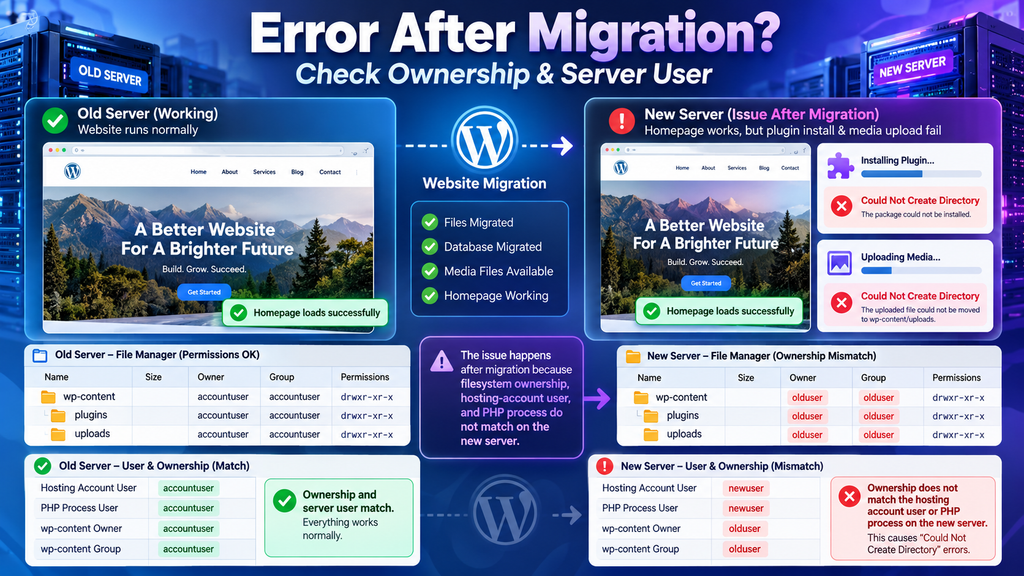
A WordPress migration may appear successful while new write operations fail.
Common symptoms include:
- Existing pages load normally.
- Existing images still work.
- New image uploads fail.
- New plugins cannot be installed.
- Theme updates stop with directory errors.
This can happen when files are transferred to a server with different ownership, account users, filesystem paths, or security controls.
Confirm the Active Installation
A hosting account may contain multiple directories:
public_html/
staging/
old-site/
backup/
Make sure you are inspecting the installation connected to the affected website.
Verify Ownership on the New Server
Check the affected path and its parent.
Compare the owners and groups of:
- wp-content
- plugins
- themes
- uploads
- upgrade, if present
If ownership is inconsistent, do not copy another hosting provider’s recommended user names.
Ask the new provider to confirm the correct PHP user, filesystem owner, group, and access requirements. Then test one small write operation.
8. Fix “Unable to Create Directory” During Media Uploads
Sometimes the error appears when uploading an image or PDF instead of installing software.
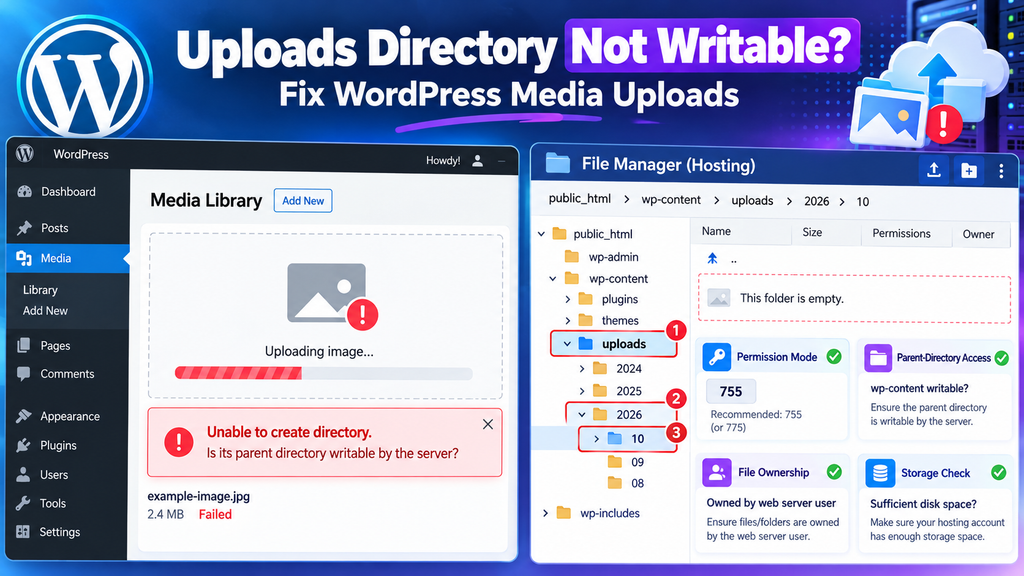
WordPress may display:
Unable to create directory. Is its parent directory writable by the server?
The failed path may be inside:
wp-content/uploads/
WordPress commonly organizes media into year/month folders when that option is enabled.
Check the Uploads Directory
- Open wp-content/uploads.
- Inspect its permissions and ownership.
- Check the parent wp-content directory.
- Confirm storage and file-count limits are not reached.
- Check whether your site uses a custom uploads path.
After correcting the confirmed issue, upload one small image through Media → Add New Media File.
Confirm that the upload completes and the file opens normally.
Do not manually create every month folder as a permanent workaround. For other upload problems, see our WordPress Media Upload Error guide.
9. Check PHP Temporary Storage and WordPress Filesystem Access
WordPress may need temporary storage before it can unpack and install a plugin or theme.
If ZIP installations fail repeatedly while the final plugin and theme directories appear correct, check the temporary-file process.
Possible problems include:
- The PHP temporary directory is unavailable.
- The temporary location has insufficient storage.
- The PHP process cannot write to it.
- The hosting environment restricts the filesystem path.
- WordPress cannot establish the required filesystem connection.
What If WordPress Asks for FTP Credentials?
WordPress includes a Filesystem API that supports different ways to access files depending on hosting configuration.
Some websites use direct filesystem access. Other environments may require a supported connection method.
If WordPress asks for connection information:
- Confirm you are using the expected hosting account.
- Check that the required connection service is available.
- Verify the credentials through your hosting provider’s instructions.
- Review ownership and filesystem-access configuration.
- Avoid forcing a new filesystem method without understanding the server setup.
Do not copy FTP usernames or passwords from examples into wp-config.php.
Do not force FS_METHOD to direct simply to suppress the credentials prompt.
The official WordPress Filesystem API documentation explains why access methods vary between hosting environments.
10. Check WordPress Configuration and Server Restrictions
If storage, directory permissions, and ownership look appropriate, investigate configuration and server-level controls.
Check Whether File Modifications Are Disabled
Review wp-config.php for:
define( ‘DISALLOW_FILE_MODS’, true );
This setting can disable plugin and theme installation and updates through WordPress administration.
It does not mean a directory has the wrong Unix permission mode.
If the setting exists, determine why it was added before changing it. Managed hosting or deployment workflows may intentionally restrict file changes.
Read the official WordPress wp-config.php documentation for details.
Check Server Security and Filesystem Controls
Some installations use additional restrictions, such as:
- PHP filesystem path restrictions
- PHP-FPM user settings
- Access Control Lists (ACLs)
- SELinux rules
- Read-only mounts
- Container restrictions
- Hosting security policies
These are advanced issues.
Do not disable security controls globally just to complete one installation. Use hosting logs or ask an administrator to identify the exact restriction affecting the path.
11. Read Site Health and Error Logs
WordPress Site Health can help identify some update-directory and filesystem problems.
Go to:
Tools → Site Health
Review warnings about filesystem access, temporary backup directories, and available update resources.
Then check hosting or PHP error logs around the time the failed operation occurred.
Useful diagnostic messages may include:
- Permission denied
- No space left on device
- Filesystem quota errors
- Missing temporary directories
- Restricted filesystem paths
A log message often gives more useful information than the short installation error.
Should You Enable WP_DEBUG?
WordPress debugging can help when the failure is not clear, especially on a staging website.
However, turning on WP_DEBUG does not guarantee that every plugin installation error will reveal its complete cause in the browser console.
If temporary debugging is required, use the official Debugging in WordPress guide. Avoid displaying PHP errors to public visitors. Protect diagnostic logs from unauthorized access and disable temporary debugging when finished.
12. What If Only One Plugin or Theme Fails?
If other plugins install normally, the entire hosting filesystem may not be broken.
Look for a problem limited to the affected package.
Check:
- Whether the destination folder already exists
- Whether a previous installation stopped halfway
- Whether the package is valid
- Whether the package came from a trusted source
- Whether a plugin-specific installation process is failing
Could Not Create Directory vs Destination Folder Already Exists
These are different errors.
Could Not Create Directory means WordPress failed to create a required directory.
Destination Folder Already Exists means the installation found an existing folder at the intended location.
Do not immediately delete the existing plugin or theme folder.
Use our Destination Folder Already Exists WordPress guide when that is the actual message.
Can You Install the Plugin Manually?
Manual installation through SFTP may be appropriate when you have a trusted, compatible package and understand the site’s deployment setup.
However, it is not proof that the original server problem has been fixed.
If WordPress still cannot write to its installation directories, future updates may continue failing.
Prefer fixing the underlying filesystem problem rather than relying on manual uploads indefinitely.
13. Complete WordPress Could Not Create Directory Troubleshooting Flow
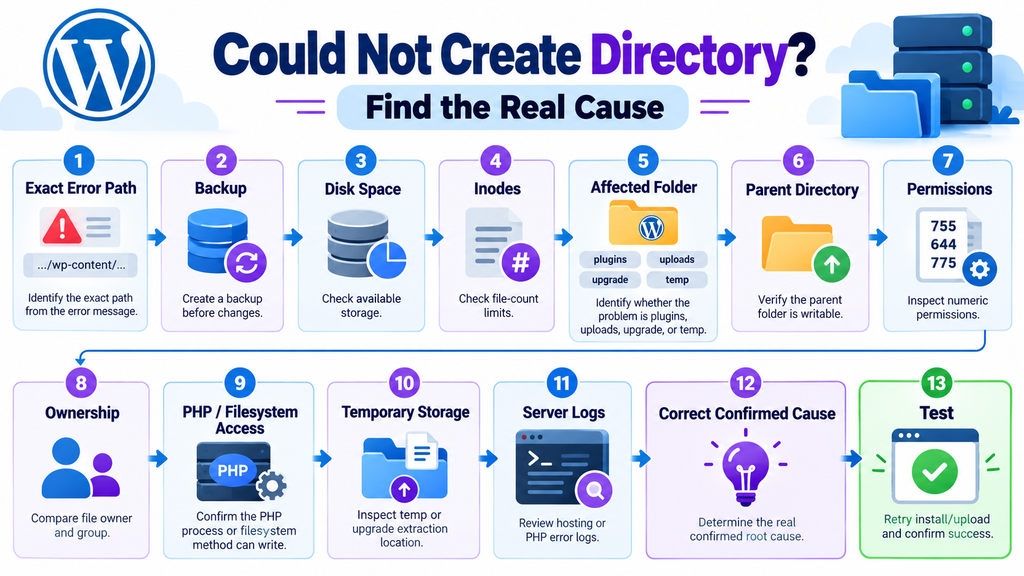
Follow this order to avoid unnecessary changes.
- Copy the exact error. Record the failed task and directory path.
- Back up your website. Protect the files and database before editing.
- Find the active WordPress root. Avoid changing old or staging copies.
- Check disk usage. Confirm the account has enough storage.
- Check inode usage. Make sure the account can create more files.
- Inspect the affected directory. Check whether it exists and what is at that path.
- Inspect its parent. Confirm the relevant process has suitable access.
- Check permissions. Compare them with your hosting setup.
- Check owner and group. Do not guess the correct values.
- Check temporary storage. Especially if plugin or theme ZIP installs fail.
- Review configuration and recent changes. Consider migrations, updates, or disabled file modifications.
- Check server logs. Identify any quota, permission, or filesystem restriction.
- Fix only the confirmed cause. Avoid broad recursive changes.
- Retry one operation. Test the plugin, theme, or media upload that originally failed.
- Verify website health. Check the dashboard and frontend.
Which Symptom Should You Investigate First?
| What happens | Most useful next check |
| Disk Usage is full | Free safe storage or increase quota |
| File Usage is at its limit | Reduce unnecessary files or request more inodes |
| upgrade cannot be created | Parent access and ownership |
| upgrade-temp-backup fails | Site Health, directory access, storage |
| 755 is set but writes fail | Owner/group and PHP process |
| Problem began after migration | New host’s ownership and paths |
| Only uploads fail | uploads directory and custom upload path |
| FTP connection prompt appears | WordPress Filesystem API and hosting method |
| One plugin fails | Package and existing destination |
| Everything looks normal | Hosting logs and server restrictions |
Dangerous WordPress Directory Fixes to Avoid
Avoid these shortcuts:
- Changing the entire WordPress installation to 777
- Running recursive chmod or chown commands without verifying the paths
- Assuming www-data is always the correct owner
- Deleting wp-content
- Removing active plugin or theme folders without a backup
- Deleting unfamiliar server files to free storage
- Forcing FS_METHOD without understanding the hosting environment
- Storing unnecessary FTP passwords in configuration files
- Disabling security controls permanently
- Manually creating every uploads directory
- Reinstalling WordPress without finding the filesystem problem
A temporary workaround can hide the original issue and create more problems later.
The safest solution is the smallest change that corrects the confirmed cause.
How to Prevent the Error From Returning
Monitor Storage and File Usage
Check disk space, inodes, cache growth, and backup storage regularly.
Remove outdated temporary files only after confirming they are no longer needed.
Test Updates After Migration
After migrating a website, verify at least one media upload and a planned plugin or theme update.
This helps detect ownership or write-access problems before they affect other tasks.
Keep Ownership Consistent
Use your hosting provider’s expected ownership and deployment method.
Avoid transferring files under unexpected server accounts.
Keep Backups Before Filesystem Changes
Create reliable backups before migration, permission adjustments, ownership changes, or major server work.
Test higher-risk changes on staging where practical.
Do Not Ignore Repeated Installation Failures
If directory errors keep returning after temporary fixes, check whether your hosting account is repeatedly exhausting storage, file count, or another server resource. Repeated failures deserve a root-cause investigation rather than repeated permission changes.
Still Getting the Could Not Create Directory Error?
If the error remains after checking the path, storage, inodes, permissions, ownership, and temporary directories, your hosting provider may need to investigate.
Send support the following information:
- The operation that failed
- The complete error message
- The affected path
- When the error occurred
- Your current directory permission mode
- Whether disk space or file usage is near its limit
- Whether the issue began after migration or an update
You can use this message:
My WordPress installation shows a “Could not create directory” error when I try to install or update a plugin/theme. The failed path is included in my error details. I have checked the visible directory permissions and storage. Please verify the owner/group, PHP filesystem user, account disk and inode quotas, temporary-directory access, and any relevant server restrictions.
Need Professional WordPress Help?
If you need help with installation errors, plugin updates, filesystem access, or WordPress server problems, visit our WordPress troubleshooting services page.
Final Takeaway: Fix the Cause, Not Just the Permission Number
A WordPress “Could Not Create Directory” error does not always mean the folder permissions are wrong.
The failed operation might involve a temporary extraction directory, a plugin destination, an uploads folder, or an update backup.
Start with the exact error path.
Then check storage, inodes, the affected directory, its parent, ownership, and the server process.
If permissions are already appropriate, stop changing them and look for the real restriction. One careful fix is better than changing hundreds of unrelated files.
Frequently Asked Questions
1. Why does WordPress say “Could Not Create Directory”?
WordPress displays this error when it cannot create a folder required for an installation, update, upload, or other filesystem operation. Permissions, ownership, storage, inode limits, temporary directories, and server restrictions are possible causes.
2. How do I fix “Installation Failed: Could Not Create Directory”?
Find the exact failed path first. Check disk space, inode usage, the parent directory, permissions, ownership, and relevant logs. Correct the confirmed cause before retrying the installation.
3. What permissions should wp-content use?
On many WordPress hosting environments, directories commonly use 755 and regular files use 644. These are starting points, not universal settings. The correct permissions depend on your server’s ownership and access configuration.
4. Why can’t WordPress create wp-content/upgrade?
WordPress may lack access to create or use the upgrade directory, or the hosting account may have reached a storage or inode limit. Inspect wp-content, the existing upgrade directory if present, and the relevant ownership.
5. What is the upgrade-temp-backup directory?
WordPress uses this location to hold temporary backups of plugin or theme files during supported updates. If the update fails, WordPress may restore the previous version. Directory access and sufficient storage are important for this process.
6. Why does the error remain after changing permissions to 755?
Because permission modes do not determine the whole access configuration. The owner or group may be wrong, the PHP process may lack access, or the hosting account may be full.
7. Can inode limits cause WordPress installation errors?
Yes. Some hosting accounts limit how many files and folders they can contain. Even with available disk space, an exhausted file-count allowance can prevent WordPress from creating new directories.
8. Is it safe to set wp-content to 777?
No. 777 provides overly broad write access under standard Unix permissions. It is not a recommended general fix and may leave security risks without solving the underlying problem.
9. Can I manually create the upgrade folder?
In some configurations, manually creating the correct directory may help, but it does not fix wrong ownership, insufficient storage, or server restrictions. Diagnose the problem first.
10. Can FTP or WordPress filesystem settings cause this error?
Yes, depending on how the website accesses its filesystem. WordPress may use direct filesystem access or another supported method. Incorrect configuration or connection problems can stop installation and update operations. Ask your host before forcing a different filesystem method.