


A Blue Screen Error in Windows (BSOD) is one of the most alarming problems users can face. When this error appears, the screen suddenly turns blue, the computer restarts automatically, and unsaved work may be lost.
This issue usually occurs because of driver problems, memory failures, corrupted updates, or damaged system files.
The good news is that most Blue Screen Error in Windows problems can be fixed at home without advanced technical skills. In this guide, you will learn simple and safe troubleshooting steps that beginners can follow to diagnose and fix BSOD crashes.
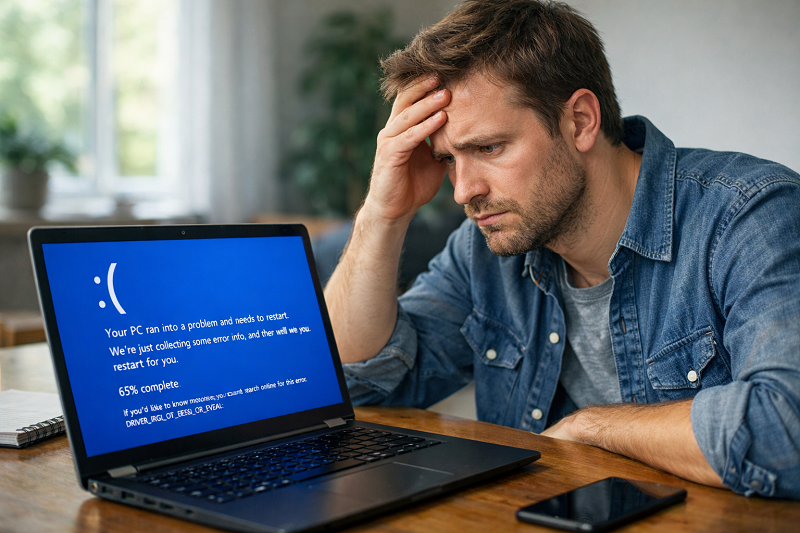
Common Reasons for Blue Screen Error
Blue screen errors usually happen because of these reasons:
Driver problems
Old or faulty drivers are the #1 cause.
Windows update issues
A broken update can crash Windows.
RAM or hard disk problems
Bad RAM or disk errors can trigger BSOD.
Overheating
High temperature can crash the system.
Malware
Malware can damage system files and drivers.
👉 If your laptop is also slow, this guide helps:
How to Fix Laptop Running Slow
Step 1 – Restart and Note the Error Code
The STOP code helps you identify whether the problem is related to drivers, hardware, or system files.
What to do
- Restart your PC
- If blue screen appears again, note the STOP code
- The STOP code helps you find the real cause
- This is important because different codes mean different problems.
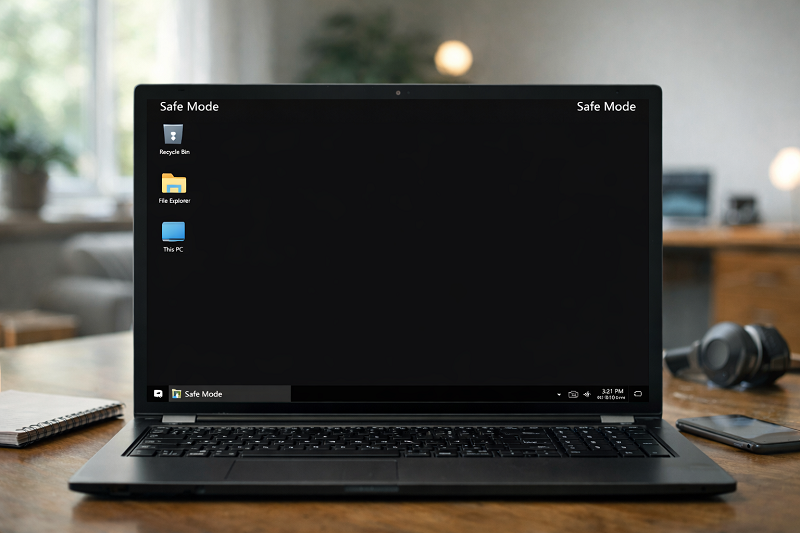
Step 2 – Boot into Safe Mode
Why safe mode helps
Safe mode runs Windows with minimum drivers. If BSOD stops in safe mode, the problem is usually a driver or software issue.
Step 3 – Update Drivers (Most Important Fix)
Steps:
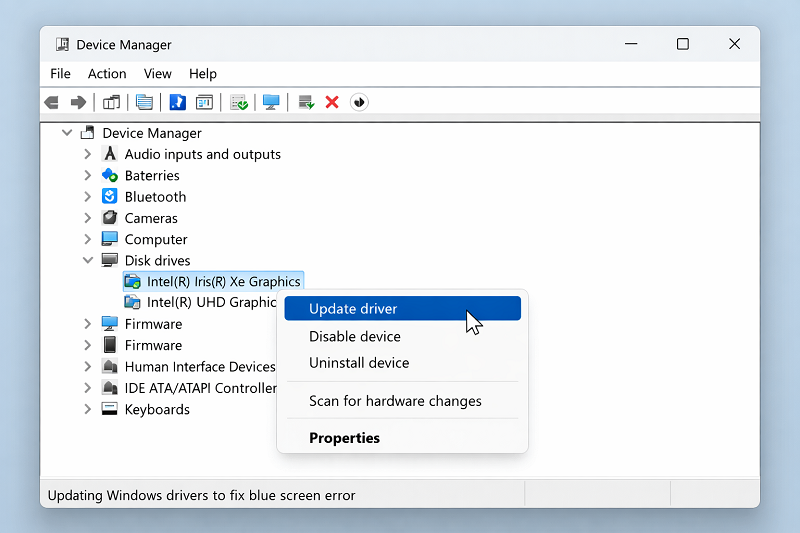
Open Device Manager
- Open Device Manager
- Expand Display adapters and Network adapters
- Right-click → Update driver
- Restart PC
👉 Windows official driver helps (best reference):
Step 4 – Check RAM and Disk Health
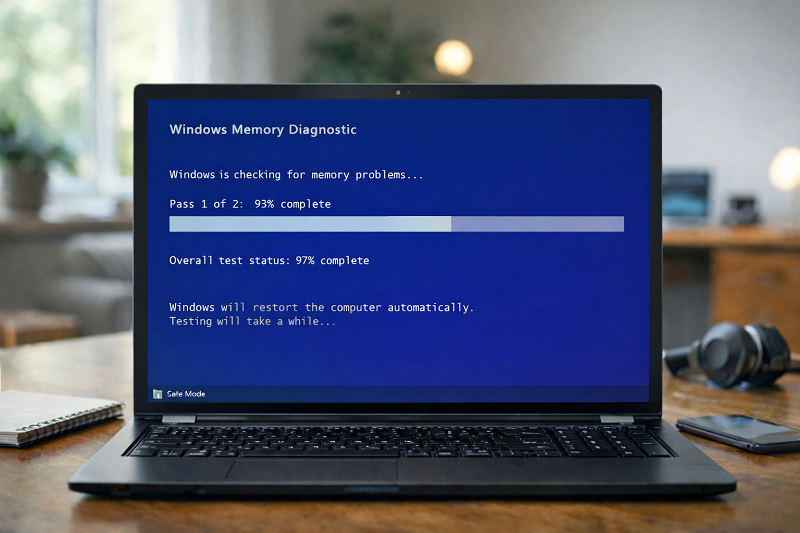
Check RAM (Windows Memory Diagnostic)
- Press Windows + R
- Type mdsched.exe
- Restart and scan RAM
Check Disk
Run this command in Command Prompt (Admin): chkdsk /f /r
👉 Official Microsoft guide for memory test:
https://www.microsoft.com/en-us/surface/do-more-with-surface/how-to-use-windows-memory-diagnostic
Step 5 – Fix Windows Update or Roll Back Recent Update
Sometimes BSOD starts after an update.
What to do
Open Windows Update history
If BSOD started after a specific update, uninstall that update
👉 If your Windows update is stuck, use this guide:
How to Fix Windows Update Stuck
Step 6 – Scan for Malware
Malware can break system files.
What to do
- Run a full scan with Windows Security
- Remove threats
- Restart PC
Need Professional Help?
If blue screen keeps coming back, expert help can save your time.
WordPress Services:
https://problemfixer.net/wordpress-services/
AI Tools Services:
https://problemfixer.net/ai-tools-services/
SEO Tools Services:
https://problemfixer.net/seo-tools-services/
You can also contact us on WhatsApp if you need help fixing system issues or getting tools at a lower price.
Conclusion
Blue Screen Error in Windows looks scary, but most causes are fixable. Start with Safe Mode, then update drivers, check RAM/disk, and review recent updates. These steps solve most BSOD problems for beginners.
FAQs
Is blue screen error serious?
Sometimes yes, but many cases are caused by drivers or updates and are fixable.
Can a Windows update cause BSOD?
Yes. A broken or incomplete update can trigger blue screen errors.
Should I replace RAM immediately?
No. First run the RAM diagnostic test, then decide.
Will reinstalling Windows fix it?
In many cases yes, but try these steps first.


Please Contact on WhatsApp
Please go Contact us page we already give WhatsApp Number